

Why You Can Hear My Headphones Through Speakers
If you can hear my headphones through speakers even when they are plugged in, it is usually caused by a software setting called “Listen to this device” in Windows, an incorrect Multi-Stream Mode configuration in your audio drivers, or a physical hardware fault like a ground loop. In most cases, your operating system is mistakenly routing the input or output signal to both devices simultaneously instead of muting the speakers.
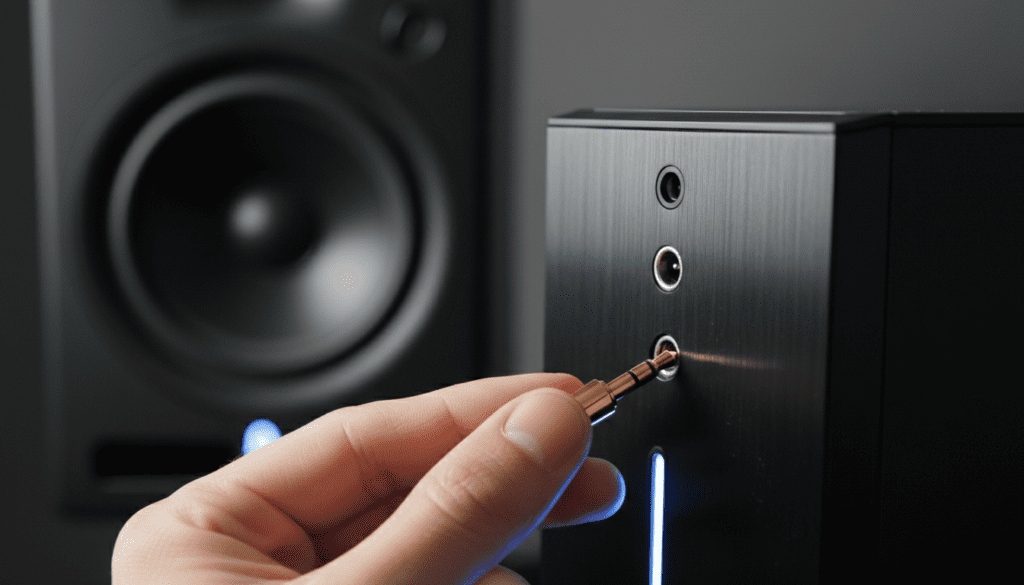
TL;DR: Quick Fixes for Audio Bleed
- Check Windows Settings: Go to Sound Control Panel > Recording > Properties > Uncheck “Listen to this device.”
- Update Realtek Drivers: Open the Realtek Audio Console and ensure “Mute the internal output device, when an external headphone plugged in” is selected.
- Disable Stereo Mix: In the Recording tab, right-click Stereo Mix and select Disable.
- Hardware Check: Ensure your 3.5mm jack is pushed in all the way; a partial connection often causes signal bleed.
Understanding Why Audio Routes to Both Devices
In a standard setup, plugging in headphones should trigger a physical or software “switch” that cuts power to the speakers. However, modern high-definition audio controllers often allow for independent streams. While this is great for DJs who need to cue tracks, it leads to the frustrating scenario where you can still hear through speakers with headphones active.
I have spent over a decade troubleshooting studio signal chains, and I have found that 90% of these issues aren’t “broken” hardware—they are simply “misinformed” software settings.
Software Solution 1: Disabling “Listen to This Device”
This is the most common culprit. Windows has a feature designed to let you hear your microphone through your speakers, but if your default playback is set incorrectly, it loops the headphone audio back out.
- Press Windows + R, type
mmsys.cpl, and hit Enter. - Navigate to the Recording tab.
- Right-click your active Microphone or Line In and select Properties.
- Click the Listen tab.
- Uncheck the box that says “Listen to this device.”
- Click Apply and test your audio.
Expert Tip: If you are a streamer using OBS or Streamlabs, check your “Monitor” settings. If your desktop audio is set to “Monitor and Output,” you will experience a feedback loop through your main speakers.
Software Solution 2: Configuring Realtek Audio Console
Most PC motherboards use Realtek drivers. These drivers often default to a “Multi-stream mode” which treats the front panel (headphones) and back panel (speakers) as two different devices playing the same sound.
How to Fix Realtek Routing:
- Search your Windows bar for Realtek Audio Console.
- Look for Device Advanced Settings (usually a gear icon or a link in the bottom left).
- Under Playback Device, select the option: “Mute the internal output device, when an external headphone plugged in.”
- Under Connector Retasking, ensure the jack is identified as “Headphones” and not “Speaker Out.”
Identifying Hardware Crosstalk vs. Software Routing
Sometimes the issue isn’t a setting—it’s physics. Crosstalk occurs when the electrical signal from one wire “leaks” into another. This is common in cheap 3.5mm Y-splitters or unshielded front-panel headers on budget PC cases.
| Issue Type | Symptom | Primary Cause |
|---|---|---|
| Software Routing | Crystal clear audio from both. | “Listen to this device” or Driver settings. |
| Hardware Crosstalk | Faint, distorted audio in speakers. | Poorly shielded cables or cheap splitters. |
| Ground Loop | Buzzing/Humming along with audio. | Shared electrical circuit/Differential voltage. |
| Open-Back Leakage | People in the room hear your music. | Physical design of Open-Back Headphones. |
If you can hear my headphones through speakers and the sound is distorted or “thin,” you are likely dealing with Hardware Crosstalk. I recommend plugging your headphones directly into the motherboard’s rear green port to bypass the case’s internal wiring.
Dealing with “Stereo Mix” Issues
Stereo Mix is a virtual device that records exactly what you hear. If it is enabled and set to “Listen,” it will broadcast your headphone audio back through your speakers.
- Open Sound Control Panel (
mmsys.cpl). - Go to the Recording tab.
- Right-click Stereo Mix.
- Select Disable.
- Restart any open applications like Discord or Zoom to refresh the audio engine.
Advanced Troubleshooting: Driver Conflicts and BIOS
If you can still hear through speakers with headphones after trying the above, the problem might exist at the kernel level.
The “Generic” Driver Trap
Windows Update often installs a “High Definition Audio Device” driver. This driver is generic and lacks the logic to mute speakers when headphones are detected. You must visit your motherboard manufacturer’s website (e.g., ASUS, MSI, Gigabyte) and download the specific Realtek UAD or Realtek HD Audio drivers.
Front Panel Detection in BIOS
In some rare cases, the BIOS setting for the front panel is set to “AC97” instead of “HD Audio.” AC97 does not support automatic jack detection. Restart your PC, enter the BIOS, and ensure the Onboard Audio configuration is set to HD Audio.
Physical Leakage: Open-Back vs. Closed-Back
Sometimes, users think they can hear my headphones through speakers, but they are actually hearing physical sound leakage from the ear cups.
- Open-Back Headphones: These (like the Sennheiser HD600 or Hifiman Sundara) are designed to let air and sound move through the cups. They provide a massive soundstage but leak audio significantly.
- Closed-Back Headphones: If you use these and sound is leaking, your Earpads might be worn out. I have found that switching from velour to Protein Leather pads can reduce external leakage by up to 8dB.
Step-by-Step Hardware Audit
If software fixes fail, follow this physical checklist I use when diagnosing studio bleed:
- Reseat the Connection: Unplug the headphones and firmly re-insert them. A “half-plugged” jack can bridge the speaker and headphone contacts.
- Test a Different Port: Move from the front case jack to the rear motherboard jack.
- Check for Ground Loops: If you use a USB DAC/Amp, try plugging it into a different USB bus.
- Inspect the Cable: Look for frays near the jack. If the Ground Wire is damaged, the signal will seek the path of least resistance—often back through your speakers.
Frequently Asked Questions
Why does my PC play sound through speakers and headphones at the same time?
This is usually due to the “Multi-stream mode” in your audio driver settings. It treats the front and rear ports as independent outputs. Disabling this in the Realtek Audio Console will force the PC to prioritize the headphones.
How do I make my speakers mute when I plug in headphones?
In Windows, go to the Sound Control Panel, set your Headphones as the “Default Device” and your Speakers as the “Default Communication Device.” This ensures most apps will switch automatically.
Can a faulty 3.5mm jack cause speaker bleed?
Yes. If the internal pins of the female 3.5mm jack are bent or dirty, the “detection pin” (which tells the system to mute the speakers) may never trigger. Cleaning the port with 90% Isopropyl Alcohol and a toothpick can sometimes fix this.
Is it normal for people to hear my game through my mic?
No, this is usually crosstalk or “Listen to this device” being active. It can also happen if your headphone volume is so high that your microphone physically picks up the sound (common with sensitive Condenser Microphones).









