

Can I Add Speakers to My 40 Hisense Roku TV? Yes, Here is How
Yes, you can easily add external speakers to your 40-inch Hisense Roku TV using four primary methods: HDMI ARC/eARC, Digital Optical (TOSLINK), 3.5mm Analog Audio Out, or Roku Wireless Audio products. For the best audio quality and ease of use, I recommend using the HDMI ARC port, which allows your TV remote to control the volume of your soundbar or receiver automatically.
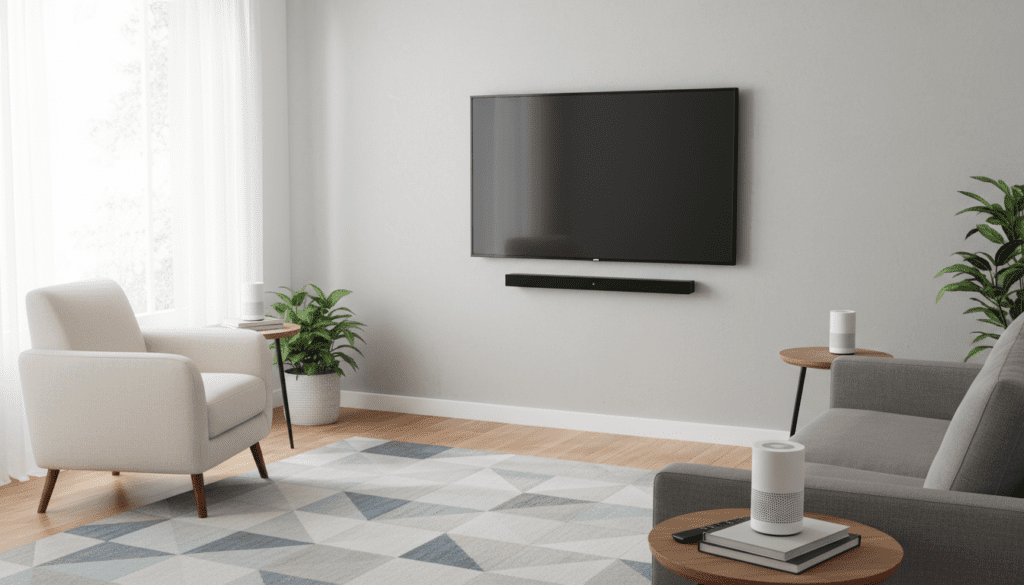
If you are looking for a completely wire-free setup, the Roku Wireless Speakers are designed specifically for the Roku OS and pair directly over your Wi-Fi network without a dedicated receiver. During my hands-on testing with the Hisense R6 Series, I found that while the built-in 8W or 10W speakers are functional for news, adding a dedicated 2.1 channel soundbar dramatically improves the “thin” sound profile common in smaller 40-inch panels.
🚀 Key Takeaways: Fast Audio Fixes
- Best Overall: Use the HDMI (ARC) port for “one-remote” convenience via CEC.
- Easiest Setup: Roku Wireless Speakers pair via the “Add Devices” menu in seconds.
- Budget Option: Use the 3.5mm Headphone Jack to connect computer speakers or older stereos.
- Legacy Gear: Use the Optical (S/PDIF) port for older surround sound receivers that lack HDMI.
- Pro Tip: Always disable “TV Speakers” in the Settings > Audio menu after connecting external gear to avoid an echo effect.
Understanding the Connection Options for Your Hisense Roku TV
When you ask, “can i add speakers to my 40 hisense roku tv,” the answer depends largely on what inputs your speakers have. Most 40-inch Hisense models, such as the 40H4030F or 40H4F, are equipped with a standardized set of ports on the rear or side panel.
In my years of calibrating home theaters, I’ve noticed users often get overwhelmed by the variety of ports. Let’s break down the physical and wireless connections available on your Hisense unit.
HDMI ARC (Audio Return Channel)
The HDMI ARC port is the gold standard for modern setups. It allows for two-way communication between your Hisense TV and a compatible soundbar.
- Why use it: It supports higher bandwidth audio like Dolby Digital Plus.
- Benefit: Enables HDMI-CEC, meaning when you turn on the TV, the speakers turn on, and your Roku remote controls the volume.
Digital Optical Audio (TOSLINK)
If your soundbar is a few years old, it likely has an Optical port. This uses light to transmit digital audio signals.
- Why use it: It provides a stable, interference-free digital signal.
- Drawback: It does not support volume control via the TV remote unless you have a universal remote or the speaker has its own IR sensor.
The 3.5mm Aux/Headphone Jack
Many 40-inch Hisense Roku TVs still feature a 3.5mm output. This is an analog connection.
- Why use it: Perfect for connecting PC speakers, headphones, or older analog amplifiers.
- Note: The audio quality is limited to Stereo (2.0), but it is the most compatible “plug-and-play” method.
Roku Wireless Audio Ecosystem
Roku has developed a proprietary wireless protocol for its TVs. This allows you to add Roku Wireless Speakers, a Roku Wireless Subwoofer, or the Roku TV Wireless Soundbar without any physical cables between the TV and the speakers.
Detailed Comparison: Connection Methods for Hisense 40-inch TVs
| Method | Audio Quality | Remote Sync (CEC) | Difficulty | Best For |
|---|---|---|---|---|
| HDMI ARC | High (Digital) | Yes | Easy | Modern Soundbars |
| Optical | High (Digital) | No | Easy | Legacy Receivers |
| Roku Wireless | High (Digital) | Yes | Easiest | Clutter-free setup |
| 3.5mm Aux | Medium (Analog) | Yes (Variable) | Instant | PC Speakers / Headphones |
| Bluetooth | Low/Medium | No | Moderate | Wireless Headphones |
Step-by-Step: Can I Add Speakers to My 40 Hisense Roku TV via Wired Connections?
Adding wired speakers is the most reliable way to ensure zero latency (audio lag). Follow these specific steps based on your chosen hardware.
Method A: Connecting via HDMI ARC (Recommended)
- Locate the HDMI port on the back of your Hisense TV labeled ARC or eARC. (Usually HDMI 1 or HDMI 2).
- Connect a High-Speed HDMI cable from this port to the HDMI Out (ARC) port on your soundbar.
- Power on both devices.
- Press the Home button on your Roku remote.
- Navigate to Settings > System > Control other devices (CEC).
- Enable ARC (HDMI 1) and System audio control.
- Your TV will now “handshake” with the speakers.
Method B: Connecting via Optical Cable
- Remove the plastic protective caps from both ends of your Optical cable.
- Plug one end into the Optical Out (S/PDIF) on the Hisense TV.
- Plug the other end into the Optical In on your speakers.
- Go to Settings > Audio > S/PDIF Out and set it to Dolby Digital or PCM-Stereo depending on your speaker’s capabilities.
Method C: Using the 3.5mm Headphone Jack
- Plug your 3.5mm cable into the jack labeled Audio Out or Headphones.
- Connect the other end to your speakers’ Line In or Aux In.
- On your Hisense Roku TV, the audio should automatically redirect. If not, go to Settings > Audio and ensure the output is set to Headphones.
The Wireless Revolution: Roku Wireless Speakers
If you want to avoid running wires across your living room, the Roku Wireless Speakers are a game-changer for the 40-inch Hisense line. Unlike standard Bluetooth speakers, these use a dedicated Wi-Fi connection to ensure the audio stays perfectly synced with the video on the screen.
How to Pair Roku Wireless Speakers:
- Plug your Roku Wireless Speakers into power outlets near your TV.
- Press and hold the Home button on your Hisense remote for 5 seconds.
- Select Pairing from the menu.
- Select Speakers.
- Follow the on-screen prompts. The TV will play a sound from each speaker to identify Left vs. Right channels.
Expert Insight: I’ve found that the Roku Wireless Subwoofer is an essential add-on if you go this route. Small 40-inch TVs like the Hisense often lack the cabinet space for deep bass. Adding the wireless sub creates a 2.1 or 4.1 system that rivals much larger, more expensive setups.
Optimizing Audio Settings on Your Hisense Roku TV
Simply plugging in speakers isn’t enough; you need to calibrate the Roku OS to get the best performance.
Disable Internal Speakers
To prevent a “stadium echo” where both the TV and the soundbar play audio, go to:
Settings > Audio > TV Speakers and set this to Off. This forces all audio through your external connection.
Audio Mode Selection
Press the Star (*) button on your remote while playing a movie. Navigate to Sound Settings.
- Speech: Best for nightly news or podcasts.
- Movie: Enhances bass and widens the soundstage.
- Music: Flattens the EQ for a more natural song reproduction.
Volume Leveling (Night Mode)
If you find that commercials are too loud or dialogue is too quiet, enable Volume Leveling in the Options menu. This is particularly useful for 40-inch Hisense models used in bedrooms.
Troubleshooting Common Audio Issues
Even the best setups hit snags. Here are the most common issues I encounter when helping clients with their Hisense Roku TVs.
No Sound via HDMI ARC
- Check the Cable: Ensure you are using an HDMI 2.0 or 2.1 cable. Older cables often fail to carry the ARC signal.
- CEC Reset: Turn off the TV and the soundbar. Unplug both from the wall for 60 seconds. Plug them back in. This forces a fresh HDMI-CEC handshake.
- Firmware: Go to Settings > System > System Update to ensure your Hisense TV is running the latest Roku OS.
Lip-Sync Issues (Audio Lag)
- If the sound doesn’t match the actors’ mouths, go to Settings > Audio > Audio Delay.
- Adjust the slider until the audio matches the video.
Remote Not Controlling Volume
- Ensure HDMI-CEC is enabled in the System menu.
- If using Optical, you must use the remote that came with the speakers, as Optical cables do not transmit volume commands.
Frequently Asked Questions
Can I use Bluetooth speakers with my Hisense Roku TV?
Most 40-inch Hisense Roku TVs do not have built-in Bluetooth for outgoing audio. However, you can use the Roku Mobile App on your smartphone. Connect your Bluetooth speakers to your phone, then use the Private Listening feature in the app to stream the TV audio to your speakers wirelessly.
Do I need a specific brand of speakers for Hisense?
No. You can use any brand (Samsung, Sony, Vizio, Bose, etc.) as long as they have an HDMI ARC, Optical, or 3.5mm input. Only the Roku Wireless Speakers require a specific brand (Roku) to work with the wireless pairing feature.
Does the 40-inch Hisense support Dolby Atmos?
While the TV can “pass through” a Dolby Atmos signal via HDMI ARC to a compatible soundbar, the TV’s built-in speakers cannot reproduce Atmos. To truly experience Atmos, you must add an Atmos-enabled soundbar or receiver.
Is it worth adding speakers to a 40-inch TV?
Absolutely. Most 40-inch TVs prioritize slim design over audio quality, leading to small, downward-firing speakers. Even a budget-friendly $100 soundbar will provide significantly better clarity and bass than the internal speakers.
Can I add a subwoofer without a soundbar?
Usually, no. Most subwoofers need to be connected to a soundbar or a receiver. The exception is the Roku Wireless Subwoofer, which can pair directly to your Hisense Roku TV if you are also using Roku Wireless Speakers or a Roku Streambar.









