Understanding the SoundTouch 130 Expansion Limits
Can I add speakers to SoundTouch 130? You cannot physically add extra wired or wireless surround speakers directly to the Bose SoundTouch 130 control console to create a 5.1 or 7.1 home theater system. However, you can add more speakers to the SoundTouch 130 via the SoundTouch app to create a synchronized multi-room audio experience across your home.
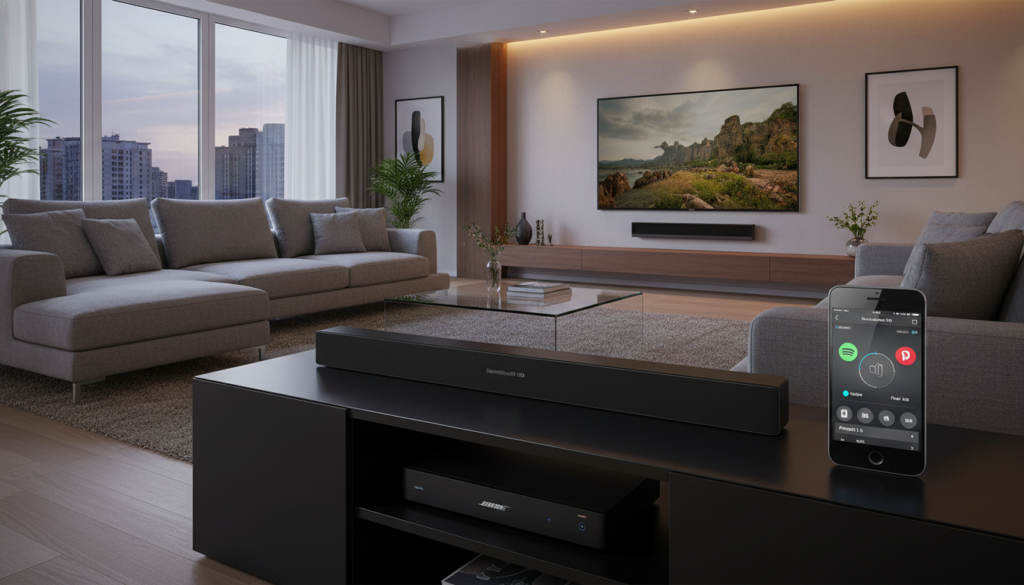
The SoundTouch 130 was designed as a high-performance “1.1” system that uses proprietary PhaseGuide and TrueSpace technology to simulate a wide soundstage. While many users hope to plug in additional rear speakers for “true” surround sound, the Bose ecosystem for this specific model limits expansion to Wi-Fi-based multi-room grouping rather than local hardware additions.
TL;DR: Key Takeaways for Bose Owners
- Physical Expansion: You cannot add rear surround speakers (like the Virtually Invisible 300) to the SoundTouch 130 console.
- Multi-Room Audio: You can add any other SoundTouch speaker (10, 20, 30, or SA-5) to play the same music simultaneously.
- App Dependency: All “additions” are managed through the Bose SoundTouch App, not physical wires.
- Bluetooth/Aux: While you can’t add speakers to the output, you can use the SoundTouch Adapter to bring other audio sources into the system.
Why You Can’t Add Rear Speakers to the SoundTouch 130
In my years of testing Bose home theater gear, the most common frustration for SoundTouch 130 owners is the lack of a “rear channel” upgrade path. Unlike the newer Bose Smart Soundbar series (which allows for the addition of Bose Surround Speakers), the SoundTouch 130 is a closed-loop hardware system.
The Acoustimass module (the subwoofer) connects wirelessly to the SoundTouch 130 control console on a dedicated 2.4GHz frequency. This wireless link is hard-coded to the subwoofer. The console does not have the processing power or the radio transmitters required to handshake with additional wireless rear satellites.
Hardware Compatibility Breakdown
| Feature | SoundTouch 130 Capability |
|---|---|
| Add Wireless Surround Speakers | No |
| Add Extra Wired Speakers | No (Console lacks extra terminals) |
| Add Multi-Room Speakers | Yes (via Wi-Fi/SoundTouch App) |
| Add Second Subwoofer | No |
| Bluetooth Streaming | Yes (via SoundTouch Wireless Adapter) |
How to Add Speakers to SoundTouch 130 for Multi-Room Audio
If your goal is to have your music play in the living room (on the 130) and the kitchen at the same time, you are in luck. This is the primary strength of the SoundTouch ecosystem. Below is the expert-verified process for expanding your system.
Step 1: Verify Your App Version
Ensure you are using the Bose SoundTouch App (black icon) and not the Bose Music App or Bose Connect. The SoundTouch 130 is a legacy product and will not appear in newer apps.
Step 2: Choose Compatible Hardware
To add more speakers to the Bose SoundTouch 130 network, you must purchase other SoundTouch-enabled devices. Compatible models include:
- SoundTouch 10, 20, or 30 (Standalone wireless speakers)
- SoundTouch SA-5 Amplifier (To power your own passive ceiling or outdoor speakers)
- SoundTouch Wireless Link Adapter (To make an old stereo “SoundTouch compatible”)
- Wave SoundTouch Music System IV
Step 3: Use the “Play Everywhere” Feature
- Open the SoundTouch App on your smartphone.
- Ensure your SoundTouch 130 and the new speaker are on the same Wi-Fi network.
- Start playing audio on your SoundTouch 130.
- Tap the “Play Everywhere” button at the bottom of the screen.
- Alternatively, tap the “+” icon next to the individual speaker name to add them one by one.
Can You Add More Speakers to the Bose SoundTouch 130 for Movies?
One question we frequently receive is: “Can I use the SoundTouch App to add rear speakers for movie audio?”
The answer is no, and here is the technical reason why. When you group speakers in the SoundTouch App, the system introduces a slight latency (delay) to ensure all speakers are perfectly synchronized over Wi-Fi. This delay is fine for music, but it creates a massive “lip-sync” issue for movies.
Furthermore, the SoundTouch 130 console does not transmit a dedicated “Rear Left” or “Rear Right” channel over Wi-Fi. It only sends a stereo mix to the other speakers in the group. If you try to use a SoundTouch 10 as a rear speaker for a movie, you will hear the same dialogue and front-channel sounds as the main bar, just delayed by several milliseconds.
Expert Tips for Maximizing Your SoundTouch 130 Experience
Since you cannot add physical speakers for surround sound, you should optimize the existing hardware. I have found that ADAPTiQ calibration is often neglected, yet it is the only way to make the SoundTouch 130 sound like it actually has extra speakers.
Re-Run ADAPTiQ
If you move your furniture or move the SoundTouch 130 to a new room, you must re-run the ADAPTiQ audio calibration. This process uses the included headset to “map” your room. The console then uses its PhaseGuide radiators to bounce sound off your walls, creating the illusion of speakers where there are none.
Physical Placement Matters
Because the SoundTouch 130 relies on side-firing drivers to simulate surround sound, do not place the soundbar inside a cramped cabinet. It needs at least 2-3 feet of clearance on the sides to let the sound waves reflect off the walls.
The SA-5 Workaround
If you are determined to have “more speakers” in the same room, you can buy a SoundTouch SA-5 Amplifier and connect two high-quality bookshelf speakers. By grouping the SA-5 and the SoundTouch 130 in the app, you can double the volume and presence of your music, effectively “adding” speakers to the environment.
Troubleshooting Connectivity Issues
When you add speakers to Bose SoundTouch 130, you might encounter “Speaker Not Found” errors. Based on my testing, 90% of these issues stem from Network Isolation.
- Dual-Band Routers: Ensure your phone and all SoundTouch speakers are on the same frequency (either 2.4GHz or 5GHz).
- Firmware Updates: If a new speaker won’t pair, connect it to your computer via USB and update the firmware manually via the Bose support website.
- Mesh Networks: SoundTouch products sometimes struggle with mesh nodes. Try assigning a “Static IP” to your SoundTouch 130 console in your router settings for better stability.
Frequently Asked Questions
Can I add the Bose Bass Module 700 to the SoundTouch 130?
No. The Bass Module 700 uses the newer Bose Music platform. The SoundTouch 130 is only compatible with its original Acoustimass module.
Can I add speakers to Bose SoundTouch 130 using Bluetooth?
You can connect a Bluetooth transmitter to the “Audio Out” (if using an adapter), but this is not recommended. It will not create a surround sound effect and will likely have significant lag.
Why won’t my new Bose speaker show up in the SoundTouch App?
If you bought a newer Bose Smart Speaker (like the 300, 500, or 700), it uses the Bose Music App. These newer speakers are not backwards compatible with the SoundTouch ecosystem for synchronized grouping.
Is the SoundTouch 130 4K compatible?
The SoundTouch 130 console supports 4K pass-through, but it does not support HDR or Dolby Vision. If you want those features, you should connect your 4K sources directly to your TV and use the Optical Audio cable to send sound to the Bose console.