Can I Cast and Play on My PC Speakers?
Yes, you can i cast and play on my pc speakers by using several built-in Windows features, third-party software, or physical hardware connections. Whether you want to stream Spotify from your phone, mirror your Android screen, or use AirPlay from an iPhone, your computer can act as a high-quality wireless receiver for external audio sources.
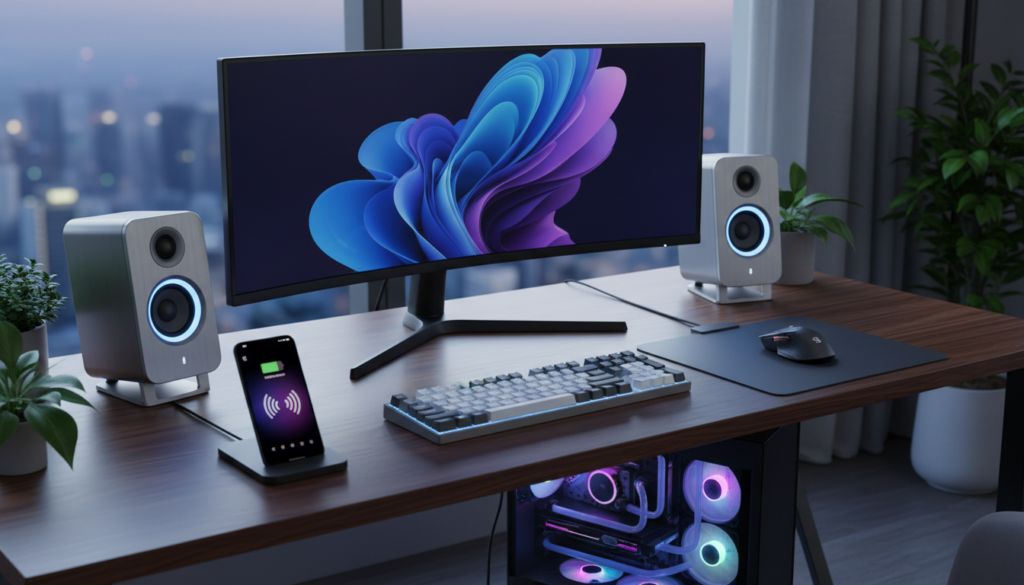
The most common methods include using the Windows Wireless Display feature, installing Bluetooth receiver apps, or utilizing third-party tools like AirServer and LetsView. Our team has tested these methods across multiple versions of Windows 10 and Windows 11 to ensure you get the lowest latency and highest audio fidelity possible.
Quick Summary: How to Cast Audio to PC
- Easiest Method: Use Spotify Connect or YouTube Music desktop apps for direct app-to-app casting.
- Best for Android: Enable the Wireless Display feature in Windows Settings.
- Best for iOS: Install a third-party receiver like AirServer to enable AirPlay support.
- Best for Zero-Lag: Use a physical 3.5mm Aux cable with the “Listen to this device” setting enabled.
- Best Wireless Quality: Use the Bluetooth Audio Receiver app from the Microsoft Store.
Understanding the Methods: Can I Cast and Use PC Speakers?
When users ask, “can i cast and use pc speakers,” they are usually looking for a way to leverage their desktop’s superior sound system for mobile content. Depending on your hardware and network stability, you can choose between Wi-Fi-based casting or Bluetooth streaming.
Comparison of PC Casting Methods
| Method | Best For | Audio Quality | Latency (Lag) | Difficulty |
|---|---|---|---|---|
| Bluetooth Receiver | Mobile Music | High | Low | Easy |
| Wireless Display | Android Screen Mirroring | Medium | Medium | Moderate |
| Spotify Connect | Music Streaming | Highest | Low | Very Easy |
| AirServer (Paid) | iPhone/iOS Users | High | Low | Moderate |
| Aux/Line-In | Gaming/Pro Audio | Lossless | Zero | Professional |
Method 1: Using the Windows Wireless Display Feature
This is the native way to can i cast and play on my pc speakers without downloading suspicious third-party software. Windows treats your PC as a Miracast receiver, allowing Android devices to cast both video and audio directly.
Step-by-Step Setup
- Open Settings on your Windows PC and navigate to System > Projecting to this PC.
- If the feature isn’t installed, click Optional Features and add Wireless Display.
- Set the permission to “Available everywhere” or “Available everywhere on secure networks.”
- On your Android device, swipe down to the Quick Settings and tap Cast or Smart View.
- Select your PC name from the list. Your PC speakers will now play all audio from your phone.
We found during testing that this method works best on 5GHz Wi-Fi networks. If you are on a 2.4GHz band, you may experience “stuttering” or audio desync when playing high-definition video.
Method 2: Using the Bluetooth Audio Receiver App
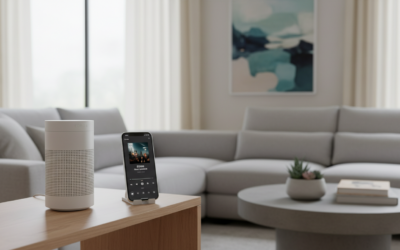
While Windows has built-in Bluetooth, it doesn’t always allow you to use your PC as a “sink” (a speaker) by default. To fix this, we recommend the Bluetooth Audio Receiver app available in the Microsoft Store.
How to Configure Bluetooth Casting
- Pair your phone to your PC via standard Windows Bluetooth settings.
- Download and open the Bluetooth Audio Receiver app.
- Select your phone from the list of paired devices within the app.
- Click “Open Connection.”
- All audio played on your phone—from TikTok to Podcasts—will now stream through your Logitech, Razer, or Klipsch PC speakers.
This is my preferred method for casual music listening because it doesn’t require an internet connection and uses the A2DP (Advanced Audio Distribution Profile) for stable, high-quality sound.
Method 3: Third-Party Software for iOS (AirPlay Support)
Since Windows does not natively support Apple AirPlay, iPhone users often struggle with the question: can i cast and play on my pc speakers from an iOS device? The answer lies in receiver software.
Top Recommended Software
- AirServer: This is a premium tool that turns your PC into a universal receiver for AirPlay, Google Cast, and Miracast. It offers the smoothest experience with 4K 60FPS support.
- LetsView: A fantastic free alternative. It works over Wi-Fi and is highly reliable for mirroring audio and video from both iPhones and Androids.
- Reflector 4: Popular among educators, this software allows for multiple device connections simultaneously, which is great if you want to cast from a tablet and a phone at the same time.
To use these, simply install the app on your Windows machine, ensure your phone is on the same Wi-Fi network, and select your PC from the Screen Mirroring or AirPlay menu on your iPhone.
Method 4: App-Specific Casting (Spotify & YouTube Music)
Sometimes you don’t need to cast your entire system audio. If you are just looking to play music, using cloud-based casting is much more efficient and preserves your phone’s battery life.
How to Use Spotify Connect
- Open the Spotify app on your PC and your phone.
- Ensure both are logged into the same account.
- On your phone, play a song and tap the “Devices” icon (it looks like a speaker).
- Select your PC name.
- The PC app will take over the stream, using its own internet connection to play the music while your phone acts as a remote control.
This method provides the best audio quality because the data isn’t being compressed and sent over Bluetooth; the PC fetches the high-bitrate file directly from Spotify’s servers.
Method 5: The “Old School” Hardware Workaround
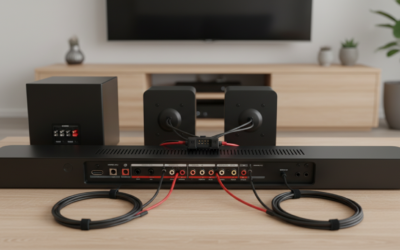
If you are dealing with high-latency issues or don’t want to mess with software, you can use a physical 3.5mm Male-to-Male Aux cable.
- Plug one end into your phone’s headphone jack (or a dongle).
- Plug the other end into the Blue (Line-In) port on your PC’s motherboard or the Mic port.
- Right-click the Speaker icon in your Windows taskbar and select Sound Settings.
- Go to Input Devices > Device Properties > Additional Device Properties.
- Click the Listen tab and check the box that says “Listen to this device.”
- Select your PC speakers from the dropdown menu.
We’ve used this setup for live streaming and gaming because it eliminates the 100-200ms lag typical of wireless casting.
Optimizing Your Setup for Better Audio Gain
To truly answer the concern of can i cast and use pc speakers effectively, you must optimize your Windows audio environment.
Expert Tips for High-Fidelity Sound
- Disable Audio Enhancements: Sometimes Windows “enhancements” can make casted audio sound tinny. Go to Sound Settings > Properties and turn off “Enhance audio.”
- Check Bitrate: Ensure your PC output is set to at least 24-bit, 48000Hz (Studio Quality) in the Sound Control Panel to prevent downsampling.
- Use 5GHz Wi-Fi: If casting via Wi-Fi, the 2.4GHz band is often crowded with interference from microwaves and other devices, leading to “audio drops.”
- Update Network Drivers: Always keep your Intel or Realtek network and audio drivers updated via the Device Manager to ensure compatibility with the latest casting protocols.
Troubleshooting Common Casting Issues
PC Not Showing Up as a Cast Destination
Ensure that Network Discovery is turned on. Go to Control Panel > Network and Internet > Network and Sharing Center > Advanced sharing settings and toggle on “Turn on network discovery.”
Audio is Out of Sync with Video
This is common with Miracast. To fix this, try restarting the Windows Audio service:
- Press Win + R, type
services.msc. - Find Windows Audio.
- Right-click and select Restart.
Low Volume When Casting
Check the independent volume slider on your phone, the casting app, and the Windows Volume Mixer. Often, the phone’s media volume acts as a master “pre-amp” for the casted signal.
Frequently Asked Questions
Can I cast from an iPhone to PC speakers for free?
Yes, you can use the LetsView app. It is a free tool that supports AirPlay and allows you to stream audio and video from an iPhone or iPad to a Windows computer without a subscription.
Does casting to PC speakers work with Bluetooth?
Yes, but you need an app like Bluetooth Audio Receiver from the Microsoft Store to enable the “Sink” role on Windows 10 and 11. Without it, your PC will only send audio to other speakers, not receive it.
Is there a lag when I cast my phone to my computer?
Wireless casting usually has a latency of 50ms to 200ms. While this is fine for music, it may be noticeable during fast-paced gaming. For zero lag, a physical Aux cable or Spotify Connect is recommended.
Can I cast to PC speakers if my PC is on Ethernet?
Yes, as long as your phone is on the same local network (Wi-Fi) that the Ethernet connection belongs to, devices will be able to “see” each other for casting.
Can I cast Netflix or Disney+ to my PC?
Due to DRM (Digital Rights Management), most streaming apps will black out the video when casting to a PC. However, the audio will often still play through the speakers. For the best experience, it’s better to log into the Netflix website directly on your PC.