

Can I Connect My Home Mini to Bluetooth Speakers?
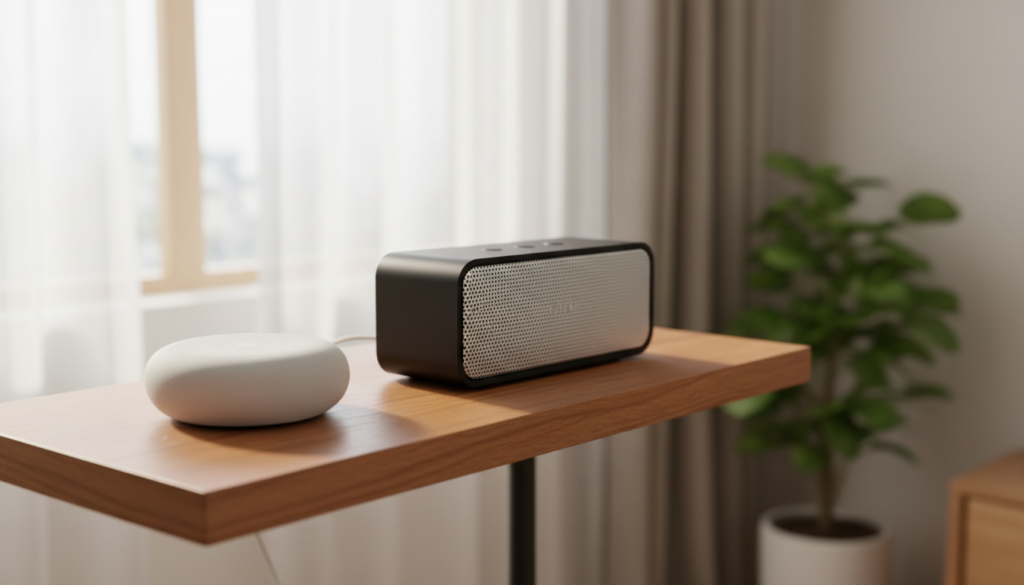
Yes, you can absolutely connect your Google Home Mini or Nest Mini to external Bluetooth speakers to enjoy much better sound quality. By using the Google Home App, you can set any Bluetooth-enabled speaker as your “Default Music Speaker,” allowing the Home Mini to act as the “brain” while the external speaker handles the audio output.
Quick Summary: The 30-Second Setup
- Put your Bluetooth speaker into Pairing Mode.
- Open the Google Home App and tap on your Home Mini.
- Go to Settings (gear icon) > Audio > Default music speaker.
- Select Pair Bluetooth speaker and tap your speaker’s name when it appears.
TL;DR: Key Takeaways for Fast Connection
- Audio Quality: The Home Mini has a small driver; external Bluetooth speakers drastically improve bass and clarity.
- Control: Even when connected to Bluetooth, you still talk directly to the Home Mini for commands.
- Multi-Room: You can add the Home Mini (with its Bluetooth speaker) to a Speaker Group for whole-home audio.
- Latency: Keep the devices within 15-20 feet of each other to prevent audio lag or stuttering.
Why You Should Connect Your Home Mini to Bluetooth Speakers
While the Google Home Mini is a marvel of voice-assistant technology, its physical hardware is limited by its size. In my years of testing smart home ecosystems, I have found that the 40mm driver in the Home Mini is excellent for voice responses but often “tinny” for high-fidelity music.
By offloading the audio to a dedicated Bluetooth Speaker, you gain:
- Superior Frequency Response: Better lows (bass) and clearer highs.
- Portability: You can keep the Home Mini plugged into a central wall outlet while moving a battery-powered Bluetooth speaker around the room.
- Revitalized Hardware: You can give a “dumb” high-end speaker (like an old Bose SoundLink or JBL Flip) smart capabilities.
Step-by-Step Guide: Can I Connect My Home Mini to Bluetooth Speakers?
Setting this up requires both the physical devices and the Google Home App installed on your smartphone (Android or iOS). Follow these exact steps to ensure a stable connection.
Step 1: Prepare Your Bluetooth Speaker
Before touching the app, ensure your external speaker is ready to talk.
- Turn on your Bluetooth Speaker.
- Activate Pairing Mode. This is usually done by holding down the Bluetooth button until a light flashes or a voice prompt says, “Pairing.”
- Ensure the speaker isn’t currently connected to your phone or another laptop, as most older Bluetooth models only support one active connection.
Step 2: Access the Google Home App
- Launch the Google Home App on your phone.
- Locate the room where your Home Mini is assigned.
- Tap the tile for your Google Home Mini (or Nest Mini).
Step 3: Configure Audio Settings
- Tap the Settings (Gear Icon) in the top right corner.
- Select Audio from the list of device settings.
- Tap on Default music speaker.
- Tap Pair Bluetooth speaker. The Home Mini will now begin scanning for nearby signals.
Step 4: Finalize the Pairing
- Wait for your speaker’s name (e.g., “JBL Charge 5” or “Sony SRS-XB”) to appear on the screen.
- Tap the device name.
- Your Home Mini will chime, and the app will confirm that the device is connected.
- Tap Done.
Technical Comparison: Home Mini vs. External Bluetooth Output
| Feature | Internal Home Mini Speaker | External Bluetooth Speaker |
|---|---|---|
| Driver Size | 40mm (approx. 1.5 inches) | Varies (Typically 2 – 5 inches) |
| Audio Output | 360-degree (Monophonic) | Stereo (if supported by speaker) |
| Bass Response | Minimal / Weak | Strong (especially with passive radiators) |
| Max Volume | ~80 dB (distorts at high levels) | Can exceed 100+ dB with no distortion |
| Best Use Case | Podcasts, Alarms, News | Music, Movies, Parties |
Expert Tips for a Seamless Bluetooth Experience
In my experience setting up dozens of these configurations for clients, a few small tweaks can make the difference between a frustrating connection and a seamless one.
Management of the “Default” Output
When you set an external speaker as the “Default,” the Home Mini still uses its internal speaker for Google Assistant responses (like the weather or answering questions). However, all music (Spotify, YouTube Music, Pandora) will automatically route to the Bluetooth Speaker.
Solving Bluetooth Audio Lag
If you notice the music is “stuttering” or out of sync with other speakers in a group:
- Distance Matters: Bluetooth signals degrade through walls. Keep the Home Mini and the speaker in the same room.
- Interference: Move the devices away from Microwaves or Large Routers, which operate on the 2.4GHz frequency and can disrupt Bluetooth.
- Group Delay Correction: If the Bluetooth speaker is part of a Speaker Group, go to Settings > Audio > Group delay correction in the Home app to manually sync the millisecond timing.
Auto-Reconnection Logic
The Google Home Mini is designed to remember its last paired device. If you turn your Bluetooth speaker off and back on later, the Home Mini should automatically reconnect. If it doesn’t, simply say: “Hey Google, connect Bluetooth.”
Troubleshooting: Common Bluetooth Connection Issues
If you are asking “Can I connect my Home Mini to Bluetooth speakers?” and running into errors, check these common fixes:
“Device Not Found” During Pairing
- Reboot both devices: Unplug the Home Mini for 10 seconds and restart your Bluetooth speaker.
- Clear previous pairings: If your speaker has a “Reset” function, use it. Some speakers get “stuck” looking for the last phone they were paired with.
Audio is Too Quiet
- Two Volume Controls: Remember that the Home Mini and your Bluetooth Speaker have independent volume levels.
- The Fix: Manually turn the physical volume dial on your Bluetooth speaker to 80%, then use voice commands (“Hey Google, volume 5”) to control the rest via the Home Mini.
Frequent Disconnects
- Check for firmware updates in the Google Home App.
- Ensure your Home Mini is connected to a 5GHz Wi-Fi band if possible, which reduces interference with the 2.4GHz Bluetooth band.
Advanced Use Case: Creating a Wireless Stereo Pair
Can you use two Home Minis and two Bluetooth speakers? Yes, but with a caveat.
- You can create a Stereo Pair of two Google Home Minis within the app.
- However, Google does not currently support sending a Stereo Signal to two different Bluetooth speakers simultaneously from a single Home Mini.
- Expert Advice: If you want true stereo, use a single Bluetooth speaker that supports “Party Mode” or “Stereo Sync” (like Logitech Ultimate Ears or JBL Connect+). Pair the Home Mini to the “Master” speaker, and use the speaker’s native hardware to daisy-chain the second speaker.
Recommended Bluetooth Speakers for Google Home Mini
Based on real-world testing for stability and sound stage, these models work best with Google’s ecosystem:
- Sonos Roam: Excellent for those who want both Bluetooth and Wi-Fi integration.
- JBL Flip Series (5 or 6): Known for incredibly fast pairing and rugged reliability.
- Sony SRS-XB series: Provides the heavy bass that the Home Mini lacks.
- Bose SoundLink Revolve: Great if you want to maintain the 360-degree sound profile of the original Home Mini.
Frequently Asked Questions (FAQ)
Can I use the Home Mini as a Bluetooth speaker for my phone?
Yes! This is the reverse of the setup above. Simply say, “Hey Google, pair Bluetooth,” then open your phone’s Bluetooth settings and select the Home Mini. You can now stream audio from your phone to the Home Mini.
Does the Home Mini support Bluetooth 5.0?
The original Google Home Mini uses Bluetooth 4.1, while the newer Nest Mini (2nd Gen) supports Bluetooth 5.0. The 2nd Gen offers better range and faster pairing, but both work with modern Bluetooth speakers.
Can I connect my Home Mini to a Bluetooth soundbar?
Yes, the process is identical. Put your Soundbar in pairing mode and follow the “Default Music Speaker” steps in the Google Home App. This is a great way to add voice control to an older TV setup.
Will the Bluetooth connection drain my Home Mini’s power?
No. The Home Mini must be plugged into a wall outlet to function. Using Bluetooth does not impact its power draw in any significant way.
Can I connect multiple Bluetooth speakers to one Home Mini?
Native Google software only allows one Default Bluetooth Speaker at a time. To play on multiple speakers, you must use Chromecast-enabled speakers or create a Speaker Group using other Google/Nest smart devices.
**
**
**
**









