

Can I Connect My Laptop to Wireless Speakers?
Yes, you can easily connect your laptop to wireless speakers using Bluetooth, Wi-Fi, or dedicated wireless adapters. Most modern laptops running Windows 10/11 or macOS come with built-in Bluetooth chips that allow you to pair with portable speakers, soundbars, or home theater systems in seconds.
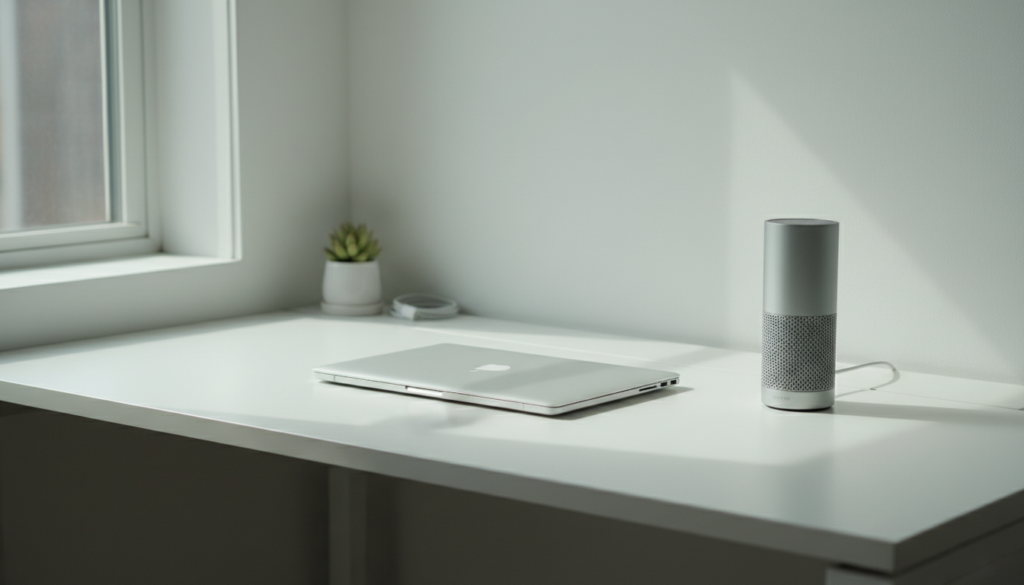
Whether you want to stream music from my laptop to wireless speakers for a party or enhance your movie-watching experience, the process is straightforward. Depending on your hardware, you can use the native settings menu to discover and sync your devices wirelessly, bypassing the need for cluttered cables and 3.5mm jacks.
Quick Guide: Key Takeaways
- Native Bluetooth: Almost all laptops built after 2015 support Bluetooth audio natively.
- Windows Setup: Access the Action Center or Settings > Bluetooth & devices to pair.
- Mac Setup: Use the Control Center or System Settings > Bluetooth to connect.
- Wi-Fi Streaming: For higher fidelity, use AirPlay, Chromecast, or Sonos over your local network.
- Troubleshooting: Most connection issues stem from interference, outdated drivers, or the speaker being paired to another device (like your phone).
How to Connect Your Laptop to Wireless Speakers via Bluetooth
The most common way to use wireless speakers with my laptop is through Bluetooth technology. This method is universal and works without needing an active internet connection.
Connecting on Windows 11 and Windows 10
If you are wondering, “can my laptop play wireless speakers using Windows?” the answer is a resounding yes. Follow these steps to get synced:
- Prepare the Speaker: Turn on your wireless speaker and press the Pairing Button. You should see a blinking light (usually blue) indicating it is in discovery mode.
- Open Settings: On your laptop, press Windows Key + I to open Settings.
- Navigate to Bluetooth: Click on Bluetooth & devices in the left sidebar.
- Add Device: Click the large Add device button and select Bluetooth from the list.
- Select Your Speaker: Your laptop will scan for nearby devices. Click on the name of your speaker (e.g., JBL Flip 6 or Bose SoundLink) once it appears.
- Confirm Connection: Once the status says “Connected music,” your audio will automatically route to the speaker.
Connecting on macOS (MacBook Air, Pro, and iMac)
Apple makes it incredibly easy to connect wireless speakers to your laptop.
- Enter Pairing Mode: Ensure your speaker is discoverable.
- Control Center: Click the Control Center icon (two pill shapes) in the top right corner of your menu bar.
- Bluetooth Menu: Click the Bluetooth icon.
- Pair Device: Find your speaker under “Other Devices” and click it to connect.
- Set as Output: Once paired, ensure the speaker is selected in the Sound settings to ensure the Mac isn’t still using its internal speakers.
Streaming Music via Wi-Fi for Higher Audio Quality
While Bluetooth is convenient, it compresses audio data, which can lead to a slight loss in quality. If you want to stream music from my laptop to wireless speakers with “Lossless” quality, Wi-Fi is the superior choice.
Using Spotify Connect and Tidal
If you use high-end speakers like Sonos, Audio Pro, or Naim, you don’t necessarily need to “pair” the laptop. Instead:
- Open the Spotify or Tidal desktop app.
- Click the Devices Available icon (looks like a speaker and a screen).
- Select your Wi-Fi speaker from the list.
- The speaker now streams directly from the cloud, using your laptop only as a remote control.
AirPlay 2 for Mac Users
If you have an Apple HomePod or an AirPlay-compatible soundbar, you can stream high-resolution audio over your home network. This provides much better range than Bluetooth, allowing you to move your laptop to different rooms without the audio cutting out.
Bluetooth vs. Wi-Fi: Which Connection Should You Use?
Choosing how you can you connect wireless speakers to your laptop depends on your specific needs for range and audio fidelity.
| Feature | Bluetooth Connection | Wi-Fi / AirPlay Connection |
|---|---|---|
| Setup Speed | Very Fast | Moderate |
| Audio Quality | Standard (Compressed) | High (Lossless Available) |
| Range | ~30 Feet (Line of sight) | Whole-home coverage |
| Battery Impact | Low on Laptop | Moderate on Laptop |
| Interference | High (2.4GHz band) | Low (5GHz band preferred) |
| Primary Use | Portable speakers, travel | Home theater, multi-room audio |
Expert Tips for Optimizing Wireless Audio Performance
In my years of testing audio setups for home offices, I have found that simply “connecting” isn’t enough for the best experience. Here is how you can maximize your setup:
Check Your Codecs
Not all Bluetooth is created equal. If your laptop and speaker both support aptX or LDAC, you will experience much lower latency. This is crucial if you are watching movies, as it prevents the “lip-sync” issue where the audio trails behind the video.
Update Your Bluetooth Drivers
If you experience frequent stuttering when you use wireless speakers with my laptop, your Windows drivers are likely outdated.
- Right-click the Start button and select Device Manager.
- Expand the Bluetooth section.
- Right-click your Bluetooth Radio and select Update driver.
Manage Signal Interference
Wireless speakers operate on the 2.4GHz frequency, which is shared by microwaves and some older Wi-Fi routers. If the audio drops out, try moving your laptop closer to the speaker or switching your router to the 5GHz band.
What to Do If Your Laptop Doesn’t Have Bluetooth
If you are using an older “legacy” laptop, you might think, “can my laptop play wireless speakers at all?” Yes, it can, but you will need a small hardware assist.
Use a USB Bluetooth Dongle
You can purchase a USB Bluetooth 5.3 Adapter for under $20.
- Plug it into an open USB-A or USB-C port.
- Windows will automatically install the drivers.
- Follow the standard pairing steps mentioned earlier.
The 3.5mm Wireless Transmitter
If your laptop has a headphone jack but no Bluetooth, you can use a Bluetooth Transmitter.
- Plug the transmitter into the headphone jack.
- Pair the transmitter directly with your speakers.
- This is a “dummy” connection that tricks the laptop into thinking it is using wired headphones while broadcasting wirelessly.
Advanced: Creating a Multi-Speaker Setup
One of the most common questions I get is, “can you connect wireless speakers to your laptop and play through two of them at once?”
Native Windows and macOS don’t support multi-point Bluetooth audio (playing to two different Bluetooth speakers simultaneously) very well. However, you can achieve this using:
- Speaker-Specific Apps: Brands like JBL (PartyBoost) or Bose (SimpleSync) allow you to pair one speaker to the laptop, and then the speakers “talk” to each other to sync the audio.
- Voicemeeter (Windows): This is a free virtual audio mixer. You can route your laptop’s output to multiple hardware outputs (Speaker A and Speaker B) at the same time.
- Audio MIDI Setup (Mac): Mac has a built-in tool called “Multi-Output Device.” You can select multiple Bluetooth speakers to play the same audio stream in perfect sync.
Frequently Asked Questions
Why is there a delay when I connect my laptop to wireless speakers?
This is known as Latency. Bluetooth requires time to encode and decode audio data. To fix this, use speakers that support aptX Low Latency or use a Wi-Fi-based connection like AirPlay or Chromecast, which handle synchronization much better.
Can I use my laptop as a Bluetooth speaker for my phone?
While you usually want to stream music from my laptop to wireless speakers, you can go the other way. In Windows 11, you can use the Bluetooth Audio Receiver app from the Microsoft Store to turn your laptop’s high-quality built-in speakers into a destination for your phone’s audio.
How many speakers can I connect to my laptop at once?
By default, you can only stream audio to one Bluetooth device at a time. If you need a whole-house setup, you should look into Wi-Fi speakers (like Sonos) or use software solutions like Airfoil to broadcast to multiple devices simultaneously.
Does connecting to wireless speakers drain my laptop battery?
Yes, but the impact is minimal. Modern Bluetooth Low Energy (BLE) standards are designed to be extremely efficient. You will likely see less than a 5% difference in total battery life during a standard listening session.
Will my wireless speakers work if my laptop is closed?
By default, most laptops enter “Sleep Mode” when the lid is closed, which cuts the connection. To keep the music playing, go to your Power & Sleep settings and change the “Lid Close Action” to “Do Nothing” when plugged in.









