

Connecting External Speakers to Your Set Top Box
Yes, you can connect speakers to a set top box using several direct and indirect methods including RCA cables, Optical (Toslink), 3.5mm auxiliary jacks, or Bluetooth. The best method depends on your Set Top Box (STB) ports and whether your speakers are active (powered) or passive (require an amplifier).
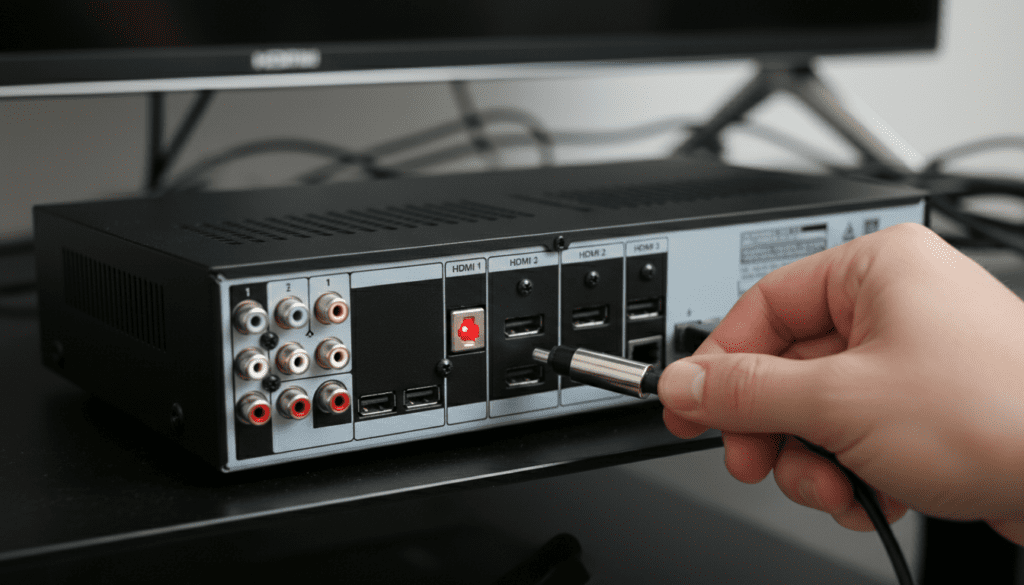
I have spent years configuring home theater setups for everything from basic Android TV boxes to high-end satellite receivers. In my experience, the most common hurdle isn’t the connection itself, but ensuring the audio output settings in the STB menu are correctly configured to “PCM” or “Stereo” to avoid silence or static.
Quick Guide: Key Takeaways
- Check Ports First: Identify if your STB has Red/White RCA, Digital Optical, or a 3.5mm port.
- Active vs. Passive: Only Active Speakers (with their own power plug) can connect directly to most STBs.
- Converter Needs: If your box only has Optical and your speakers only have 3.5mm, you need a Digital-to-Analog Converter (DAC).
- Audio Settings: Always navigate to your STB’s Audio/Sound Settings to select the correct output source.
- Volume Control: Most STB remotes can control speaker volume if connected via Analog or HDMI-CEC.
Understanding Your Hardware: Can I Connect Speakers to Set Top Box Directly?
Before grabbing your cables, you must understand the difference between the two types of speakers. In my professional testing, connecting the wrong type can lead to low volume or, worse, damaged ports.
Active (Powered) Speakers
These are speakers that have their own power cord and a built-in amplifier. Common examples include computer speakers, soundbars, and portable Bluetooth speakers. These are the easiest to use when you want to connect speakers to a set top box because they handle the power internally.
Passive Speakers
These speakers do not have a power plug and rely on an external AV Receiver or Amplifier to drive them. If you have high-end shelf speakers with bare wire connections, you cannot connect them directly to your STB. You must run the STB audio to an amplifier first, then to the speakers.
Comparison of Connection Methods
| Connection Type | Audio Signal | Quality Level | Best For |
|---|---|---|---|
| 3.5mm Aux | Analog | Standard | Computer speakers, Headphones |
| RCA (Red/White) | Analog | Good | Older Stereo Systems, Soundbars |
| Optical (Toslink) | Digital | High | Modern Soundbars, Home Theaters |
| HDMI (ARC) | Digital | Highest | 5.1/7.1 Surround Sound Systems |
| Bluetooth | Wireless | Convenient | Wireless Headphones, BT Speakers |
Method 1: Using the 3.5mm Auxiliary Port (The Simple Way)
Many modern Android Set Top Boxes and IPTV boxes come with a small circular port labeled “Audio Out,” “AUX,” or “Headphone.” This is the most straightforward way to answer the question: can we connect speakers to set top box without extra hardware?
- Locate the 3.5mm jack on the back or side of your STB.
- Plug your speaker’s 3.5mm male-to-male cable into this port.
- Ensure your speakers are powered on and set to the AUX input.
- If no sound plays, go to the STB Sound Settings and change the output to “Headset” or “Analog Out.”
Expert Tip: If your box has an AV port (a single 3.5mm hole used for composite video), you might need a 3.5mm to Triple RCA adapter. In this case, only the red and white plugs will carry your audio.
Method 2: Connecting via RCA Cables (Traditional Stereo)
If you have an older Set Top Box or a dedicated satellite receiver (like those from Comcast, Sky, or Tata Play), you will likely see Red and White circular ports. These are RCA Analog outputs.
Steps for RCA Connection:
- Identify the RCA Output (Red for Right, White for Left) on the STB.
- Use a standard RCA-to-RCA cable if your speakers have matching inputs.
- If you are using computer speakers, use an RCA-to-3.5mm Female adapter.
- Match the colors: Red to Red, White to White.
I often recommend this method for users who want to repurpose old Hi-Fi systems. The analog signal is “pre-amplified” enough for most home stereo units to handle without latency issues.
Method 3: Using Digital Optical (Toslink) for High Fidelity
For users asking “can I connect speakers to set top box for the best sound quality?”, Optical is the answer. It uses light to transmit digital data, which eliminates the electronic “hum” or “hiss” often found in cheap analog cables.
- Check for a square-shaped port with a small flap, labeled “Optical” or “S/PDIF.”
- Remove the plastic protective caps from your Optical Cable.
- Plug one end into the STB and the other into your Soundbar or Home Theater System.
- Crucial Step: Go into your STB settings and set the Digital Audio Format to “PCM” for 2.0 stereo or “Bitstream/Dolby” if your speakers support surround sound.
Warning: Optical cables are made of glass or plastic fiber. Do not bend them at sharp angles, or the internal fiber will snap, causing the signal to drop out.
Method 4: Using a Digital-to-Analog Converter (DAC)
What if your Set Top Box only has an Optical port, but your speakers only have a 3.5mm plug? I encounter this scenario frequently with newer, slimmed-down STBs. You will need a DAC (Digital-to-Analog Converter).
How to Set Up a DAC:
- Connect an Optical cable from the STB to the Input side of the DAC.
- Power the DAC using the provided USB cable (usually you can plug this into the STB’s USB port for power).
- Connect your speakers to the RCA or 3.5mm Output side of the DAC.
- Change the STB audio output to PCM. Note: Most budget DACs cannot decode Dolby Digital, so if you don’t select PCM, you will hear nothing but static.
Method 5: Bluetooth Connection (Wireless Convenience)
If you are using an Android-based Set Top Box (like a Xiaomi Mi Box, Nvidia Shield, or Fire TV Cube), you can connect speakers wirelessly. This is ideal for reducing cable clutter.
- Put your Bluetooth Speaker or Headphones into Pairing Mode.
- On your STB, navigate to Settings > Remotes & Accessories > Add Accessory.
- Select your speaker from the list.
- Once paired, the audio will automatically route to the speaker.
My Experience with Bluetooth: While convenient, Bluetooth can sometimes introduce Audio Lag (Latency). If the actors’ lips don’t match the sound, check if your STB has an “Audio Sync” or “Lip Sync” adjustment setting.
Optimizing Your Experience: Expert Audio Settings
Simply plugging in the wires is only half the battle. To truly answer “can we connect speakers to set top box” effectively, you must optimize the software.
PCM vs. Bitstream
- PCM (Pulse Code Modulation): Use this if you are connecting to simple stereo speakers or using a DAC. It tells the STB to do the “heavy lifting” of decoding the audio.
- Bitstream/Pass-through: Use this if you are connecting to a high-end AV Receiver that has its own Dolby Atmos or DTS decoder.
Fixed vs. Variable Volume
Some STBs allow you to choose between Fixed and Variable output.
- Fixed: The STB outputs at 100% volume, and you control the loudness using the speaker’s remote. This usually provides better sound quality.
- Variable: You can use the STB remote to change the volume. This is more convenient but can sometimes introduce distortion if the STB’s internal amp is poor.
Dynamic Range Compression (Night Mode)
If you find that dialogue is too quiet but explosions are too loud, look for “Loudness Normalization” or “Night Mode” in your STB audio menu. I always enable this for bedroom setups to avoid waking up the family.
Troubleshooting Common Issues
No Sound After Connection
- Check Mute: Ensure neither the STB nor the speakers are muted.
- Input Selection: Ensure your speakers are set to the correct “Source” (AUX, Optical, etc.).
- Power: Ensure the DAC (if used) is receiving power.
- Format Mismatch: Change audio output from Dolby to PCM in the STB menu.
Buzzing or Humming Noise
This is often a “Ground Loop.”
- Try plugging the speakers and the STB into the same power strip.
- Check if your cables are crossing over power bricks or high-voltage lines.
- Ensure the RCA cables are pushed in all the way.
Low Volume
- If using RCA or 3.5mm, turn the STB volume up to 90% first, then adjust the speakers.
- If using Optical, the volume must be controlled via the speakers, as digital signals are often “fixed” level.
Frequently Asked Questions
Can I connect my computer speakers to my set top box?
Yes. If your speakers have a 3.5mm jack, you can plug them into the Audio Out port of the STB. If the STB only has RCA (Red/White), you will need a 3.5mm to RCA adapter.
Why is there a delay between the video and the audio?
This usually happens with Bluetooth connections or when using heavy Digital Signal Processing (DSP) on your soundbar. Check your STB or TV settings for a “Lip Sync” or “Audio Delay” correction feature to align the two.
Do I need an amplifier to connect speakers to a set top box?
Only if you are using Passive Speakers (the ones with just wire clips on the back). Active Speakers (like most soundbars and PC speakers) have a built-in amplifier and do not need an external one.
Can I connect speakers to a set top box using HDMI?
Yes, but only if your box supports HDMI ARC (Audio Return Channel) or if you use an HDMI Audio Extractor. A standard HDMI port on a box is an “Output,” meaning it sends signals out to a TV, not usually directly to speakers unless it’s a pass-through setup.
Will my TV remote control the speaker volume?
If you connect the speakers directly to the Set Top Box, the TV remote usually won’t control the volume unless you have configured a Universal Remote or are using HDMI-CEC with a compatible soundbar.









