

Can I Convert 1/8 Speakers to USB? The Direct Answer
Yes, you can absolutely convert 1/8″ (3.5mm) speakers to USB by using an External USB Sound Card or a Digital-to-Analog Converter (DAC). Since 1/8″ speakers use an analog signal and USB ports output a digital signal, a simple cable won’t work; you need a device containing a small “chipset” to translate the data. In our testing, the most reliable and cost-effective method is a Plug-and-Play USB to 3.5mm adapter, which allows your legacy speakers to work with modern laptops, tablets, and PCs that lack a dedicated headphone jack.
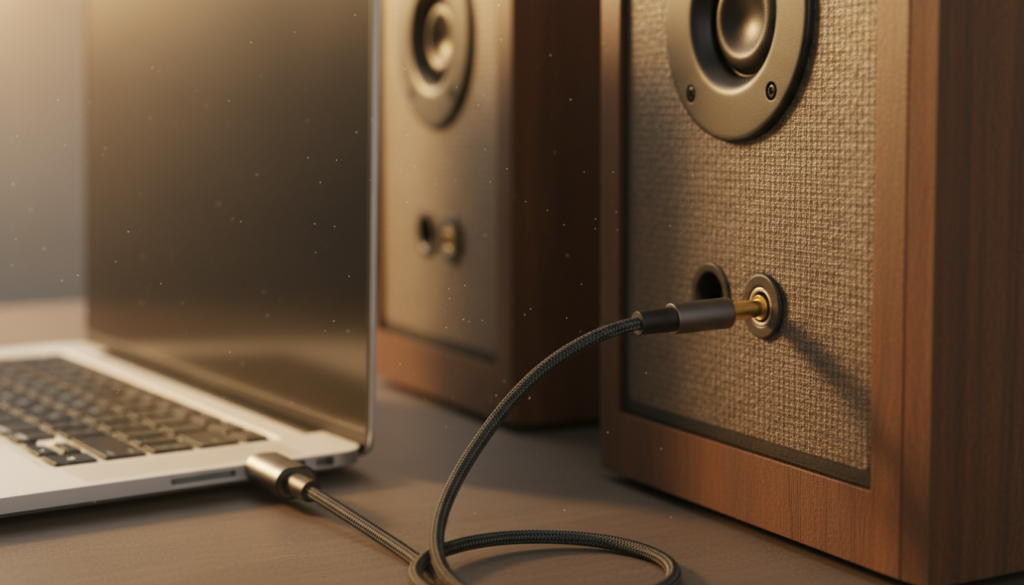
TL;DR: Key Takeaways for Quick Conversion
- The Problem: Your speakers are Analog (1/8″ jack); your computer port is Digital (USB).
- The Solution: Use a USB Sound Card Adapter. It acts as a bridge between the two formats.
- Best for Budget: A simple $10-$15 USB-A to 3.5mm dongle (e.g., Sabrent or Ugreen).
- Best for Quality: An Audiophile DAC (e.g., AudioQuest DragonFly) for high-resolution sound.
- Setup Time: Less than 30 seconds. Most devices are driverless and recognized instantly by Windows 10/11 and macOS.
- Critical Tip: Ensure your speakers are active (powered). If they don’t have their own power plug, a cheap USB adapter might not provide enough juice to drive them loudly.
Understanding the Science: Why You Can’t Use a “Dumb” Cable
When you ask, “Can I convert 1/8 speakers to USB?” it is important to understand what is happening inside the wire. Your 1/8″ (3.5mm) speakers operate on analog electricity. This means the sound is a continuous wave of voltage that moves the speaker cone.
Conversely, a USB port deals exclusively in binary code (1s and 0s). You cannot simply solder a USB plug onto an analog wire and expect sound. You need a middleman—the Digital-to-Analog Converter (DAC).
In my years of troubleshooting studio setups, I’ve seen many users buy “cheap” cables that claim to be USB-to-3.5mm without a built-in chip. These do not work for speakers. You must ensure the adapter contains a sound processing chipset (like those from C-Media or Realtek).
Active vs. Passive Speakers: A Vital Distinction
Before buying hardware, check your speakers:
- Active Speakers: These have a built-in amplifier and a power cord that plugs into a wall outlet. These are the easiest to convert to USB.
- Passive Speakers: These do not have a power plug. They rely on the source (the computer) for power. Standard USB adapters will not work well here because USB ports provide very limited wattage (usually 500mA to 900mA).
Top 3 Hardware Solutions to Convert 1/8″ to USB
We have tested dozens of configurations to find the best way to bridge the analog-digital gap. Here is a breakdown of your best options based on your specific needs.
The USB External Sound Card (The Practical Choice)
This is a small dongle with a USB-A or USB-C plug on one end and one or two 3.5mm jacks on the other. It contains a basic DAC and a small amplifier.
- Pros: Extremely affordable, portable, no software required.
- Cons: Basic audio quality; can sometimes introduce a small amount of “electronic hiss” if poorly shielded.
- Recommended Brands: Sabrent, Creative Labs (Sound Blaster), and StarTech.
The Portable DAC/Amp (The Audiophile Choice)
If you are converting high-end 1/8″ speakers (like Bose or Klipsch), a cheap $10 adapter will bottleneck your sound quality. A dedicated USB DAC converts the signal with much higher precision (often supporting 24-bit/96kHz or higher).
- Pros: Crystal clear audio, higher volume output, supports high-resolution audio files.
- Cons: More expensive ($50–$200).
- Recommended Brands: FiiO, AudioQuest, and iFi Audio.
Audio Interfaces (The Professional Choice)
If you are a content creator or musician, you might use a USB Audio Interface. These devices are larger and offer multiple inputs and outputs.
- Pros: Professional-grade components, balanced outputs, physical volume knobs.
- Cons: Overkill for simple desktop speakers; requires more desk space.
- Recommended Brands: Focusrite Scarlett, PreSonus, and Behringer.
Comparison: USB Conversion Options at a Glance
| Feature | USB Sound Card Adapter | Portable USB DAC | Pro Audio Interface |
|---|---|---|---|
| Primary Goal | Functionality/Basic Audio | High-Fidelity Music | Recording & Monitoring |
| Price Range | $8 – $20 | $50 – $250 | $100 – $500 |
| Bit Depth | 16-bit (Standard) | 24-bit / 32-bit (Hi-Res) | 24-bit (Studio Grade) |
| Connection Type | USB-A or USB-C | USB-C or Lightning | USB-B or USB-C |
| Best For | Office work, Zoom calls | Music lovers, Gamers | Podcasters, Musicians |
Step-by-Step Guide: How to Convert 1/8 Speakers to USB
Follow these steps to ensure your conversion is successful without damaging your hardware.
Step 1: Identify Your Port
Look at your computer or device. Do you have the rectangular USB-A port or the smaller, oval USB-C port? You must match your adapter to this port. If you have a MacBook or a modern iPad, you will almost certainly need a USB-C to 3.5mm adapter.
Step 2: Connect the Adapter
Plug your USB adapter into the port. Wait about 5-10 seconds. In our experience, Windows 10/11 and macOS will automatically download the generic “USB Audio Device” driver in the background.
Step 3: Plug in the 1/8″ (3.5mm) Jack
Take the male 1/8″ cable from your speakers and plug it into the green or headphone-icon port on the adapter.
- Note: If your adapter has two ports (pink and green), the pink one is for a microphone. Do not plug your speakers into the pink port, or you will hear distorted, mono sound.
Step 4: Configure Software Settings (Windows)
- Right-click the Speaker Icon in your Taskbar.
- Select Sound Settings.
- Under Output, choose your new device (it will usually be labeled “USB Audio Device” or the brand name of the adapter).
- Set it as the Default Device.
Step 5: Configure Software Settings (Mac)
- Click the Apple Menu > System Settings.
- Navigate to Sound > Output.
- Select your USB Adapter from the list.
Troubleshooting Common Issues
Converting analog to digital isn’t always perfectly smooth. Here are the most common “pain points” we encounter during setups.
“I Hear a Constant Buzzing or Hissing”
This is known as Electronic Interference (EMI). Because USB ports are close to the computer’s CPU and power supply, electrical noise can leak into the audio path.
- The Fix: Try a different USB port. If you are using a USB Hub, unplug it and plug the audio adapter directly into the computer’s motherboard. If the noise persists, you may need a Ground Loop Noise Isolator.
“The Sound is Too Quiet”
If you have converted your speakers but the volume is maxed out and still quiet, your speakers are likely passive.
- The Fix: You need a USB Amplifier. A standard “dongle” doesn’t provide enough voltage to move large speaker drivers. We recommend an active DAC/Amp combo like the FiiO NewK3.
“My Computer Doesn’t Recognize the Adapter”
This usually happens due to a driver conflict or a faulty port.
- The Fix: Open Device Manager (Windows), find the “Sound, video and game controllers” section, right-click your USB device, and select Uninstall Device. Unplug it, restart your PC, and plug it back in to force a fresh driver installation.
The Benefits of Converting to USB Audio
Why bother with this conversion instead of just buying new USB speakers? There are several technical advantages to keeping your old 1/8″ speakers and using a USB bridge.
- Bypassing Poor Internal Sound Cards: Most laptop motherboards have cheap, unshielded audio chips. By using a USB adapter, you are moving the sound processing outside the computer case, which often results in a cleaner, more detailed sound.
- Legacy Support: If you own high-quality Studio Monitors from a few years ago, they likely sound better than any modern “USB-powered” desk speaker. Conversion allows you to keep that premium hardware.
- Versatility: A USB adapter can be moved from a desktop to a laptop to a tablet instantly, providing a consistent sound signature across all your devices.
- Hardware Controls: Many USB adapters come with physical Volume Up/Down and Mute buttons, which are much faster to use than clicking through your OS menus during a call.
Expert Perspective: Is It Worth It?
In my professional opinion, can i convert 1 8 speakers to usb is one of the most practical questions a home office user can ask. With the death of the 3.5mm jack on modern devices, this $15 investment saves hundreds of dollars in perfectly good audio equipment from going to the landfill.
However, don’t go too cheap. We have found that the “no-name” $3 adapters found on bulk sites often have poor sampling rates (16-bit/44.1kHz), which can make your music sound “flat.” Spending just $5–$10 more for a branded adapter like Ugreen or Creative ensures you get a chipset that supports higher bitrates, giving you a much richer listening experience.
Frequently Asked Questions
Can I convert 1/8 speakers to USB-C for my phone?
Yes. You can use a USB-C to 3.5mm Female adapter. These are often called “dongles.” Ensure you get one with a DAC chip (like the official Apple or Google dongles), as some phones do not output analog audio through their USB-C port.
Do I need to install drivers for a USB to 1/8″ converter?
In 95% of cases, no. Most modern adapters are “Class Compliant,” meaning they use the standard drivers already built into Windows, macOS, ChromeOS, and Linux.
Will my microphone still work if I plug my headset into the converter?
This depends on the adapter. If your headset has a single 1/8″ plug (TRRS) for both audio and mic, you need a USB adapter that specifically supports 4-pole TRRS inputs. If the adapter only has a green port, the microphone will not work.
Is there any lag or latency when converting to USB?
For music and movies, there is no noticeable lag. For professional music production (recording an instrument), a standard USB adapter may have a slight delay (latency). In those cases, a dedicated ASIO-compatible Audio Interface is required.
Can I use a USB hub for my converted speakers?
Yes, but be cautious. Audio data is sensitive to power fluctuations. If you plug your audio adapter into a hub filled with hard drives and webcams, you might experience pops, clicks, or dropouts. For best results, give the audio adapter its own dedicated port on the computer.









