

Can I Hook Laptop Directly to PA Speakers? The Definitive Answer
Yes, you can hook a laptop directly to PA speakers, but the method depends entirely on whether your speakers are active (powered) or passive (unpowered). For most modern setups, you will use a 3.5mm TRS to Dual 1/4″ TS cable or a USB Audio Interface to bridge the gap between your laptop’s headphone jack and the speaker’s line-level inputs.
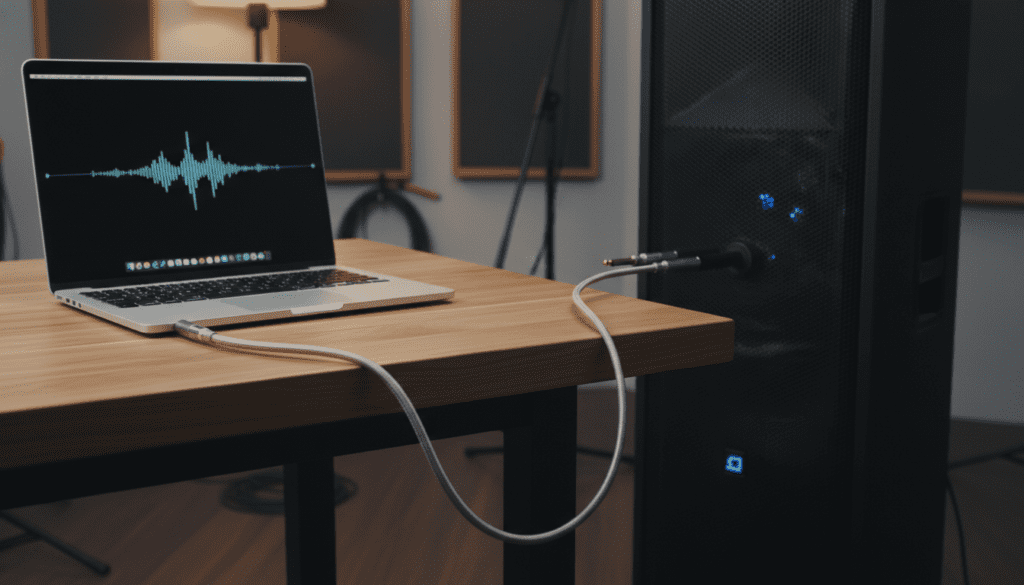
Connecting your laptop directly without the right hardware can result in low volume, static hum, or even blown speaker drivers if levels are not managed correctly. In my decade of managing live sound for corporate events and small concerts, I have found that while a direct cable works in a pinch, a USB interface or a DI box is essential for professional, noise-free audio.
🚀 Key Takeaways: Laptop-to-PA Essentials
- Active Speakers: Can be connected directly using the right adapter cables because they have built-in amplifiers.
- Passive Speakers: Require an external power amplifier or mixer between the laptop and the speaker.
- Best Connection: Use a USB Audio Interface (like a Focusrite Scarlett) for the highest fidelity and lowest noise floor.
- Cable Type: A 3.5mm (1/8″) to Dual 1/4″ Y-cable is the most common “direct” solution.
- Pro Tip: Always turn your laptop volume to 75-80% and use the speaker or mixer to control the final output to avoid digital clipping.
Understanding the Hardware: Active vs. Passive PA Speakers
Before you plug anything in, you must identify what type of PA system you are using. If you plug a laptop into a system that isn’t ready for it, you might hear nothing at all—or worse, a deafening pop.
Identifying Active (Powered) Speakers
Active speakers are the most common choice for modern DJs, public speakers, and small venues. They have a built-in power amplifier and usually plug directly into a wall outlet for power.
- Look for: A power switch and a volume knob on the back of the speaker cabinet.
- Connection Method: You can connect your laptop directly to these using a simple adapter cable.
- Popular Models: QSC K12.2, Mackie Thump, JBL EON series.
Identifying Passive (Unpowered) Speakers
Passive speakers are just “boxes with drivers.” They do not have built-in amplifiers and cannot produce sound on their own.
- Look for: Only one or two wire terminals (like SpeakOn or Binding Posts) and no power cord.
- Connection Method: You cannot hook a laptop directly to these. You must go: Laptop → Mixer/Amp → Passive Speaker.
- Popular Models: Yamaha BR Series, Electro-Voice ELX passive versions.
| Feature | Active Speakers | Passive Speakers |
|---|---|---|
| Power Source | Built-in (Plugs into wall) | External Amplifier |
| Direct Laptop Connection? | Yes (with adapter) | No (requires Amp) |
| Setup Complexity | Low (Plug and play) | High (Requires component matching) |
| Portability | Heavy (Built-in amp weight) | Light (Speakers are light, but must carry amp) |
Essential Cables and Converters for Laptop PA Connection
If you are asking “can i hook laptop directly to pa speakers,” you are likely looking for the specific cable to buy. Your laptop outputs an unbalanced, stereo, line-level signal through a 3.5mm (1/8 inch) jack. PA speakers usually expect balanced, mono, line-level signals via 1/4″ (6.35mm) or XLR inputs.
3.5mm TRS to Dual 1/4″ TS Y-Cable
This is the “standard” cable for connecting a laptop directly to a pair of powered PA speakers or a mixer.
- The 3.5mm end goes into your laptop’s headphone jack.
- The two 1/4″ ends go into the “Line In” or “Input” of your two speakers (one for Left, one for Right).
- Best for: Short distances (under 15 feet) to avoid picking up radio interference.
3.5mm TRS to Dual XLR Male Cable
Some professional speakers, like the QSC or Meyer Sound lines, primarily use XLR inputs.
- Warning: Do not plug this into a “Mic Input” with Phantom Power (+48V) turned on, as it can damage your laptop’s sound card.
- Best for: Connecting directly to high-end powered speakers that lack 1/4″ inputs.
USB-C to 1/4″ or XLR (Digital-to-Analog)
Modern laptops (like the newer MacBook Pro or Dell XPS) often lack a headphone jack. In this case, you need a USB-C DAC (Digital-to-Analog Converter) or a dedicated USB audio interface.
The Professional Choice: USB Audio Interfaces and DI Boxes
While a direct cable connection is possible, it is rarely the “best” way. As someone who has dealt with “buzzing” speakers five minutes before a wedding toast, I highly recommend using an intermediary device.
Why Use a USB Audio Interface?
A USB Audio Interface (e.g., Focusrite Scarlett 2i2, PreSonus AudioBox) bypasses your laptop’s cheap internal sound card.
- Noise Reduction: It eliminates the “computer noise” (the high-pitched whirring you hear when the CPU is working).
- Balanced Outputs: It provides Balanced TRS or XLR outputs, allowing you to run long cables (50+ feet) without interference.
- Physical Volume Knob: Gives you immediate, tactile control over the volume.
The Role of the DI Box (Direct Injection)
If you must use the headphone jack but are experiencing a loud hum, you need a Passive DI Box.
- How it works: You plug the laptop into the DI box, and the DI box converts the signal to a balanced XLR signal.
- Ground Lift: Most DI boxes have a “Ground Lift” switch. This is a lifesaver when the laptop and the PA system are plugged into different electrical circuits, which often causes a 60Hz hum.
Step-by-Step Guide: How to Connect Your Laptop to PA Speakers
Follow these steps to ensure you don’t damage your equipment or your ears.
Step 1: Power Down and Level Check
Ensure your PA speakers are turned OFF before connecting any cables. Turn the volume/gain knobs on the back of the speakers all the way to the left (minimum).
Step 2: Connect the Laptop
Plug your chosen cable (3.5mm to 1/4″ or USB interface) into your laptop. If using an interface, ensure your laptop recognizes it in the Sound Settings (Windows) or System Settings > Sound (macOS).
Step 3: Connect to the Speakers
Plug the other end of the cables into the Line Input of your powered speakers. If your speaker has a switch for “Mic/Line,” ensure it is set to Line.
Step 4: Laptop Software Settings
- Set your laptop system volume to roughly 80%.
- Ensure all system sounds (notifications, email pings) are muted to avoid embarrassing “dings” over the PA.
- Play a test track (something with a consistent beat and clear frequency range).
Step 5: Power On and Fade Up
- Turn on the PA speakers.
- Slowly turn the Gain/Volume knob on the back of the speaker until you hear the music at a comfortable level.
- Adjust the laptop volume for fine-tuning.
Troubleshooting Common Connection Issues
“I hear a loud buzzing or humming sound.”
This is usually a ground loop. It happens because the laptop’s power brick creates electrical noise.
- Solution: Unplug the laptop’s power charger and run it on battery. If the noise stops, you need a Ground Loop Isolate or a DI Box with a ground lift.
“The volume is very low, even with everything turned up.”
You might be plugging a line-level signal into a specialized input, or your cable is faulty.
- Solution: Check the “Mic/Line” switch on the speaker. Also, ensure the laptop’s media player (Spotify, YouTube) volume is also turned up.
“The sound is distorted and ‘crunchy’.”
This is clipping. It means the signal coming out of your laptop is too “hot” for the speaker’s input.
- Solution: Lower the volume on your laptop to 70% and increase the volume on the speaker’s physical knob instead.
Best Practices for Laptop-to-PA Gain Staging
Gain Staging is the process of managing levels at each step of the audio chain to maximize signal-to-noise ratio. Here is the workflow I use for every gig:
- Software Level: Set your music player (e.g., VLC, Serato, Spotify) to 90%.
- System Level: Set your Windows/Mac master volume to 80%. This leaves “headroom” so the signal doesn’t distort.
- Interface/Mixer Level: If using an interface, set the output knob to the “Unity” position (usually 12 o’clock).
- Speaker Level: Adjust the physical knob on the PA speaker to reach the desired loudness in the room.
Frequently Asked Questions (FAQ)
Can I connect my laptop to a PA speaker via Bluetooth?
Many modern PA speakers (like the Bose S1 Pro or JBL IRX series) have built-in Bluetooth. While convenient for background music, I don’t recommend it for live performances or presentations due to latency (delay) and the risk of signal dropouts in crowded rooms.
Do I need a mixer to connect my laptop to PA speakers?
You don’t need one if you only have one laptop and two powered speakers. However, a small mixer (like a Mackie Mix5) provides better EQ control, allows you to plug in a microphone alongside the laptop, and acts as a buffer to protect your laptop from power surges.
Can I use a regular 3.5mm Aux cable?
A standard Aux-to-Aux cable only works if your PA speaker has a 3.5mm Aux Input. Most professional PA speakers use 1/4″ or XLR. You will almost always need an adapter or a specific “Y-cable” to split the stereo signal into two mono speakers.
Will hooking my laptop to a PA speaker damage it?
As long as you start with the volumes low and ensure you aren’t sending a “powered” signal (like from an amp) into your laptop, you are safe. Never connect the Speaker Out of a power amplifier to your laptop’s input.









