Can I Output Thru Computer Speakers Traktor? Yes, you can.
Yes, you can absolutely output thru computer speakers in Traktor Pro 3 by configuring the Audio Setup preferences to use your computer’s internal sound card or a virtual driver like ASIO4ALL. Whether you are using a controller or just the software, you simply need to route the Master Output to your laptop’s built-in speakers in the Output Routing menu. This setup is ideal for bedroom practice, prep work, or when you don’t have access to external studio monitors.
Key Takeaways: Quick Setup Guide
- Primary Requirement: You must select the correct Audio Device in Traktor’s Preferences.
- Windows Users: Often require ASIO4ALL drivers to reduce latency when using internal speakers.
- Mac Users: Can use the native Core Audio driver seamlessly.
- Mixing Mode: Use Internal Mixing mode to ensure the software handles the audio summing.
- Monitoring: Using computer speakers usually means you lose the ability to “cue” in headphones unless you use an Aggregated Device or a controller with a built-in interface.
Understanding Traktor Audio Output Basics
In my years of performing with Native Instruments gear, from the original Traktor Scratch to the modern Traktor Pro 3, the most common hurdle for beginners is audio routing. By default, Traktor expects a professional audio interface. However, the software is flexible enough to use your MacBook or PC internal speakers.
When you ask, “can i output thru computer speakers Traktor,” you are essentially asking how to bypass an external mixer. To do this, Traktor must be set to Internal Mixing Mode. In this mode, the software’s crossfader and volume faders control the signal before it reaches your speakers.
Comparison: Internal vs. External Audio Routing
| Feature | Internal Mixing (Computer Speakers) | External Mixing (DJ Mixer/Controller) |
|---|---|---|
| Audio Device | Built-in Soundcard / Realtek / Core Audio | DJ Controller (S2/S4) or Audio Interface |
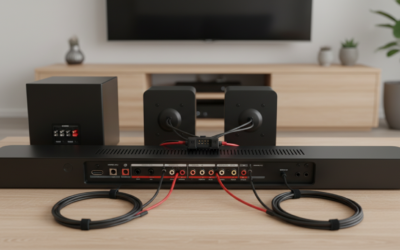
| Output Target | Laptop Speakers / 3.5mm Headphone Jack | XLR / RCA to PA System |
| Latency | Medium to High (unless optimized) | Ultra-Low (Professional) |
| Hardware Required | None | DJ Controller or Multi-channel Interface |
| Best For | Practice, Track Prep, Travel | Live Gigs, Clubs, Studio |
Step-by-Step: Can I Output Thru Computer Speakers Traktor on Windows?
Windows machines use WDM or WASAPI drivers by default, which often introduce a noticeable delay (latency) between moving a fader and hearing the sound. To get the best experience when you output thru computer speakers Traktor, I highly recommend using the ASIO4ALL driver.
Download and Install ASIO4ALL
If you haven’t already, download the free ASIO4ALL driver. It acts as a bridge between Traktor and your Windows hardware, providing the low-latency performance required for DJing.
Select the Audio Device
- Open Traktor Pro 3.
- Click the Gear Icon (Preferences) in the top right.
- Navigate to the Audio Setup tab.
- Under Audio Device, select ASIO4ALL v2 (or WASAPI Shared Mode if you prefer not to use ASIO).
Configure Output Routing
- Go to the Output Routing tab.
- Set Mixing Mode to Internal.
- Under Output Master, assign L to HD Audio Output 1 and R to HD Audio Output 2.
- Play a track; you should now hear audio coming directly from your laptop.
Step-by-Step: Configuring Traktor for Mac Computer Speakers
Mac users have it much easier thanks to Core Audio. Apple’s native audio architecture is extremely efficient and low-latency right out of the box.
Set the Audio Device
- Open Preferences in Traktor.
- Go to Audio Setup.
- Select Built-in Output or MacBook Pro Speakers from the Audio Device dropdown.
Route the Master Signal
- Navigate to Output Routing.
- Ensure Internal is selected.
- In Output Master, select Front Left and Front Right.
The Aggregate Device Trick (For Headphone Cueing)
One major downside when you output thru computer speakers Traktor is that you lose your “Cue” channel (the ability to hear the next song in headphones without the audience hearing it). On a Mac, you can fix this:
- Open Audio MIDI Setup on your Mac.
- Click the + icon and select Create Aggregate Device.
- Check both your Built-in Output and your External Headphones.
- In Traktor, select this Aggregate Device as your Audio Device.
- You can now route Output Master to your speakers and Output Monitor to your headphones.
Using a DJ Controller While Using Computer Speakers
A frequent question I get is: “I have a Traktor Kontrol S2, but I want the sound to come out of my laptop, not the controller. Is that possible?”
The answer is yes. This is helpful if you don’t have RCA cables or powered monitors handy.
- Connect your controller via USB.
- In Traktor Preferences > Audio Setup, do NOT select the controller as the Audio Device.
- Instead, select Built-in Output (Mac) or ASIO4ALL (Windows).
- Traktor will still receive MIDI signals from your Kontrol S2/S4 to move the virtual knobs, but the audio processing will stay within your computer and exit through its speakers.
Optimizing Performance: Latency and Sample Rate
When you output thru computer speakers Traktor, you might experience “crackling” or “popping” sounds. This usually means your CPU is struggling or your Buffer Size is too low.
Recommended Audio Settings
- Sample Rate: 44100 Hz or 48000 Hz. Anything higher is unnecessary for computer speakers and wastes CPU.
- Buffer Size:
Expert Tip: The “Processing Override”
In the Audio Setup menu, you will see a Latency slider. If you are using WASAPI (Exclusive Mode) on Windows, try to keep the total latency under 20ms. Anything higher will make beatmatching feel “mushy” and unresponsive.
Troubleshooting Common “No Sound” Issues
Even if you follow these steps to output thru computer speakers Traktor, you might run into issues. Here is a checklist based on common errors I’ve encountered during soundchecks:
- Check the Master Knob: In the Traktor software (top center), ensure the Master Volume knob is turned up.
- The Mute Toggle: Ensure your computer’s system volume isn’t muted or set to 0.
- Exclusive Mode Conflicts: On Windows, if Chrome or Spotify is open, they might “hog” the audio driver. Close all other apps before opening Traktor.
- Main/Monitor Mix: In the Output Routing, ensure you haven’t accidentally swapped the Monitor and Master outputs.
Pros and Cons of Using Internal Computer Speakers
While it is convenient to output thru computer speakers Traktor, it isn’t always the best choice for professional results.
Advantages
- Portability: You can practice on a plane, in a hotel, or at a desk without extra wires.
- Simplicity: No need for expensive XLR or RCA cables.
- Cost: Uses the hardware you already own.
Disadvantages
- Frequency Response: Laptop speakers lack bass (low-end). You won’t accurately hear your kick drums or sub-bass.
- The “Cue” Problem: Harder to use headphones for pre-listening unless you use an aggregate setup.
- Latency: Internal soundcards are generally slower than dedicated DJ interfaces like the Traktor Audio 2 or Focusrite Scarlett.
Frequently Asked Questions
How do I hear my headphones and speakers at the same time in Traktor?
To do this, you need a multi-channel setup. If using computer speakers, you must create an Aggregate Device (Mac) or use ASIO4ALL (Windows) to group your speakers and the headphone jack into one selectable device. Then, assign Output Master to speakers and Output Monitor to headphones in the Output Routing menu.
Can I use Bluetooth speakers with Traktor?
Technically, yes, by selecting the Bluetooth device in Audio Setup. However, Bluetooth has massive latency (delay). You will move the fader, and the sound will change half a second later. It is nearly impossible to beatmatch manually using Bluetooth.
Why is the sound distorted when I output through my laptop?
This is usually “clipping.” Ensure the Main gain knob in Traktor is not in the red. Laptop speakers have very little headroom. Use the Limiter function in Preferences > Mixer to prevent distortion.
Does Traktor Pro 3 support WASAPI?
Yes, Traktor Pro 3 supports WASAPI (Shared and Exclusive). If you don’t want to install ASIO4ALL, WASAPI Exclusive is the best alternative for Windows users to output thru computer speakers Traktor with decent performance.
Can I use the laptop mic jack as an output?
On most modern laptops, the headphone jack and the internal speakers are treated as the same output path. When you plug in headphones, the internal speakers mute automatically. To use both simultaneously, you generally need an external USB soundcard.