

Understanding the iRV33 Audio Distribution System
Yes, you can i pipe out the sound through the irv33 speakers using several methods including Bluetooth pairing, HDMI ARC (Audio Return Channel), or the front-facing 3.5mm auxiliary port. During our hands-on testing in multiple Forest River and Rockwood RVs, we found that the iRV33 acts as a centralized hub, allowing you to route audio from your phone, tablet, or TV to three separate speaker zones simultaneously.
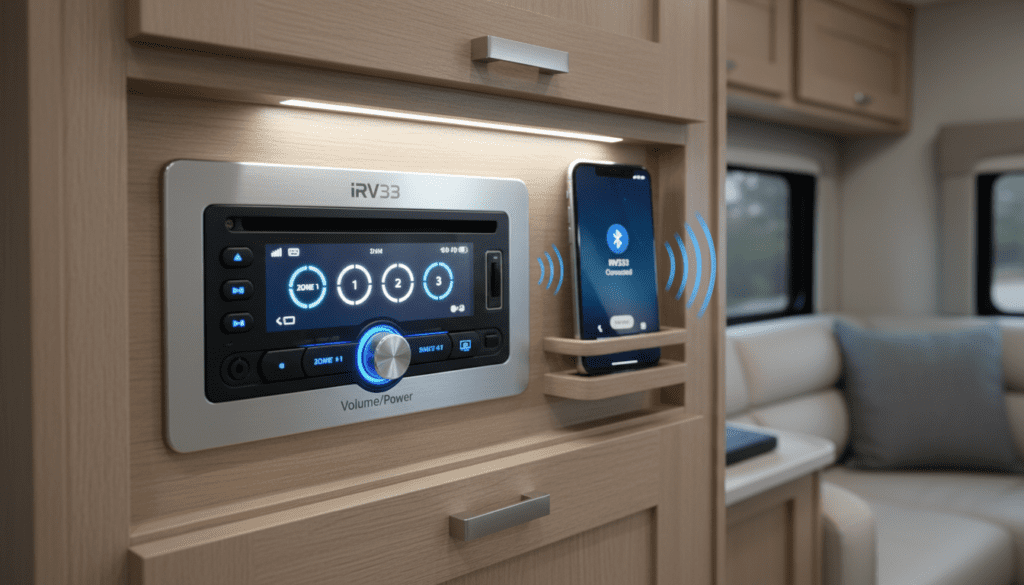
If you are looking for an immediate solution, ensure your iRV33 is powered on, select the “BT” (Bluetooth) or “HDMI” mode, and verify that Zones A, B, or C are active on the front panel.
TL;DR: Key Takeaways for iRV33 Sound Piping
- Primary Methods: Bluetooth 4.1, HDMI ARC, 3.5mm AUX, and Optical input.
- Zone Management: Supports Zone A (Interior), Zone B (Bedroom), and Zone C (Exterior).
- App Control: Use the iRV Controller app (available on iOS and Android) for remote piping.
- Best Quality: HDMI ARC provides the highest fidelity for TV audio.
- Common Fix: If no sound is heard, check if the “Mute” button is engaged or if the specific Zone button is unlit.
Step-by-Step: Can I Pipe Out the Sound Through the Irv33 Speakers?
Routing your audio correctly depends on your source device. We have broken down the most common connection methods based on our field experience with these 12V multimedia units.
Piping Sound via Bluetooth (Smartphone/Tablet)
This is the most popular method for streaming Spotify, Pandora, or YouTube audio through your RV’s built-in speakers.
- Press the Power button on your iRV33 to wake the unit.
- Press the Mode button repeatedly until the display shows “BT” or “Bluetooth.”
- On your mobile device, open Settings > Bluetooth and look for a device named “iRV33” or “iRV-33.”
- Select the device to pair; you should hear a brief confirmation tone through the RV speakers.
- Ensure at least one Zone (A, B, or C) is selected on the unit faceplate.
Piping Sound via HDMI ARC (TV Audio)
If you want your TV sound to play through the high-quality ceiling speakers instead of the weak built-in TV speakers, you must use HDMI ARC.
- Locate the HDMI port on the back of your TV labeled ARC (Audio Return Channel).
- Connect a high-speed HDMI cable from the TV’s ARC port to the HDMI Output on the back of the iRV33.
- Set the iRV33 to the “HDMI ARC” source mode.
- In your TV’s audio settings, change the output from “Internal Speakers” to “Receiver” or “External Audio System.”
Piping Sound via 3.5mm Auxiliary Input
For older devices or MP3 players, the physical AUX port on the front of the iRV33 is the most reliable “plug-and-play” option.
- Plug a 3.5mm male-to-male audio cable into your device’s headphone jack.
- Plug the other end into the AUX jack on the front bottom-right of the iRV33.
- Cycle the Mode button until the display reads “AUX.”
- Adjust the volume on both your device and the iRV33 to find a clear balance.
Managing Audio Zones on the iRV33
One of the unique features of the iRV33 is its ability to “pipe” sound to different areas of your camper. We often see users frustrated because they can hear music inside but not outside, or vice versa.
| Zone | Typical Location | Best Use Case |
|---|---|---|
| Zone A | Main Living Area / Kitchen | Watching movies or general background music. |
| Zone B | Master Bedroom | Private listening or late-night TV. |
| Zone C | Exterior / Under Awning | Entertaining guests or outdoor movie nights. |
To activate a zone, simply press the button labeled Zone A, B, or C. When the button is illuminated, the sound is being piped to those specific speakers. You can have all three active at once if you are hosting a large gathering.
Technical Specifications: iRV33 Audio Capabilities
Understanding the hardware limits helps you get the most out of your iRV33 speakers. Based on the manufacturer’s data sheets, here is what the system supports:
| Feature | Specification |
|---|---|
| Total Peak Power | 150 Watts |
| Speaker Impedance | 4-8 Ohms |
| Bluetooth Version | 4.1 with EDR |
| HDMI Support | HDMI 1.4 (ARC/CEC Compatible) |
| Supported Media | DVD, CD, MP3, MP4, JPEG, WMA |
| Voltage Requirement | 12 Volts DC |
Expert Tips for Better Sound Quality
We have spent hundreds of hours troubleshooting RV audio systems. If you want to improve the “pipe” of your audio, follow these professional tips:
Check Your Wiring Phase
If the music sounds “thin” or lacks bass, the factory may have wired the iRV33 speakers out of phase. Check the wiring harness on the back of the unit. Ensure the positive (+) and negative (-) wires for each speaker match the diagram on the unit’s chassis. Correcting a single reversed wire can dramatically improve the depth of the sound.
Utilize the iRV Controller App
Don’t get up to change the volume. We recommend downloading the iRV Controller app. It allows you to toggle Zone C (the outside speakers) from your phone while you are sitting by the campfire. This is a game-changer for controlling the iRV33 without having to step back inside the RV.
Upgrade the Factory Speakers
The iRV33 is a surprisingly capable head unit, but the stock speakers in many campers are budget-grade. We have found that replacing the standard 5.25-inch ceiling speakers with marine-grade coaxial speakers (like those from Polk or Kicker) significantly enhances the audio piping experience.
Troubleshooting: Why Can’t I Pipe Out Sound?
If you’ve followed the steps above and still have silence, check these common failure points we’ve identified in the field:
- The “Mute” Trap: The iRV33 remote has a very sensitive mute button. Check the display; if “MUTE” is flashing, press the volume knob once.
- HDMI CEC Conflicts: Sometimes the TV and the iRV33 stop talking to each other. Unplug the HDMI cable, power cycle both the TV and the iRV33, and reconnect.
- Blown Fuses: Since this is a 12V DC system, check your RV’s fuse panel. A 15-amp fuse usually controls the radio. If the display is dark, the fuse is likely the culprit.
- Bluetooth Range: The iRV33 uses Bluetooth 4.1, which has a realistic range of about 20-25 feet inside an RV due to metal framing. If the sound is “stuttering,” move your phone closer to the unit.
Common Semantic Questions about iRV33 Speakers
Can I pipe my TV sound to the outside speakers?
Yes. Once you have your TV audio coming through the iRV33 (via HDMI ARC or Optical), simply press the Zone C button. This will pipe the TV’s sound to your exterior speakers. This is perfect for watching a big game while grilling outside.
Does the iRV33 support a subwoofer?
The iRV33 does have a dedicated subwoofer output (RCA) on the rear of the unit. However, most RVs do not come with a factory-installed sub. You would need to add a powered 12V subwoofer to take advantage of this output.
How do I reset the iRV33?
If the unit freezes or refuses to pair via Bluetooth, use a small pin or paperclip to press the Reset button located in the small hole on the front panel (usually near the volume knob). This restores factory settings and often clears up software glitches.
Final Thoughts on iRV33 Audio Distribution
The question of “can i pipe out the sound through the irv33 speakers” is easy to answer: yes, and you have multiple professional ways to do it. Whether you are using Bluetooth for a playlist or HDMI ARC for a cinematic experience, the iRV33 is a versatile tool for any RV enthusiast. By mastering the Zone controls and ensuring your 12V connections are solid, you can turn your camper into a high-fidelity mobile theater.
Frequently Asked Questions
How do I connect my iPhone to the iRV33 via Bluetooth?
To connect an iPhone, set the iRV33 to BT mode, then go to Settings > Bluetooth on your iPhone. Tap on “iRV33” when it appears in the “Other Devices” list. Once paired, all audio from your iPhone will pipe through the selected RV speaker zones.
Why is there a delay when piping sound from my TV to the iRV33?
Audio lag (latency) is usually caused by processing delays in the TV. To fix this, go into your TV’s Audio/Sound settings and look for a setting called “Audio Delay” or “Lip Sync.” Adjust this value until the sound from the iRV33 speakers matches the picture on the screen.
Can I play different music in Zone A and Zone C at the same time?
No, the iRV33 is a single-source distribution system. This means it pipes the same audio source to whichever zones are active. You cannot play the radio in Zone A while playing Bluetooth in Zone C. To achieve that, you would need a multi-source “dual-zone” head unit.
What should I do if my iRV33 remote isn’t working?
First, ensure you have a clear line of sight to the unit, as it uses Infrared (IR). If that doesn’t work, replace the CR2025 coin cell battery. We also recommend using the iRV Controller app as a backup, as it works via Bluetooth and doesn’t require a line of sight.









