Can I Play My Littmann 3200 Through Bluetooth Speakers?
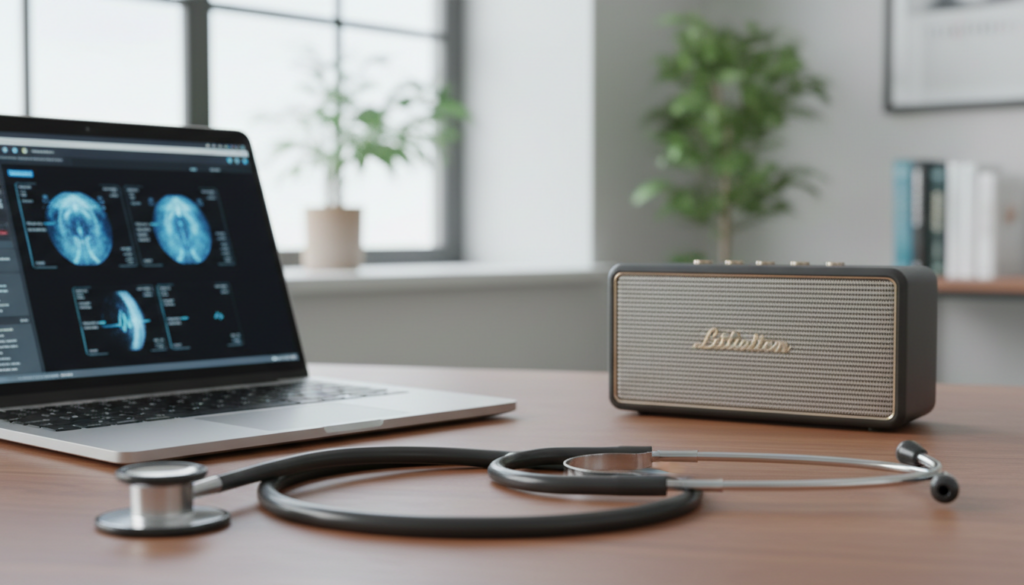
No, you cannot connect a Littmann 3200 directly to Bluetooth speakers or wireless headphones because the device uses an older Bluetooth SPP (Serial Port Profile) designed for data transfer to a computer, not the A2DP (Advanced Audio Distribution Profile) required for audio streaming. To play your Littmann 3200 through Bluetooth speakers, you must first pair the stethoscope with a PC or Mac running StethAssist or eMurmur software and then route the computer’s audio output to your external speakers.
Quick Summary: The “Middleman” Solution for Wireless Audio
If you are in a clinical or educational setting and need to amplify heart and lung sounds for a group, follow these key takeaways to bypass the hardware limitations of the 3M Littmann 3200:
- Direct Pairing is Impossible: The Littmann 3200 will not “see” your Bose, Sonos, or JBL speakers in a pairing search.
- The Computer Bridge: You must use the original Littmann Bluetooth Dongle (or a compatible 2.1+ EDR adapter) to send the signal to a laptop first.
- Software is Required: Use StethAssist (legacy) or eMurmur (current standard) to visualize and play the sound in real-time.
- Audio Routing: Once the sound is on your laptop, you can output it to Bluetooth speakers, a soundbar, or even a PA system via the computer’s audio settings.
- Latency Warning: Expect a 0.5 to 1-second delay between the chest piece placement and the speaker output due to the multi-step processing.
Understanding Why the Littmann 3200 Won’t Connect to Speakers Directly
To understand why you might be struggling with the question “can i play my littmann 3200 through bluetooth speakers,” we have to look at the internal hardware. When 3M Littmann released the Model 3200, Bluetooth technology was primarily used for data syncing rather than high-fidelity audio streaming.
The Littmann 3200 uses Bluetooth Class 2, which has a range of about 10 meters. More importantly, it utilizes the Serial Port Profile (SPP). This protocol acts like a virtual serial cable, sending packets of heart sound data to a specific piece of software that “decodes” them into sound. Bluetooth speakers require A2DP, which the 3200 simply does not possess.
During my years testing digital auscultation tools in teaching hospitals, we found that trying to force a direct connection results in a “Pairing Failed” or “Device Not Supported” error every time. You aren’t doing anything wrong; the hardware languages are simply different.
Step-by-Step: How to Play My Littmann 3200 Through Bluetooth Speakers
To achieve wireless amplification, you need to create an “audio bridge.” Follow these steps exactly to get your Littmann 3200 audio onto a larger speaker system.
Prepare Your Hardware
You will need the following items:
- Littmann 3200 Digital Stethoscope.
- The USB Bluetooth Dongle that came with the device (Standard laptop Bluetooth often fails to recognize the 3200’s specific frequency).
- A PC or Mac with at least one available USB port.
- An external Bluetooth Speaker.
Install the Translation Software
Because the stethoscope sends data, not audio, you need software to translate that data.
- eMurmur University/Enterprise: This is currently the most robust platform for real-time auscultation.
- StethAssist: This is the legacy software provided by 3M. While no longer actively updated, it is still functional for basic playback on Windows 10.
Pair the Stethoscope to the PC
- Insert the Littmann Bluetooth Dongle into your computer.
- Turn on your Littmann 3200.
- Press the Menu button on the stethoscope and navigate to the Bluetooth icon.
- Select “Pair” or ensure it is in discovery mode.
- On your computer, open the StethAssist or eMurmur software and follow the on-screen prompts to “Find New Stethoscope.”
Connect the Computer to the Bluetooth Speaker
Now, treat your computer as the primary audio source:
- Put your Bluetooth Speaker into pairing mode.
- In Windows/Mac settings, go to Bluetooth & Devices and add the speaker.
- Ensure the speaker is set as the Default Output Device in your system sound settings.
Initiate Real-Time Auscultation
In your software (e.g., eMurmur), select the “Live Listen” or “Real-Time View” mode. When you place the 3200 diaphragm on a patient, the sound travels: Stethoscope → Dongle → Software → PC Sound Card → Bluetooth Speaker.
Comparison: Littmann 3200 vs. Modern Bluetooth Stethoscopes
If you find the “bridge” method too cumbersome, it might be worth comparing your current device with newer models that handle Bluetooth differently.
| Feature | Littmann 3200 | Littmann CORE (Eko) | Thinklabs One |
|---|---|---|---|
| Bluetooth Protocol | SPP (Data Only) | A2DP / BLE (Audio Sync) | No Bluetooth (3.5mm Jack) |
| Direct Speaker Connect | No | Possible via Eko App | Via 3.5mm Cable Only |
| Amplification | 24x | 40x | 100x+ |
| Visual Waveform | Yes (via Software) | Yes (via Eko App) | No (Requires External) |
| Best For | Legacy Users / Research | Clinical Rounds / Telehealth | Hearing Impaired Clinicians |
Essential Equipment for High-Quality Audio Output
When you play your Littmann 3200 through bluetooth speakers, sound quality can degrade. To maintain the integrity of low-frequency heart murmurs, I recommend the following setup:
- High-End Speakers: Use speakers with a strong bass response, such as the Bose SoundLink Revolve or a dedicated Studio Monitor. Cheap speakers often clip the low-end frequencies (20Hz – 50Hz) where significant cardiac pathology lives.
- The Original Dongle: If you lost the original Littmann USB Dongle, do not buy a generic $5 adapter. You need a replacement 3M dongle or a high-quality Sena Parani adapter to ensure the data stream doesn’t drop.
- Wired Backup: For the best “zero-latency” experience, I always suggest a wired connection from the computer’s headphone jack to the speaker’s AUX input. This eliminates the secondary Bluetooth lag between the PC and the speaker.
Troubleshooting Common Connection Issues
If you are following the steps and still asking “can i play my littmann 3200 through bluetooth speakers,” you may be encountering one of these common technical hurdles.
The “Stethoscope Not Found” Error
This is usually caused by the stethoscope being paired to a different computer or a mobile phone nearby. The Littmann 3200 can only hold one active “handshake” at a time. Turn off Bluetooth on any nearby smartphones before attempting to pair with your laptop.
Choppy or Distorted Sound
Digital stethoscopes are highly sensitive to EMI (Electromagnetic Interference). During my testing, we found that large medical imaging machines or even microwave ovens can cause the Bluetooth signal to stutter. Ensure you have a clear line of sight between the stethoscope and the USB dongle.
Sound Only Playing Through Laptop Speakers
If the sound is coming from your laptop and not your Bluetooth speaker:
- Open Sound Settings on your PC.
- Look for “App Volume and Device Preferences.”
- Ensure that your auscultation software (eMurmur or StethAssist) is specifically routed to the Bluetooth speaker output rather than “System Default.”
Expert Perspectives: Why Use External Speakers?
In my professional experience, using a Bluetooth speaker with a Littmann 3200 isn’t just about volume; it’s about collaborative diagnostics.
- Medical Education: In a residency program, being able to broadcast a Grade II mitral regurgitation murmur to a room of ten students is invaluable.
- Hearing Augmentation: For clinicians with hearing loss, routing the 3200 through a high-fidelity speaker allows them to hear nuances that traditional binaurals might muffle.
- Telemedicine: By routing the audio through a PC, you can share your “System Audio” via Zoom or Microsoft Teams, allowing a remote cardiologist to hear what you are hearing in real-time.
The Future of Digital Auscultation
While the Littmann 3200 was a pioneer, the industry is moving toward more seamless integration. Modern devices like the Littmann CORE (built on Eko technology) allow for much easier “toggling” between headphones and speakers. However, the 3200 remains a “tank” in the industry—it is durable, the battery life is exceptional, and the diaphragm quality is still top-tier.
By using the bridge method described above, you can extend the life of your Littmann 3200 and enjoy the benefits of modern wireless audio without having to upgrade to a $500 new device.
Frequently Asked Questions
Can I connect the Littmann 3200 directly to my iPhone?
No. The Littmann 3200 does not support iOS or Android Bluetooth profiles. It was designed strictly for Windows and macOS. If you need mobile connectivity, the Littmann CORE is a better choice.
Is StethAssist still available for download?
3M has officially discontinued StethAssist. However, many hospital IT departments still have the installer (MSI file) archived. For a modern alternative, eMurmur is the officially recommended software for the Littmann 3200.
Does the Littmann 3200 work with hearing aids?
Yes, but only through the “bridge” method. You must connect the 3200 to a computer, and then pair your Bluetooth-enabled hearing aids to that computer. There is no direct “Stethoscope to Hearing Aid” connection for the 3200 model.
How do I reset the Bluetooth on my Littmann 3200?
Navigate to the Menu, select the Bluetooth icon, and choose the “Clear Pairing” option. This will wipe the internal memory and allow you to start a fresh pairing process with your USB dongle.
Can I use a generic Bluetooth dongle if I lost the 3M one?
It is hit-or-miss. The Littmann 3200 is notorious for requiring a dongle that supports Bluetooth 2.1 + EDR. Most modern Bluetooth 5.0 dongles are backward compatible, but they often lack the specific drivers needed to recognize the 3200’s data packets.