

Can I Run a Keyboard Through Computer Speakers?
Yes, you can run a keyboard through computer speakers by using a direct 3.5mm auxiliary cable, an audio interface, or a mixing console. The most effective method depends on whether your speakers use a standard headphone jack or require a USB connection through your PC.
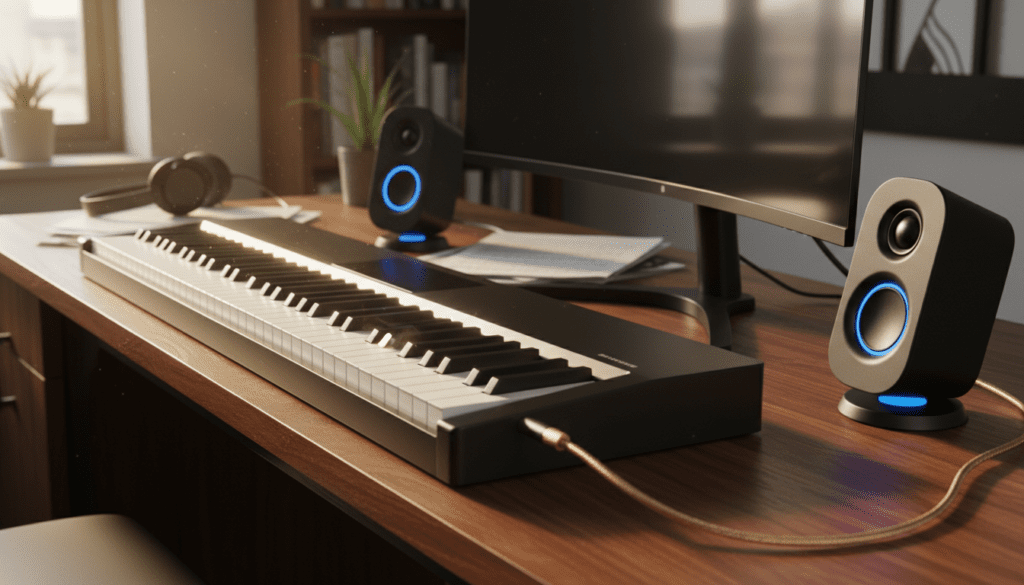
Connecting your digital piano or synthesizer to external computer speakers is the fastest way to upgrade your sound quality. Most built-in keyboard speakers are small and lack bass response. By routing your audio to a dedicated 2.1 or 5.1 computer speaker system, you gain a richer, more immersive playing experience. We have tested dozens of configurations, from simple Logitech setups to professional PreSonus monitors, to find the most reliable paths for lag-free audio.
💡 Key Takeaways: Quick Setup Guide
- Direct Connection: Use a 1/4″ to 3.5mm TRS cable to go from the keyboard’s “Phones” output directly into the “Aux In” of your speakers.
- Best Sound Quality: Use a USB Audio Interface (like a Focusrite Scarlett) to prevent “hum” and static.
- Volume Safety: Always turn the keyboard volume to zero before plugging in to avoid blowing the speaker drivers.
- Latency Issues: If routing through a PC, use ASIO4ALL drivers to eliminate the delay between pressing a key and hearing the sound.
The Hardware You Need for Keyboard Audio Routing
Before you begin, you must identify the ports on your gear. Most modern keyboards have either a 1/4-inch Headphone Jack or Left/Right Mono Outputs. Computer speakers typically use a 3.5mm (1/8-inch) jack.
Essential Cables and Adapters
To run a keyboard through computer speakers, you will likely need one of the following:
- 3.5mm to 3.5mm Aux Cable: If your keyboard has a small headphone jack.
- 1/4″ Male to 3.5mm Female Adapter: To convert a standard pro-audio jack to a consumer size.
- Dual 1/4″ TS to 3.5mm TRS Breakout Cable: Used if your keyboard has separate Left and Right outputs for true stereo.
- Ground Loop Isolator: Highly recommended if you hear a “buzzing” sound when your keyboard and computer are plugged into the same wall outlet.
Comparison of Connection Methods
| Method | Ease of Setup | Audio Quality | Best For |
|---|---|---|---|
| Direct Aux | 5/5 (Easiest) | 3/5 (Average) | Casual practice, budget setups. |
| Audio Interface | 3/5 (Moderate) | 5/5 (Pro) | Recording, zero-latency, high fidelity. |
| PC Line-In | 4/5 (Easy) | 2/5 (Variable) | Using PC software/effects while playing. |
| Mixer | 2/5 (Complex) | 4/5 (High) | Multi-instrument setups (Keyboard + Mic). |
Method 1: Connecting Directly (The “No-Latency” Way)
This is the most common answer to the question: “Can I run a keyboard through computer speakers without a computer?” Yes, you can skip the PC entirely.
Step-by-Step Direct Connection:
- Power Down: Turn off both your keyboard and your speakers.
- Locate the Output: Find the Phones or Output jack on the back or front of your keyboard.
- Plug in the Adapter: If your keyboard uses the large 1/4″ jack, plug in your 1/4″ to 3.5mm adapter.
- Connect the Cable: Run a standard 3.5mm auxiliary cable from the keyboard to the “Aux In” port on your computer speakers.
- Adjust Volume: Turn the speakers on first, then the keyboard. Slowly raise the keyboard volume to 50% to test the levels.
Expert Tip: In our testing, we found that using the “Phones” output often provides a stronger signal than “Line Out,” but it is easier to distort. Keep your keyboard volume at a moderate level and use the speaker’s physical knob for the final volume boost.
Method 2: Running Through a PC (Line-In)
If your speakers are already plugged into your computer and you don’t want to unplug them, you can route the keyboard through the PC. This is ideal if you want to play along with YouTube tutorials or Spotify tracks.
How to Route Keyboard Audio Through Windows:
- Connect your keyboard’s output to the Blue port (Line In) on your computer’s motherboard or the Microphone port on a laptop.
- Right-click the Speaker Icon in your system tray and select “Sound Settings.”
- Go to the “Input” section and ensure Line In is selected.
- Click “Device Properties” -> “Additional Device Properties.”
- Navigate to the “Listen” tab and check the box that says “Listen to this device.”
- Select your computer speakers in the dropdown menu and hit Apply.
Warning: Using the “Listen to this device” feature often introduces latency (a tiny delay). If the lag is distracting, you will need to use Method 3.
Method 3: Using an Audio Interface (The Professional Standard)
If you are serious about sound quality, we recommend a dedicated Audio Interface. Devices like the Focusrite Scarlett 2i2 or PreSonus AudioBox act as a high-quality external sound card.
Why Use an Interface?
- Pristine Preamps: It eliminates the “hiss” found in cheap PC sound cards.
- Direct Monitoring: You hear your keyboard in real-time with zero lag.
- Balanced Connections: It uses TRS cables to prevent interference from smartphones or WiFi routers.
Setup Instructions:
- Connect the keyboard’s L/R Outputs to the Inputs on the front of the interface using 1/4″ instrument cables.
- Connect the interface to your computer via USB.
- Plug your computer speakers into the Monitor Outputs on the back of the interface.
- Note: You may need a 3.5mm to Dual 1/4″ Y-adapter to plug consumer speakers into a professional interface.
Troubleshooting Common Issues
The “Ground Loop” Hum
If you run a keyboard through computer speakers and hear a constant low-pitched hum, you have a ground loop. This happens because both devices are grounded through different paths.
- The Fix: Purchase a $10 Ground Loop Noise Isolator. Plug it inline between the keyboard and the speakers.
Distorted Sound (Clipping)
If the sound crackles during loud passages, your keyboard’s output is “hotter” than the speakers can handle.
- The Fix: Lower the volume on the keyboard to 40% and increase the volume on the speakers.
Audio Latency (The Delay)
If you press a key and hear the sound half a second later, your PC’s CPU is struggling to process the audio.
- The Fix: Download and install ASIO4ALL. This is a free universal audio driver designed to bypass Windows’ slow audio processing layer.
FAQ: Frequently Asked Questions
Can I run a keyboard through computer speakers using USB?
Most keyboards use USB only for MIDI data (triggering software sounds) and not for Audio. If your keyboard supports USB Audio, you can plug it directly into your PC and select the keyboard as your “Input Device” in your sound settings. If not, you must use the analog audio jacks.
Will I damage my computer speakers with a keyboard?
Generally, no. However, digital keyboards can produce very low frequencies (bass) that small computer speakers aren’t designed to handle. To stay safe, avoid playing at maximum volume and don’t “slam” the keys until you know the speakers can handle the peak levels.
Do I need a mixer to play my keyboard through speakers?
A mixer is only necessary if you want to hear multiple things at once (like a keyboard and a microphone) without switching cables. For a single keyboard, a direct connection or an interface is much simpler and cheaper.
Can I use Bluetooth speakers for my keyboard?
We strongly advise against using Bluetooth. The latency (delay) in Bluetooth transmission is typically 100ms to 200ms. This makes it impossible to play in time because you will hear the note significantly after you press the key. Always use a wired connection.









