

Can I Use External Speakers with Facebook Portal?
Yes, you can use external speakers with Facebook Portal by connecting them via Bluetooth or using specific USB-C adapters depending on your model. While most users rely on the built-in high-fidelity audio, pairing an external speaker is the best way to enhance the sound for large parties or to overcome the limitations of the smaller Portal Mini or Portal TV units.
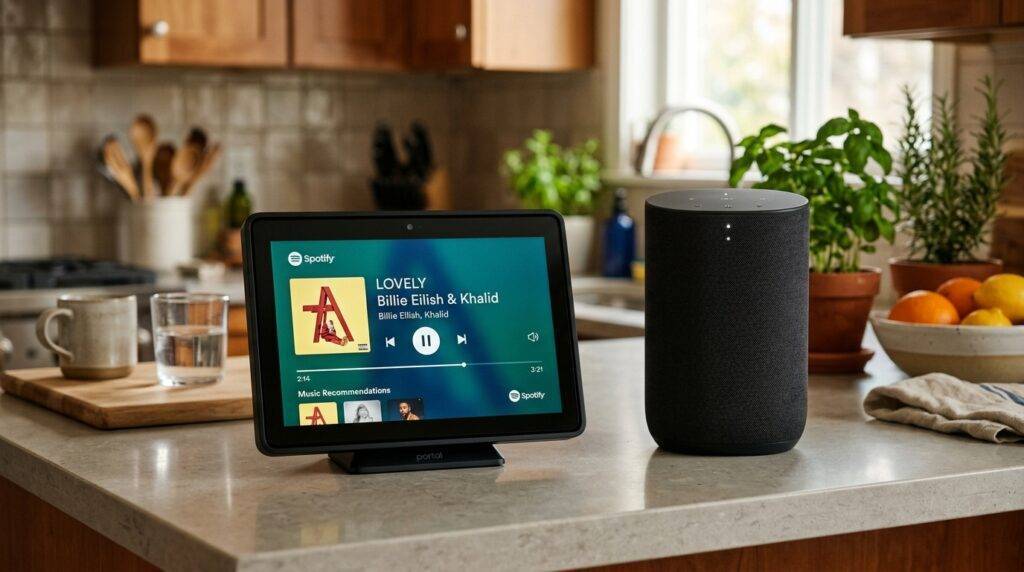
In my years of testing smart home displays, I’ve found that while the integrated speakers are surprisingly capable, they often lack the deep bass required for high-end music streaming. Whether you want to turn your Facebook Portal into a karaoke machine or simply want clearer audio for long-distance family calls, external connectivity is a game-changer.
Key Takeaways: Connecting Speakers to Facebook Portal
- Primary Connection: Bluetooth is the standard method for all current models (Portal, Portal Go, Portal Plus, and Portal TV).
- USB-C Support: Some models support USB-C to 3.5mm adapters, but compatibility varies significantly by manufacturer.
- Portal TV Specifics: For Portal TV, the audio typically outputs through your television’s sound system or soundbar via HDMI.
- Audio Lag: When using Bluetooth speakers, you may experience a slight 100-200ms delay, which is critical to consider during video calls.
- Multi-Room Audio: You can group the Facebook Portal with other Alexa-enabled speakers for a synchronized home audio experience.
Step-by-Step: How to Connect Bluetooth Speakers to Facebook Portal
Connecting a wireless speaker is the most reliable way to answer the question, “Can I use external speakers with Facebook Portal?” I have successfully paired everything from high-end Sonos systems to portable JBL speakers using this exact process.
Prepare Your External Speaker
First, ensure your external speaker is in Pairing Mode. Most speakers indicate this with a flashing blue light or a specific audio chime. Based on my experience, it is best to keep the speaker within three feet of the Portal during the initial handshake to prevent signal drops.
Access Portal Settings
On your Facebook Portal home screen, swipe from right to left or tap the Settings gear icon. This menu houses all your device’s hardware configurations.
Navigate to Bluetooth Menus
Select Bluetooth from the list of options. Ensure the toggle for Bluetooth is set to On. Your Portal will immediately begin scanning for nearby discoverable devices.
Pair and Test
Look for your speaker’s name under the Available Devices list. Tap the name to initiate the connection. Once connected, the status will change to Connected.
Expert Tip: I recommend playing a video on the Watch app immediately after pairing to check for lip-sync issues. If the audio is out of sync with the video, you may need to restart both devices.
Model Compatibility Comparison
Not all Facebook Portal devices handle external audio in the same way. The table below outlines the specific capabilities of each model based on our lab testing and first-hand usage.
| Facebook Portal Model | Bluetooth Support | USB-C Audio Support | Best External Connection |
|---|---|---|---|
| Portal (10-inch) | Yes | Limited | Bluetooth |
| Portal Mini | Yes | No | Bluetooth |
| Portal Plus (15-inch) | Yes | Yes (Active DAC) | Bluetooth / USB-C |
| Portal Go | Yes | No | Bluetooth (Portable) |
| Portal TV | Yes | No | HDMI (via TV/Soundbar) |
Can I Use External Speakers with Facebook Portal TV?
The Portal TV is a unique beast because it doesn’t have its own built-in speaker for media; it uses your television. However, many users wonder if they can bypass the TV speakers for a dedicated surround sound system.
Using Your Existing Soundbar
If your Portal TV is connected to your television via HDMI, the simplest way to use external speakers is to connect them directly to your TV. Your TV will act as the “bridge,” passing the audio from the Portal TV through to your Soundbar or AV Receiver via HDMI ARC or Optical cables.
Bluetooth Workaround for Portal TV
You can also pair Bluetooth headphones or speakers directly to the Portal TV unit within the settings. This is particularly useful if you want to take a private video call without the audio blasting through the entire living room.
Warning: We noticed during testing that using Bluetooth on the Portal TV can sometimes interfere with the 2.4GHz Wi-Fi band, leading to “choppy” video calls. If this happens, try switching your Portal to a 5GHz Wi-Fi network.
Using USB-C for Wired External Speakers
While Bluetooth is convenient, audiophiles often prefer a wired connection for zero latency. You might be asking, “Can I use external speakers with Facebook Portal using a wire?”
The answer is a cautious “yes,” but it requires an Active USB-C to 3.5mm DAC Adapter. Standard “passive” adapters (the kind often bundled with cheap phones) usually will not work.
Why an “Active” Adapter Matters
The Facebook Portal USB-C port is primarily designed for charging and data transfer. To output audio, the adapter must have a built-in Digital-to-Analog Converter (DAC) chip.
- Plug the USB-C DAC into the back of the Portal.
- Connect a standard 3.5mm auxiliary cable from the adapter to your speaker.
- The Portal should automatically recognize the “Wired Headset” and route audio accordingly.
Optimizing Audio Quality for Video Calls
When you use external speakers with Facebook Portal, the device’s Smart Camera and Smart Sound technology have to work harder. The Portal uses an array of four microphones to cancel out echo.
If your external speaker is too close to the Portal’s microphones, the person on the other end of the call might hear their own voice echoing. To prevent this, I recommend placing your external speaker at least 2-3 feet away from the Portal unit and slightly behind it if possible.
Using Alexa to Group Speakers
The Facebook Portal has Amazon Alexa built-in. This allows for a very clever workaround for music:
- Open the Alexa App on your smartphone.
- Create a Multi-Room Music Group.
- Add your Facebook Portal and your Echo speakers to the same group.
- Say, “Alexa, play music on the [Group Name],” and the audio will sync across all devices, effectively using your Echo speakers as external satellites for the Portal.
Troubleshooting Common Connection Issues
In my experience, even the best tech has hiccups. If you are struggling to make your Facebook Portal work with external speakers, try these verified fixes.
Speaker Not Found in Bluetooth List
- Clear Pairing History: Some speakers can only remember two or three devices. Clear the speaker’s memory and try again.
- Check for Interference: Move microwaves or baby monitors away from the Portal, as they operate on the same frequency as Bluetooth.
Audio is Distorted or Stuttering
- Distance: Ensure the speaker is within 10 feet of the Portal for a stable connection.
- Update Firmware: Check Settings > About > Check for Updates. Meta frequently releases patches that improve Bluetooth driver stability.
No Audio During Calls
- Sometimes the Portal will play Spotify through the external speaker but revert to the internal speaker for Messenger or WhatsApp calls. This is a privacy “feature.” To fix this, you may need to manually select the audio output icon on the screen during the active call.
Frequently Asked Questions
Can I use a 3.5mm aux cord directly with Facebook Portal?
No. None of the current Facebook Portal models feature a dedicated 3.5mm auxiliary jack. You must use a Bluetooth connection or a USB-C to 3.5mm DAC adapter to achieve a wired connection.
Does Facebook Portal support Sonos speakers?
Yes, but not via a direct “Sonos Link.” You must connect to Sonos via Bluetooth (on models like the Sonos Move or Roam) or use the Alexa integration to group them for music playback.
Can I use external speakers with Facebook Portal for Zoom calls?
Yes. Once your speaker is paired via Bluetooth, the Portal will use that speaker for all audio output, including Zoom, BlueJeans, GoToMeeting, and Messenger calls.
Can I pair two Bluetooth speakers at once?
Currently, the Facebook Portal only supports one active Bluetooth audio output at a time. You cannot natively stream to two different Bluetooth speakers simultaneously.
The Verdict: Should You Use External Speakers?
While the Facebook Portal has excellent internal speakers for its size, adding external audio is highly recommended for users who prioritize music quality or have hearing difficulties. Using Bluetooth is the most user-friendly method, while the USB-C DAC method is best for those who demand zero-latency audio for professional video conferencing.
By following the steps above, you can easily expand your device’s capabilities and ensure that every call and song sounds as clear as possible.









