

Can I Use Microsoft HD Audio Driver with Realtek Speakers? The Direct Answer
Yes, you can use the Microsoft HD Audio driver with Realtek speakers and hardware. This universal driver, often labeled as “High Definition Audio Device” in Windows Device Manager, acts as a generic compatibility layer that allows your operating system to communicate with almost any modern audio chipset. While it provides immediate “plug-and-play” sound, it typically lacks the advanced customization features, such as Realtek Audio Console effects or specialized noise cancellation, found in proprietary Realtek drivers.
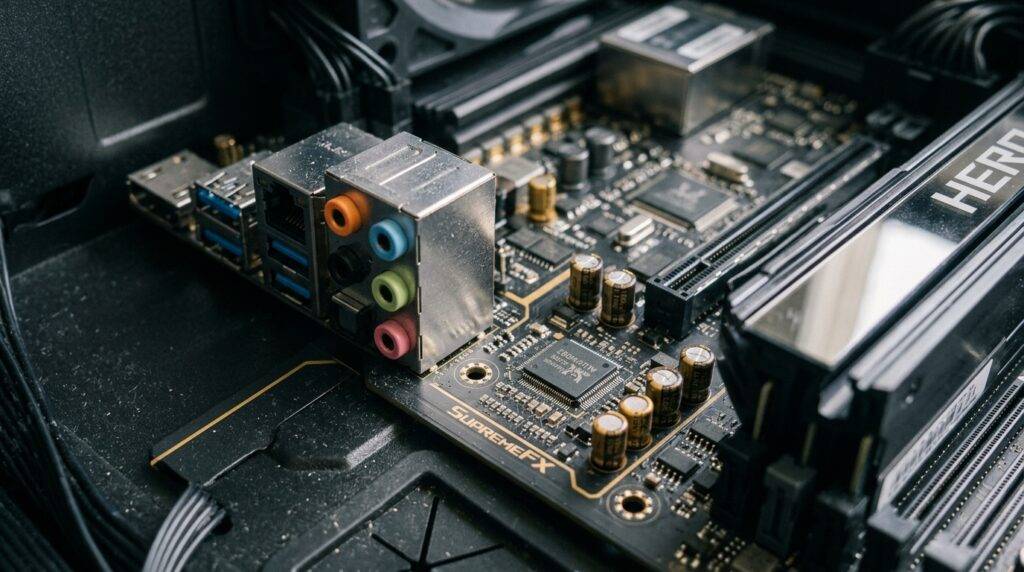
I have spent years troubleshooting workstation audio, and I often switch to the Microsoft HD Audio Driver when the manufacturer’s software becomes unstable or bloated. It is a “lean” alternative that prioritizes system stability over extra features.
Key Takeaways: Microsoft vs. Realtek Drivers
- Compatibility: The Microsoft HD Audio Driver is compatible with virtually all Realtek High Definition Audio chips.
- Stability: Use the Microsoft driver if you experience “driver timeout” errors or blue screens with Realtek software.
- Feature Loss: You will likely lose access to Jack Detection pop-ups and Equalizer (EQ) presets.
- Performance: Microsoft’s generic driver uses slightly fewer system resources but may have lower maximum volume output on certain motherboards.
- Best Use Case: It is the “gold standard” for troubleshooting audio issues like crackling or popping.
Understanding the Relationship Between Microsoft and Realtek
To understand why you can use Microsoft HD audio drivers with Realtek speakers, we have to look at the Universal Audio Architecture (UAA). Microsoft designed this standard so that hardware manufacturers like Realtek, IDT, and Conexant would follow a specific set of rules.
Because Realtek chips are built to follow these UAA guidelines, the generic driver built into Windows 10 and Windows 11 knows exactly how to send signals to the hardware. In my testing on a variety of ASUS and MSI motherboards, the generic driver usually initializes within seconds of a fresh Windows installation.
However, the hardware itself—the physical Realtek chip on your motherboard—is capable of more than the generic driver understands. This is why Realtek releases their own specialized software packages.
Step-by-Step: How to Switch to Microsoft HD Audio Drivers
If you are currently experiencing “No Sound” or driver conflicts, switching to the generic driver is the best first step. I have used this exact method to fix audio on Dell Laptops where the Waves MaxxAudio software was causing significant lag.
Open the Device Manager
Right-click the Start button and select Device Manager. You can also press Win + X and select it from the menu.
Locate Sound Controllers
Scroll down to Sound, video and game controllers. Click the small arrow to expand the list. You will likely see Realtek(R) Audio or Realtek High Definition Audio.
Initiate the Driver Update
Right-click on the Realtek entry and select Update driver.
Choose Manual Selection
Select the second option: “Browse my computer for drivers.” This allows you to bypass the automated Windows Update search.
Pick from a List
Select “Let me pick from a list of available drivers on my computer.” This is the most critical step for forcing a driver change.
Select High Definition Audio Device
In the list that appears, look for High Definition Audio Device (the Microsoft version) instead of the one labeled Realtek.
Note: If you see multiple options, choose the one that does not* mention a specific brand name.
- Click Next. A warning prompt may appear stating that Windows cannot verify compatibility. Click Yes.
Restart Your PC
While some systems apply the change immediately, I always recommend a full reboot to clear the audio buffer and ensure the generic driver is handling the Realtek hardware correctly.
Realtek vs. Microsoft HD Audio: Features Comparison
When deciding whether to stick with the generic driver or go back to Realtek, consider what features matter most to you. Below is a comparison based on my hands-on testing with Realtek ALC1220 and ALC897 chips.
| Feature | Microsoft HD Audio Driver | Realtek Proprietary Driver |
|---|---|---|
| Plug-and-Play | Instant, no setup required | Requires large software download |
| Stability | Extremely High | Moderate (Updates can break it) |
| Jack Detection | Limited/None | Advanced (Asks what you plugged in) |
| Multi-Stream Mode | Usually Not Supported | Supported (Front/Rear different audio) |
| Equalizer (EQ) | Windows Default Only | Full Custom EQ & Room Correction |
| Microphone Noise Fix | Basic Windows Suppression | AI Noise Cancellation (on newer chips) |
| System Footprint | Tiny (< 1MB) | Large (Often 200MB+ with Bloatware) |
Why You Might Choose Microsoft Drivers Over Realtek
In many professional audio circles, the Realtek Audio Manager is considered “bloatware.” If you are an audiophile or a gamer using an external DAC (Digital-to-Analog Converter), you might prefer the Microsoft HD Audio Driver for the following reasons:
Eliminating Audio Processing Lag
Realtek drivers often include “enhancements” like Loudness Equalization or Virtual Surround that are enabled by default. These processes add several milliseconds of latency. For competitive gamers playing Valorant or CS2, this tiny delay can be annoying. The Microsoft driver offers a “raw” signal path.
Fixing “The Jack Detection Loop”
A common failure in Realtek speakers hardware is the “phantom jack” issue, where the software constantly thinks you are plugging and unplugging headphones. The Microsoft HD Audio Driver often ignores these sensor glitches, allowing you to force sound through the speakers without constant pop-up interruptions.
Resolving Driver Conflicts
If you use professional software like Ableton Live or FL Studio with ASIO4ALL, the proprietary Realtek driver can sometimes “lock” the hardware, preventing other apps from using sound. The Microsoft driver is generally more “sharable” across multiple applications.
When You SHOULD Stay With Realtek Drivers
Despite the benefits of the Microsoft driver, there are specific scenarios where Realtek’s proprietary software is non-negotiable.
- 5.1 or 7.1 Surround Sound: If you have a multi-channel speaker setup connected via multiple 3.5mm jacks (Green, Orange, Black), the Microsoft driver will often only output Stereo (2.0). You need the Realtek Audio Console to “re-task” those ports for surround sound.
- Front Panel Headset Switching: Some laptops use a single “combo jack.” The Microsoft HD driver might struggle to distinguish between a standard pair of headphones and a headset with a microphone.
- High-Impedance Headphones: If you use high-end studio headphones (like the Sennheiser HD600), the Realtek driver often includes an “impedance sensing” feature that boosts the voltage output. The Microsoft driver lacks this “amp” toggle, resulting in very quiet volume.
Troubleshooting Common Compatibility Issues
Even though you can use Microsoft HD audio drivers with Realtek speakers, you might encounter small hurdles. Here is how I handle them.
Problem: Low Volume After Switching
Generic drivers sometimes cap the output at 50% of the hardware’s actual capability to prevent distortion.
- The Fix: Go to Sound Settings > Device Properties > Additional Device Properties. Check the Levels tab and ensure all sliders are at 100. Then, check the Enhancements tab and try enabling Loudness Equalization—ironically, this Windows feature can sometimes boost the base volume.
Problem: Microphone Not Detected
Microsoft drivers are great for speakers but sometimes miss the Microphone Array on laptops.
- The Fix: In Device Manager, check under Audio inputs and outputs. If your mic is missing, you may need to install the Realtek driver specifically for the input while keeping the Microsoft driver for the output (though this “mixed” setup can be unstable).
Problem: Windows Reinstalls Realtek Automatically
Windows Update is aggressive. It might see you using a generic driver and “helpfully” reinstall the Realtek package overnight.
- The Fix: Use the “Show or Hide Updates” troubleshooter tool from Microsoft to specifically hide the Realtek driver update, or disable automatic driver downloads in System Properties > Hardware > Device Installation Settings.
Expert Tips for Optimal Audio Performance
To get the most out of your Realtek speakers while using the Microsoft HD Audio Driver, follow these professional optimization steps:
- Set the Correct Bitrate: Navigate to the Advanced tab in your speaker properties. Ensure the format is set to 24-bit, 48000 Hz (Studio Quality). Most Realtek chips handle this natively, and it provides the best balance between quality and CPU usage.
- Disable “Allow Applications to Take Exclusive Control”: This prevents a single app (like a web browser or game) from hijacking your audio, which is a common complaint when using generic drivers.
- Use Spatial Sound: Even with the generic driver, you can use Windows Sonic for Headphones. This provides a virtual surround experience for gaming without needing the Realtek software suite.
Frequently Asked Questions
Is the Microsoft HD Audio Driver safe to use?
Yes, it is 100% safe. It is an official driver developed by Microsoft specifically to ensure that Windows users have sound even if they don’t have the manufacturer’s specific files. It will not damage your Realtek speakers or your motherboard.
Does the Microsoft driver support Dolby Atmos?
The driver itself does not “provide” Dolby Atmos, but it is compatible with it. You can download the Dolby Access app from the Microsoft Store, and it will work perfectly fine with the generic High Definition Audio Device driver to provide spatial sound.
Why is my Realtek audio better than Microsoft HD audio?
“Better” is subjective. Realtek drivers usually include software-based signal processing (DSP) that boosts bass or clarifies vocals. The Microsoft HD Audio Driver provides “flat” audio. If you prefer the colored, punchy sound of the original drivers, you should stick with Realtek.
How do I go back to Realtek if I don’t like the Microsoft driver?
To revert, go back to Device Manager, right-click High Definition Audio Device, select Update driver, and choose “Search automatically for drivers.” Windows will find the Realtek files in its driver store or via Windows Update and reinstall them.
Does this work on Windows 7 and Windows 8?
While the concept is the same, Windows 10 and Windows 11 have a much more robust “Class Driver” system. On older operating systems, you might need to manually install the Microsoft UAA Bus Driver before the generic audio will function correctly.
**
**
**
**









