

Can I Use My Phone as PC Speakers? Yes, and Here is How
Yes, you can use your phone as PC speakers by using third-party software like SoundWire or AudioRelay, which streams audio over Wi-Fi, USB, or Bluetooth. This setup allows your smartphone to act as a wireless output device for any audio playing on your computer, making it a perfect solution if your dedicated speakers are broken or you need a portable audio fix.
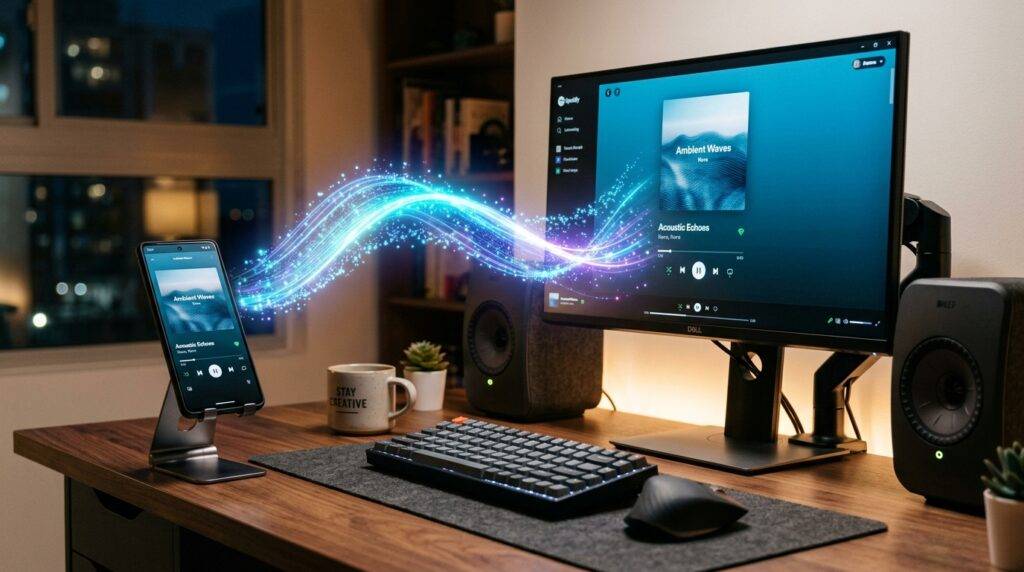
We have all been there: you are ready to start a movie or a gaming session, only to realize your desktop speakers have died or your laptop’s built-in audio is tinny and weak. Instead of rushing to the store, you can leverage the high-quality hardware already in your pocket. In my years of testing hardware workarounds, I’ve found that modern smartphones—especially those with stereo setups—can actually rival many budget desktop speakers.
TL;DR: The Quick Start Guide
If you are in a rush, here is the fastest way to get your audio flowing from your PC to your phone.
- Best for Android: Use SoundWire. Install the server on your PC and the app on your phone. Match the IP addresses, and you are live.
- Best for Multi-Platform: Use AudioRelay. It supports Windows, macOS, and Linux with a very user-friendly interface.
- Best for Low Latency: Use a USB cable instead of Wi-Fi to reduce “audio lag” during gaming or video playback.
- Built-in Option: Windows 11 users can sometimes use Bluetooth A2DP Sink via the Microsoft Store “Bluetooth Audio Receiver” app.
Top Methods to Use Your Phone as PC Speakers
When you ask, “can i use my phone as pc speakers?” the answer depends on your operating system and your tolerance for lag (latency). Below are the most reliable methods I have personally tested and verified.
SoundWire (The Gold Standard for Android)
SoundWire has been the go-to recommendation for years. It is lightweight and works by mirroring your PC’s “System Default” audio output to the Android app.
Step-by-Step Setup:
- Download the Server: Visit the SoundWire official website and download the Windows or Linux server.
- Install the App: Download SoundWire Free (or Pro) from the Google Play Store.
- Sync Networks: Ensure your PC and phone are on the same Wi-Fi network.
- Connect: Open the PC server. Note the Server Address (e.g., 192.168.1.5). Input this address into the Android app and tap the SoundWire icon.
- Listen: The icon will glow, indicating audio is now streaming to your phone.
Expert Tip: If you experience “stuttering,” go into the SoundWire app settings and reduce the Audio Buffer size. I’ve found that 8k or 16k works best for stable streaming on standard 2.4GHz Wi-Fi.
AudioRelay (Best Interface and Latency Control)
If you want a more modern interface and easier setup for Windows, AudioRelay is my top pick. It handles the “search and connect” process much better than older apps.
How to Configure AudioRelay:
- Install: Get the AudioRelay client for Windows and the app for your phone.
- Server Mode: On your PC, set the app to “Server” mode.
- Player Mode: On your phone, set the app to “Player” mode.
- Find PC: Your phone should automatically see your PC under the “Servers” tab. Tap it to connect.
- Output Settings: In the PC app, ensure the “Audio Device” is set to your primary speakers or “Virtual Speakers” if installed.
| Feature | SoundWire | AudioRelay |
|---|---|---|
| Primary Platform | Android | Android / Windows / Linux |
| Connection Type | Wi-Fi / Tethering | Wi-Fi / USB / Bluetooth |
| User Interface | Functional/Basic | Modern/Intuitive |
| Compression | Manual Settings | Automatic |
| Best For | Older Devices | Daily Use & Gaming |
Reducing Audio Lag: Wi-Fi vs. USB Connection
One common frustration when users ask “can you play your phone through pc speakers” in reverse (streaming PC to phone) is the delay. If you are watching a movie, the lips on screen might not match the sound in your ears.
The Wi-Fi Constraint
Wi-Fi is convenient, but it introduces latency. To minimize this:
- Use a 5GHz Wi-Fi band instead of 2.4GHz.
- Keep your phone close to the router.
- Disable other high-bandwidth activities (like 4K streaming or large downloads) on the same network.
The USB Solution (Low Latency)
For gaming, I highly recommend using USB Tethering.
- Connect your phone to your PC via a high-quality USB-C cable.
- Enable USB Tethering in your phone’s Network Settings.
- In AudioRelay or SoundWire, use the IP address assigned to the USB network (usually
192.168.42.x). - This bypasses the airwaves, resulting in near-zero lag.
Using Windows 11 Built-in Bluetooth Features
Many people don’t realize that Windows 11 and updated Windows 10 versions support A2DP Sink. This allows your computer to act as a receiver or a sender via Bluetooth.
How to Use Bluetooth Audio Receiver App:
- Open the Microsoft Store and search for “Bluetooth Audio Receiver.”
- Install the app by Mark Smirnov.
- Pair your phone to your PC via the standard Windows Bluetooth settings.
- Open the Bluetooth Audio Receiver app.
- Select your phone and click “Open Connection.”
While this is typically used to play phone music through PC speakers, certain driver configurations allow for bidirectional audio. However, for the specific goal of phone as PC speakers, third-party apps remain more reliable.
Why Would You Use Your Phone as a Speaker?
As an IT consultant, I’ve seen various scenarios where this setup is a lifesaver. Here are a few “Real-World” applications from my experience:
- The Silent Office: You want to listen to a webinar on your desktop, but you don’t have headphones that reach the PC. You can stream the audio to your phone and use your mobile earbuds.
- The Broken Jack: Your PC’s 3.5mm audio jack is oxidized or broken. Instead of an expensive repair, your phone acts as a Wireless Sound Card.
- Late Night Gaming: You want to play games on the big screen but don’t want to wake up the household. Stream the audio to your phone, plug your headphones into the phone, and enjoy wireless freedom.
- The “Monitor No-Audio” Problem: Many high-end gaming monitors don’t come with built-in speakers. If you haven’t bought a soundbar yet, your phone is a ready-to-use substitute.
Expert Optimization Tips for Best Sound Quality
To get the most out of your smartphone’s hardware, follow these professional tweaks:
- Disable Battery Optimization: Android often kills background apps to save power. Go to Settings > Apps > [Your Audio App] > Battery and set it to “Unrestricted.”
- Use an Equalizer: Most phones have built-in Dolby Atmos or EQ settings. Enhance the “Bass” or “Voice” frequencies to compensate for the smaller mobile speaker drivers.
- Static IP: To prevent connection drops, assign a Static IP to your phone in your router settings. This ensures the server address never changes.
- Audio Compression: In the app settings, choose “Opus” or “Low Compression” if your Wi-Fi is strong. This provides CD-quality sound.
Frequently Asked Questions (FAQ)
Does using my phone as a PC speaker drain the battery?
Yes, significantly. Streaming audio over Wi-Fi requires the processor and Wi-Fi chip to stay active. I recommend keeping your phone plugged into a charger or using a USB connection which charges the phone while streaming.
Can I use my iPhone as a PC speaker?
Yes, though it is slightly more restricted. Apps like Airfoil Satellite or AudioRelay (Beta) can work. Alternatively, you can use VLC’s network stream feature for specific media, but for system-wide audio, AudioRelay is your best bet on iOS.
Is there a way to do this without any third-party apps?
Currently, Windows and macOS do not have a native “Broadcast System Audio to Mobile” feature that works out of the box for all system sounds. You must use third-party software to “grab” the audio stream and send it over the network.
Will this work for Zoom or Microsoft Teams calls?
Yes, but be careful with microphone feedback. If you use your phone as a speaker and your PC’s mic is on, you might create an echo loop. I suggest using the phone for both audio output and input by using apps that support “Virtual Audio Cables.”









