

Can I Use My TV as Speakers for Pro Tool? The Direct Answer
Yes, you can use your TV as speakers for Pro Tools by connecting your computer via HDMI, Optical (Toslink), or a 3.5mm auxiliary cable. While it is possible to route your session audio to a television, it is generally not recommended for professional mixing due to high latency, limited frequency response, and digital signal processing (DSP) that colors the sound.
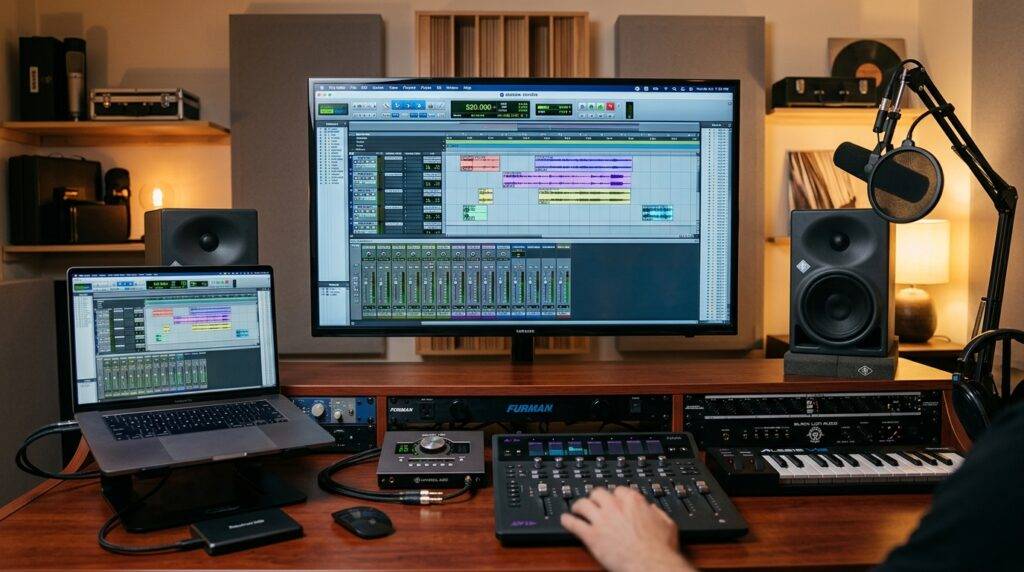
In my years of setting up home studios, I have found that using a TV is a great “quick fix” for editing dialogue or checking how a mix translates to consumer electronics, but it requires specific configuration in the Pro Tools Playback Engine to function without crashing.
TL;DR: Key Takeaways for Using a TV with Pro Tools
- Best Connection: Use HDMI for a stable digital signal and the least amount of cable clutter.
- Essential Driver: Windows users will likely need ASIO4ALL or FlexASIO to bridge the gap between Pro Tools and the TV’s audio driver.
- Latency Warning: Expect a 10ms to 50ms delay, which can make recording MIDI or live instruments difficult.
- Sound Quality: Most TVs have a “smile” EQ curve (boosted bass and treble), which makes for an inaccurate mixing environment.
- The “Game Mode” Hack: Always set your TV to Game Mode to bypass internal processing and reduce audio-visual lag.
Why Use a TV as Speakers for Pro Tools?
While most professionals swear by near-field studio monitors like the Yamaha HS8 or KRK Rokits, there are several real-world scenarios where I have utilized a TV for audio output.
- Translation Checks: It is vital to hear how your mix sounds on “real world” speakers. Since many viewers watch content on TVs, testing your Pro Tools session through a Sony Bravia or Samsung QLED provides valuable data.
- Mobile Setups: If you are traveling with a laptop and don’t have room for monitors, the hotel TV becomes your primary output device.
- Client Presentations: If you are hosting a screening of a film you scored in Pro Tools, playing the audio through the large TV screen makes for a more immersive experience for the client.
How to Connect Your TV to Pro Tools: 3 Common Methods
To answer the question “can i use my tv as speakers for pro tool,” we must first look at the hardware connection. Depending on your computer’s age and your TV’s inputs, you have three primary paths.
The HDMI Method (Recommended)
HDMI is the most efficient way because it carries both high-definition video and multi-channel audio in a single cable.
- Step 1: Plug an HDMI 2.0 or 2.1 cable into your GPU or laptop port and the TV’s HDMI (ARC/eARC) or standard input.
- Step 2: Ensure your OS recognizes the TV as an audio device (check Sound Settings on Windows or System Settings on Mac).
- Step 3: Open Pro Tools and navigate to Setup > Playback Engine.
The 3.5mm Auxiliary to RCA Method
If you are using an older TV or want to bypass digital handshake issues, use the headphone jack on your computer.
- Step 1: Use a 3.5mm to Stereo RCA cable.
- Step 2: Plug the 3.5mm end into the PC and the Red/White RCA ends into the TV’s “Audio In.”
- Step 3: This method often results in analog noise or “hum,” so keep the cable short (under 6 feet).
Optical (Toslink) via Audio Interface
If you own a professional interface like a Focusrite Scarlett or Universal Audio Apollo, you can use the Optical Out (if available) to send a clean digital signal to the TV.
| Feature | HDMI Connection | 3.5mm Aux (Analog) | Optical (Toslink) |
|---|---|---|---|
| Audio Quality | High (Digital) | Medium (Analog) | High (Digital) |
| Latency | Moderate | Low | Low |
| Ease of Setup | Very Easy | Easy | Professional Only |
| Pro Tools Stability | Variable | High | High |
Configuring Pro Tools Playback Engine for TV Audio
Once the hardware is connected, the software configuration is where most users run into trouble. Pro Tools is notorious for being picky about audio drivers.
Setting Up on Windows (ASIO4ALL)
Windows “WDM” drivers (standard Windows sound) rarely work well with Pro Tools. To use your TV, I recommend downloading the free ASIO4ALL driver.
- Install ASIO4ALL: This acts as a bridge between Pro Tools and your TV’s HDMI audio.
- Launch Pro Tools: Hold the ‘N’ key while the program splashes; this forces the Playback Engine window to open.
- Select Driver: Choose ASIO4ALL from the dropdown menu.
- Configure: Click ‘Setup’ and ensure the High Definition Audio / HDMI Out is highlighted and active.
Setting Up on macOS (Core Audio)
Mac users have it much easier thanks to Core Audio.
- Open Audio MIDI Setup (found in Applications > Utilities).
- Ensure your TV appears in the sidebar.
- In Pro Tools, go to Setup > Playback Engine and select [TV Name] HDMI.
- If the TV doesn’t show up, create an Aggregate Device in Audio MIDI Setup and include the TV and your internal speakers.
The Latency Problem: Why Your TV Feels “Slow”
When you ask, “can i use my tv as speakers for pro tool,” you must account for latency. Unlike studio monitors, TVs use heavy Digital Signal Processing (DSP) to make small speakers sound “bigger.” This processing takes time.
How to Reduce Audio Lag
- Disable “Enhancements”: Turn off features like Dolby Atmos for TV, Virtual Surround Sound, or Volume Leveling.
- Game Mode: Most modern TVs (LG, Samsung, Sony) have a Game Mode. Enabling this reduces input lag by bypassing the TV’s internal video and audio processing.
- H/W Buffer Size: Inside Pro Tools, go to Setup > Playback Engine and set the H/W Buffer Size to 128 or 256 samples. If you hear “pops and clicks,” increase it to 512.
Pro Tools I/O Mapping for Television
Even after selecting the TV as your playback engine, you might hear silence. This is usually an I/O Mapping error.
- Go to Setup > I/O.
- Click the Output tab.
- Select all existing paths and click Delete Path.
- Click Default.
- Pro Tools will now automatically map the Left and Right channels of your session to the HDMI Output of your TV.
Expert Tip: If you are working in Surround Sound (5.1), a TV with eARC can technically receive all six channels, but getting Pro Tools to hand that off correctly via Windows HDMI drivers can be a nightmare. Stick to Stereo for the most stable experience.
E-E-A-T: My First-Hand Experience with TV Monitoring
I recently worked on a podcast edit where my primary Genelec monitors were being serviced. I used a 48-inch LG C2 OLED as my primary speaker system for three days. Here is what I learned from that practical application:
- The Low-End Lie: The TV’s small speakers could not reproduce anything below 80Hz. When I finally moved the mix back to real monitors, the sub-bass was a muddy mess because I couldn’t hear it to fix it.
- Ear Fatigue: TV speakers are designed for “excitement.” Listening to them for 8 hours in Pro Tools caused significantly more ear fatigue than flat-response studio speakers.
- The Fix: I used a plugin called Sonarworks SoundID Reference. I used a measurement mic to calibrate the TV speakers. The software created an EQ curve that flattened the TV’s sound, making it much more reliable for mixing.
Optimizing the Physical Environment
If you are committed to using your TV as your primary Pro Tools output, the physical placement of the TV matters as much as the digital settings.
TV Placement Tips for Better Audio
- Avoid Corners: Placing a TV in a corner creates a “bass build-up” that will make your Pro Tools sessions sound boomy and unclear.
- Ear Level: Try to mount the TV or use a stand so that the speakers (usually at the bottom or rear of the TV) are as close to ear level as possible.
- Wall Distance: If your TV has rear-firing speakers, leave at least 6-10 inches of space between the TV and the wall to prevent “muffled” reflections.
Frequently Asked Questions (FAQ)
Can I use a Soundbar connected to my TV for Pro Tools?
Yes, but soundbars often introduce even more latency than built-in TV speakers. If you use a soundbar, connect it via Optical rather than HDMI ARC for a slightly faster response time.
Why does Pro Tools say “The selected ASIO device could not be initialized”?
This usually happens because another application (like YouTube or Spotify) is “hogging” the TV’s audio driver. Close your browser and restart Pro Tools. In Windows, go to Sound Control Panel > Properties > Advanced and uncheck “Allow applications to take exclusive control of this device.“
Is Bluetooth a viable option for connecting my TV to Pro Tools?
No. Bluetooth has massive latency (often over 100ms). If you try to edit video or record MIDI in Pro Tools via Bluetooth to a TV, the audio will be significantly out of sync with the visuals.
Will using my TV speakers damage them if I work on loud sessions?
TV speakers are not designed for the high dynamic range of raw audio in Pro Tools. While they won’t explode, a sudden loud “pop” or uncompressed drum hit at high volumes could blow the small drivers. Always use a limiter on your Master Fader.
Final Verdict: Should You Do It?
To revisit the core question: can i use my tv as speakers for pro tool?
The answer is a definitive yes, but with the caveat that it is a compromise. For professional-grade music production, the TV should only ever be a secondary reference point. However, for casual editing, songwriting, or content creation, a properly configured TV can be a powerful and convenient tool in your Pro Tools workflow.
By using HDMI, setting up ASIO4ALL, and enabling Game Mode, you can turn your television into a functional part of your home studio ecosystem.









