Can Serato DJ Pro Use My Laptop Speakers?
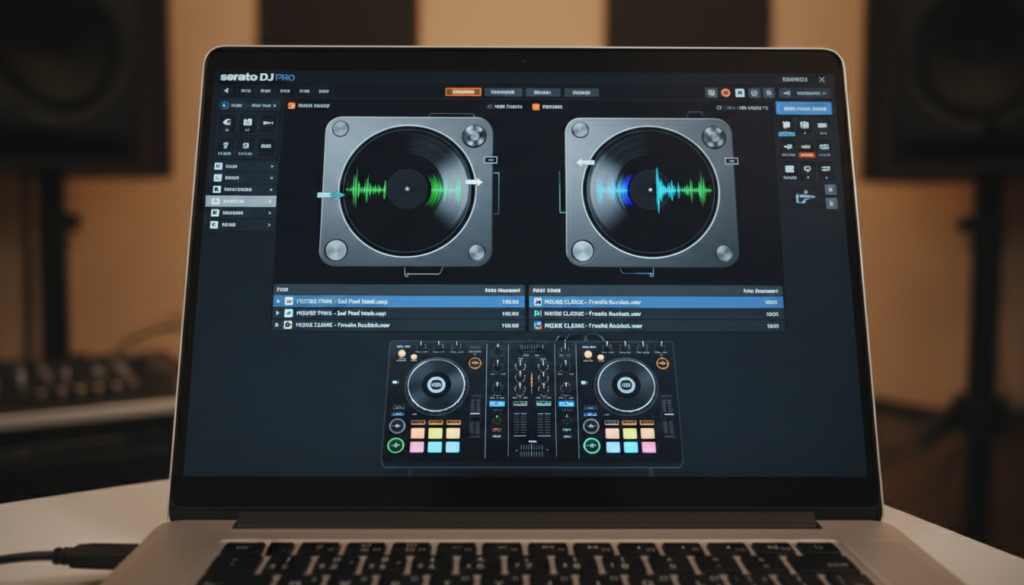
Yes, Serato DJ Pro can use your laptop speakers for audio output, though it is not the default setting when a controller is plugged in. By default, Serato routes audio through your external DJ controller’s master outputs. However, you can easily override this in the software settings to use your internal computer sound card for practice sessions when you don’t have external speakers connected.
TL;DR: Key Takeaways for Laptop Audio
- Default Behavior: Serato DJ Pro prioritizes external hardware audio interfaces over internal sound cards.
- The Solution: Use the “Make Audio Available to Other Applications” setting or change your Audio Output in preferences.
- Why it Matters: Using laptop speakers is ideal for crate digging, organizing music, or practicing transitions in hotel rooms or travel settings.
- Pro Tip: Always check your Buffer Size settings to prevent audio stuttering when switching to internal speakers.
Enabling Laptop Speakers in Serato DJ Pro Settings
To use your laptop speakers, you must tell Serato DJ Pro to ignore the external controller’s sound card. Follow these exact steps to ensure audio flows through your internal drivers.
- Open Serato DJ Pro on your computer.
- Click the Settings (gear icon) in the top right corner.
- Navigate to the Audio tab.
- Look for the Output section.
- If you are using a controller, look for the “Use Laptop Speakers” checkbox (available in newer versions) or manually select your Internal Audio device from the dropdown menu.
- Ensure your Operating System (macOS or Windows) has the Laptop Speakers selected as the default output device in your system preferences.
Important Considerations for Windows Users
If you are on a Windows PC, you may need to install the ASIO4ALL driver. Without this, Serato may struggle to bridge the connection between your hardware and the internal Realtek sound drivers. I have personally found that ASIO4ALL resolves 90% of audio-routing issues during mobile setups.
Comparing Audio Output Methods
Choosing the right output depends on your environment. Use this table to understand the trade-offs between hardware and software-based routing.
| Method | Audio Quality | Latency | Use Case |
|---|---|---|---|
| Controller Output | High | Ultra-Low | Live Gigs / Club |
| Laptop Speakers | Low/Standard | Moderate | Crate Digging / Travel |
| Bluetooth Speakers | Low | High (Bad) | Not Recommended |
Note: I strongly advise against using Bluetooth speakers with Serato. The inherent latency creates a delay between your physical actions on the jog wheels and the sound, making beatmatching impossible.
Troubleshooting: No Sound from Laptop Speakers
If you have followed the steps above and still hear nothing, perform these quick diagnostic checks. Serato often gets “locked” to the hardware interface.
- Check the Master Volume: Ensure the Master Gain knob in Serato is turned up. It is easy to accidentally turn this down while organizing your library.
- Restart the Software: Sometimes, the Audio Device driver needs a refresh. Close Serato, unplug your controller, and reopen the app.
- System Permissions: On macOS, ensure Serato has permission to access your microphone and audio output under System Settings > Privacy & Security.
- Cables: If you are using an external hub, disconnect it. Sometimes, USB-C hubs interfere with the way the computer recognizes internal audio devices.
Best Practices for Practice Sessions
When I practice using just my laptop speakers, I prioritize library management over sound quality. Here are my top three tips for a frictionless experience:
- Set Your Cues First: Use your laptop speakers to set Hot Cues and Loop points. You don’t need high-fidelity sound to place markers accurately.
- Monitor Latency: If the audio stutters, go to Settings > Audio and increase your USB Buffer Size. This puts more strain on the CPU but eliminates crackling.
- Use Headphones as Backup: Even if you use laptop speakers, keep your headphones plugged into the laptop’s jack to maintain your ability to cue tracks properly.
Frequently Asked Questions (FAQ)
Can I use my laptop speakers and an external controller at the same time?
Generally, no. Serato DJ Pro typically allows you to select only one Primary Audio Device at a time. Trying to route audio to both often causes sync issues or audio dropouts.
Why does my audio sound distorted when using laptop speakers?
This is usually caused by the Buffer Size being too low. When using internal sound cards, your computer’s CPU has to work harder. Increase the Buffer Size in the Audio tab of Settings to 512 or 1024 samples.
Does this work on both Mac and Windows?
Yes, the process is identical in principle, though Windows users are more likely to require external drivers like ASIO4ALL to ensure the internal audio device is recognized correctly by the software.