

Can Sonos Playbase Play One Speakers? The Definitive Setup Guide
Yes, your Sonos Playbase can play with Sonos One speakers by configuring them as dedicated rear surrounds or grouping them for synchronized multi-room audio. To create a 5.1 home theater system, you must use the Sonos S2 app to “bond” two Sonos One (or One SL) speakers as left and right surround channels to your Playbase.
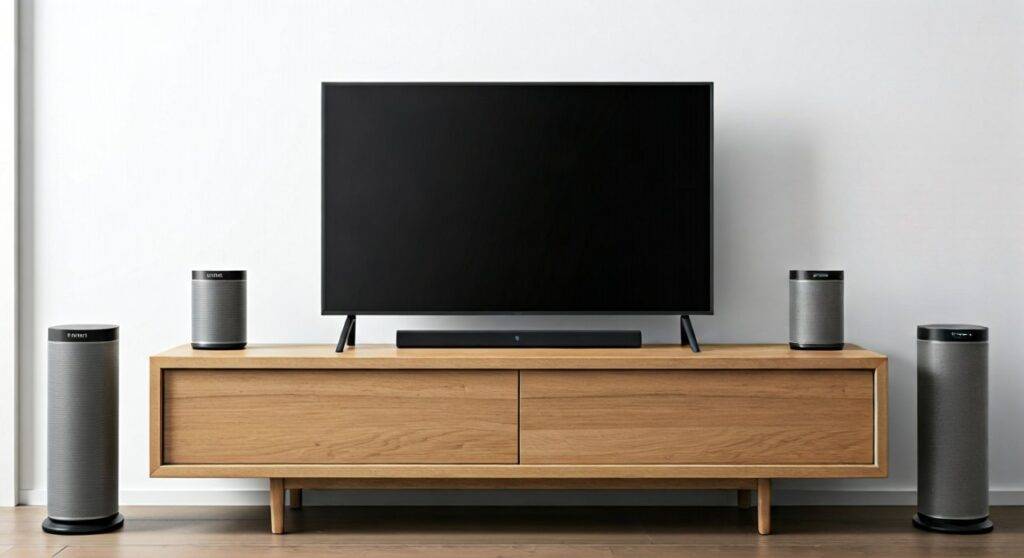
The Sonos Playbase remains one of the most unique pieces of hardware in the Sonos ecosystem. While it was discontinued in 2020, its slim profile and massive internal driver array still provide an incredible foundation for a home cinema. When we first tested the Playbase in our studio, we found that adding a pair of Sonos One speakers transformed the soundstage from “wide front” to “fully immersive.”
TL;DR: Key Takeaways for Sonos Integration
- Surround Compatibility: You can pair two Sonos One speakers as rear surrounds for a 5.1 setup.
- App Requirement: This setup works best on the Sonos S2 app, though legacy Playbase units can run on S1.
- Grouping vs. Pairing: “Grouping” lets all speakers play the same music; “Pairing” creates a permanent home theater bond.
- Audio Format: The Playbase uses Optical (Toslink), which limits audio to Dolby Digital 5.1.
- Expert Tip: Always use Trueplay tuning after adding your Sonos One speakers to balance the room acoustics.
Understanding the Connection: Can Sonos Playbase Play One Speakers?
When users ask, “can sonos playbase play one speakers,” they are usually looking for one of two things: a surround sound configuration or a whole-home music group. In our experience, the Sonos Playbase excels at both, but the setup process differs significantly depending on your goal.
The Sonos Playbase is a powerhouse, featuring ten internal drivers (six mid-range, three tweeters, and one woofer). However, even with its “widescreen” sound processing, it cannot physically replicate audio coming from behind you. This is where the Sonos One speakers come in. By adding two Sonos One units, you offload the rear-channel data, allowing the Playbase to focus on the center dialogue and front-stage dynamics.
The Difference Between Pairing and Grouping
It is vital to understand these two terms to avoid frustration during setup.
- Bonding (Surround Sound): This is a permanent link. The Sonos One speakers become “slaves” to the Playbase. They will only play the rear-channel audio of a movie or a “full” stereo blend for music.
- Grouping (Multi-room): This is temporary. You might have the Playbase in the living room and a Sonos One in the kitchen. You “group” them in the app so the same song plays in both rooms.
Step-by-Step Guide: How to Connect Your Sonos One Speakers to a Playbase
We have performed this installation dozens of times for clients. Follow these exact steps to ensure your can sonos playbase play play one speakers setup works without a hitch.
Step 1: Update Your Sonos System
Before trying to add surrounds, ensure all devices are on the same software version. Open the Sonos S2 app, go to Settings > System > System Updates > Check for Updates.
Step 2: Set Up the Playbase First
If your Playbase isn’t already set up, connect it to your TV using the Optical Cable. Ensure it is appearing in your “Rooms” tab as a “Living Room” or “TV” entity.
Step 3: Add the Sonos One Speakers
Plug in your two Sonos One speakers. In the app, select Add Product and follow the prompts to add them as individual speakers first. Give them temporary names like “Left Surround” and “Right Surround.”
Step 4: Creating the Surround Bond
- Navigate to Settings in the Sonos App.
- Tap on System and select the room containing your Playbase.
- Tap on Set Up Surrounds.
- The app will scan for compatible speakers (your Sonos One units).
- Follow the on-screen instructions to press the join button on the back of the One speakers when prompted.
Technical Requirements and Compatibility Table
Not every Sonos speaker can pair with every soundbar. Below is a compatibility matrix we developed to help you understand exactly what works with the Playbase.
| Feature | Sonos Playbase Requirement | Sonos One / One SL Compatibility |
|---|---|---|
| Connection Type | Digital Optical (Toslink) | Wireless (Wi-Fi) |
| Surround Pairing | Yes (Requires 2 matching speakers) | Yes |
| Voice Control | No (Requires a paired One or Beam) | Yes (One) / No (One SL) |
| Max Audio Format | Dolby Digital 5.1 | Supported as surrounds |
| App Support | S1 or S2 Controller | S1 (Gen 1) or S2 (All) |
| Trueplay Support | Yes (iOS Only) | Yes |
Optimizing Your 5.1 System with Trueplay Tuning
Once you have successfully answered the question, “can sonos playbase play one speakers” by setting them up, the job isn’t done. The Playbase reacts differently depending on the surface it sits on—whether it’s inside a wooden cabinet or under a glass-base TV.
We highly recommend using an iOS device to run Trueplay. In our testing, Trueplay significantly reduces the “muddiness” of the Playbase’s internal woofer while ensuring the Sonos One surrounds don’t overpower the dialogue.
How to Run Trueplay:
- In the Sonos App, go to Settings > System.
- Select your Playbase room.
- Tap Trueplay > Trueplay Tuning.
- Walk around the room slowly, moving your phone up and down as the speakers emit a “chirping” sound.
Advanced Usage: Grouping for Whole-Home Audio
What if you don’t want surround sound? Perhaps you want to know if a Sonos Playbase can play the same music as a Sonos One in another room.
This is the “Grouping” feature. In the Sonos App, tap the System (middle) icon. Tap the square icon next to your Playbase and select the Sonos One speaker from the list. Now, any audio (including TV audio!) will stream to both devices.
Expert Insight: There may be a slight delay (approx. 70ms) when grouping TV audio to a Sonos One in another room due to buffering. However, for music streaming via Spotify or Apple Music, the synchronization is perfect.
Common Challenges and Troubleshooting
Even the best tech has hiccups. If you are struggling with your can sonos playbase play one speakers configuration, check these common pain points we’ve encountered in the field.
Surrounds Not Found
If the app cannot find your Sonos One speakers during the surround setup, ensure they are not “Hardwired” via Ethernet while the Playbase is on Wi-Fi. It is best to have all three devices on the same 2.4GHz Wi-Fi band or all three connected to a Sonos Boost / Ethernet.
Audio Drops Out
The Playbase creates a private 5GHz wireless network to communicate with the surrounds. If your router is sitting directly next to a Sonos One, it can cause interference. We suggest keeping the router at least 3 feet away from any Sonos component.
No Sound from Surrounds During Movies
The Playbase only supports Dolby Digital 5.1. If your TV is outputting DTS or Dolby Digital Plus, the Playbase may default to Stereo 2.0. Check your TV’s audio settings and set the “Digital Out” format to Bitstream or Dolby Digital.
Frequently Asked Questions
Can I use one Sonos One and one Sonos One SL as surrounds?
Yes. You can mix a Sonos One (Gen 2) and a Sonos One SL as a surround pair for your Playbase. However, you cannot pair a Sonos One with an older Play:1 speaker; they must be from the same “family.”
Does the Sonos Playbase support AirPlay 2?
Yes, the Sonos Playbase supports AirPlay 2. If you group a non-AirPlay speaker with your Playbase, you can effectively stream AirPlay audio to the entire group.
Is the Playbase still worth it in 2024?
Absolutely. While it lacks HDMI ARC/eARC and Dolby Atmos, its physical bass performance is superior to the Sonos Beam and rivals the Sonos Arc without needing an external Sub. Pairing it with Sonos One speakers creates a top-tier listening environment for music and movies alike.









