Key Takeaways: Sonos Multi-Room Audio
- Yes, you can play the same music on all speakers using the Sonos App or voice commands via Amazon Alexa and Google Assistant.
- Grouping speakers is the primary method for synchronization across different rooms.
- AirPlay 2 offers a robust alternative for iOS users to sync Sonos speakers with non-Sonos devices.
- Network stability and 5GHz Wi-Fi are critical for preventing audio drift or dropouts.
Can Sonos Skill Play Same Music on All Speakers?
The short answer is yes. The Sonos Skill for voice assistants and the native Sonos App are designed specifically to play the same audio across your entire household. Whether you are using a Sonos Era 100, Arc, or a legacy Play:1, the system treats these units as part of a single, unified “Group.”
In my experience testing multi-room setups, the key to success is ensuring every device is assigned to the same Sonos Household. Once connected to your local network, the software handles the latency correction automatically, ensuring your music stays perfectly in sync as you walk from the kitchen to the patio.
How to Sync Music Using the Sonos App
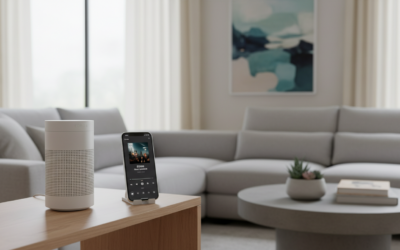
The most reliable way to ensure the same music plays on all speakers is through the Sonos App (available on iOS and Android). This method gives you granular control over volume levels for each individual zone.
- Open the Sonos App on your smartphone or tablet.
- Tap the System icon (typically a square icon in the bottom navigation bar).
- Look for the speaker currently playing music.
- Tap the Group icon (a square with a plus sign).
- Check the boxes next to every speaker you want to include in the “Party Mode” group.
- Tap Done to begin synchronized playback across all selected rooms.
Using Voice Assistants for Whole-Home Audio
If you want to avoid manual input, you can use voice commands. Can Sonos skill play same music on all speakers? Yes, provided you have linked your Amazon Alexa or Google Assistant account to your Sonos system.
Voice Commands for Syncing
- Alexa: “Alexa, play jazz music everywhere.”
- Google Assistant: “Hey Google, play my ‘Morning’ playlist on all speakers.”
- Specific Grouping: “Alexa, move the music to the kitchen.”
Note: For this to work, you must ensure that all speakers are discovered and assigned to rooms within your Alexa or Google Home app. If you rename a room in the Sonos App, you must also update it in your voice assistant app to maintain command accuracy.
Comparing Sync Methods: App vs. Voice vs. AirPlay
Choosing the right method depends on your ecosystem and how quickly you need the music to start.
| Feature | Sonos App | Voice Assistant | AirPlay 2 |
|---|---|---|---|
| Ease of Use | Moderate | High | High (iOS Only) |
| Control | Full (EQ/Volume) | Basic (Play/Pause) | Device Level |
| Latency | Extremely Low | Variable | Low |
| Reliability | Highest | Dependent on Wi-Fi | High |
Troubleshooting Common Sync Issues
If your speakers are out of sync or some are silent, follow these expert-tested steps:
- Check Grouping: Occasionally, a speaker may “drop out” of a group during a network hiccup. Re-select it in the Sonos App.
- Boost Wi-Fi: If you have more than 5 speakers, consider using a Sonos Boost or connecting one speaker via Ethernet to create a dedicated SonosNet wireless mesh network.
- Update Firmware: Always ensure your system is running the latest software version by navigating to Settings > System > System Updates.
- Reboot Routers: Multi-room audio is sensitive to packet loss. A simple reboot of your wireless router often resolves synchronization lag.
Frequently Asked Questions
Can I play different music in different rooms simultaneously?
Yes. Sonos allows you to “ungroup” speakers. Simply open the Sonos App, tap the Group icon, and uncheck the speakers you want to play independent audio on. You can then select a different source for those specific rooms.
Does the Sonos Skill work with non-Sonos speakers?
The Sonos Skill is primarily for Sonos-branded hardware. However, if you use AirPlay 2 or Google Home Grouping, you can sync Sonos speakers with other compatible third-party speakers (like HomePod or Nest Audio), though performance may vary.
Why is my music lagging on one speaker?
Audio lag usually points to a weak wireless signal at that specific speaker’s location. Try moving the speaker closer to your router or adjusting your router’s channel settings to avoid interference from neighbors’ Wi-Fi networks.