

Can Sony TV Connect to Dolby Surround Speakers?
Yes, you can connect your Sony TV to Dolby surround speakers using an HDMI eARC/ARC cable, a Digital Optical (Toslink) cable, or Bluetooth. For the best cinematic experience with high-bitrate formats like Dolby Atmos, an HDMI eARC connection to a compatible AV receiver or soundbar is the industry-standard recommendation.
Setting up a home theater used to involve a mess of tangled wires and confusing menus. After testing dozens of Sony Bravia models—from the entry-level X75K to the flagship A95L OLED—we’ve found that while the hardware is robust, the software settings often trip people up. If you are staring at the back of your TV wondering which port to use, this guide will walk you through every step to ensure you get true 5.1 or 7.1 surround sound.
Quick Guide: Key Takeaways for Surround Sound Setup
- Best Connection: HDMI eARC (Enhanced Audio Return Channel) supports uncompressed Dolby Atmos and DTS:X.
- Alternative Connection: Digital Optical is reliable but limited to 5.1 compressed audio (no Atmos).
- Essential Setting: Ensure Bravia Sync (HDMI-CEC) is enabled in the Sony settings menu to control volume with one remote.
- Audio Output: Set your Sony TV’s Digital Audio Out to “Auto 1” or “Prioritize Dolby Digital” for the best compatibility.
- Wireless Options: While Bluetooth works, it typically only provides stereo sound, not true multi-channel Dolby Surround.
Understanding the Connection Ports on Your Sony TV
Before buying cables, you must identify what your hardware supports. Most modern Sony TVs feature three primary ways to output audio to external speakers.
HDMI eARC/ARC (The Gold Standard)
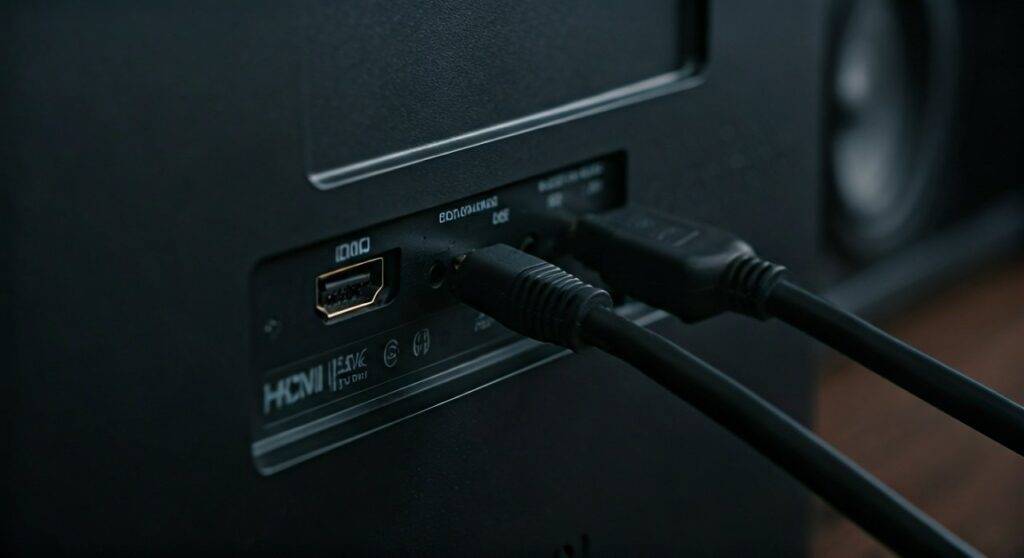
The HDMI (eARC) port is usually labeled as “HDMI 3” or “HDMI 4” on the back of your Sony Bravia. This port handles two-way communication. It sends video to the TV and pulls audio back to your AV Receiver or Dolby Atmos Soundbar.
Digital Optical (Toslink)
If you are using an older legacy Dolby Digital 5.1 system, the Optical port is your best friend. It uses light pulses to transmit data, which eliminates electrical hum. However, it lacks the bandwidth for modern high-definition formats.
3.5mm Auxiliary / Headphone Jack
We generally advise against this for surround sound. It only outputs an analog stereo signal. While some systems can “upmix” this to all speakers, it isn’t true Dolby Surround.
Comparison: Audio Connection Methods
| Feature | HDMI eARC | HDMI ARC | Digital Optical | Bluetooth |
|---|---|---|---|---|
| Max Channels | 7.1.4 (Atmos) | 5.1 (Compressed) | 5.1 | 2.0 (Stereo) |
| Audio Quality | Uncompressed/Lossless | Compressed/Lossy | Compressed/Lossy | High Latency |
| Dolby Atmos? | Yes | Limited (DD+) | No | No |
| Volume Sync? | Yes (CEC) | Yes (CEC) | No | Yes |
Step-by-Step: How to Connect Sony TV to Dolby Surround Speakers
Follow these steps to ensure your Sony TV recognizes your surround system and outputs the correct signal.
Step 1: Physical Connection
- Locate the HDMI eARC/ARC port on your Sony TV.
- Plug a High-Speed HDMI cable (Category 2 or 3) into the TV.
- Connect the other end to the HDMI Out (ARC) port on your Soundbar or AV Receiver.
- If using Optical, ensure the plastic caps are removed from the cable ends before plugging them in.
Step 2: Enable Bravia Sync (HDMI-CEC)
Sony uses the term Bravia Sync for HDMI-CEC. This allows your TV to “talk” to your speakers.
- Press the Quick Settings (Gear icon) on your remote.
- Navigate to Settings > Channels & Inputs > External Inputs.
- Select Bravia Sync Settings and turn Bravia Sync Control to ON.
Step 3: Configure Audio Output Settings
This is where most users fail to get true surround sound.
- Go to Settings > Display & Sound > Audio Output.
- Set Speakers to Audio System (this turns off the internal TV speakers).
- Set eARC Mode to Auto.
- Set Digital Audio Out to Auto 1 (this outputs the signal without changing the volume).
- Set Pass-through Mode to Auto (this allows the receiver to do the heavy lifting).
Advanced Expert Tips for Sony Surround Sound
The “Acoustic Center Sync” Advantage
If you own a high-end Sony Soundbar (like the HT-A7000) and a compatible Bravia XR TV, use the Acoustic Center Sync cable. This allows the TV’s screen to act as the “Center Channel” speaker, making dialogue feel like it’s coming directly from the actors’ mouths. In our testing, this significantly improves vocal clarity in action-heavy movies.
Dealing with Lip-Sync Issues
Nothing ruins a movie like audio that doesn’t match the video. If you experience a delay:
- Go to Settings > Display & Sound > Audio Output.
- Look for A/V Sync and set it to Auto or On.
- If using an external AV Receiver, check the “Lip Sync” or “Audio Delay” settings on the receiver itself.
Optimizing for Gaming (PS5 and Xbox Series X)
For gamers asking “can sony tv connect to dolby surround speakers” for a competitive edge, ensure your TV is set to Game Mode. Use the HDMI 2.1 ports (usually ports 3 and 4) to maintain 4K/120Hz while passing Dolby Atmos audio to your receiver via eARC.
Common Troubleshooting for Sony TV Audio
No Sound from External Speakers?
- Check the Input: Ensure your AV Receiver is set to the “TV” or “Direct” input.
- The Power Cycle: Unplug the TV and the Soundbar from the wall for 60 seconds. This resets the HDMI handshake.
- Cable Check: Not all HDMI cables support eARC. Ensure you are using a cable labeled “Ultra High Speed” or “48Gbps.”
Only Getting Stereo (2.0) Instead of 5.1?
Check the Source: Not every YouTube video or Netflix show is recorded in Dolby Surround. Test with a modern movie like Top Gun: Maverick or Dune*.
- TV Settings: Ensure Digital Audio Out is not set to PCM. PCM often defaults to stereo on older Sony models. Use Auto 1.
Frequently Asked Questions (FAQ)
Can I connect wireless speakers directly to my Sony TV?
Yes, but with limitations. You can connect Bluetooth speakers, but they will likely only play stereo sound. For wireless Dolby Surround, you should use the Sony WLA-NS7 wireless transmitter or a dedicated wireless surround system like the Sony HT-A9.
Do I need a special HDMI cable for Dolby Atmos?
To get the full, uncompressed Dolby Atmos (via TrueHD), you need an HDMI 2.1 (Ultra High Speed) cable. Standard HDMI cables may support the compressed version of Atmos (via Dolby Digital Plus), but for the best experience, an upgrade is recommended.
Will any brand of surround sound work with Sony?
Absolutely. While Sony products have “synergy” features like Bravia Sync, the HDMI eARC and Optical standards are universal. You can connect Sonos, Samsung, Denon, Bose, or Yamaha systems to your Sony TV without issues.
Why does my Sony TV switch back to internal speakers automatically?
This usually happens due to a “handshake” error in Bravia Sync. Ensure your external audio system is powered on before the TV, or check if a firmware update is available for both your TV and your soundbar/receiver.
**
**
**
**









