

Can Speakers and Headphones Work Together? The Ultimate Audio Routing Guide
Yes, can speakers and headphones function at the same time on a single computer or audio system. While most operating systems default to one output, you can use software mixers, audio interfaces, or physical splitters to route audio to both devices simultaneously.
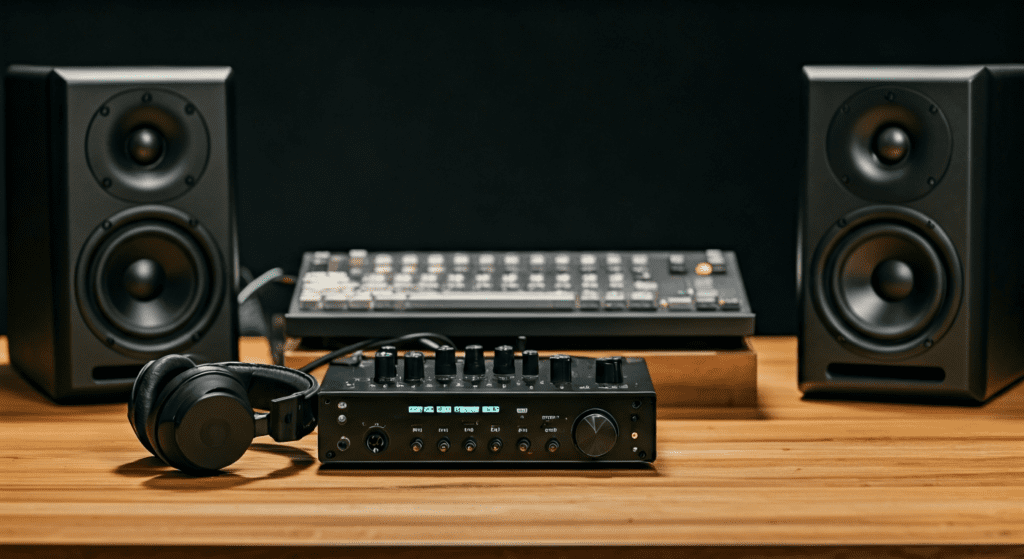
Whether you are a streamer wanting to share audio with an audience while monitoring via a headset, or a music producer comparing mixes, managing dual outputs is a common professional requirement. My experience in studio engineering has shown that the best method depends on your hardware’s impedance and your operating system’s audio drivers.
Quick Summary: How to Enable Dual Audio
- Windows Users: Use the “Stereo Mix” setting in the Control Panel or install Voicemeeter Banana.
- Mac Users: Create a “Multi-Output Device” in the Audio MIDI Setup utility.
- Hardware Enthusiasts: Invest in an Audio Interface (like a Focusrite Scarlett) or a Passive 3.5mm Splitter.
- Key Consideration: Software solutions often introduce slight latency (delay), whereas hardware solutions offer near-zero latency.
Understanding the Connection: Can Speakers and Headphones Run Together?
The question of whether can speakers and headphones be used at once often stems from the default behavior of modern hardware. Most laptops and smartphones use a switched jack. When you plug in a 3.5mm connector, a physical switch inside the port disconnects the internal speakers to prevent feedback.
However, on a desktop PC or a professional workstation, the sound card or DAC (Digital-to-Analog Converter) can often handle multiple streams. To bypass the “either-or” limitation, we must look at the signal chain and how the operating system manages audio endpoints.
Why You Might Need Both Active
- Collaborative Listening: Two people listening to the same source without a loud environment.
- Streaming & Gaming: Routing game audio to speakers for “feel” while keeping chat in the headset.
- A/B Testing: Producers checking how a kick drum translates between studio monitors and open-back headphones.
- Accessibility: Providing a dedicated line for hearing-impaired users while others use room speakers.
Hardware Methods to Split Your Audio Signal
If you prefer a plug-and-play approach without messing with software settings, hardware is the way to go. This method is the most reliable for avoiding audio sync issues.
Passive 3.5mm Y-Splitters
The simplest way can speakers and headphones share a signal is a Y-Splitter. This is a small cable with one male plug and two female jacks.
- Pros: Extremely cheap, no power required, zero latency.
- Cons: It halves the power sent to each device. This can result in lower volume and a loss of bass response if your devices have high impedance.
Audio Interfaces and DACs
Professional-grade Audio Interfaces are designed for this exact purpose. Devices like the Universal Audio Apollo or the PreSonus AudioBox feature dedicated knobs for “Main Out” (speakers) and “Phones.”
- The Benefit: These devices have separate amplification circuits. You can turn the speakers off entirely while keeping the headphones at max volume, or vice versa, without affecting the signal quality.
Headphone Amplifiers with Pass-Through
High-end Headphone Amps (like those from Schiit Audio or Topping) often feature RCA or XLR outputs on the back. When you plug in your headphones, the “pre-amp” outputs can either stay active or mute, depending on the model’s design.
| Solution Type | Latency | Sound Quality | Cost | Difficulty |
|---|---|---|---|---|
| Y-Splitter | Zero | Average | $5 – $15 | Very Easy |
| Audio Interface | Low (ASIO) | Excellent | $100 – $500 | Medium |
| Software Router | Variable | Excellent | Free – $30 | Hard |
| Bluetooth Multipoint | High | Compressed | $40+ | Easy |
Software Configuration: Windows 10 & 11
In Windows, the challenge is that the Windows Audio Service generally designates one “Default Device.” To overcome this so can speakers and headphones play together, follow these steps.
Using “Stereo Mix” (The Built-in Method)
- Right-click the volume icon and select Sounds (or “Sound Settings” > “More sound settings”).
- Navigate to the Recording tab.
- Right-click an empty space and select “Show Disabled Devices.”
- Find Stereo Mix, right-click it, and select Enable.
- Double-click Stereo Mix, go to the Listen tab.
- Check the box “Listen to this device.”
- Under “Playback through this device,” select your Headphones or Speakers (whichever is NOT your default).
Advanced Routing with Voicemeeter
For those who need more control, Voicemeeter Banana is a “Virtual Audio Mixer.” It acts as a bridge between your hardware. I use this daily in my broadcast setup to ensure my Yamaha HS5 monitors and Sennheiser HD600s receive the same signal without digital clipping.
- Step 1: Set Voicemeeter VAIO as your default Windows playback device.
- Step 2: In the Voicemeeter app, set A1 to your Speakers (using WDM or ASIO drivers).
- Step 3: Set A2 to your Headphones.
- Step 4: Ensure both A1 and A2 buttons are highlighted on the virtual fader strip.
Software Configuration: macOS (Audio MIDI Setup)
Apple makes it remarkably easy for can speakers and headphones to work in tandem through a feature called Aggregate Devices.
Creating a Multi-Output Device
- Open Finder > Applications > Utilities > Audio MIDI Setup.
- Click the + (plus) icon in the bottom left corner.
- Select “Create Multi-Output Device.”
- In the right-hand panel, check the boxes for both “Built-in Output” (or your speakers) and your “Headphones.”
- Right-click the new “Multi-Output Device” in the list and select “Use This Device For Sound Output.”
Expert Tip: Enable “Drift Correction” for the secondary device. This prevents the two outputs from falling out of sync over long listening sessions due to minor differences in the sample rate clock.
Technical Considerations: Impedance and Signal Loss
When you explore how can speakers and headphones interact, you must understand Impedance (measured in Ohms).
If you use a simple cable splitter, the source (like a laptop) sees a combined electrical load.
- Low Impedance (16–32 Ohms): Most consumer earbuds. Easy to drive, but prone to “hiss” if the signal is split.
- High Impedance (250+ Ohms): Professional studio headphones. These require a dedicated Headphone Amp. Splitting a high-impedance signal without an amp will result in thin, tinny sound and almost no volume.
Safety Warning: Never try to “daisy chain” powered speakers into a headphone jack using multiple adapters. This can create a ground loop, resulting in a loud hum or potentially damaging the delicate OP-AMPs in your playback device.
Real-World Scenario: Gaming and Content Creation
In the world of streaming, the question “can speakers and headphones be used at once?” is vital for OBS (Open Broadcaster Software) users.
The Streamer’s Setup
We often recommend a dual-bus setup. You want your game audio in your headphones so your microphone doesn’t pick up “feedback” or “echo.” However, you might want your speakers to play music for people in the room.
- Set Headphones as the primary output for the game and Discord.
- Use a software tool like EarTrumpet (Windows) to route a Spotify or Chrome tab specifically to the Speakers.
- In OBS, add two Audio Output Capture sources to ensure your stream hears both, even though you only hear one in your ears.
Comparing Wired vs. Wireless Solutions
Can speakers and headphones work together if one is Bluetooth? Yes, but it is much harder. Bluetooth has significant latency (often 100ms to 300ms). If your speakers are wired and your headphones are Bluetooth, the sound will be noticeably out of sync.
- Solution: Use Bluetooth 5.2 devices that support LE Audio and Auracast. This new standard is designed for “one-to-many” broadcasting, allowing a single source to sync perfectly across multiple speakers and headsets.
- Alternative: Use a Bluetooth Transmitter that accepts an optical or 3.5mm input and can “Dual Link” to two sets of headphones simultaneously.
Frequently Asked Questions
Does using speakers and headphones at the same time lower the sound quality?
If using a software-based method or a dedicated audio interface, there is zero loss in quality. However, if you use a cheap 3.5mm Y-splitter, you may notice a decrease in volume and a loss of low-end frequencies because the power is being shared between two drivers.
Can I play different music on my speakers than what is in my headphones?
Yes. On Windows, go to Settings > System > Sound > Volume mixer. Here, you can assign specific apps (like Chrome) to the speakers and others (like a game or Zoom) to your headphones. This is a powerful way to multitask during work or play.
Why is there a delay when I play through both?
This is called Latency. It happens because the computer’s CPU takes a few milliseconds to process the audio and send it to two different destinations. Using ASIO drivers or the macOS Multi-Output tool with “Drift Correction” can minimize this to a point where it is imperceptible to the human ear.
Is it possible to damage my computer by plugging in both?
As long as you are using standard ports and certified adapters, there is no risk of hardware damage. Avoid “modding” cables or forcing high-voltage speaker signals into low-voltage headphone inputs, as this can fry the Sound Chip on your motherboard.









