

Can Speakers Cause Computer to Crash? The Quick Answer
Yes, speakers can cause computer to crash due to several underlying factors including corrupt audio drivers, USB power overloads, or hardware short circuits. Most frequently, a system crash (or Blue Screen of Death) occurs when the operating system encounters a “critical error” while trying to communicate with the sound hardware or its software driver.
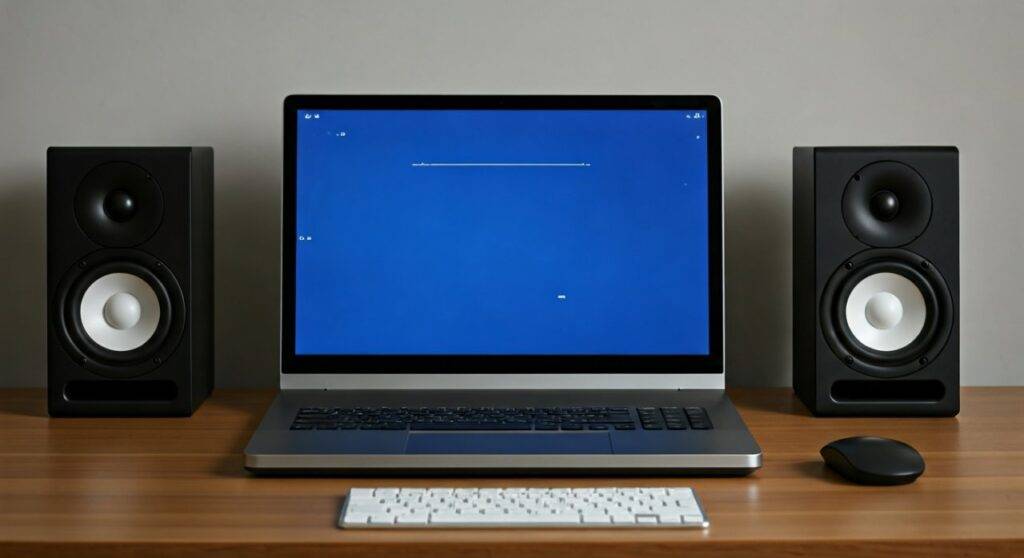
While it seems unlikely that a simple output device could take down an entire PC, the tight integration between audio hardware and the Windows Kernel means a failure in one can quickly lead to a total system freeze or reboot.
Key Takeaways for Quick Troubleshooting
- Driver Conflicts: Faulty or outdated Realtek or USB Audio Class drivers are the most common culprits.
- Power Draw: USB-powered speakers can exceed the power limit of a port, causing the motherboard to trip a safety shutoff.
- EMI Interference: Poorly shielded speakers can cause Electromagnetic Interference (EMI), affecting sensitive internal components.
- DPC Latency: Audio processing issues can cause “stuttering” that eventually leads to a hard system lockup.
- Immediate Fix: Disconnect the speakers and switch to a headset to see if the crashes persist.
Why External Audio Devices Trigger System Failures
In my years of building and repairing workstations, I have seen many users struggle with mysterious “random reboots.” It often takes them by surprise when I discover that their desktop speakers are the source of the instability.
When you ask, “can speakers cause computer to crash,” you have to look at the bridge between the hardware and the software. Your computer doesn’t just “send sound” to the speakers; it manages a complex stream of data and power through the Audio Stack.
The Kernel-Mode Driver Issue
Most audio drivers run in Kernel Mode. This means they have deep access to your computer’s brain (the CPU and Memory). If a driver for your USB speakers or external DAC contains a bug, it can write data to a protected memory space, causing an immediate BSOD (Blue Screen of Death).
USB Port Power Limitations
Many modern speakers are powered directly by a USB-A or USB-C port. While convenient, these ports have strict current limits. If your speakers attempt to draw more power than the 5V rail can provide—especially during loud, bass-heavy segments—the Power Management system may force a shutdown to prevent physical damage to the motherboard.
Electrical Shorts and Ground Loops
A frayed cable or a faulty 3.5mm jack can cause an electrical short. If the “hot” wire touches the “ground” wire within the connector, it can send a surge back into the integrated sound card. In my experience, this often results in a “frozen” screen where the last second of audio loops endlessly.
Identifying the Symptoms of Speaker-Related Crashes
If you suspect your audio setup is the problem, look for these specific red flags. These symptoms distinguish an audio-related crash from a GPU failure or a RAM issue.
- The “Buzzing” Freeze: The screen freezes while a loud, harsh buzzing sound emits from the speakers.
- Audio-Input Lag: You notice your mouse stuttering or “hitching” whenever music or game audio starts playing.
- USB Disconnect Sounds: You hear the Windows “device disconnected” chime right before the system reboots.
- Specific BSOD Error Codes: Keep an eye out for codes like
DRIVER_IRQL_NOT_LESS_OR_EQUALorKMODE_EXCEPTION_NOT_HANDLED, often pointing toRTKVHD64.sysorUSBAUDIO.sys.
Hardware vs. Software: Diagnosing the Root Cause
To help you narrow down the search, I’ve compiled this comparison table based on common repair scenarios.
| Feature | Software-Based Crash | Hardware-Based Crash |
|---|---|---|
| Primary Cause | Corrupt Audio Drivers | Physical short or Power Surge |
| Common Trigger | Opening a specific app (YouTube, Game) | Adjusting volume or plugging in/out |
| Visual Warning | BSOD with a specific file name | Sudden black screen or instant reboot |
| Resolution | Reinstalling/Updating drivers | Replacing cables or using a Powered Hub |
| Risk Level | Low (Data loss only) | Moderate (Potential motherboard damage) |
Step-by-Step Guide: What to Do If Speakers Cause Computer to Crash
If you’ve confirmed that your speakers cause computer to crash, follow these steps in order. We will move from the easiest software fixes to the more complex hardware isolation.
Step 1: Isolate the Hardware
The first thing I tell my clients is to “simplify the chain.”
- Unplug your speakers completely.
- Use the computer for 2-4 hours using only headphones or the built-in monitor speakers.
- If the crash does not happen, the problem is specifically linked to the external speakers or the USB/3.5mm port they were using.
Step 2: Clean Install Audio Drivers
Don’t just click “Update Driver” in Device Manager. That rarely works for deep-seated corruption.
- Download the latest drivers from your motherboard or speaker manufacturer’s website.
- Use a tool like Display Driver Uninstaller (DDU) (which now supports audio drivers) to wipe the old files.
- Restart your PC and install the new driver package.
- Pro Tip: If you use Realtek High Definition Audio, try switching to the generic “High Definition Audio Device” driver provided by Windows to see if stability improves.
Step 3: Manage USB Power Settings
If you use USB-powered speakers, Windows might be “sleeping” the port to save power, causing a crash when the speakers try to wake up.
- Open Control Panel > Power Options.
- Select Change plan settings > Change advanced power settings.
- Find USB settings > USB selective suspend setting and set it to Disabled.
- This ensures the speakers receive a constant, stable voltage.
Step 4: Check for DPC Latency Issues
Sometimes the crash is caused by “traffic jams” in your system’s data processing.
- Download a free tool called LatencyMon.
- Run it while playing audio through your speakers.
- If the bars turn red, it means a driver (usually audio or Wi-Fi) is taking too long to respond, which eventually leads to a system crash.
Step 5: Test with a Powered USB Hub
If your speakers are drawing too much current from the motherboard, the solution is to use a Powered USB Hub. This device plugs into a wall outlet and provides its own electricity to the speakers, taking the load off your computer’s internal power supply.
Expert Insights: The Role of EMI and Ground Loops
In high-end audio setups, I often encounter Electromagnetic Interference (EMI). If your speakers are unshielded and placed too close to your PC case, the magnets inside the speakers can actually interfere with the hard drive or motherboard traces.
Furthermore, a Ground Loop occurs when your speakers and PC are plugged into different wall outlets with different ground potentials. This creates a hum, but in extreme cases, it can send enough “stray voltage” through the audio cable to freeze the CPU.
Actionable Advice: Always try to plug your PC and your powered speakers into the same high-quality surge protector to keep the “ground” unified.
Frequently Asked Questions
Can a bad 3.5mm jack cause a BSOD?
Yes. If the internal pins of the 3.5mm audio jack are bent or touching, they can create a short circuit. When the Windows Audio Service attempts to initialize that port and encounters a short, it can trigger a kernel-level security check that results in a Blue Screen of Death.
Why does my computer crash only when the volume is loud?
This is a classic sign of a power-related crash. Loud volume requires more wattage. If your USB port or Power Supply Unit (PSU) is on the edge of failure, the extra demand from the speakers can cause the voltage to “sag,” leading to an instant system reboot.
Can Bluetooth speakers cause a computer to crash?
While less common than wired speakers, Bluetooth speakers can cause crashes through Bluetooth Driver conflicts. If the radio stack on your PC fails while trying to “handshake” with the speakers, Windows may encounter a WATCHDOG_TIMEOUT error and restart.
Will replacing my speakers fix the crashing?
If you have tested the computer with other audio devices (like headphones) and the crashes stopped, then replacing the speakers—or moving to a dedicated External Sound Card (DAC)—will likely resolve the issue. Using an external DAC is often the best “expert” fix because it moves all audio processing outside of the noisy electrical environment of the PC case.









