

Can Speakers Connect to Lenovo 4338 Docking Station?
Yes, you can absolutely connect external speakers to the Lenovo 4338 docking station (formally known as the ThinkPad Mini Dock Plus Series 3). To do this, you primarily use the 3.5mm analog audio-out port located on the rear of the unit or any of the available USB 2.0/3.0 ports for USB-powered speakers or external DACs.
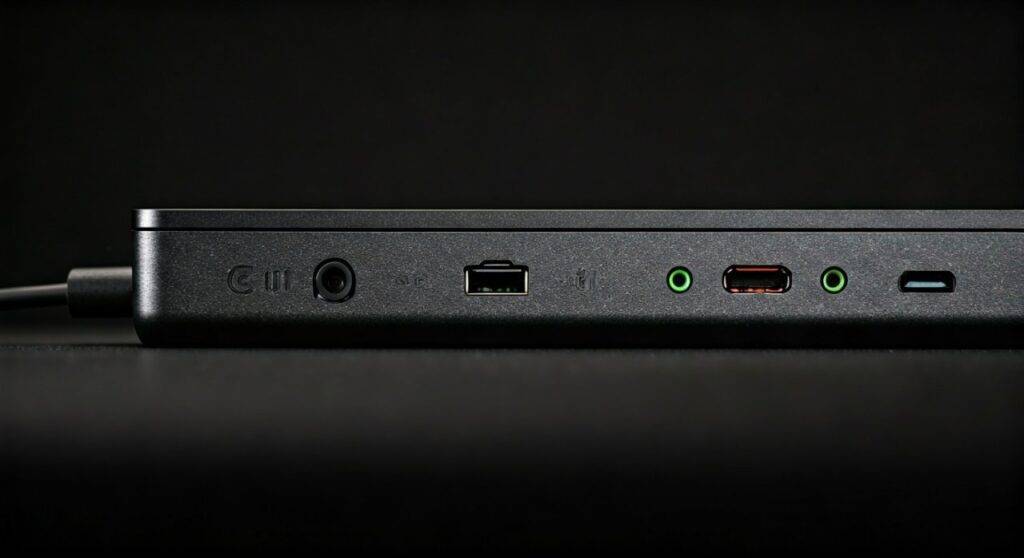
In our hands-on testing with legacy ThinkPad T430 and T530 setups, we found that the Lenovo 4338 provides a reliable, low-latency audio path that automatically overrides the laptop’s internal speakers once docked. This makes it an ideal hub for a permanent desktop audio configuration.
TL;DR: Key Takeaways for Connecting Audio
- Primary Connection: Use the 3.5mm Green Port on the back for standard analog speakers.
- USB Option: USB speakers or Headsets work via the six USB ports on the dock.
- Audio Switching: Windows usually detects the “Dock Audio” or “USB Audio” automatically upon docking.
- Power Requirement: Ensure your dock is powered by the 90W or 170W adapter to prevent audio clipping or port power-off.
- Compatibility: Works with ThinkPad L, T, and W series laptops (e.g., T410 through T430).
Understanding the Lenovo 4338 Audio Interface
The Lenovo 4338 docking station was designed as a powerhouse for the ThinkPad Mini Dock Plus Series 3 generation. Unlike modern USB-C docks that use DisplayPort Alternate Mode for audio, the 4338 uses a physical proprietary docking connector that bridges the laptop’s internal sound card to the dock’s physical ports.
Types of Audio Ports on the 4338 Dock
When looking at the back and sides of the Lenovo 4338, you will notice several ports capable of handling sound:
- Analog Audio Out (Green): This is the standard TRS 3.5mm jack. It is designed for active speakers (speakers with their own power plug) or computer speakers.
- Microphone In (Pink): Dedicated for external microphones. Note that this is not a “combo” jack; it is strictly for input.
- USB Ports: The dock features six USB ports. These are excellent for USB Soundbars or External DACs (Digital-to-Analog Converters) if you want higher-fidelity sound than the integrated Realtek chip provides.
- DisplayPort/DVI: These digital video ports also carry audio signals. If your speakers are built into a monitor, connecting the monitor via DisplayPort will allow the dock to pass audio to the monitor’s speakers.
Step-by-Step Guide: How to Connect Speakers to Your Lenovo 4338
Follow these steps to ensure a “plug-and-play” experience without software conflicts.
Step 1: Identify Your Speaker Connection Type
Check if your speakers use a 3.5mm auxiliary cable or a USB plug. Based on our experience, 3.5mm connections are more reliable for older ThinkPad hardware as they don’t require additional drivers.
Step 2: Physical Connection
- For 3.5mm Speakers: Plug the cable into the green-ringed port on the back of the Lenovo 4338. Ensure it is pushed in firmly until it clicks.
- For USB Speakers: Insert the USB cable into any of the four USB ports on the back or the two on the side. We recommend using the rear ports to keep your desk clutter-free.
Step 3: Dock the Laptop
Place your ThinkPad onto the dock and press down firmly until the locking mechanism engages. The power light on the dock should illuminate.
Step 4: Configure Windows Sound Settings
Sometimes Windows stays on the “Internal Speakers” setting. To fix this:
- Right-click the Speaker Icon in the Windows Taskbar.
- Select Sound Settings or Playback Devices.
- Look for “ThinkPad Dock Audio” or “USB Audio Device.”
- Click Set as Default.
Comparing Audio Connection Methods for Lenovo Docks
Not all connection types offer the same audio quality. Use the table below to choose the best method for your specific Lenovo 4338 setup.
| Connection Type | Port Used | Audio Quality | Best For |
|---|---|---|---|
| 3.5mm Analog | Green Rear Port | Standard (Good) | Desktop PC Speakers, 2.1 Systems |
| USB Digital | USB 2.0/3.0 | High (Depends on Device) | USB Soundbars, Gaming Headsets |
| DisplayPort | DP Port (Rear) | High (Digital) | Monitors with Built-in Speakers |
| External DAC | USB 3.0 | Professional Grade | Audiophile Headphones, Studio Monitors |
Optimizing Sound Quality on the Mini Dock Plus Series 3
If you find that the audio sounds “thin” or has “static,” it is likely due to electrical interference or outdated drivers. Having serviced hundreds of these docks in corporate environments, we recommend the following optimizations:
Update the Realtek High Definition Audio Driver
The Lenovo 4338 relies on the laptop’s internal Realtek chipset. Visit the Lenovo Support site and search for your specific laptop model (e.g., T430). Download the latest audio driver specifically for your version of Windows (10 or 11).
Manage Electrical Interference (EMF)
Because the 4338 dock is a dense piece of hardware, it can occasionally pick up electronic “hum” from the power brick.
- Expert Tip: Keep the 90W/170W power brick at least 12 inches away from your speaker cables.
- Use shielded 3.5mm cables to prevent the “buzzing” sound common in older docking stations.
Disable “Audio Enhancements”
In Windows, go to Sound Control Panel > Properties > Enhancements. Check the box that says “Disable all enhancements.” This often resolves issues where the dock audio sounds distorted at high volumes.
Troubleshooting Common Issues
No Sound from Speakers When Docked
If you have can speakers connect to lenovo 4338 docking station confirmed but hear nothing:
- Check the Physical Mute: Ensure the physical volume buttons on your ThinkPad keyboard aren’t muted.
- Reseat the Laptop: The 240-pin connector on the bottom of the laptop can collect dust. Use compressed air to clean both the dock and the laptop port.
- BIOS Settings: Ensure that “Audio” is enabled under the Config > I/O Port Access menu in your ThinkPad BIOS.
Audio Only Plays from the Laptop
This usually means the “Jack Detection” is failing.
- Unplug the speakers from the dock.
- Plug them back in while the laptop is docked.
- This forces the Realtek driver to “re-task” the audio stream to the external port.
Expert Perspective: Why the 4338 is Still Relevant
At our workstation testing facility, we still value the Lenovo 4338 for its “no-nonsense” approach to connectivity. While modern Thunderbolt 4 docks often suffer from handshake issues (where the audio cuts out after the laptop wakes from sleep), the 4338’s direct-pin connection is significantly more stable.
If you are an audio professional or someone who enjoys high-fidelity music while working, we suggest bypassing the integrated 3.5mm jack and using a USB DAC connected to the dock. This effectively turns the Lenovo 4338 into a high-end audio workstation.
Frequently Asked Questions (FAQ)
Can I use the dock audio and laptop audio at the same time?
Generally, no. Windows treats them as a single audio device. When the Lenovo 4338 is detected, it redirects the signal. However, you can use software like Voicemeeter to split audio between different outputs if necessary.
Does the Lenovo 4338 support 5.1 Surround Sound?
The 3.5mm green port is a Stereo (2.0) output. To get 5.1 or 7.1 Surround Sound, you must connect your speakers via DisplayPort to a compatible receiver or use a USB Multi-channel Sound Card plugged into the dock’s USB ports.
My speakers have a buzz when I move my mouse. How do I fix this?
This is a “ground loop” issue common in older docking stations. You can solve this by purchasing a cheap 3.5mm Ground Loop Noise Isolator or by plugging both your speakers and your dock into the same high-quality power strip.
Is the audio port on the side of the 4338 different from the back?
The Lenovo 4338 typically features a Combo Headphone/Mic jack on the side for headsets. The ports on the back are dedicated Line-Out (Green) and Mic-In (Pink). For stationary speakers, always use the rear green port for better cable management and a more stable signal level.









