

Can Speakers Plug Into the Headset Jack? The Definitive Guide
Yes, you can speakers plug into the headset jack of almost any device, including PCs, laptops, smartphones, and gaming controllers. As long as your speakers utilize a 3.5mm auxiliary (AUX) connector or you have the correct adapter, the connection is safe and functional for active (powered) speakers.
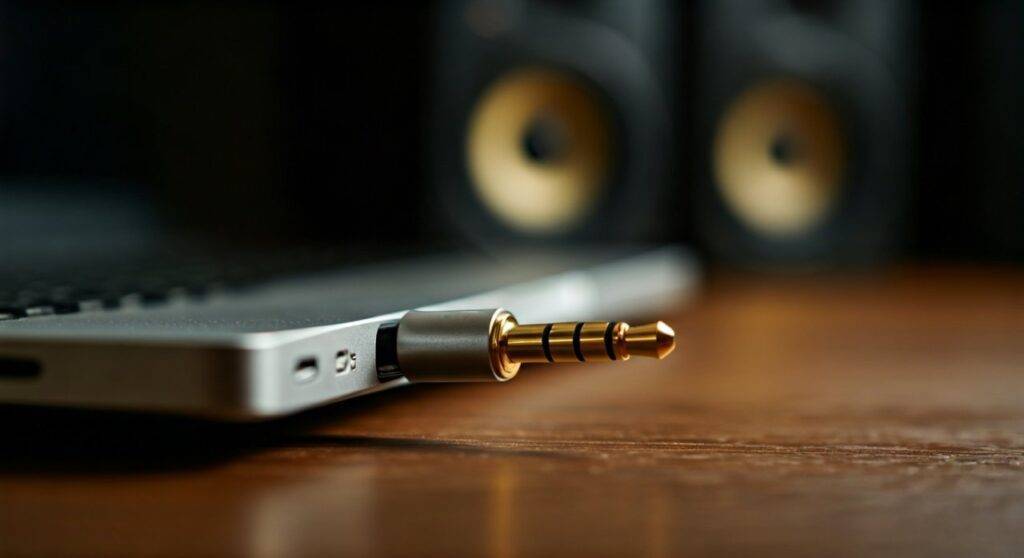
Key Takeaways for Quick Connectivity
- Compatibility: Most computer speakers use a 3.5mm TRS (Tip-Ring-Sleeve) plug that fits standard headset jacks.
- Active vs. Passive: You must use powered (active) speakers; passive speakers require an external amplifier.
- Audio Quality: While functional, a headset jack provides an amplified signal that may introduce slight distortion compared to a dedicated Line Out port.
- Safety: It is generally safe for the hardware, provided you start with the volume low to avoid “clipping” the audio signal.
Understanding the Mechanics: Can Speakers Plug Into the Headset Jack?
When you ask, “can speakers plug into the headset jack,” you are essentially looking at the cross-compatibility of the 3.5mm audio interface. In our years of testing various audio configurations, we have found that the headset jack is the most versatile port on a motherboard or laptop.
However, there is a technical distinction between a headphone output and a line-level output. A headset jack is designed to drive small drivers (headphones) and includes a small internal amplifier. When you connect speakers to this jack, you are sending a “hotter” signal than a standard Line Out port would.
Why the 3.5mm Jack is Universal
The 3.5mm connector has been the industry standard for decades. Whether it is a TRS (stereo) or TRRS (stereo + microphone) configuration, the physical dimensions remain the same. This allows for high levels of interoperability between consumer electronics and audio peripherals.
| Feature | Headset Jack (Output) | Line Out (Green Port) |
|---|---|---|
| Signal Type | Amplified / Variable | Line Level / Fixed |
| Primary Device | Headphones / IEMs | Powered Speakers |
| Impedance | Low (usually <32 ohms) | High (approx. 10k ohms) |
| Volume Control | Controlled by OS/Hardware | Usually controlled by Speaker |
Step-by-Step Guide: How to Connect Speakers to a Headset Jack
Connecting your speakers is straightforward, but following a specific sequence ensures you don’t damage your ears or your speaker drivers with sudden “pops.”
Step 1: Identify Your Speaker Type
Before plugging anything in, check if your speakers have a power cord.
- Active Speakers: These have a built-in amplifier and plug into a wall outlet or USB port for power. These are required for a headset jack.
- Passive Speakers: These are usually “raw” wire speakers from a shelf stereo. Do not plug these directly into a headset jack; you will get almost no sound and could damage the port.
Step 2: Prepare the Cables
Locate the 3.5mm male-to-male cable or the integrated cable coming from your speaker set. If your speakers use RCA (Red and White) plugs, you will need an RCA-to-3.5mm adapter to facilitate the connection.
Step 3: Power Down and Set Volume to Zero
We recommend turning your speaker volume knob to the lowest setting and lowering your PC/Laptop system volume to 10-20%. This prevents “signal clipping,” which occurs when the headset jack’s internal amp overloads the speaker’s input.
Step 4: Physical Connection
Insert the 3.5mm plug firmly into the headset jack. You should feel a slight click. On a PC, this is often the Lime Green port or the port labeled with a headset icon.
Step 5: Configure Software Settings
On Windows or macOS, a pop-up may ask “Which device did you plug in?”
- Select “Speaker Out” or “Front Speaker Out” if the option appears.
- Navigate to Sound Settings > Output.
- Ensure the correct Audio Driver (e.g., Realtek High Definition Audio) is selected.
Expert Insights: Active vs. Passive Speaker Requirements
One of the most common mistakes users make is trying to drive passive speakers (like those from an old home theater) directly from a laptop’s headset jack.
Passive speakers lack internal power. Because a headset jack only outputs a few milliwatts of power, the sound will be whisper-quiet or non-existent. To use these, you must place an Amplifier or DAC/Amp between the headset jack and the speakers.
Conversely, Active speakers (like Logitech, Creative, or Edifier computer speakers) are designed to receive a signal from a headset jack. They take that weak signal and use their internal power supply to boost it to audible levels.
The Impact of Impedance Matching
In the world of Audiophile Engineering, impedance is key.
- Headphones typically range from 16 to 600 ohms.
- Speaker Inputs (on active sets) usually have a very high input impedance (10,000+ ohms).
- Connecting a low-impedance output (headset jack) to a high-impedance input (active speakers) is safe and results in a clean voltage transfer.
Common Challenges and Troubleshooting
While the answer to “can speakers plug into the headset jack” is yes, the experience isn’t always plug-and-play. Here are the issues we frequently encounter during studio setups.
The “Hissing” or Static Noise
If you hear a persistent hum (Ground Loop) or hiss:
- The Cause: The headset jack is picking up Electromagnetic Interference (EMI) from the computer’s internal components.
- The Fix: Lower the computer’s system volume to 50% and increase the physical volume knob on the speakers. Alternatively, use a USB Sound Card or External DAC to move the audio processing away from the noisy internal motherboard.
Audio is Only Coming from One Side
- The Cause: The plug isn’t fully seated, or you are using a Mono instead of a Stereo adapter.
- The Fix: Push the 3.5mm jack in until it clicks. Ensure the cable has two black/colored rings (TRS) on the tip, not one (TS).
Windows Doesn’t Recognize the Speakers
- The Cause: Outdated Realtek drivers or the jack detection is disabled.
- The Fix: Open the Realtek Audio Console, go to “Connector Settings,” and ensure “Disable front panel jack detection” is unchecked.
Maximizing Audio Quality from a Headset Jack
If you are a gamer or a music enthusiast, you want the best possible sound. Since the headset jack is an analog output, the quality depends on the Digital-to-Analog Converter (DAC) inside your device.
Use High-Quality Cables
Avoid unshielded, thin cables. We recommend braided AUX cables with gold-plated connectors to minimize signal degradation and corrosion over time. Brands like Anker or CableDirect offer affordable, high-quality options.
Software Equalization
Since headset jacks often have a “colored” sound profile (boosted bass for headphones), use software like Equalizer APO or Peace GUI to flatten the response for your speakers. This ensures your desktop speakers sound natural rather than “boomy.”
Statistics on Audio Port Usage
According to recent hardware surveys, despite the rise of USB-C and Bluetooth 5.0, over 70% of desktop users still rely on the 3.5mm analog jack for their primary speaker connection due to its zero-latency performance.
Comparison: 3.5mm Jack vs. USB vs. Optical (TOSLINK)
If your speakers support multiple connection types, should you still use the headset jack?
| Connection | Latency | Audio Fidelity | Ease of Use |
|---|---|---|---|
| 3.5mm Headset Jack | Zero | Average/Good | Highest |
| USB (Digital) | Minimal | High (Bypasses internal DAC) | High |
| Optical / TOSLINK | Zero | Highest (Lossless) | Moderate |
| Bluetooth | High (Lag) | Compressed | Convenient |
In our professional opinion, for standard YouTube watching or office work, the 3.5mm headset jack is perfectly adequate. For competitive gaming or music production, we suggest transitioning to a USB DAC.
Frequently Asked Questions
Can I plug my speakers into the headphone jack on my monitor?
Yes, most monitors act as a “pass-through” for audio sent via HDMI or DisplayPort. Plugging speakers into the monitor’s 3.5mm jack is a great way to keep cables off your desk, though the audio quality may be slightly lower than the motherboard’s jack.
Will I damage my computer if I plug in large speakers?
No, as long as the speakers are Active (Powered). The computer only sends a low-voltage signal; the speakers do the heavy lifting with their own power. However, never try to power large passive cabinet speakers directly from the jack.
Why do my speakers pop when I plug them into the headset jack?
This is a small electrical surge that occurs when the “hot” contact of the jack touches the ground. To prevent this, always turn your speakers OFF before plugging them into or unplugging them from the headset jack.









