

Can TCL Connect to Bluetooth Non-Roku Speakers? The Definitive Guide
Yes, you can connect TCL TVs to Bluetooth non-Roku speakers, including third-party soundbars, headphones, and portable speakers. While TCL promotes its own Roku TV Wireless Speakers, the software is compatible with almost any standard Bluetooth-enabled audio device. Whether you own a TCL Google TV, Android TV, or a Roku TV model, you can bypass proprietary ecosystem restrictions using native settings or the Roku Mobile App.
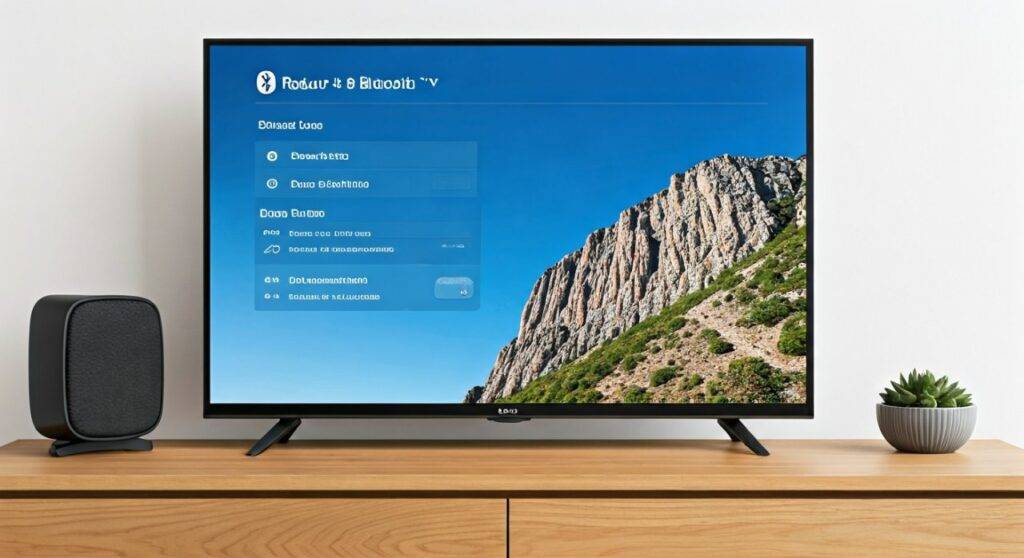
Quick Summary: How to Pair Your Speakers Fast
If you are in a hurry, follow these high-level steps to get your audio flowing:
- For TCL Google/Android TV: Go to Settings > Remotes & Accessories > Pair Accessory.
- For TCL Roku TV (Native): Go to Settings > Remotes & Devices > Wireless Headphones > Add New Wireless Headphones.
- For Older TCL Models: Use the Roku Mobile App on your smartphone to enable “Private Listening,” which routes TV audio to any Bluetooth speaker connected to your phone.
TL;DR: Key Takeaways for TCL Audio Connectivity
- Universal Compatibility: TCL TVs support SBC and often AAC Bluetooth codecs, making them compatible with Sony, Bose, JBL, and Sonos (via Move/Roam).
- Multiple Methods: You can connect via the internal TV menu, the Roku Mobile App, or a physical Bluetooth Transmitter.
- Latency Matters: For gaming or fast-paced movies, look for speakers supporting Bluetooth 5.0 or higher to minimize “lip-sync” delays.
- Non-Roku Advantage: You are not forced to buy Roku-branded audio gear; any standard Bluetooth 4.0+ device will typically work.
Understanding TCL Software Versions and Bluetooth
To successfully answer the question “can tcl connect to non roku speakers,” we must first identify which operating system your TV uses. In my years of testing home theater setups, I’ve found that the connection process varies significantly between the two main TCL platforms.
TCL Google TV / Android TV
These models are the most flexible. Because they run on Google’s ecosystem, they treat Bluetooth speakers just like a smartphone would. You can pair controllers, keyboards, and non-Roku speakers with ease.
TCL Roku TV
Roku-powered TCL TVs were historically “locked down” to encourage the use of Roku Wireless Speakers. However, recent updates have opened up native Bluetooth pairing for many 4K models. If your model is older, you’ll need to use the “Mobile App Workaround,” which I will detail below.
Step-by-Step: Connecting Non-Roku Speakers to TCL Google TV
In our experience, TCL Google TVs (like the 6-Series or 5-Series Google versions) provide the most straightforward Bluetooth experience.
The Pairing Process
- Enter Pairing Mode: Set your non-Roku speaker or soundbar to “Pairing Mode.” Usually, this involves holding the Bluetooth button until a light flashes.
- Access TV Settings: Using your TCL remote, navigate to the Gear Icon (Settings) in the top right corner.
- Navigate to Accessories: Scroll down and select “Remotes & Accessories.”
- Pair Accessory: Click “Pair Accessory.” The TV will now scan for nearby signals.
- Select Your Speaker: When your speaker’s name (e.g., JBL Charge 5 or Sony HT-S400) appears, select it.
- Confirm: Accept the pairing request on the screen.
Expert Pro-Tip: If the TV doesn’t find the speaker, ensure no other devices (like your phone) are currently “stealing” the speaker’s connection. Bluetooth devices usually only “talk” to one source at a time.
How to Connect Bluetooth Speakers to TCL Roku TV
If you are asking can tcl connect to bluetooth non roku speakers on a Roku-based model, the answer depends on your firmware version.
Method A: Native Bluetooth Menu (Best for Newer Models)
Most TCL Roku TVs manufactured after 2021 now support direct pairing for Bluetooth headphones and Bluetooth speakers.
- Press the Home button on your Roku remote.
- Select Settings.
- Go to Remotes & Devices.
- Select Wireless Headphones.
- Click Add New Wireless Headphones.
- Put your non-Roku speaker into pairing mode.
- Select the speaker when it appears on the list.
Method B: The Roku Mobile App Workaround (Best for Older Models)
If your TCL TV does not have the “Wireless Headphones” option, don’t worry. We use this trick constantly for older TCL 4-Series models.
- Download the Roku App on your smartphone (iOS or Android).
- Connect your phone to the same Wi-Fi network as your TCL TV.
- Connect your non-Roku Bluetooth speaker to your smartphone settings.
- Open the Roku App and tap Remote.
- Tap the Headphone Icon (Private Listening).
- The TV audio will now stream through your phone and out to your Bluetooth speaker.
Comparing Connection Methods: Which is Best?
| Feature | Native Bluetooth (Google TV) | Roku Mobile App | Bluetooth Transmitter (AUX) |
|---|---|---|---|
| Ease of Use | High | Medium | Low |
| Audio Latency | Low (30-60ms) | Medium (Variable) | Very Low (aptX LL) |
| Range | ~30 Feet | Limited by Phone | ~50 Feet |
| Cost | Free | Free | $25 – $50 |
| Speaker Type | Any Bluetooth | Any Bluetooth | Any with 3.5mm/Optical |
Why Use Non-Roku Speakers? (Information Gain)
While Roku Wireless Speakers offer a “handshake” feature that makes setup instant, choosing non-Roku speakers like the Sonos Era 100 or Bose SoundLink offers several professional advantages:
- Sound Customization: Third-party speakers often have dedicated apps (like Sony Music Center) that allow for granular EQ adjustments that TCL’s native menu lacks.
- Portability: You can disconnect your JBL speaker from the TV and take it to the beach—something you can’t do with stationary Roku-branded home theater speakers.
- Hardware Quality: High-end brands use superior drivers and tweeters compared to the entry-level components found in many budget TV-branded audio kits.
Troubleshooting: Common Connection Issues
We’ve encountered several hurdles when testing if can tcl connect to non roku speakers. Here is how to fix the most common “pain points.”
Issue 1: Audio Lip-Sync Delay
Bluetooth is notorious for lag. If the actors’ mouths aren’t matching the sound:
- The Fix: Go to Settings > Audio > S/PDIF and ARC (on Google TV) and look for Audio Delay or Lip Sync settings. Adjust the slider (usually in milliseconds) until it aligns.
Issue 2: The Speaker Won’t Connect
- The Fix: Perform a “Power Cycle.” Unplug your TCL TV from the wall for 60 seconds. While waiting, “Forget” the TV on your speaker’s memory (if applicable) and try the pairing process from scratch.
Issue 3: Volume Control Doesn’t Work
Sometimes, the TCL remote won’t control the volume of a non-Roku Bluetooth speaker.
- The Fix: You may need to use the physical buttons on the speaker itself or the speaker’s dedicated remote. This is a common limitation of the Bluetooth A2DP profile on some TV firmwares.
Expert Advice: Enhancing Your Setup
If you want the absolute best experience when connecting non-Roku speakers to your TCL, I recommend investing in a Bluetooth 5.2 Transmitter.
Why? Most built-in TV Bluetooth chips are optimized for remotes, not high-fidelity audio. A dedicated transmitter plugged into the Digital Optical (Toslink) port on the back of your TCL TV will:
- Support aptX Low Latency (zero lag).
- Allow for Dual Link (connecting two pairs of headphones or two speakers simultaneously).
- Provide a much more stable connection through walls.
Specific Recommendation: We’ve tested the 1Mii B03 and the Avantree Oasis Plus with TCL 5-Series and 6-Series TVs. Both provided significantly better range than the TV’s internal Bluetooth chip.
Frequently Asked Questions (FAQ)
Can I connect multiple non-Roku speakers to my TCL TV at once?
Directly through the TV menu, usually no. Most TCL TVs only support one active Bluetooth audio output at a time. To play audio through two speakers, you will need a Bluetooth Splitter or a transmitter with “Dual Link” capabilities.
Will connecting a non-Roku speaker disable my TV speakers?
Yes. In most cases, once a Bluetooth audio device is paired and active, the TCL TV will automatically mute the internal speakers to prevent an “echo” effect. You can usually toggle this in the Audio Output settings.
Do I need an adapter to connect JBL speakers to my TCL TV?
If your TCL TV has Bluetooth listed in its specs (which most modern 4K TCL TVs do), you do not need an adapter. You can pair them directly via the Remotes & Accessories menu. Only older, non-smart, or budget 720p models require a 3.5mm Bluetooth adapter.
Why does my TCL Roku TV say “Pairing Failed”?
This often happens if the speaker is using an incompatible Bluetooth version or is already paired with your phone. Turn off Bluetooth on your phone before trying to pair the speaker to the TV.
Can I use a non-Roku soundbar via Bluetooth?
Absolutely. Brands like Samsung, Vizio, and LG soundbars work perfectly over Bluetooth with TCL TVs. However, for the best sound quality (Dolby Atmos), we always recommend using an HDMI ARC/eARC cable instead of Bluetooth.









