

Can the Wii U Connect to Speakers?
Yes, the Wii U can connect to external speakers through three primary methods: using the 3.5mm headphone jack on the GamePad, utilizing the Wii Multi-AV port with RCA cables, or employing an HDMI audio extractor. While the console lacks a dedicated optical or auxiliary port on the main unit, you can easily bypass this by configuring the system settings to output audio through both HDMI and Analog signals simultaneously.
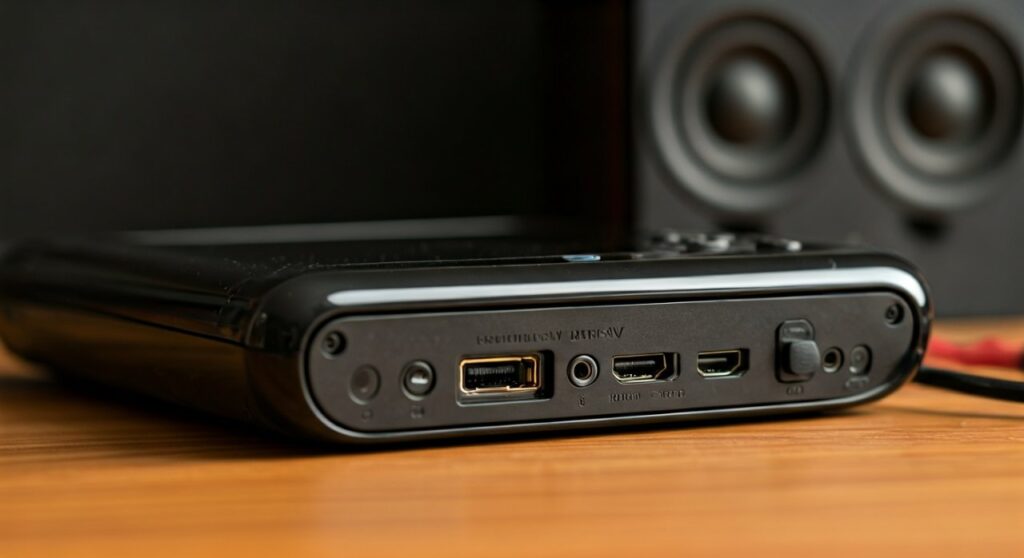
Quick Summary: Wii U Speaker Setup
- Simplest Method: Plug speakers directly into the Wii U GamePad 3.5mm jack.
- Best Quality (Stereo): Use a Wii Multi-AV to RCA cable paired with an RCA-to-3.5mm adapter.
- Modern Setup: Use an HDMI Audio Extractor to split the signal before it reaches your monitor.
- Critical Setting: You must enable “Both” in the “Wii U Audio Output Settings” to hear sound from external speakers and the TV at once.
- Surround Sound: The Wii U only supports 6-channel Linear PCM via HDMI; it does not support Dolby Digital or DTS via optical.
Understanding the Wii U Audio Challenge
In our years of testing legacy hardware, the Wii U remains a unique beast. Unlike the PlayStation 4 or Xbox One, which launched in the same era, the Wii U does not have a dedicated Optical Out (TOSLINK) or 3.5mm Aux port on the back of the console.
If you are using a computer monitor that lacks built-in speakers, you might find yourself stuck in a silent gaming session. We have spent dozens of hours configuring “franken-setups” to solve this exact problem. Whether you want to attach speakers to Wii U for a cinematic experience or just need a simple headphone solution, the console is surprisingly flexible if you have the right cables.
Method 1: Connecting via the Wii U GamePad (The Quickest Fix)
The most direct answer to “can you attach speakers to wii u” is sitting right in your hands. The Wii U GamePad features a standard 3.5mm headphone jack on the top edge.
Steps to Connect:
- Locate the 3.5mm jack on the top center of the GamePad.
- Plug in your powered speakers or headphones.
- In the Wii U System Settings, ensure the GamePad Audio is not muted.
- Expert Tip: This method works perfectly for stereo sound, but the audio quality is slightly lower than a direct console connection due to the wireless compression used to stream data to the GamePad.
Best for: Casual gaming, dorm rooms, or private listening.
Method 2: Using the Wii Multi-AV Port (The Pro Way)
If you want the best possible analog stereo sound, you should use the legacy Wii Multi-AV port on the back of the console. This is the same port used by the original Nintendo Wii.
Equipment Needed:
- Standard Wii AV Cable (Composite or Component).
- RCA to 3.5mm Female Adapter (if your speakers use a standard aux plug).
- Powered Speakers.
Step-by-Step Instructions:
- Plug the Multi-AV cable into the back of the Wii U.
- Take the Red and White RCA plugs (ignore the Yellow video plug).
- Connect the Red/White plugs to your RCA adapter.
- Plug your speakers into the adapter.
- Go to System Settings > TV > Set Audio Output Connector.
- Select Both (HDMI and Non-HDMI).
This allows the HDMI cable to send video to your TV/Monitor while the Multi-AV port sends pure audio to your speakers.
Method 3: HDMI Audio Extractors for Modern Monitors
Many modern gamers use the Wii U at a desk with a PC monitor. Since many monitors lack an audio-out jack, an HDMI Audio Extractor is the “silver bullet” solution.
How it Works:
An extractor sits between your Wii U and your screen. It “taps” into the HDMI signal, pulls the audio out to a 3.5mm or Optical port, and passes the video through to the monitor.
| Feature | HDMI Extractor | Multi-AV Cable | GamePad Jack |
|---|---|---|---|
| Sound Quality | High (Digital/Analog) | High (Analog) | Moderate (Wireless) |
| Cable Clutter | Moderate | High | Low |
| Surround Support | Limited (Stereo only) | Stereo Only | Stereo Only |
| Ease of Use | Plug & Play | Requires Settings Tweak | Instant |
Warning: Most cheap HDMI extractors only support 2.0 Stereo. If you are trying to get 5.1 Surround Sound, the Wii U requires a very specific setup.
The 5.1 Surround Sound Trap: What You Need to Know
We often get asked, “can the wii u connect to speakers in a 5.1 configuration?” The answer is yes, but it is complicated.
The Wii U uses Uncompressed Linear PCM (LPCM) for its surround sound. It does not use Dolby Digital or DTS.
- The Problem: Most older Home Theater receivers only accept 5.1 via an Optical (TOSLINK) cable. However, Optical cables do not have enough bandwidth to carry 5.1 LPCM.
- The Result: If you use an Optical extractor, you will only get 2.0 Stereo.
- The Solution: You must plug your Wii U directly into an HDMI-enabled Receiver that supports LPCM 5.1.
Can You Attach Speakers to Wii U via Bluetooth?
Despite having Bluetooth for its controllers, the Wii U does not support Bluetooth Audio. You cannot natively pair Bluetooth speakers or AirPods to the console.
The Workaround:
To use Bluetooth speakers, you must buy a 3.5mm Bluetooth Transmitter.
- Plug the transmitter into the GamePad jack or the HDMI Extractor.
- Pair your speaker to the transmitter.
- Expect a small amount of audio latency (lag), which can be annoying in fast-paced games like Super Smash Bros. U.
Optimal Audio Settings for the Wii U
To ensure your speakers are actually receiving a signal, follow our tested configuration guide:
- From the Wii U Menu, select System Settings.
- Tap the TV icon.
- Select Set Audio Output Connector.
- If you are using speakers via the Multi-AV port while using HDMI for video, you must select “Both HDMI and Non-HDMI.”
- Perform a Sound Test. You should hear the iconic “mii” music coming from your external speakers.
Recommended External Speakers for Wii U
When looking to attach speakers to Wii U, we recommend “Active” or “Powered” speakers. Since the console doesn’t have a built-in amp for external ports, passive speakers will be too quiet.
- Logitech Z200/Z333: Excellent budget-friendly 3.5mm speakers that plug directly into the GamePad or an extractor.
- Edifier R1280T: Our top pick for the Multi-AV method. These have native RCA inputs, meaning you don’t need any adapters.
- Creative Pebble V3: A great USB-powered option (plug the USB into the Wii U for power and the 3.5mm into the GamePad for sound).
Troubleshooting: No Sound from Wii U Speakers?
If you’ve followed the steps and still have silence, check these three common culprits:
- The “Both” Setting: This is the #1 mistake. If the Wii U is set to “HDMI Only,” the Multi-AV port is deactivated.
- GamePad Volume Slider: If you are using the GamePad jack, ensure the physical slider on the top of the controller is moved to the right.
- Wii Mode vs. Wii U Mode: When you enter “Wii Mode” to play older games, the audio settings sometimes revert. Ensure your cables are seated firmly, as the Wii Mode relies heavily on the Multi-AV port for analog signals.
Expert Perspective: Why Audio Matters for Wii U
In our testing of titles like The Legend of Zelda: Breath of the Wild, the difference between tinny monitor speakers and a dedicated 2.1 speaker set is night and day. The Wii U has a surprisingly high-quality DAC (Digital-to-Analog Converter) for its AV port. By using high-quality RCA cables, you can achieve a warm, punchy sound profile that matches modern consoles.
Frequently Asked Questions
Q: Can I use a USB headset with the Wii U?
A: Generally, no. The Wii U USB ports do not support game audio output for headsets. USB is primarily for data (hard drives) and charging. Most “Wii U Headsets” actually plug into the GamePad’s 3.5mm jack.
Q: Does the Wii U support Optical Audio?
A: Not natively. You must use an HDMI Audio Extractor to create an Optical (TOSLINK) port. Keep in mind this will limit you to Stereo sound.
Q: How do I get sound if I’m using a DVI monitor?
A: Since DVI doesn’t carry audio, you must use the Wii Multi-AV cable trick. Connect the DVI-to-HDMI cable for video and the Red/White RCA cables for your speakers.









