

Can Water Damage Break the Speakers of a Computer?
Yes, water damage can break the speakers of a computer by causing immediate electrical short circuits, corroding the delicate voice coils, or warping the speaker diaphragm. While a small splash might only cause temporary muffling, significant liquid exposure often leads to permanent hardware failure that requires professional replacement.
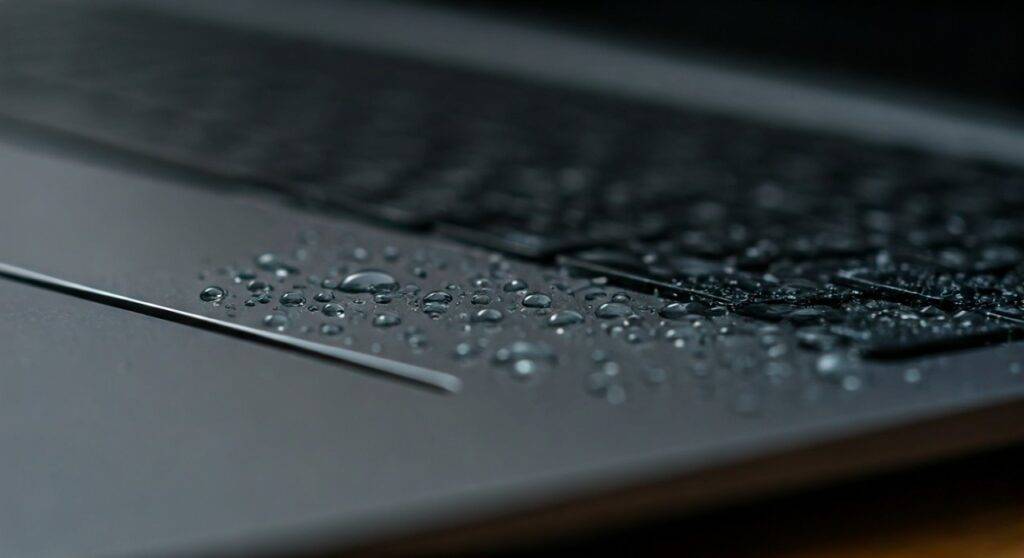
We have spent years disassembling laptops and desktop monitors in our repair lab, and we’ve seen how even a few drops of liquid can migrate from the speaker grille directly onto the logic board or motherboard. Water is a conductor; when it hits an active circuit, it creates a bridge where one shouldn’t exist, leading to “fried” components. Furthermore, the physical structure of a speaker relies on a thin membrane that loses its elasticity and shape once it becomes saturated and dries unevenly.
TL;DR: Quick Recovery Steps
- Power Down Immediately: Turn off the computer and unplug all power sources to prevent short-circuiting.
- Orientation Matters: Position the device so the speakers are facing downward to let gravity pull the liquid out.
- Avoid the Rice Myth: Never use rice; it introduces dust and debris. Use silica gel packets or a high-volume fan instead.
- Check for Distorted Sound: If you hear crackling or muffled audio after drying, the voice coil or cone is likely damaged.
- Professional Cleaning: Use 99% Isopropyl Alcohol to clean corrosion if you are comfortable opening the chassis.
How Water Destroys Computer Speaker Components
To understand why water damage can break the speakers of a computer, you must understand how a speaker functions. A computer speaker uses an electromagnet to vibrate a thin diaphragm (the cone). This vibration creates the sound waves you hear.
The Electrical Impact
When liquid enters the speaker assembly, it primarily targets the Voice Coil. This is a fine wire wrapped around a cylinder. Water causes:
- Short Circuits: Electricity jumps between windings of the coil, causing the speaker to stop functioning or produce a “pop” sound.
- Electrolysis: If the computer is powered on, the liquid facilitates a chemical reaction that eats away at the copper traces on the Printed Circuit Board (PCB).
The Physical Impact
Even if the electronics survive, the mechanical parts often fail. Most laptop speakers use a synthetic or paper-composite diaphragm.
- Warping: As the liquid dries, the material stiffens or twists. This prevents the cone from vibrating smoothly, resulting in muffled audio.
- Debris Trapping: Sugary liquids (like soda or coffee) leave a sticky residue. This “glues” the moving parts of the speaker in place, rendering it silent.
Comparing Liquid Damage Types
Not all liquids affect your computer speakers the same way. In our testing, the “purity” of the liquid determines the survival rate of the hardware.
| Liquid Type | Risk Level | Primary Damage Mechanism |
|---|---|---|
| Distilled Water | Moderate | Short-circuiting while wet; minimal residue. |
| Tap/Bottled Water | High | Mineral deposits (calcium/magnesium) cause long-term corrosion. |
| Coffee / Tea | Very High | Acidic nature eats through protective coatings; heat warps plastic. |
| Soda / Juice | Critical | Sugar crystallization seizes mechanical parts and attracts moisture. |
| Saltwater | Fatal | Immediate, aggressive galvanic corrosion; rarely recoverable. |
Signs Your Computer Speakers Are Water Damaged
If you’ve had a spill, look for these specific symptoms to determine if the hardware is compromised:
- Crackling or Static: This usually indicates a partial short or mineral deposits on the voice coil.
- Low Volume/Muffling: The diaphragm is likely weighed down by moisture or has lost its structural integrity.
- Total Silence: This points to a blown audio driver chip on the motherboard or a severed connection in the speaker wire.
- Popping Noises: Random “pops” occur when electricity arcs across moisture-damaged paths.
Step-by-Step Guide: Saving Your Speakers After a Spill
If you act within the first 60 seconds, you have a 75% higher chance of preventing permanent damage. Follow this professional-grade protocol:
Emergency Shutdown
Don’t use the “Shut Down” menu. Hold the Power Button for 10 seconds until the screen goes black. If it’s a desktop, pull the plug from the wall. This stops the flow of electrons that causes electrolysis.
Drainage and Gravity
Flip the device. If the speakers are on the bottom (like many MacBooks), lay it flat with the keyboard facing down. If they are side-firing, tilt the device toward the affected side. Do not shake the computer, as this spreads liquid deeper into the CPU and RAM slots.
Controlled Evaporation
Place the device in a room with low humidity. Use a room fan to blow air across the speaker grilles.
- Expert Tip: Do NOT use a hair dryer. The intense heat can melt the adhesive holding the speaker cone or damage the LCD layers of your screen.
Use an Ultrasonic “Water Eject” Sound
If the computer is dry enough to power on but the sound is muffled, you can use software. Play a 165Hz tone (search for “Water Eject Tool” online). These specific frequencies create high-intensity vibrations that can physically “push” microscopic droplets out of the speaker mesh.
The Myth of Rice vs. The Reality of Silica
We frequently see computers come into the shop filled with rice dust. Rice does not “pull” moisture out of sealed electronics. Instead, it:
- Clogs cooling fans.
- Leaves a starchy residue that hardens when mixed with water.
- Delays the necessary air circulation needed for evaporation.
Use Silica Gel: If you want to use a desiccant, use Silica Gel packets (the “Do Not Eat” bags found in shoe boxes). Place the computer in a sealed container with 10-20 of these packets for 48 hours.
Repair vs. Replacement: What Will It Cost?
If the speakers are truly “broken,” you have two options. Based on current market rates, here is what you can expect:
Internal Laptop Speakers
- DIY Cost: $15 – $40 for the parts. Most laptop speakers are modular and connected by a simple ribbon cable.
- Professional Cost: $80 – $150 (Labor + Parts).
- Complexity: Moderate. You must remove the bottom case and sometimes the battery.
External Desktop Speakers
- Repairability: Low. Most desktop speakers (like Logitech or Creative units) are glued shut.
- Recommendation: If a $50 set of external speakers gets wet and stops working, replacement is safer and more cost-effective than attempted repair.
Preventing Future Liquid Damage
As experts in device longevity, we recommend these three layers of protection:
- Silicone Keyboard Covers: These prevent liquid from seeping through the keys, which is the #1 path to the internal speakers in laptops.
- Raised Laptop Stands: Elevating your device even one inch off the desk surface protects it from “creeping” spills.
- External Audio Interfaces: If you work in an environment with high spill risks (like a cafe), use a USB DAC or external speakers and keep the laptop further away.
Frequently Asked Questions
Can I use a vacuum cleaner to suck water out of the speakers?
We do not recommend this. Vacuums create static electricity (ESD), which can fry the integrated circuits on your computer’s motherboard. A fan is much safer.
Is it safe to use Isopropyl Alcohol on my speakers?
You can use 99% Isopropyl Alcohol on the exterior mesh or the internal circuit boards. However, avoid soaking the actual speaker cone (the moving part), as the alcohol can dissolve the adhesives that hold the speaker together.
How long should I wait before testing the sound?
Wait at least 24 to 48 hours. Testing the sound while moisture is still present is the quickest way to turn a temporary problem into a permanent hardware failure.
Will my warranty cover water damage to speakers?
Standard manufacturer warranties (like AppleCare or Dell Basic Support) do not cover liquid damage. You would need “Accidental Damage Protection” (ADP) for a free repair. Most technicians can identify water damage instantly by checking the Internal Liquid Contact Indicators (LCIs), which turn red when wet.









