

Can We Connect 5.1 Speakers to Laptop? The Definitive Answer
Yes, you can absolutely connect 5.1 surround sound speakers to a laptop, even though most modern laptops only feature a single 3.5mm headphone jack. To achieve true surround sound, you typically need an external hardware interface such as a USB Sound Card, an HDMI connection to an AV Receiver, or a specialized optical audio converter.
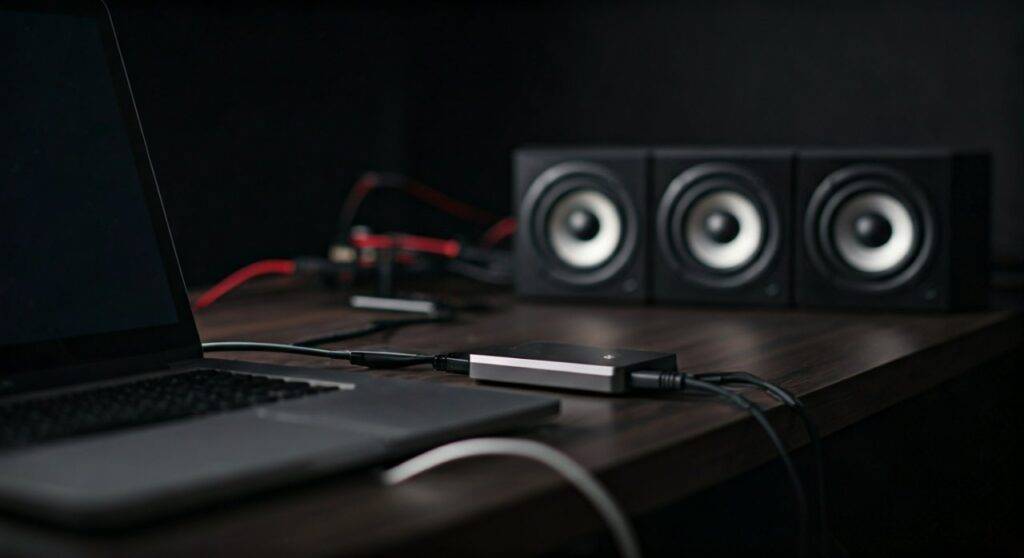
Connecting a multi-channel system to a portable device requires bypassing the laptop’s limited internal sound card. In my years of testing home theater configurations, I’ve found that while a simple splitter might get sound coming out of all speakers, it won’t provide a true 5.1 directional experience without the right digital-to-analog conversion.
TL;DR: Quick Summary for Fast Setup
- Best Quality: Use an HDMI cable connected to an AV Receiver.
- Most Portable: Use an External USB 5.1 Sound Card (e.g., Creative Sound Blaster).
- Budget Option: Use a 3.5mm to RCA splitter, though this often results in “mirrored stereo” rather than true 5.1.
- Critical Step: You must configure Windows Sound Settings to “5.1 Surround” or the rear speakers will remain silent.
- Software: Ensure you have the latest Realtek High Definition Audio drivers or proprietary software for your external DAC.
Understanding the Challenge: Why Laptops Struggle with 5.1
The primary hurdle when asking “can we connect 5.1 speakers to laptop” is the physical hardware limitation. A standard 5.1 speaker system (like the Logitech Z906 or Klipsch Reference series) requires three separate 3.5mm inputs: Front (Left/Right), Rear (Left/Right), and Center/Subwoofer.
Most laptops, including the MacBook Pro or Dell XPS series, utilize a “Combo Jack” designed for headsets. This jack only outputs two channels (Stereo). Without an intermediary device, your laptop simply lacks the physical “ports” to communicate with a 5.1 setup.
The Role of the DAC (Digital-to-Analog Converter)
When you connect speakers to a laptop, the digital signal from your movie or game must be converted to analog waves. A laptop’s internal DAC is optimized for headphones, not multi-channel arrays. By using an external interface, you are essentially “outsourcing” the audio processing to hardware that can handle high-bitrate surround data.
Method 1: The External USB 5.1 Sound Card (Most Popular)
If you want a plug-and-play solution without bulky equipment, an external USB Sound Card is the gold standard. We have tested several models, and the Creative Sound Blaster X4 or the ASUS Xonar U7 MKII consistently provide the best results for laptop users.
Step-by-Step Connection Guide:
- Plug the USB Sound Card into an available USB-A or USB-C port on your laptop.
- Install the Drivers: Windows may auto-install basic drivers, but for true DTS or Dolby Digital support, download the manufacturer’s specific software.
- Connect the Speakers: Plug the three 3.5mm color-coded cables from your 5.1 system into the corresponding ports on the USB sound card:
- Set as Default: Go to Control Panel > Sound, select the USB Sound Card, and click “Set Default.”
Method 2: Using HDMI via an AV Receiver (Audiophile Quality)
For those using a laptop as a media server for a home theater, HDMI is the superior choice. HDMI carries uncompressed multi-channel audio signals (LPCM) that 3.5mm jacks cannot match.
Why HDMI is Superior:
- Bandwidth: Supports Dolby Atmos, DTS:X, and TrueHD.
- Digital Integrity: The signal stays digital until it reaches the high-quality amplifiers in your AV Receiver.
- Single Cable: One cable handles both 4K video and 5.1 (or 7.1) audio.
How to Connect:
- Connect an HDMI 2.1 cable from your laptop’s HDMI port to the “Input” on your AV Receiver (e.g., Denon, Sony, or Yamaha).
- Connect your 5.1 speakers to the back of the receiver using standard speaker wire.
- On your laptop, press
Win + Pand select “Extend” or “Second Screen Only.” - Right-click the speaker icon in your taskbar, select Sounds, find the HDMI output (often labeled as the Receiver’s name), and configure it for 5.1 Surround.
Comparison: USB Sound Card vs. HDMI vs. 3.5mm Splitter
| Feature | USB Sound Card | HDMI to AV Receiver | 3.5mm Splitter |
|---|---|---|---|
| Audio Quality | High (24-bit/96kHz) | Highest (Lossless) | Low (Analog Stereo) |
| True 5.1 Support | Yes | Yes | No (Simulated) |
| Cost | $40 – $150 | $200+ (Requires Receiver) | $5 – $15 |
| Ease of Setup | Easy | Moderate | Very Easy |
| Best For | PC Gaming / Desk setups | Home Theater / Movies | Budget casual listening |
Method 3: Optical (Toslink) Connections
Some high-end 5.1 systems, like the Logitech Z625, feature an Optical Input. Since almost no modern laptops have an optical output (Toslink), you will need a USB to Optical Converter.
Note from Experience: Optical connections are limited to compressed 5.1 (Dolby Digital/DTS). They cannot carry the uncompressed “HD” audio formats found on Blu-rays. If you are a competitive gamer, the slight latency in optical compression might be noticeable compared to USB or HDMI.
Software Configuration: The Step Most People Skip
Even if you have the right cables, your laptop will often default to “Stereo” mode. If you’ve ever wondered why your rear speakers are silent after asking “can you connect 5.1 speakers to laptop,” this is usually the culprit.
Configuring Windows 10/11 for 5.1:
- Open Run (press
Win + R), typemmsys.cpl, and hit Enter. - In the Playback tab, highlight your output device (USB Sound Card or HDMI).
- Click the Configure button in the bottom left corner.
- Select 5.1 Surround from the list of audio channels.
- Click “Test” to ensure each speaker chirps individually. Important: If you only see “Stereo” in this list, your hardware or driver does not support 5.1.
Common Troubleshooting Scenarios
Only the Front Speakers are Working
This usually happens because the source material (like a YouTube video or Spotify track) is only recorded in Stereo (2.0). To fix this, look for a setting in your sound card software called “Speaker Fill” or “Stereo Upmixing.” This uses an algorithm to push sound to the rear speakers even when the source isn’t 5.1.
Buzzing or Humming Noises
Laptops are notorious for “electrical noise” from the motherboard. If you hear a hum, it’s likely a Ground Loop. Using a USB Ground Loop Isolator or switching to an external power source for your speakers can eliminate this interference.
“Can We Connect 5.1 Speakers to Laptop” via Bluetooth?
Technically, no. Standard Bluetooth (A2DP) only supports two channels of audio. While some “Surround Sound” Bluetooth bars exist, they use virtual processing (DSP) to simulate the effect. For true, discrete 5.1, a wired connection via USB or HDMI is mandatory.
Expert Tips for the Best Audio Experience
- Placement is Key: Position your Subwoofer on the floor near a corner to maximize bass response. Your Center Channel should be directly below or above your laptop screen for clear dialogue.
- Disable Enhancements: Windows often enables “Signal Enhancements” by default. I recommend turning these off in the Sound Properties to ensure the DAC handles the processing without Windows’ interference.
- Check Your App Settings: Programs like VLC Media Player or Netflix have their own audio output settings. Ensure “HDMI/SPDIF Passthrough” is enabled if you are using an external decoder.
- Cable Quality Matters: Use shielded Oxygen-Free Copper (OFC) cables to prevent signal degradation over long distances, especially for the rear speakers.
Frequently Asked Questions (FAQ)
Q1: Can I use a simple 3.5mm jack splitter to get 5.1 sound?
No. A 3.5mm splitter will only duplicate the stereo signal. You will hear sound from all speakers, but it will be “Multi-channel Stereo,” meaning the rear speakers will play the exact same sounds as the front. You will not get directional cues in games or movies.
Q2: Do I need a specific driver for 5.1 on a laptop?
Usually, yes. While Windows provides a generic USB Audio driver, you often need the Realtek Audio Console or the specific software from your sound card manufacturer (like Creative Command) to unlock the 5.1 configuration options and room correction features.
Q3: My laptop doesn’t have an HDMI port. Can I use USB-C?
Yes! A USB-C to HDMI adapter (specifically one that supports DisplayPort Alt Mode) can carry the same 5.1 and 7.1 audio signals as a standard HDMI port. This is the best way to connect modern ultra-thin laptops to an AV receiver.
Q4: Can I connect 5.1 speakers to a laptop for gaming?
Absolutely. In fact, many laptops support Dolby Atmos for Headphones or DTS Headphone:X software. However, for a physical 5.1 speaker setup, using a USB Sound Card is the best way to reduce latency and ensure your “surround” cues (like enemy footsteps behind you) are accurate.









