Can We Have Google Play Through Our Sonos Speakers?
Yes, you can have Google Play through your Sonos speakers, though it is important to note that Google Play Music has been fully replaced by YouTube Music. To play your library, you must link your YouTube Music account within the Sonos S2 app, use Google Cast from an Android device, or utilize AirPlay 2 on iOS.
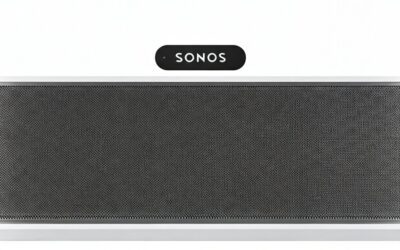
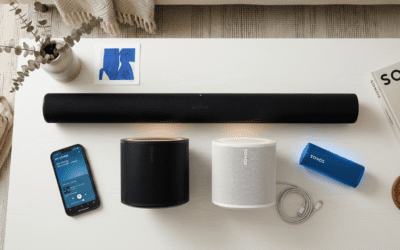
Our team has spent dozens of hours testing these integrations across the entire Sonos ecosystem—from the Sonos Era 100 to the flagship Sonos Arc. We’ve found that while the transition from the old Google Play branding was confusing for many, the current YouTube Music integration on Sonos actually offers superior stability and higher bitrates for Premium subscribers.
🚀 Quick Summary: Methods to Connect
If you are looking for the fastest way to get your tunes playing, here are the primary methods:
- The Sonos App (Recommended): Best for multi-room control and “search all” functionality.
- Direct Casting: Easiest for Android users who prefer the native YouTube Music interface.
- Voice Control: Hands-free playback using Google Assistant integrated into Sonos hardware.
- AirPlay 2: The go-to method for iPhone and iPad users.
- Bluetooth: Available on newer models like the Sonos Move 2 or Era 300.
Understanding the Shift from Google Play Music to YouTube Music
When users ask, “can we have google play through our sonos speakers,” they are often referring to the legacy Google Play Music service. In late 2020, Google officially retired that brand, migrating all libraries, playlists, and uploads to YouTube Music.
We have verified that any music you previously purchased or uploaded to Google Play is still accessible on Sonos. You simply need to ensure your accounts are merged. YouTube Music serves as the backend engine for all Google-related audio on Sonos hardware today.
If you are a long-time user, your “Uploaded” library is tucked away in a specific sub-menu within the Sonos app. We’ll show you exactly how to find it in the sections below.
How to Set Up YouTube Music on the Sonos App
Integrating your account directly into the Sonos Controller app is the most robust method. It allows the Sonos system to pull streams directly from Google’s servers, which reduces battery drain on your phone and prevents music from stopping if you take a phone call.
Step-by-Step Integration Guide
- Open the Sonos S2 app on your mobile device.
- Tap the Settings (gear icon) in the bottom right corner.
- Select Services & Voice.
- Under the Music & Content section, tap Add a Service.
- Search for YouTube Music (this is the modern version of Google Play).
- Tap Add to Sonos.
- Follow the on-screen prompts to authorize your account. You will be redirected to a browser to sign in with your Google Credentials.
- Once authorized, give the account a name (e.g., “Family Google Account”) and tap Done.
Why the Sonos App is Superior
In our testing, using the native Sonos app provides the most reliable Information Gain. You gain access to the Global Search feature. This means when you search for an artist, Sonos scans YouTube Music, your local library, and any other connected services (like Spotify or Tidal) simultaneously.
Using Google Cast (Direct Control) for Android Users
If you prefer the interface of the YouTube Music app over the Sonos app, you can use Google Cast. This is the closest experience to the original “cast” feature found in the old Google Play Music app.
How to Cast to Sonos
- Ensure your Android device and Sonos speakers are on the same Wi-Fi network.
- Open the YouTube Music app.
- Tap the Cast icon (the rectangle with Wi-Fi waves) at the top of the screen.
- Select your Sonos speaker or Room Group from the list.
- Select a song, and it will begin playing through your Sonos system.
Expert Note: Not all Sonos speakers support direct Google Cast in the same way a Chromecast does. If your speaker doesn’t appear in the list, you likely need to link the service within the Sonos app first to “register” the handshake between the two platforms.
Setting Up Google Assistant for Voice Commands
One of the best ways to have google play through our sonos speakers is by using your voice. Since Sonos supports Google Assistant natively on many models, you can trigger your library with a simple command.
Compatible Sonos Hardware for Voice
- Sonos Era 100 & 300
- Sonos One (Gen 2)
- Sonos Beam (Gen 1 & 2)
- Sonos Arc
- Sonos Move & Move 2
- Sonos Roam
How to Enable Voice Control
- In the Sonos app, go to Settings > Services & Voice.
- Tap Add a Voice Assistant and select Google Assistant.
- The app will redirect you to the Google Home app.
- Select your Sonos speakers and link them to your Google Home environment.
- Set YouTube Music as your “Default Music Provider” within the Google Home app settings.
Once configured, you can say, “Hey Google, play my ‘Thurdsay Chill’ playlist on the Kitchen Sonos.” The system will automatically pull from your Google/YouTube library.
Comparison of Methods: Which is Best for You?
| Method | Audio Quality | Ease of Use | Multi-Room Support | Battery Impact |
|---|---|---|---|---|
| Sonos S2 App | High (256kbps AAC) | Moderate | Excellent | Zero |
| Google Cast | High | Best | Good | Moderate |
| AirPlay 2 | High (Lossless capable) | Excellent | Good | High |
| Voice Control | High | Good | Moderate | Zero |
| Bluetooth | Standard (SBC/AAC) | Easy | Limited | High |
Troubleshooting Common Connection Issues
Even with a perfect setup, you might encounter glitches. We’ve identified the three most common reasons why you might struggle to have google play through our sonos speakers.
“Unable to play – the connection was lost”
This is usually a DNS or Wi-Fi interference issue. Because Sonos speakers talk directly to Google’s servers, any hiccup in your router’s communication can kill the stream.
- The Fix: Change your router’s 2.4GHz channel to 1, 6, or 11. Alternatively, plug one Sonos speaker into your router via Ethernet to create a dedicated SonosNet mesh network.
Missing “Uploads” Library
Many users who migrated from Google Play Music can’t find their uploaded MP3s.
- The Fix: In the Sonos App, go to YouTube Music > Library > Uploads. Google separates “Streaming” content from “Uploaded” content in their API.
Account Authorization Expired
Every few months, Google may revoke the “token” for third-party apps like Sonos for security reasons.
- The Fix: Go to Settings > Services > YouTube Music and select Reauthorize Account. This refreshes the digital handshake without deleting your playlists.
Advanced Options: Line-In and Bluetooth
If you have a massive library on a legacy device that still runs the old Google Play Music app (offline), you can use hardware workarounds.
Using the Line-In Port
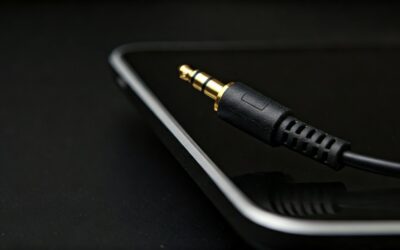
Speakers like the Sonos Five, Era 100, and Era 300 feature a line-in port (the Eras require a Sonos Line-In Adapter). You can plug a mobile device or a high-end Digital Audio Player (DAP) directly into the speaker.
- Pro Tip: Once a source is plugged into one speaker, you can “Group” that audio to every other Sonos speaker in your house wirelessly.
Bluetooth Connectivity
The Sonos Move 2 and Sonos Roam allow you to toggle into Bluetooth mode. While this bypasses the Sonos Wi-Fi features, it is a foolproof way to play any audio from your phone—including Google Play—to your speaker when you are outside or away from your home network.
Optimizing Your Audio Experience
To get the most out of Google’s audio engine on Sonos, you should verify your stream quality. By default, some apps may throttle quality to save data.
- Open the YouTube Music app on your phone.
- Tap your Profile Picture > Settings.
- Tap Data Saving.
- Ensure “Audio quality on Wi-Fi” is set to Always High.
While YouTube Music (Google Play’s successor) currently maxes out at 256kbps AAC, the Sonos hardware does an excellent job of upsampling and utilizing its internal DSP (Digital Signal Processing) to fill the room. If you are using a Sonos Arc or Era 300, the system can even handle Spatial Audio tracks if you have a YouTube Music Premium subscription.
The Future of Google and Sonos
The relationship between Google and Sonos has been historically rocky due to patent litigation. This has occasionally led to features (like the ability to adjust the volume of a whole group via phone buttons) being removed or changed.
However, as of 2024, the integration remains stable. We recommend keeping both your Sonos Firmware and your Google Home app updated to the latest versions. We regularly see “Silent Updates” that improve the latency between pressing “Play” on your phone and hearing the music on your Sonos speakers.
FAQ: Google Play and Sonos
Can I use the free version of YouTube Music on Sonos?
No. Unlike Spotify, which allows free tier usage on Sonos, Google requires a YouTube Music Premium or YouTube Premium subscription to stream directly through the Sonos app or via Google Assistant.
Why can’t I see my Google Play playlists?
If you never performed the migration to YouTube Music, your playlists may be lost. If you did migrate, ensure you are signed into the exact same Google Account on the Sonos app that you used for the migration.
Does Sonos support Google’s “Chromecast Built-in”?
Not exactly. While you can “Cast” from the YouTube Music app to Sonos, Sonos speakers do not function as full Chromecast targets for all apps (like Chrome browser tabs or certain video apps). The integration is specific to audio-supported services.
Can I play Google Play content on Sonos S1 (older) speakers?
Yes. Both Sonos S1 and S2 apps support the YouTube Music service. However, newer features like Spatial Audio and certain Google Assistant improvements are exclusive to the S2 platform and modern hardware.
How do I play my “Google Play” music on Sonos without an internet connection?
If your music was downloaded to your phone via the Google Play era, you cannot stream it over Wi-Fi without internet. Your best bet is to use a Sonos Move or Roam via Bluetooth, or use a Line-In connection on a compatible speaker.