Can We Replace Laptops Inbuild Speakers? The Definitive Answer
If you are currently struggling with distorted audio or a complete lack of sound, you are likely wondering: can we replace laptops inbuild speakers? The short answer is a resounding yes; in almost every modern laptop model, the internal speakers are modular components that can be unplugged and swapped out for new ones.
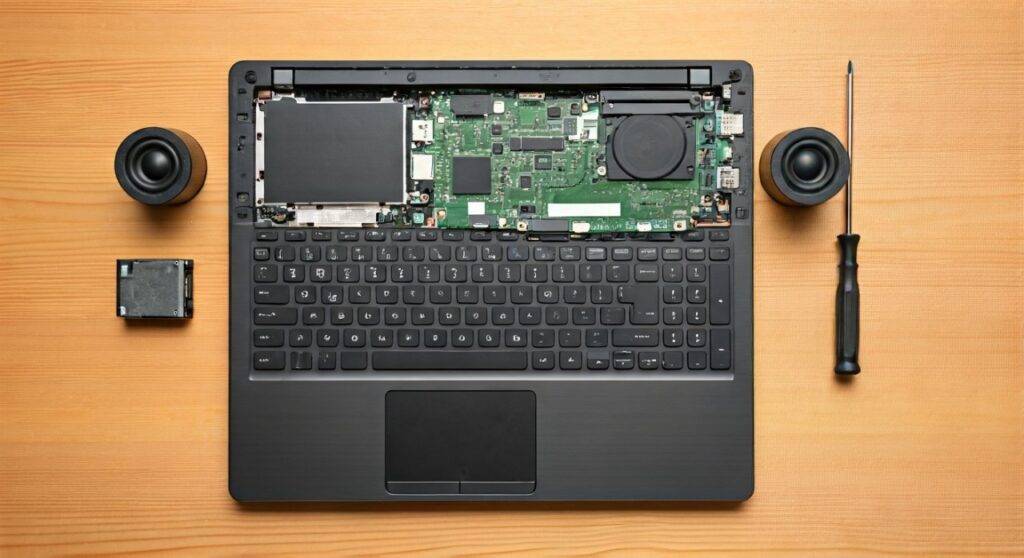
Whether you own a Dell, HP, Lenovo, or MacBook, the process involves opening the chassis, disconnecting the battery for safety, and unseating the damaged audio drivers. While some ultra-thin models use adhesives that make the process trickier, most standard laptops use simple screws and ZIF (Zero Insertion Force) connectors. Replacing these parts yourself can save you upwards of $150 in professional labor costs.
TL;DR: Key Takeaways for Quick Repair
- Feasibility: Yes, can we replace laptops inbuild speakers is a common DIY task for most brands.
- Cost: Replacement parts typically range from $15 to $45 on sites like eBay, Amazon, or iFixit.
- Time Required: Approximately 30 to 60 minutes depending on your technical comfort level.
- Difficulty: 4/10 for standard laptops; 8/10 for glued-in “Ultrabook” or MacBook components.
- Crucial Step: Always disconnect the battery before touching internal audio headers to prevent short-circuiting the motherboard.
Signs You Need to Replace Laptops Inbuilt Speakers
Before you start tearing your device apart, it is vital to confirm that the hardware is actually the problem. Software glitches often masquerade as hardware failure.
Physical Distortion and “Rattling”
If you hear a buzzing or rattling sound at high volumes, the speaker cone or membrane has likely torn. This is common if you frequently listen to bass-heavy music or high-decibel content.
Complete Silence (Dead Channels)
When one side (left or right) stops working entirely, it usually indicates a blown voice coil or a loose internal connector. If both sides go silent simultaneously, check your audio drivers in the Windows Device Manager first.
Intermittent Audio
If the sound cuts in and out when you move the laptop, the audio cable connecting the speaker to the motherboard may be pinched or frayed. We have seen this frequently in older hinge-design laptops where wires are routed near moving parts.
Sourcing the Right Parts: Identifying Your Speaker Model
You cannot simply buy “universal” laptop speakers. Every laptop chassis is molded to fit a specific speaker shape and size. To ensure a successful repair, you must match the Part Number (P/N).
How to Find Your Part Number:
- Check the Manufacturer’s Support Site: Enter your Service Tag (Dell) or Serial Number (HP/Lenovo) to view the “Parts List.”
- Visual Inspection: The most reliable way is to open the laptop and read the sticker on the back of the speaker module.
- Search by Model: Search for “[Your Laptop Model] + Left and Right Internal Speakers” on reputable marketplaces.
| Laptop Brand | Common Speaker Connector | Difficulty Level |
|---|---|---|
| Dell (Inspiron/Latitude) | 4-Pin Plug-in | Easy |
| HP (Pavilion/Envy) | Pressure Contact or Plug | Medium |
| Lenovo (ThinkPad) | Modular Screw-in | Easy |
| Apple (MacBook Pro/Air) | Heavy Adhesive & Proprietary Flex | Hard |
Essential Tools for Laptop Audio Repair
I recommend a specialized electronics toolkit. Using a standard household screwdriver can strip the tiny Torx or Phillips screws found in modern electronics.
- Precision Screwdriver Set: Specifically PH00, PH0, and T5 bits.
- Plastic Spudger or Opening Tool: Essential for prying the bottom case without scratching the finish.
- Tweezers: For handling tiny speaker wires and delicate ZIF connectors.
- Anti-Static Wrist Strap: To prevent Electrostatic Discharge (ESD) from killing your motherboard.
Step-by-Step Guide: How to Replace Internal Laptop Speakers
Following this sequence ensures you don’t damage the fragile internal architecture of your device.
Step 1: Preparation and Safety
Power down your laptop completely and unplug the charger. Work on a non-static surface like a wooden desk or a specialized ESD mat.
Step 2: Remove the Bottom Cover
Flip the laptop over and remove all visible screws. Expert Tip: Some screws are hidden under rubber feet or stickers. Use your spudger to gently pry around the edges until the clips release.
Step 3: Disconnect the Battery (Critical)
Locate the battery connector on the motherboard. Even if the laptop is off, current flows through the board. We have seen many DIYers fry their audio chips by skipping this 10-second step. Carefully pull the battery plug out of its socket.
Step 4: Locate and Unplug the Speakers
The speakers are usually located at the front corners or alongside the keyboard. Follow the thin, twisted wires (usually black, red, white, and blue) to the motherboard. Use your tweezers to gently pull the connector head—never pull by the wires themselves.
Step 5: Remove the Damaged Speakers
Most speakers are held in place by small rubber grommets or 1-2 screws. If they are glued, use a small amount of 90% Isopropyl Alcohol on a Q-tip to weaken the adhesive before prying.
Step 6: Install the New Units
Drop the new speakers into their designated “wells.” Ensure the rubber vibration dampeners are seated correctly; if they are lopsided, you will hear an annoying vibration once you turn the volume up.
Step 7: Reconnect and Reassemble
Plug the speaker connector back into the motherboard. Reconnect the battery. Before screwing the bottom cover back on, I suggest performing a “boot test” to ensure the sound works.
Can We Replace Laptops Inbuild Speakers on a MacBook?
MacBooks present a unique challenge. Unlike Windows laptops, Apple often glues the speaker modules directly to the top case or integrates them with other components.
If you are asking “can we replace laptops inbuild speakers” for a MacBook Pro with Touch Bar, be prepared for a 2-hour job. You may need to remove the logic board just to access the speaker screws. For these models, we highly recommend following a model-specific video guide from a source like iFixit.
Troubleshooting Common Post-Replacement Issues
The Sound is Still Muffled
Check if you left any protective plastic film on the new speaker drivers. Also, ensure the speaker is aligned perfectly with the grille holes in the laptop casing.
Windows Doesn’t Recognize the Speakers
If “No Audio Output Device is Installed” appears, you likely didn’t seat the connector fully into the motherboard. Re-open the device and ensure the plug is “clicked” into place.
One Speaker is Louder Than the Other
Navigate to Sound Settings > Balance. Ensure the levels are set to 50/50. If the hardware is new, it may also require a few hours of “break-in” time at moderate volumes.
Expert Maintenance Tips to Prevent Future Failure
To avoid asking “can we replace laptops inbuild speakers” again in six months, follow these professional maintenance tips:
- Avoid 100% Volume: Consistently pushing speakers to their max can heat up the tiny voice coils, leading to premature failure.
- Clean Your Grilles: Use compressed air to blow out dust. Accumulated debris can weigh down the speaker membrane, causing it to tear.
- Disable “Audio Enhancements”: Third-party “Bass Boost” software often pushes frequencies beyond what the tiny drivers can handle.
Frequently Asked Questions (FAQ)
Can we replace laptops inbuild speakers without opening the case?
No. Internal speakers are physical hardware components located deep inside the chassis. You must open the laptop to access them. If you want a non-invasive fix, you should use external USB speakers or Bluetooth headphones.
How much does it cost to have a professional replace my laptop speakers?
A local repair shop usually charges between $70 and $150 for labor, plus the cost of parts. By doing it yourself, you only pay for the parts (typically $20), saving you significant money.
Does replacing the speakers void my warranty?
In many regions, including the US (under the Magnuson-Moss Warranty Act), opening your laptop to perform a repair does not automatically void the warranty unless you damage other components in the process. However, always check your manufacturer’s specific terms.
Can I upgrade my laptop speakers to a better brand?
Generally, no. Because laptop speakers must fit into a very specific physical footprint and use a proprietary connector, you are limited to the OEM (Original Equipment Manufacturer) replacements or third-party clones of the same design.
Is it possible to repair a torn speaker instead of replacing it?
While you can technically use a tiny dab of silicone sealant or flexible glue to patch a tear in a speaker cone, it is rarely a permanent fix. Given that replacement speakers are so inexpensive, a full replacement is always the better option for audio quality.