Can Wireless Headphone Be Used for Computer Speakers?
Yes, wireless headphones can be used as your primary computer speakers by pairing them via Bluetooth or a USB wireless dongle and selecting them as the “Default Output” in your sound settings. Whether you are using a Windows PC or a Mac, your operating system treats wireless headphones as a standard audio playback device, allowing them to replace traditional desktop speakers entirely.
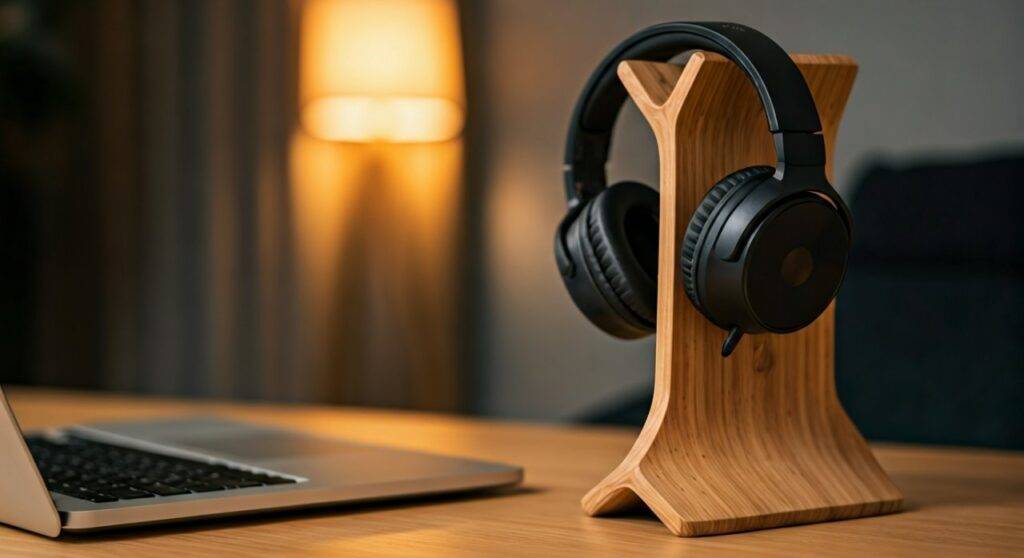
In my years of testing audio setups, I’ve found that transitioning from wired desk speakers to a high-quality wireless headset—like the Sony WH-1000XM5—not only declutters your workspace but provides a more immersive, private listening experience. However, there are specific configurations you must follow to ensure you aren’t sacrificing audio quality or dealing with annoying lip-sync delays.
Key Takeaways: Quick Setup Guide
- Compatibility: Works with any computer equipped with Bluetooth 4.0 or higher or a USB-A/USB-C port for dongles.
- Primary Benefit: Eliminates cable clutter and provides built-in noise isolation.
- The “Golden Rule”: Always set your headphones to “Stereo” mode rather than “Hands-Free” to maintain high-fidelity sound.
- Latency Tip: For gaming, use 2.4GHz RF wireless (dongle-based) instead of standard Bluetooth to avoid lag.
- Battery Management: Keep a charging cable handy, as using headphones as full-time speakers will drain the battery significantly faster.
Step-by-Step: How to Use Wireless Headphones as Computer Speakers
Setting up your wireless headphones as your main audio source is a straightforward process. Below are the steps for the two most common operating systems.
Connecting on Windows 11/10
- Turn on Pairing Mode: Put your headphones into discovery mode (usually by holding the power button until the LED flashes).
- Access Bluetooth Settings: Press the Windows Key + I, go to Bluetooth & devices, and click Add device.
- Select Bluetooth: Choose your headphones from the list of discovered devices.
- Set as Default: Right-click the Speaker Icon in your taskbar and select Sound settings.
- Output Selection: Under the “Output” section, ensure your wireless headphones are selected as the active device.
Connecting on macOS
- Open System Settings: Click the Apple Menu and select System Settings.
- Enable Bluetooth: Click on Bluetooth in the sidebar and ensure it is turned on.
- Connect Device: Find your headphones under “My Devices” or “Nearby Devices” and click Connect.
- Configure Sound Output: Go back to the main settings menu, click Sound, and then the Output tab. Select your wireless headphones from the list.
Comparing Wireless Connection Types
When you ask, “can wireless headphone be used for computer speakers,” you need to understand that not all wireless connections are equal. Depending on your hardware, you might use Bluetooth or a Proprietary 2.4GHz Dongle.
| Feature | Standard Bluetooth | 2.4GHz Wireless (Dongle) |
|---|---|---|
| Setup Ease | High (No extra hardware) | Medium (Requires USB port) |
| Latency (Lag) | High (150ms – 250ms) | Low (<20ms) |
| Audio Quality | High (with aptX/LDAC) | Excellent (Lossless) |
| Range | 30 – 60 Feet | 40 – 100 Feet |
| Best For | Music, Office work, Movies | Competitive Gaming, Video Editing |
Maximizing Audio Quality: Expert Insights
I have spent hundreds of hours troubleshooting audio lag for professional editors. If you plan to use wireless headphones as your permanent “speakers,” you need to address the Bluetooth Codec.
Most Windows PCs default to SBC (Subband Coding), which is the “lowest common denominator” of audio. If your headphones support aptX or LDAC, you may need an external transmitter like the Creative BT-W5 to unlock true high-resolution sound. Without this, you might notice that your “wireless speakers” sound tinny or compressed compared to a wired connection.
The “Hands-Free” Traps
A common mistake users make is selecting the “Hands-Free AG Audio” profile in Windows. This profile is designed for phone calls and lowers the audio quality to 8kHz (mono). For the best experience, always select the “Stereo” or “Headphones” profile in your playback settings.
Hardware Requirements for Desktop Computers
Unlike laptops, many older desktop towers do not have built-in Bluetooth. If your computer doesn’t see your headphones, you will need to add wireless capability.
- USB Bluetooth Adapters: These are tiny “dongles” that plug into any USB port. I recommend Bluetooth 5.3 adapters for better stability and lower power consumption.
- PCIe Expansion Cards: For the most stable connection, an internal Wi-Fi/Bluetooth card (like those from TP-Link or ASUS) offers superior range because they use external antennas.
- Wireless Transmitters: If you want to use high-end Bose or Sennheiser headphones with a TV or a PC without software menus, a dedicated transmitter with an optical input is the gold standard.
Troubleshooting Common Issues
Even the best setups can run into glitches. Here is how we fix the most frequent problems when using headphones as computer speakers.
Audio Stuttering or Cutting Out
This is usually caused by 2.4GHz interference. Wi-Fi routers and microwaves operate on the same frequency as Bluetooth.
- Fix: Move your Wi-Fi router further from your PC or use a USB extension cable to move your Bluetooth dongle away from the metal computer case.
Lip-Sync Issues in Videos
If the audio doesn’t match the video, it’s a latency problem.
- Fix: Use a browser like Chrome, which has built-in latency compensation for YouTube and Netflix. For local files, use VLC Media Player, which allows you to manually adjust audio delay using the ‘K’ and ‘J’ keys.
Headphones Won’t Reconnect Automatically
Windows sometimes “forgets” the default device when it wakes from sleep.
- Fix: Go to Services.msc, find Bluetooth Support Service, and set the Startup Type to “Automatic.”
Advanced Use Case: Virtual Surround Sound
One of the biggest advantages of using wireless headphones as computer speakers is the ability to use Spatial Audio. While physical speakers require a 5.1 or 7.1 setup with wires everywhere, headphones can simulate this using software.
We recommend enabling:
- Windows Sonic: Free and built into Windows 10/11.
- Dolby Atmos for Headphones: A paid app that provides the most realistic “speaker-like” soundstage.
- DTS Headphone:X: Excellent for gamers who need to hear directional cues.
FAQs: Using Wireless Headphones for PC Audio
Can I use my wireless headphones and computer speakers at the same time?
By default, Windows and macOS only allow one primary audio output. However, you can use third-party software like VoiceMeeter (Windows) or Audio Hijack (Mac) to “mirror” the audio to both your headphones and your physical speakers simultaneously.
Does using wireless headphones as speakers damage the battery?
Using them for 8-10 hours a day as your primary audio source will increase the number of charge cycles. To preserve battery health, I suggest turning the headphones off when not in use and avoiding leaving them on the charger overnight once they reach 100%.
Why is the volume so low when connected to my PC?
This often happens because of “Absolute Volume” sync issues. Try adjusting the volume on the physical buttons of the headphones first, then adjust the Windows/Mac volume slider. If that fails, disable “Absolute Volume” in the Windows Registry (advanced users only).
Can I use my AirPods as computer speakers?
Yes, AirPods work perfectly with Windows and Mac. On Windows, they pair like any other Bluetooth device. On Mac, they offer additional features like Automatic Switching and Siri integration.
Is there a range limit when using them around the house?
Most standard Bluetooth connections have a range of about 33 feet (10 meters). If you have thick walls or use a Class 1 Bluetooth device, you can extend this up to 100 feet, allowing you to listen to your computer’s audio while in a different room.