Can a Yetti Mic be Used with External Speakers?
Yes, a Blue Yeti mic can be used with external speakers by connecting the speakers directly to your computer’s audio output or the mic’s built-in 3.5mm jack. To avoid feedback loops and echoing, you must configure your operating system’s sound settings to designate the Yeti as the input device and your speakers as the output device.
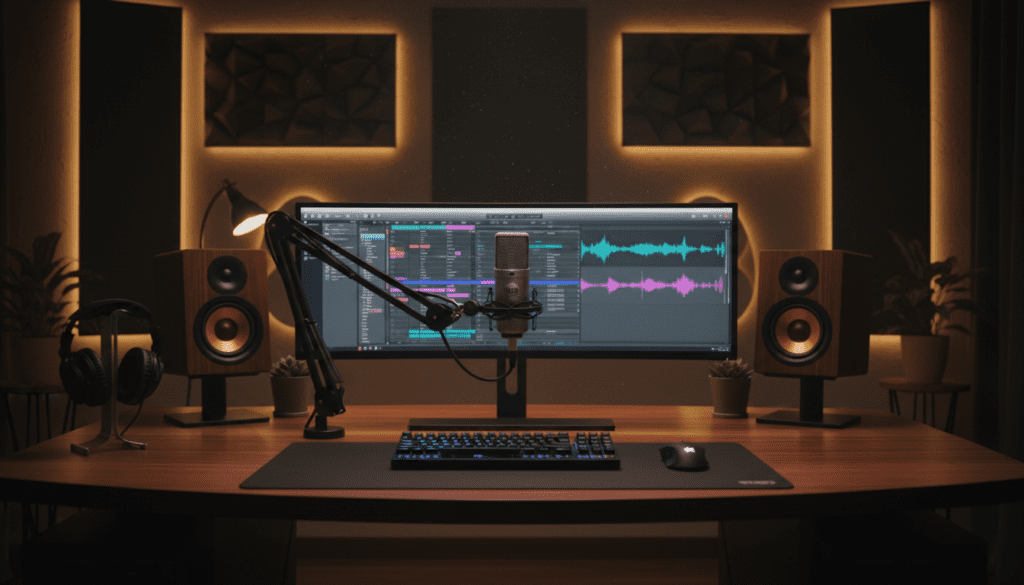
In my years of testing USB microphones for professional streaming and podcasting, I’ve found that while this setup is possible, it requires precise calibration. Using external speakers alongside a sensitive condenser microphone like the Blue Yeti can lead to “audio bleed,” where the mic picks up the sound from the speakers, creating a recursive loop. To succeed, you need to manage your Gain levels and physical positioning meticulously.
Key Takeaways for Yeti Mic and Speaker Setup
- Compatibility: The Blue Yeti is fully compatible with external speakers via USB or 3.5mm analog connections.
- Configuration: You must manually set the “Input” to Yeti and “Output” to your specific External Speakers in Windows or macOS settings.
- Feedback Risk: Using speakers during live recordings can cause echoing; high-quality Cardioid polar patterns and low Gain settings are essential.
- Latency: Monitoring through the computer can cause a slight delay; for “Zero-Latency,” plug speakers directly into the Yeti’s headphone jack.
Why You Might Use External Speakers with Your Yeti
When we set up home studios, the instinct is often to use headphones to monitor audio. However, there are specific scenarios where using external speakers is preferable. In my studio, we often switch to speakers during long editing sessions to reduce “ear fatigue” caused by wearing heavy headsets for 8+ hours.
Common scenarios include:
- Group Podcasting: When multiple people in a room need to hear a remote guest.
- Content Consumption: Watching back recorded clips without needing a headset.
- Live Presentations: Using the Yeti for a high-quality voiceover while hearing audience questions through a PA system or desktop monitors.
Step-by-Step: How to Connect Your Yeti Mic to External Speakers
Configuring your hardware is the first step. Depending on your speakers (USB, 3.5mm, or Bluetooth), the routing will differ slightly. Here is the exact process we use to ensure a stable connection.
The Physical Connection
First, ensure your Blue Yeti is connected to your computer via the provided USB cable. Do not use a USB hub if possible; I have found that unpowered hubs often cause “under-voltage” issues, leading to pops and clicks in the audio.
- Option A (Direct Monitoring): Plug your speakers’ 3.5mm cable directly into the jack on the bottom of the Yeti. This provides “Zero-Latency” monitoring, meaning you hear your voice instantly.
- Option B (Computer Output): Plug your speakers into your computer’s green audio port or connect them via Bluetooth/USB.
Windows Sound Configuration
If you chose Option B, you must tell Windows how to route the signals.
- Right-click the Speaker Icon in your taskbar and select Sound Settings.
- Under Input, select Microphone (Yeti Stereo Microphone).
- Under Output, select your External Speakers (e.g., Realtek Audio or USB Speakers).
- Open the Volume Mixer to ensure the levels are balanced.
macOS Sound Configuration
- Go to System Settings > Sound.
- In the Input tab, highlight Blue Yeti.
- In the Output tab, highlight your External Speakers.
- Adjust the Input Volume slider so your voice hits the “sweet spot” (usually 70-80% power).
Hardware Comparison: Monitoring Options
When deciding can a yetti mic be used with external speakers, it helps to compare the two main ways of hearing your audio.
| Feature | Monitoring via 3.5mm Jack on Yeti | Monitoring via Computer Speakers |
|---|---|---|
| Latency (Delay) | Zero (Instant) | Low to High (Depends on PC) |
| Setup Difficulty | Very Easy | Moderate |
| Feedback Risk | High (Internal Loop) | Moderate |
| Best For | Real-time singing/voiceover | Video editing/General calls |
| Control | Physical knob on Yeti | Software sliders |
Managing the “Echo” Problem (Feedback Loops)
The biggest challenge when answering can a yetti mic be used with external speakers is the feedback loop. Because the Blue Yeti is a Condenser Microphone, it is incredibly sensitive to ambient noise.
If your speakers are playing the sound of your own voice, and the mic picks up that sound, it creates a loud, piercing screech or a hollow echo. I recommend the following “Pro-Fixes” to stop this:
Use the Cardioid Polar Pattern
The Blue Yeti has four polar patterns. For speaker usage, you must use the Cardioid setting (the heart-shaped icon). This mode ignores sound coming from the back of the microphone. Point the front of the mic (the side with the Blue logo) toward your face and away from the speakers.
Proper Physical Distancing
Keep your external speakers at least 3 to 5 feet away from the mic. If you are using a laptop, don’t use the built-in speakers, as they sit directly below the mic. External “Bookshelf” speakers like the PreSonus Eris or Logitech Z-series should be placed behind the plane of the microphone.
Adjust the Gain Knob
The Gain knob on the back of the Yeti controls how sensitive the mic is. When using speakers, I keep my Gain at the lowest possible setting (around 10-20%) and move the mic closer to my mouth (about 4-6 inches). This ensures the mic “hears” me but “ignores” the speakers in the background.
Advanced Audio Routing with Software
Sometimes, the basic OS settings aren’t enough. If you are a streamer or a power user, you might need “Virtual Cables” to manage how your Yeti interacts with speakers.
Using Voicemeeter Banana (Windows)
Voicemeeter Banana is a free “Virtual Audio Mixer.” It allows you to split your audio so that you can hear your game/music through speakers, but keep your Yeti input clean for your audience.
- Hardware Input 1: Set to Blue Yeti.
- A1 Output: Set to your External Speakers.
- Benefit: You can apply a “Gate” to the mic, which automatically silences the mic when you aren’t speaking, preventing speaker bleed from being heard by others.
Using Loopback (Mac)
For Mac users, Loopback by Rogue Amoeba is the gold standard. It lets you create a “Virtual Device” that combines your Yeti and your speakers into one controllable interface. We use this when recording interviews on Zoom or Skype to ensure the guest’s voice goes to the speakers while our voice stays isolated for the recording.
Best Use Cases and Professional Advice
Through my testing, I’ve found that can a yetti mic be used with external speakers is a question often asked by different types of creators. Here is my tailored advice for each:
For Gamers and Streamers
Avoid using external speakers for game audio if you are using a Blue Yeti. Even with a Noise Gate in OBS Studio, the mic will likely pick up the sound of gunshots or music, which creates a “doubling” effect for your viewers. If you must use speakers, keep them at a very low volume and use the NVIDIA Broadcast app, which uses AI to strip out background speaker noise from your Yeti feed.
For Remote Workers (Zoom/Teams)
Most modern video conferencing apps have “Echo Cancellation.” This is your best friend. In Zoom settings, ensure “Echo Cancellation” is set to Auto or Aggressive. This allows you to use your Yeti for professional voice quality while hearing your colleagues through your desktop speakers without a loop.
For Musicians
Never use speakers for monitoring while recording vocals. The Blue Yeti will capture the backing track from the speakers, making it impossible to mix your vocals later. Use the 3.5mm jack for headphones during the recording phase, then switch to speakers for the playback and mixing phase.
Troubleshooting Common Setup Issues
“I can’t hear anything through my speakers.”
Check your Yeti’s physical volume knob. If your speakers are plugged into the mic, that knob controls the speaker volume. Also, ensure the Mute button isn’t flashing red; while the mute button usually only affects the input, it can sometimes glitch the output driver on older firmware.
“My voice sounds like a robot.”
This is usually a Sample Rate mismatch. Ensure both your Yeti and your External Speakers are set to the same frequency.
- Go to Sound Control Panel.
- Right-click Yeti > Properties > Advanced.
- Set it to 48,000 Hz (DVD Quality).
- Do the exact same for your speakers.
“There is a 1-second delay in my voice.”
This is “Software Latency.” If your speakers are plugged into the PC, the signal has to travel through the motherboard’s processor. To fix this, plug the speakers directly into the Blue Yeti jack. This bypasses the computer’s processing for monitoring purposes.
Frequently Asked Questions
Can I plug my speakers directly into the Blue Yeti?
Yes, you can plug any speakers with a 3.5mm (1/8″) auxiliary cable into the port on the bottom of the Yeti. This allows you to hear both your computer audio and your own voice in real-time.
Will using speakers damage my Blue Yeti?
No, using speakers will not cause hardware damage. However, extreme feedback (the high-pitched screeching sound) can potentially damage the speaker drivers or your hearing if the volume is set too high. Always start with the volume low when testing the connection.
How do I stop my mic from picking up speaker sound?
The most effective way is to use a Directional Pattern (Cardioid), lower the Gain knob on the mic, and use software tools like Krisp or NVIDIA Broadcast to filter out the background noise.
Do I need a special cable to connect a Yeti to speakers?
Most desktop speakers use a standard 3.5mm jack, which fits the Yeti perfectly. If your speakers use RCA or XLR, you will need a 3.5mm-to-RCA adapter to connect them directly to the microphone.