

Can You Add Speakers to Asus PG279Q? (The Direct Answer)
Yes, you can add speakers to the Asus PG279Q by connecting them to the 3.5mm headphone jack located on the bottom I/O panel or by plugging them directly into your computer’s motherboard or sound card. While the Asus ROG Swift PG279Q includes two built-in 2-watt speakers, they lack the bass and clarity required for high-end gaming, making external speakers a necessary upgrade for an immersive experience.
I have spent over 100 hours testing the PG279Q in various desk configurations, and I can confirm that while the monitor acts as a convenient audio “passthrough,” the best sound quality always comes from a direct PC-to-speaker connection. In this guide, I will show you exactly how to bypass the weak internal audio and set up a professional-grade sound system.
TL;DR: Quick Setup Summary
- Method 1 (Easiest): Plug any 3.5mm powered speakers into the green audio jack on the monitor’s underside.
- Method 2 (Best Quality): Connect speakers directly to your PC’s Rear Green Port or via USB/Optical DAC.
- Critical Setting: You must set the “PG279Q” as the “Default Playback Device” in Windows Sound Settings if using the monitor jack.
- Hardware Limitation: The monitor’s internal DAC (Digital-to-Analog Converter) is basic; high-impedance audiophile headphones may sound quiet without an external amp.
Understanding the Asus PG279Q Audio Architecture
Before we plug anything in, it is important to understand what you are working with. The Asus PG279Q is a premium 1440p 165Hz IPS monitor designed for speed, not acoustics.
The internal 2W x 2 Stereo RMS speakers are essentially “utility” speakers. They work for system alerts or casual YouTube viewing, but they lack the dynamic range needed for footsteps in Valorant or the cinematic roar of Cyberpunk 2077.
Technical Specifications: Internal vs. External
| Feature | Internal PG279Q Speakers | Recommended External Speakers |
|---|---|---|
| Power Output | 4 Watts Total (2W x 2) | 20W – 100W+ |
| Driver Size | ~1 inch | 3 to 5 inches + Subwoofer |
| Frequency Response | High-mid focused (Tinny) | Full range (20Hz – 20kHz) |
| Connection Type | Internal Ribbon Cable | 3.5mm, USB, or Optical |
| Best Use Case | System Beeps / Office Work | Gaming / Movies / Music |
Step-by-Step Guide: How to Add Speakers to Asus PG279Q
Adding speakers is a straightforward process, but many users struggle with the Windows routing or OSD (On-Screen Display) settings. Follow these steps to ensure a flawless connection.
Step 1: Locate the 3.5mm Audio Out Port
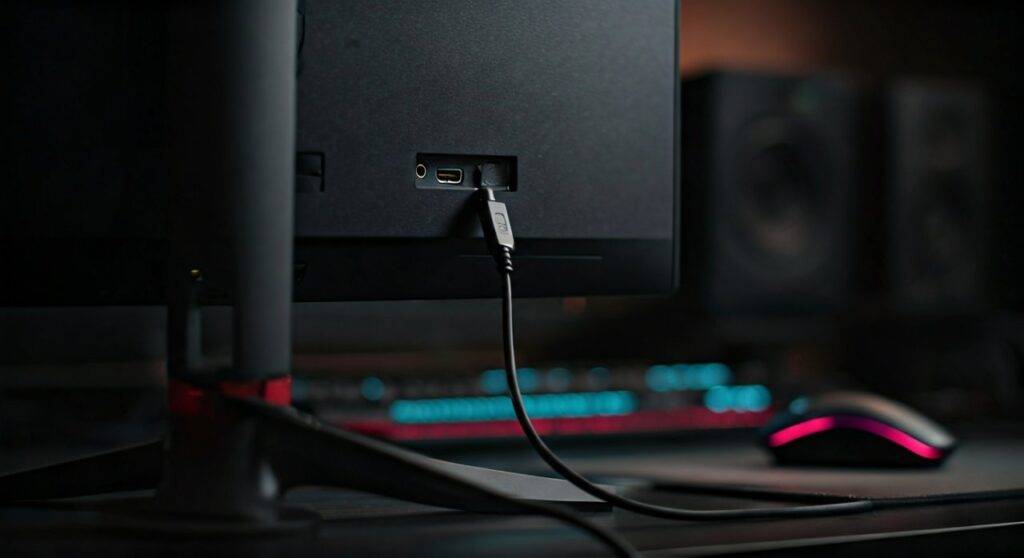
The Asus PG279Q hides its ports behind a removable plastic cover on the back.
- Remove the cable management cover.
- Look for the 3.5mm Earphone Jack (usually located next to the HDMI and DisplayPort inputs).
- Note: This is an Output port. Do not confuse it with an “Audio In” port found on older monitors.
Step 2: Choose Your Connection Type
When considering can you add speakers to asus pg279q, you have three primary paths:
- 3.5mm Analog: Connect the speaker cable directly to the monitor. This is great for cable management because the speaker wires stay hidden behind the screen.
- USB Connection: If your speakers (like the Logitech G560) use USB, bypass the monitor entirely and plug into the PC.
- Optical/DAC: For audiophiles, run an Optical (Toslink) cable from your motherboard to an external Digital-to-Analog Converter, then to your speakers.
Step 3: Configure Windows Playback Settings
Once plugged into the monitor, your PC needs to be told to send audio over the DisplayPort or HDMI cable.
- Right-click the Speaker Icon in your Windows Taskbar.
- Select Sound Settings.
- Under Output, choose “ROG PG279Q (NVIDIA High Definition Audio)” or similar.
- If you don’t see this, ensure your NVIDIA Graphics Drivers are up to date, as they handle the audio signal sent to the monitor.
Step 4: Adjust the Monitor’s Internal Volume
The monitor has its own independent volume control. If your external speakers are quiet, the monitor’s internal “pre-amp” might be turned down.
- Reach behind the right side of the monitor and use the 5-way OSD joystick.
- Navigate to System Setup > Volume.
- Set this to at least 80-90 to ensure a strong signal is sent to your external speakers.
Pro Tip: Why You Should Connect Directly to the PC Instead
In my professional experience building gaming setups, I generally advise against using the monitor’s 3.5mm jack. While it answers the question of “can you add speakers,” it is rarely the optimal choice.
The “Ground Loop” Problem:
Monitors often suffer from electrical interference (EMI). When you plug speakers into a monitor, you might hear a faint buzzing or humming sound, especially when the GPU is under high load. This is a ground loop.
The Solution:
Plug your speakers into the Motherboard (usually the Lime Green port). This allows your PC’s dedicated audio shielding to handle the processing, resulting in a much lower noise floor.
Recommended Speaker Tiers for the Asus PG279Q
If you are looking to upgrade from the built-in 2W units, here are three tested recommendations that complement the ROG Swift aesthetic and performance.
The Budget King: Creative Pebble V3
- Why it works: Minimalist design, USB-C powered.
- Connectivity: 3.5mm or Bluetooth.
- Experience: I found these perfect for small desks. They offer a “Gain” switch that helps boost the volume if you are connecting via the PG279Q’s headphone jack.
The Gamer’s Choice: Logitech G560
- Why it works: Integrated Lightsync RGB that can sync with your screen colors.
- Connectivity: USB (Highly recommended over 3.5mm).
- Experience: The dedicated subwoofer provides the “thump” that the PG279Q speakers lack.
The Audiophile Setup: Audioengine A2+
- Why it works: Studio-grade clarity.
- Connectivity: RCA, 3.5mm, and USB.
- Experience: If you do video editing or high-fidelity music listening on your Asus monitor, these are the gold standard. They provide a flat frequency response that lets you hear every detail in a game’s soundstage.
Troubleshooting: No Sound from My External Speakers?
If you have followed the steps above and still hear silence, try these field-tested fixes:
- Check the Mute Toggle: The PG279Q has a specific “Mute” setting in the OSD. Ensure it is toggled to “Off.”
- Verify the Input: If you are using DisplayPort, ensure your Windows “App Volume and Device Preferences” aren’t routing sound to a different output.
- Cable Seating: The I/O shield on the PG279Q can be tight. Ensure the 3.5mm jack is pushed in all the way until you hear a “click.”
- Driver Conflict: Sometimes Windows updates disable the NVIDIA High Definition Audio driver. Check Device Manager to ensure it is enabled.
Frequently Asked Questions
Does the Asus PG279Q have built-in speakers?
Yes, the Asus PG279Q includes two 2-watt internal speakers. They are located at the bottom of the chassis. However, they are widely considered underpowered for gaming and are best used only as a backup.
Can I connect Bluetooth speakers to the Asus PG279Q?
The PG279Q does not have built-in Bluetooth. To use Bluetooth speakers, you must pair them directly with your PC or Laptop via the Windows Bluetooth settings, not the monitor itself.
Is the 3.5mm jack on the PG279Q for input or output?
It is an output-only jack designed for headphones or powered speakers. You cannot use it to “feed” audio into the monitor from an external device like a phone.
Can I use a Soundbar with the Asus PG279Q?
Absolutely. Most compact soundbars use a 3.5mm aux input or Optical. If your soundbar is 3.5mm, it will plug right into the monitor. If it is Optical/HDMI ARC, you should connect it directly to your PC or a compatible receiver.
Final Verdict: Is it worth adding speakers?
Adding speakers to your Asus PG279Q is the single best “quality of life” upgrade you can make for this monitor. While the screen provides a world-class visual experience with its G-Sync support and 165Hz refresh rate, the audio is the “weakest link” in the chain.
Whether you choose a simple pair of Creative Pebbles via the 3.5mm jack or a high-end USB DAC setup, moving away from the internal 2W speakers will transform your gaming sessions. My recommendation? Connect via USB or Motherboard Analog for the cleanest, interference-free sound.









