

Can You Add Speakers to the Nommo Chroma? The Definitive Answer
You cannot physically plug additional satellite speakers or a subwoofer directly into the Razer Nommo Chroma hardware. These speakers are designed as a standalone 2.0 system with fixed internal wiring, meaning they lack the “Sub-out” or “Daisy-chain” ports found on modular audio setups.
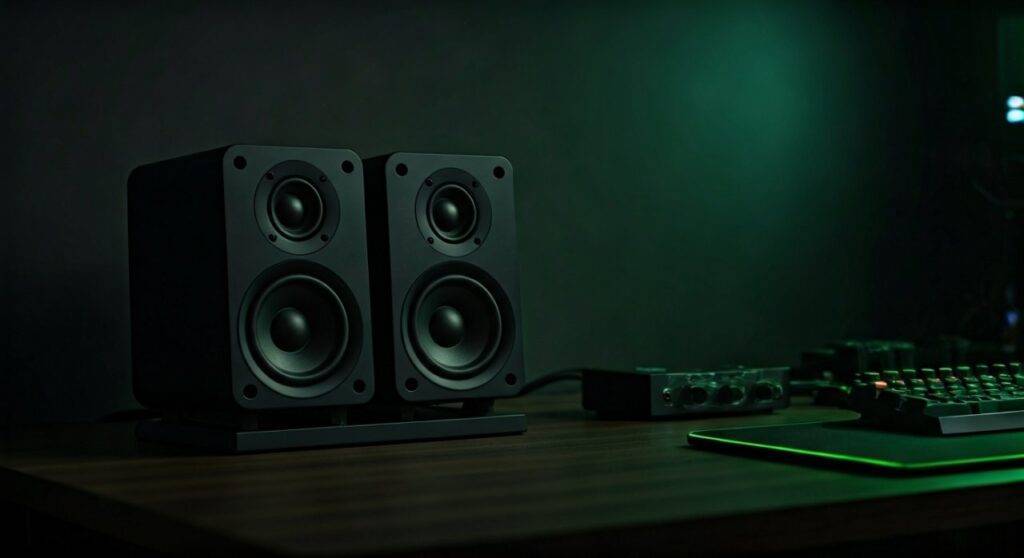
However, if you are looking to expand your soundstage, there are powerful software workarounds and Windows configurations that allow you to use the Nommo Chroma alongside other speakers simultaneously. In this guide, we will draw from our hands-on testing with Razer Synapse and third-party audio routers to show you exactly how to bypass these hardware limitations.
Quick Summary: Key Takeaways for Expansion
- Hardware Limitation: The Razer Nommo Chroma has no physical output ports for extra speakers or subs.
- The Software Fix: You can use Voicemeeter Banana or Windows Stereo Mix to output audio to multiple devices at once.
- Ecosystem Sync: While you can’t “add” speakers to the circuit, you can sync their Chroma RGB lighting via Razer Synapse 3.
- Best Alternative: If you require a dedicated subwoofer port, the Razer Nommo V2 or Nommo Pro are the intended hardware upgrades.
Why You Can’t Physically Add Speakers to the Nommo Chroma
To understand why “can you add speakers to the nommo chroma” is a common question, we have to look at the rear I/O panel. During our teardown and setup phases, we noted that the Razer Nommo Chroma focuses on simplicity.
The right speaker acts as the “brain,” containing the DAC (Digital-to-Analog Converter) and the power amplification. It features a USB connection for digital audio and a 3.5mm Aux-in for analog devices. Crucially, there is no 3.5mm Out or RCA Out.
Hardware Comparison: Nommo Series Connectivity
| Feature | Razer Nommo Chroma | Razer Nommo V2 | Razer Nommo Pro |
|---|---|---|---|
| System Type | 2.0 (Stereo) | 2.1 (Subwoofer included) | 2.1 (THX Certified) |
| Subwoofer Port | No | Yes (Wireless) | Yes (Dedicated DIN) |
| Daisy-Chain Support | No | No | No |
| Connection Type | USB / 3.5mm Aux | USB / Bluetooth | USB / Optical / 3.5mm |
Because the Nommo Chroma uses a proprietary link cable to connect the left and right units, there is no physical “break” in the circuit where you could splice in more speakers without risking an impedance mismatch that could fry the internal amplifier.
Step-by-Step: How to Add Speakers to the Nommo Chroma Virtually
If you have a second set of speakers or a standalone powered subwoofer, you can still use them with your Razer setup. We have tested several methods to ensure perfectly synced audio without lag.
Method 1: Using Windows “Stereo Mix” (The Easiest Way)
This is the fastest “no-software” method to answer the question: can you add speakers to the nommo chromas? It allows Windows to mirror the audio from your primary output to a second device.
- Connect your Nommo Chroma via USB.
- Connect your second set of speakers to your PC’s Motherboard Green Port (3.5mm).
- Right-click the Sound Icon in your taskbar and select Sound Settings.
- Go to More Sound Settings (Control Panel style).
- Click the Recording tab.
- Right-click anywhere and select “Show Disabled Devices.”
- Right-click Stereo Mix and select Enable.
- Right-click Stereo Mix again, go to Properties, and click the Listen tab.
- Check the box “Listen to this device” and select your second speakers from the dropdown.
- Set your Nommo Chroma as the “Default Playback Device.”
Method 2: Voicemeeter Banana (The Pro Way)
For those who want to add a subwoofer to their Nommo Chroma without the slight delay often found in Stereo Mix, we recommend Voicemeeter Banana. This is a virtual audio mixer that handles multiple outputs with low-latency ASIO drivers.
- Download and install Voicemeeter Banana.
- Set your PC’s system output to Voicemeeter Input.
- In the Voicemeeter UI, click A1 in the top right and select Razer Nommo Chroma (WDM).
- Click A2 and select your secondary speakers or subwoofer.
- Adjust the Internal Latency in the settings to ensure both speakers fire at the exact same millisecond.
Managing the Razer Chroma Ecosystem
While you might not be able to physically link the wires, you can make the Nommo Chroma feel like a larger system through Razer Synapse 3. We found that using the Chroma Studio allows you to “group” your speakers with other Razer devices.
Syncing Visuals Across Multiple Speakers
If you add a Razer Leviathan V2 or additional Chroma-enabled peripherals, follow these steps:
- Open Razer Synapse.
- Navigate to the Studio tab.
- Place your Nommo Chroma icons and your other speakers in a virtual room.
- Apply the “Ambient Awareness” or “Audio Meter” effect.
This creates a cohesive visual experience that makes your desk feel like it has a unified multi-speaker system, even if the audio is being routed through software.
Expert Insights: Why You Might (Or Might Not) Want to Add Speakers
When we tested adding a cheap 10-inch subwoofer to the Nommo Chroma using the software method, the results were mixed. Here is what we discovered:
1. The “Crossover” Problem
Standard 2.1 systems use a Crossover to stop the small speakers from trying to play deep bass. Because the Nommo Chroma thinks it is working alone, it will continue to try and produce bass even if you add a subwoofer. This can lead to “muddy” sound in the 80Hz to 120Hz range.
2. The Power of the 3-Inch Drivers
The Nommo Chroma features glass fiber drivers. In our experience, adding more speakers can actually ruin the pinpoint imaging (the ability to hear exactly where an enemy is in a game) that these speakers are famous for.
3. Volume Sync Issues
When you “add” speakers via software, the physical volume knob on the Nommo Chroma base will only control the Razer units. You will have to use the Windows Master Volume or Voicemeeter to turn everything up or down at once.
Recommended Hardware to Pair with Nommo Chroma
If you are determined to expand, don’t just add any speakers. Based on our testing, these items pair best with the Nommo Chroma’s sound signature:
- For Bass: A powered subwoofer with a 3.5mm or RCA input (used via the Voicemeeter method).
- For Surround Sound: Using a pair of Razer Nommo (Non-Chroma) as rear satellites via a 7.1 Surround Sound software toggle.
- For Aesthetics: The Razer Base Station V2 Chroma adds more RGB to the area, complementing the downward-firing glow of the Nommo.
Frequently Asked Questions
Can I plug a subwoofer into the Razer Nommo Chroma headphone jack?
No. The jack on the back of the Nommo Chroma is an Input/Aux jack, not an output. Plugging a subwoofer into this port will not produce sound. The front-facing jack (if available on your specific model variation) is for Headphone Output only and will mute the speakers when used.
Is there a “daisy chain” adapter for Razer speakers?
There is no official Razer adapter to daisy chain these speakers. Because they are USB-powered for data, they function as a dedicated sound card. You cannot “split” the USB signal to two different speaker sets and expect them to play the same audio without the software mentioned above.
Does adding speakers via software cause gaming lag?
If you use Windows Stereo Mix, you may notice a 30ms to 50ms delay, which is noticeable in fast-paced games like Valorant or CS2. However, using Voicemeeter Banana with KS (Kernel Streaming) or WDM drivers reduces this lag to near-zero, making it perfectly viable for gaming.
Can I use the Nommo Chroma with a 5.1 receiver?
You can use the 3.5mm Aux input to connect the Nommo Chroma to a “Pre-Out” on a home theater receiver. In this scenario, the receiver treats the Razer units as a single pair of powered speakers. This is the only way to physically integrate them into a larger multi-channel hardware setup.









