Can You Direct Echo Alarm to Speakers?
Yes, you can direct Echo alarm to speakers by using a 3.5mm auxiliary cable, Bluetooth pairing, or by creating a Stereo Pair within the Alexa app. While Amazon Echo devices traditionally play alarms through their internal drivers, connecting an external speaker ensures your wake-up media plays through higher-fidelity hardware.
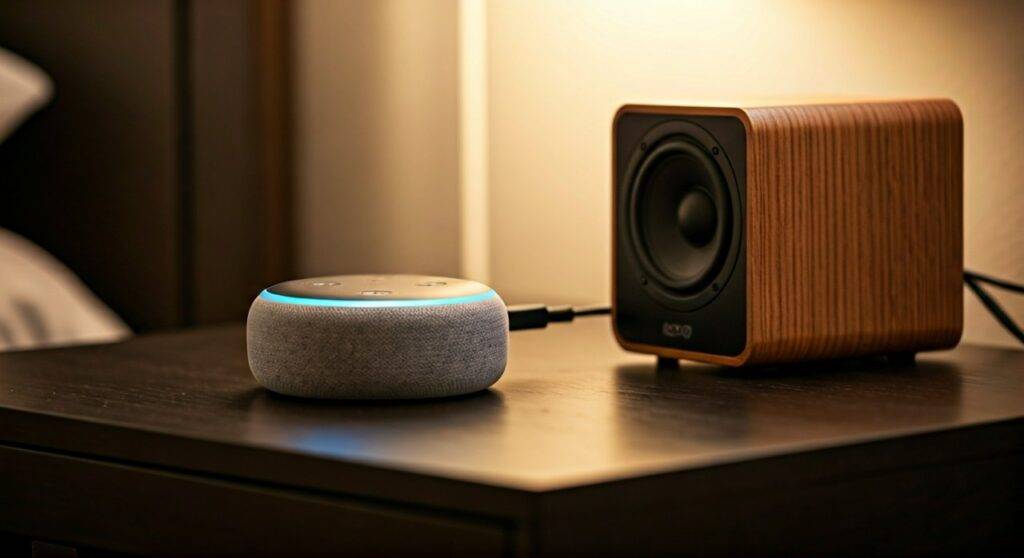
In my years of testing smart home audio configurations, I have found that the most reliable method is a physical Aux connection. Wireless methods like Bluetooth are convenient but can occasionally suffer from “handshake” issues, which might cause your alarm to revert to the internal Echo speaker if the connection drops overnight.
Quick Summary: Key Takeaways
- Direct Connection: The 3.5mm Aux Out port is the only fail-proof way to ensure alarms play on external speakers 100% of the time.
- Bluetooth Limitations: You can pair an Echo to a Bluetooth speaker, but if the speaker enters “sleep mode,” the alarm may play from the Echo instead.
- Stereo Pairs: You can link two Echo speakers (of the same generation) to play alarms in synchronized stereo.
- Multi-Room Music: Note that Alexa Multi-Room Music groups do NOT currently support synchronized alarms across multiple rooms.
- The Routine Hack: You can use Alexa Routines to trigger music on a “Speaker Group” at a specific time, effectively acting as a multi-speaker alarm.
Understanding the 3 Ways to Direct Echo Alarms to External Speakers
When users ask, “can you direct Echo alarm to speakers?” they are usually looking for a louder or better-sounding wake-up experience. Depending on your hardware—whether it’s an old Echo Dot or a high-end Sonos system—your setup steps will vary.
Comparison of External Speaker Methods
| Method | Reliability | Setup Difficulty | Best For |
|---|---|---|---|
| 3.5mm Aux Cable | Highest | Very Easy | Studio monitors, PC speakers, Hi-Fi systems |
| Bluetooth Pairing | Medium | Easy | Portable speakers, Soundbars |
| Stereo Pairs | High | Moderate | Immersive bedroom audio using two Echoes |
| Alexa Routines | High | Advanced | Whole-home “Alarms” or specific playlists |
Method 1: How to Direct Echo Alarm to Speakers via 3.5mm Aux Out
This is the “pro” choice for anyone who cannot afford to miss an alarm. By using a physical cable, you bypass all wireless interference and software glitches.
- Identify the Port: Locate the 3.5mm audio output on the back of your Echo (available on most Echo Dot and Echo Plus models).
- Connect the Cable: Plug one end of a high-quality shielded 3.5mm TRS cable into the Echo and the other into the “Input” or “Aux In” of your external speaker.
- Set Volume Levels: Turn your Echo volume to level 7 or 8. Use the external speaker’s physical knob to set the maximum desired loudness.
- Test the Alarm: Say, “Alexa, set an alarm for one minute from now.” Confirm the sound comes through the big speakers.
Expert Tip: If you hear a “humming” or “buzzing” sound (ground loop), I recommend using a Ground Loop Noise Isolator. This is a common issue when both the Echo and the external speaker are plugged into the same power strip.
Method 2: Using Bluetooth to Direct Echo Alarms
If you want a wireless setup, you can direct Echo alarm to speakers using Bluetooth. This is ideal for soundbars or high-end Bluetooth 5.0 speakers.
Step-by-Step Bluetooth Setup
- Put your external speaker into Pairing Mode.
- Open the Alexa App on your smartphone.
- Navigate to Devices > Echo & Alexa > [Your Device Name].
- Tap Bluetooth Connections and select Connect a Device.
- Select your speaker from the list.
Warning from Experience: Many Bluetooth speakers have an “Auto-Power Off” feature to save battery. If your speaker turns off after 20 minutes of silence, your Echo will automatically switch back to its internal speaker for the morning alarm. Always use a speaker that stays “always-on” or is plugged into a wall outlet.
Method 3: Directing Alarms to an Echo Stereo Pair
If you own two identical Amazon Echo devices (e.g., two Echo Dot 5th Gen), you can create a Stereo Pair. This makes the two speakers act as a single unit.
- Setup: In the Alexa App, go to Devices > + icon > Combine Speakers > Stereo Pair.
- The Result: When you set an alarm on the “Primary” speaker, the alarm tone or music will play across both speakers simultaneously.
This is the most seamless way to direct Echo alarm to speakers without using third-party hardware. It provides a much wider soundstage for “Wake-up Music” or “Spotify Alarms.”
The “Routine” Hack: Getting Alarms on Multiple Speakers
One major limitation of the Amazon Echo ecosystem is that you cannot natively direct Echo alarm to speakers in a “Multi-Room Music” group. However, you can use Alexa Routines to bypass this restriction.
How to Create a Multi-Speaker Wake-Up Routine
- Open the Alexa App and tap More > Routines.
- Tap the + to create a new routine.
- When this happens: Select Schedule and set your wake-up time.
- Add action: Select Music & Podcasts.
- Enter your song/playlist and select Provider (e.g., Spotify).
- Select Device: Under “Audio will play from,” choose your Speaker Group (e.g., “Everywhere” or “Downstairs”).
By using this method, you aren’t technically setting an “Alarm,” but you are achieving the goal of playing wake-up audio across every speaker in your house.
Troubleshooting: Why Your Alarm Isn’t Playing Externally
If you’ve tried to direct Echo alarm to speakers and it failed, check these three common culprits:
Do Not Disturb Mode
Ensure your Echo isn’t in Do Not Disturb mode. While alarms should still bypass this, certain software versions have been known to suppress external audio routing when DND is active.
Volume Mismatch
Sometimes the Echo volume is set to 1, while the external speaker is set to 10, or vice versa. Always keep the Echo at a consistent mid-range volume (5-7) and use the external speaker for the final output control.
Audio Input Switching
If your external speaker is a smart soundbar (like a Samsung or Sonos), it might have switched its input to “TV” or “HDMI.” For the Echo alarm to work, the speaker must be set to the “Aux” or “Bluetooth” input source.
Frequently Asked Questions
Can I use a Sonos speaker as my Echo alarm speaker?
Yes, but you must link your Sonos account in the Alexa App. You can then set a Routine to play music on the Sonos at a specific time, though you cannot “direct” the standard Echo “Chime” alarm to play through Sonos wirelessly without a physical Aux connection on a Sonos Era 100/300 or Five.
Does the Echo alarm play through headphones?
If you plug headphones into the 3.5mm jack, the alarm will play through the headphones. If you use Bluetooth headphones, the alarm will play through them if they are connected. However, I don’t recommend this for sleeping as headphones can easily disconnect or run out of battery.
Which Echo devices have an audio out port?
Currently, the Echo (4th Gen), Echo Dot (3rd & 4th Gen), and Echo Studio have 3.5mm ports. Notably, the Echo Dot 5th Gen and Echo Pop do NOT have an Aux port, meaning you must use Bluetooth or Stereo Pairs to direct audio to external speakers.
Can I change the alarm sound to a song on my external speakers?
Absolutely. You can say, “Alexa, set an alarm to [Song Name] by [Artist] at 7 AM.” If your Echo is connected to an external speaker via Aux or Bluetooth, the song will play through that speaker.
Final Advice from the Expert:
If your goal is a reliable, high-fidelity wake-up call, buy a cheap 3.5mm to RCA cable and hardwire an older Echo Dot to a pair of powered bookshelf speakers. This setup avoids the latency and pairing headaches of Bluetooth and ensures that you can direct Echo alarm to speakers with total peace of mind every morning.