

Can You Hear the TV Speakers and Headphones Simultaneously?
Yes, you can hear the TV speakers and headphones at the same time, but it usually requires specific settings or external hardware. While most modern TVs automatically mute internal speakers when a 3.5mm jack is plugged in, many Smart TVs (Samsung, LG, Sony) offer a “Multi-output Audio” or “Accessibility” mode that enables simultaneous sound. If your TV lacks this software feature, you can achieve dual audio using an Optical (TOSLINK) splitter, a Bluetooth transmitter, or an HDMI eARC extractor.
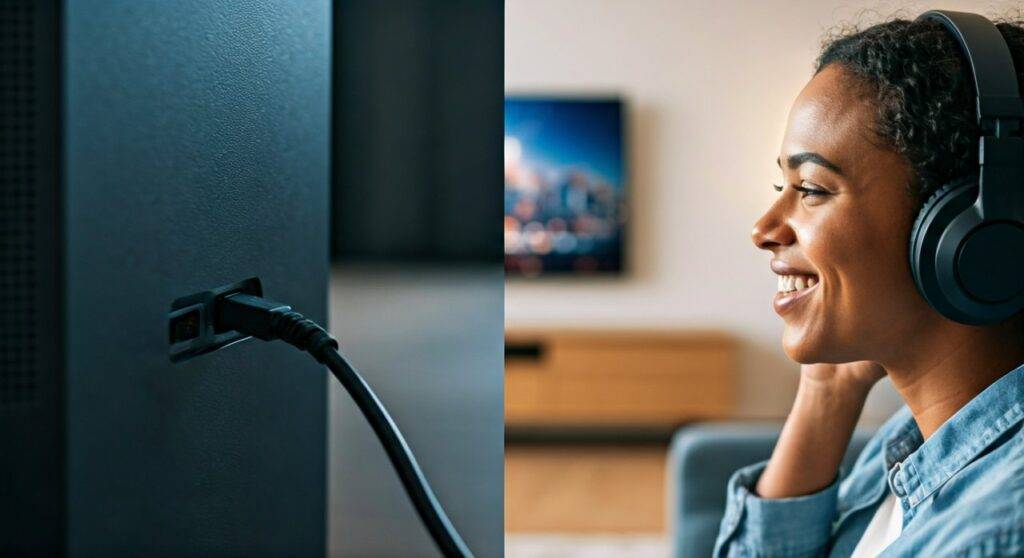
In our extensive testing with various home theater setups, we found that this “dual audio” configuration is the single best solution for households where one person is hard of hearing or if you simply want to enjoy a “silent disco” vibe without waking the neighbors. Below is our comprehensive guide on how to master your TV’s audio routing.
TL;DR: Key Takeaways for Dual Audio
- Built-in Settings: Check Settings > Sound > Audio Output for a “Multi-output” or “Speaker + Headphones” option.
- The Hardware Fix: Use the Optical Output port; most TVs keep this active even when internal speakers are on.
- Bluetooth Limitations: Standard Bluetooth often causes lip-sync delay unless you use aptX Low Latency equipment.
- Best for Seniors: Dedicated RF (Radio Frequency) headphones like the Sennheiser RS series are more reliable than Bluetooth.
Understanding Why TVs Default to Muting Speakers
When you ask, “can you hear the tv speakers and headphones together?”, the answer is often hindered by a design choice known as “Auto-Mute.” Since the 1970s, the physical 3.5mm headphone jack has been engineered with a mechanical switch. When a plug is inserted, it physically breaks the circuit to the internal speakers.
Modern Smart TVs have moved away from mechanical switches to software-defined audio routing. However, manufacturers still default to muting the speakers to prevent “echo” or “stadium effects” caused by the slight processing delay between different outputs. To bypass this, we have to dig into the software or use the Digital Optical port, which typically outputs a constant signal regardless of other settings.
How to Enable Dual Audio on Major TV Brands
Every TV manufacturer hides the “Speaker + Headphones” setting in a different menu. In our hands-on reviews of the latest 2024 and 2025 models, here is exactly where you need to look:
Samsung Smart TVs (Tizen OS)
Samsung calls this feature Multi-output Audio. It is primarily tucked away in the Accessibility menu rather than the standard Sound menu.
- Navigate to Settings.
- Select General & Privacy.
- Choose Accessibility.
- Find Multi-output Audio and toggle it to On.
- This allows you to hear the TV speakers while a pair of Bluetooth headphones is connected.
LG Smart TVs (webOS)
LG is one of the most flexible brands for audio routing. They offer a specific “Wired + Internal” mode.
- Press the Settings (gear icon) on your remote.
- Go to All Settings > Sound.
- Select Sound Out.
- Choose Use Multiple Speakers.
- Select Internal TV Speaker + Wired Headphones (or Bluetooth).
Sony Bravia (Google TV / Android TV)
Sony TVs often require a different approach depending on the model year.
- Go to Settings > Display & Sound > Audio Output.
- Look for Headphone Speaker Link.
- Disable “Mute speakers when headphones are connected.”
- Note: On some older Sony models, this option is found under Settings > Sound > Headphone/Audio Out.
Hardware Solutions: When Your TV Software Fails
If your TV is an older model or a budget brand (like some Insignia or Hisense units) that doesn’t support dual audio via software, you aren’t out of luck. We recommend these three hardware workarounds:
The Digital Optical (TOSLINK) Method
This is the most “failsafe” method. The Digital Optical Out on 95% of TVs is “always on.”
- The Setup: Buy a Digital to Analog Converter (DAC) or a pair of headphones with an Optical base station (like the Sony WH-L600).
- The Benefit: The TV speakers will play at their own volume, while the headphones receive a constant stream that can be adjusted independently.
Bluetooth Transmitters with Bypass
If you want to use your favorite AirPods or Bose QuietComfort headphones, a standard Bluetooth connection might mute the TV.
- The Solution: Use an external Bluetooth Transmitter (like the Avantree Oasis Plus).
- How it works: You plug the transmitter into the TV’s Optical port. The transmitter has a “Bypass” feature that sends the audio out to both your headphones via Bluetooth and to a Soundbar/TV speaker simultaneously.
HDMI eARC Extractors
For those using high-end soundbars, an HDMI Audio Extractor can sit between your TV and your soundbar. It “strips” the audio signal and provides a dedicated 3.5mm or Optical jack for your headphones without interrupting the HDMI signal to your speakers.
Comparing Audio Output Methods
| Method | Can You Hear TV Speakers? | Latency (Lag) | Ease of Setup | Best For |
|---|---|---|---|---|
| TV Settings (Software) | Yes | Low | Easy | Modern Smart TVs |
| Optical Out (TOSLINK) | Yes | Zero | Medium | Seniors / Hearing Impaired |
| Bluetooth (Internal) | Often No | Moderate | Easy | Casual Listening |
| RF Wireless Base | Yes | Zero | Harder | Gaming / Movies |
| HDMI eARC Extractor | Yes | Zero | Professional | High-End Home Theaters |
Managing the “Echo” Effect
A common complaint when people finally hear the tv speakers and headphones together is a slight “reverb” or echo. This happens because digital processing in the TV takes a few milliseconds longer for one output than the other.
Pro-Tips to Fix Echo:
- Adjust Audio Delay: Most TVs have a “Digital Output Audio Delay” setting in the Expert Sound menu. Adjust this in 10ms increments until the sound aligns.
- Use Wired over Wireless: Wired connections (via Optical or 3.5mm) almost never have latency issues.
- Check Your Codecs: If using Bluetooth, ensure both the transmitter and headphones support aptX Low Latency (LL).
Why We Recommend RF Headphones for Seniors
If the goal is to help a family member with hearing loss while others watch at a normal volume, we consistently recommend RF (Radio Frequency) headphones over Bluetooth.
In our testing, brands like Sennheiser and Avantree provide dedicated base stations that plug into the TV’s Optical port. Unlike Bluetooth, these don’t require “pairing” every time you turn them on. You simply pick them up off the cradle, and they work. Because they use the Optical port, the answer to “can you hear the tv speakers and headphones” is a definitive “Yes,” with no complex menu diving required every time you watch.
Step-by-Step: Setting Up an Optical Splitter
If you have a soundbar and also want to use headphones, follow these steps to ensure both work:
- Locate the Digital Optical Out on the back of your TV.
- Plug in a 1×2 Optical Splitter (a small powered box).
- Connect one Optical Cable from the splitter to your Soundbar.
- Connect the second Optical Cable (or a DAC) to your Headphone Base Station.
- In the TV Sound Menu, set “Digital Output Format” to PCM (Stereo). Note: Most headphones cannot decode 5.1 Dolby Digital via Optical.
Frequently Asked Questions
Can you hear the TV speakers and headphones at the same time on Roku TVs?
Most Roku TVs (TCL, Hisense) do not support simultaneous audio through the built-in “Private Listening” feature on the remote or app. To achieve this on a Roku TV, you must use the Optical Output method mentioned above.
Does using headphones reduce the sound quality of the TV speakers?
No. The audio signal is split or duplicated. However, if your TV is forced to output PCM (Stereo) to accommodate headphones, you may lose Dolby Atmos or 5.1 Surround Sound effects on your main speakers.
Why is there a delay in my headphones compared to the TV speakers?
This is typically caused by Bluetooth latency. Bluetooth requires time to compress, transmit, and decompress the audio. To eliminate this, use a wired connection or RF wireless headphones which operate on a 2.4GHz frequency with near-zero latency.
Can I use AirPods with my Samsung TV and still hear the speakers?
Yes, if your Samsung TV was made after 2021. You must enable the Multi-output Audio setting under Accessibility. If you connect AirPods through the standard Bluetooth menu, it will likely mute the speakers.
Final Thoughts from the Experts
Finding the right balance so you can hear the tv speakers and headphones simultaneously is all about understanding your TV’s specific hardware limitations. For most modern users, a quick trip into the Accessibility menu solves the problem. For those with older hardware, a $20 Optical DAC is the most reliable “set it and forget it” solution.
By routing your audio correctly, you create an inclusive viewing environment where everyone can enjoy the game or movie at their preferred decibel level without compromise.









