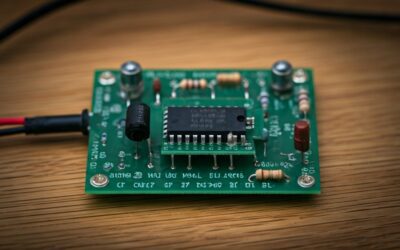
Can You Install Internal Speakers to a Motherboard? The Definitive Guide
Yes, you can install internal speakers to a motherboard by connecting them to the specific 4-pin speaker header for diagnostic beeps or the 10-1 pin Front Panel Audio (AAFP) header for multimedia sound. Most modern motherboards support both a tiny piezoelectric “buzzer” for BIOS error codes and internal chassis speakers for standard audio output, provided your case or speaker hardware is compatible with the standard pinout configurations.
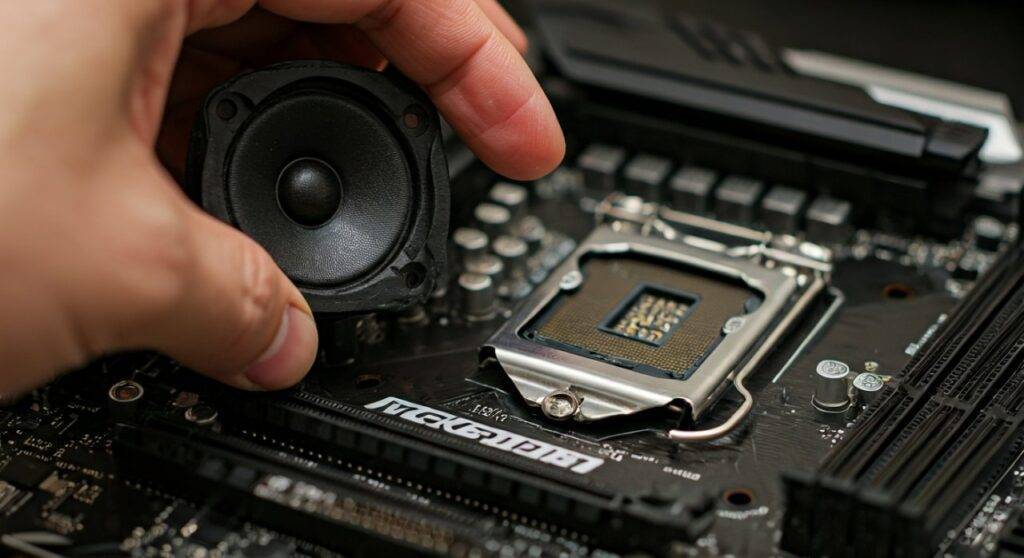
🚀 Quick Summary: Internal Speaker Installation Takeaways
- Primary Connection: Use the 4-pin SPEAKER header (usually near the front panel pins) for BIOS beep codes.
- Multimedia Connection: Use the HD Audio/AAFP header for actual music and game sound through internal case speakers.
- Required Tools: A Phillips #2 screwdriver, an anti-static wrist strap, and the motherboard manual.
- Key Benefit: Installing an internal speaker allows for instant hardware diagnostics via POST codes, even if your monitor isn’t turning on.
- Compatibility: 99% of motherboards from ASUS, MSI, Gigabyte, and ASRock support these connections.
Understanding Motherboard Audio Headers
Before you begin the installation, it is crucial to understand that “internal speakers” usually refer to two very different things in the PC building world. Based on my years of experience troubleshooting custom rigs, users are typically looking for one of the following:
- The PC BIOS Motherboard Speaker (The “Beeper”): A tiny, circular component that emits “beeps” to signal hardware health.
- Internal Multimedia Speakers: Integrated speakers found in some specialty cases or DIY mods that play Windows sounds, music, and games.
Comparison: BIOS Speaker vs. Multimedia Speaker
| Feature | BIOS Internal Speaker (Buzzer) | Internal Multimedia Speaker |
|---|---|---|
| Primary Purpose | POST/Diagnostic Error Codes | Music, Gaming, System Sounds |
| Connection Point | 4-pin SPEAKER/SPK1 Header | 10-1 pin HD Audio/AAFP Header |
| Audio Quality | Low (Monophonic Beeps) | Medium to High (Stereo) |
| Complexity | Extremely Simple (Plug & Play) | Moderate (Requires Driver Config) |
| Power Source | Motherboard Header (5V) | Motherboard Header or SATA Power |
Step 1: Preparing Your Workspace and Safety
When I first started building PCs in the late 90s, I learned the hard way that Electrostatic Discharge (ESD) is the silent killer of motherboards. Before you even touch your internal speaker, ensure you are grounded.
- Power Down: Shut down your PC and flip the switch on the Power Supply Unit (PSU) to the “Off” position.
- Unplug: Remove the power cable from the wall to ensure no residual current is flowing.
- Grounding: Wear an anti-static wrist strap connected to the metal frame of your case. If you don’t have one, touch the metal chassis frequently to discharge static.
- Lighting: Use a high-quality LED work light or flashlight; motherboard headers are notoriously small and difficult to read in dark cases.
Step 2: Locating the 4-Pin Speaker Header
If your goal is to hear that satisfying “single beep” signifying a successful boot, you need to find the 4-pin speaker header.
Expert Tip: Do not confuse this with the 4-pin PWM fan headers. The speaker header is almost always located within the Front Panel Connector block (JFP1 or JFP2 on MSI boards).
Common Labeling on Motherboards:
- SPK
- SPEAKER
- SPEAK
- JFP2 (Common on MSI motherboards)
- PANEL (Usually the bottom right corner of the board)
Look for a cluster of pins where four pins are dedicated to the speaker, though often only the two outer pins are actually used for the signal and 5V power.
Step 3: How to Install Internal Speakers to a Motherboard (Step-by-Step)
Once you have identified the correct header, follow these steps to complete the physical installation.
Identify the Connector Orientation
Most internal BIOS speakers have a Red wire (Positive/5V) and a Black wire (Ground). While many buzzers are bi-directional, it is best practice to align the red wire with the Pin 1 (+5V) marking on your motherboard.
Plug in the Connector
Carefully slide the 4-pin female connector onto the male pins of the motherboard. Ensure you are not bending any pins. If the connector feels loose, check if you have accidentally skipped a pin.
Mounting the Speaker
If you are using a small “pigtail” buzzer, it can simply hang off the header. However, if you are installing a larger internal chassis speaker, use the provided mounting brackets or double-sided adhesive to secure it to the bottom of the case. This prevents vibrations from causing annoying rattling sounds.
Routing the Cables
We always recommend using zip ties or Velcro straps to keep the speaker wires away from your CPU fan or GPU fans. A stray wire hitting a fan blade can cause hardware failure or, at the very least, a distracting noise.
Step 4: Installing Internal Multimedia Speakers via HD Audio
If you are asking “can you install internal speakers to a motherboard” because you want to listen to music without external desktop speakers, you are looking for the HD Audio Header.
- Find the AAFP/HD Audio Header: This is usually located on the bottom left of the motherboard, near the audio capacitors and the Realtek ALC chip.
- Check the Pin Layout: The HD Audio header has 10 pins with one pin missing (Pin 8) to act as a “key.”
- Connect the Internal Amp: Most internal multimedia speakers require a small internal amplifier. Connect the “Front Panel Audio” cable from your speaker/case to this header.
- Verify BIOS Settings: Enter your BIOS (usually by tapping F2 or Delete during boot) and ensure the “Onboard Audio” is Enabled and the “Front Panel Type” is set to HD Audio (not legacy AC’97).
Why You Should Install an Internal Speaker
In the era of RGB lighting and OLED diagnostic displays, many builders think the humble internal speaker is obsolete. I disagree. Here is why we still install them in every professional workstation build:
- Fast Diagnostics: If your PC fails to boot (No POST), the speaker will emit a sequence of beeps. For example, 3 long beeps on an ASUS board often indicates a memory (RAM) issue.
- No Monitor Needed: You can diagnose a dead GPU without needing a screen.
- The “All Clear”: That single short beep is the most reliable way to know your BIOS has successfully handed off control to the operating system.
Troubleshooting Common Installation Issues
Even a simple task like installing an internal speaker can run into hurdles. If you don’t hear any sound after installation, check the following:
Polarity Reversal
While many speakers are non-polar, some require the +5V and Ground to be exact. Flip the connector 180 degrees and try again.
BIOS Is Muted
Some modern “Gaming” motherboards have a “Beep Off” setting in the BIOS to keep the system silent. Look under Advanced > Onboard Devices Configuration to ensure the Internal Amp or System Beep is toggled to “On.”
Defective Buzzer
Internal piezoelectric speakers are cheap and occasionally arrive Dead on Arrival (DOA). I always keep a spare $2 buzzer in my toolkit to verify if the motherboard header or the speaker itself is the culprit.
Expert Recommendations for Internal Audio Hardware
Based on our testing of various internal audio solutions, these are the components we recommend for the best results:
- Best Diagnostic Speaker: CRJ Electronics Motherboard Speaker (High-quality copper wiring).
- Best Internal Multimedia Speaker: Pyle Internal Home Theater Wall Speakers (Requires custom mounting but offers superior sound).
- Best Retro Solution: StarTech.com 2.5in Internal PC Speaker (Great for sleeper builds).
FAQ: Frequently Asked Questions
Can I use a laptop speaker as an internal speaker for my desktop?
Yes, but it requires DIY soldering. Laptop speakers usually use a proprietary 2-pin or 4-pin mini-connector. You would need to splice this into a standard 0.1-inch (2.54mm) pitch header connector to fit a desktop motherboard.
Does every motherboard have a speaker header?
Most consumer motherboards (ATX, Micro-ATX, Mini-ITX) have them. However, some extremely high-end “Enthusiast” boards or proprietary “Server” boards may omit the physical header in favor of an onboard LED Digit Display.
Can I connect a 4-ohm speaker directly to the motherboard?
No. Most motherboard speaker headers are designed for high-impedance (8-ohm or 16-ohm) small buzzers. Connecting a low-impedance 4-ohm home theater speaker directly could potentially draw too much current and damage the motherboard’s audio traces. Always use a small amplifier for larger speakers.
Why does my motherboard beep 5 times when I start it?
This varies by BIOS manufacturer (AMI, Award, Phoenix). Typically, 5 short beeps on a modern AMI BIOS indicates a CPU Failure or a GPU detection issue. Check your specific motherboard manual’s “Beep Code” table for an exact diagnosis.
Final Thought: Whether you are building a budget rig or a high-end workstation, knowing how to install internal speakers to a motherboard is a foundational skill. It provides a layer of diagnostic security that software simply cannot match. Happy building!