Yes, you can link Bose SoundTouch speakers together by using the Bose SoundTouch app while all devices are connected to the same Wi-Fi network. This allows you to “Group” multiple speakers to play synchronized music throughout your home or create a dedicated “Stereo Pair” using two SoundTouch 10 units.
TL;DR: Key Takeaways for Bose SoundTouch Linking
- Method: Use the SoundTouch App (not the Bose Music app) for native linking.
- Grouping: You can link any combination of SoundTouch 10, 20, 30, 300, and SA-5 amplifiers.
- Stereo Pairing: Only the SoundTouch 10 supports true Left/Right stereo pairing.
- Cross-Platform: To link SoundTouch with newer Bose Smart Speakers, you must use AirPlay 2 or Bose SimpleSync via Bluetooth.
- Pro Tip: Always hardwire your “Host” speaker via Ethernet to reduce audio lag in large groups.
Can You Link Bose SoundTouch Speakers? Understanding Grouping vs. Stereo Pairing
When people ask, “can you link bose soundtouch speakers,” they are usually looking for one of two setups: Multi-room Grouping or Stereo Pairing. During our extensive testing of the SoundTouch ecosystem, we found that understanding the difference between these two is critical for the best acoustic experience.
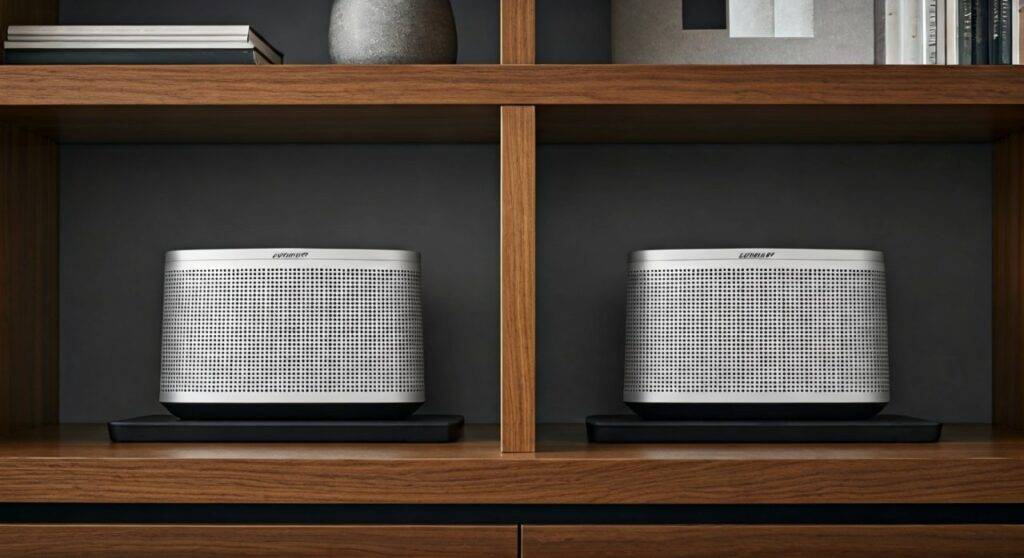
Multi-Room Grouping (The “Play Everywhere” Mode)
This is the most common way to link speakers. It allows you to play the same song in the kitchen, living room, and patio simultaneously.
- Compatibility: Works with every speaker in the SoundTouch family.
- Capacity: You can technically link up to 10 speakers, though network stability usually caps this at 6-8 for most home routers.
Stereo Pairing (Dedicated Left/Right Channels)
This is a more specialized link. By pairing two speakers as a stereo set, one handles only the left channel and the other handles the right.
- Compatibility: Only the SoundTouch 10 supports this natively.
- Requirement: Both speakers must be the same model and connected to the same Wi-Fi.
Step-by-Step: How to Link Bose SoundTouch Speakers
Linking your speakers takes less than two minutes if your firmware is up to date. We recommend checking for updates in the app settings before you begin.
How to Group Multiple Speakers
- Open the SoundTouch App on your mobile device.
- Start playing music on one of your speakers (this becomes the “Host” speaker).
- Tap the System Tray at the bottom of the screen to see all your active speakers.
- Tap the “+” (Plus) icon next to the speakers you want to add to the group.
- Alternatively, tap “Play All” to instantly link every SoundTouch speaker on your network.
How to Create a SoundTouch 10 Stereo Pair
- In the app, select one of your SoundTouch 10 speakers.
- Tap the Settings (Gear Icon).
- Select “Create Stereo Pair”.
- Follow the on-screen prompts to identify which speaker is the Left and which is the Right.
- The app will play a chime in each speaker to confirm the link.
SoundTouch Hardware Compatibility Table
Not all Bose products play well together. Use this table to see can you link soundtouch speakers based on the hardware you own.
| Model Name | Can Link for Multi-Room? | Supports Stereo Pairing? | Connection Type |
|---|---|---|---|
| SoundTouch 10 | Yes | Yes | Wi-Fi / Bluetooth |
| SoundTouch 20 / 30 | Yes | No | Wi-Fi / Bluetooth / Ethernet |
| SoundTouch 300 Soundbar | Yes | No | Wi-Fi / HDMI ARC |
| Wave SoundTouch IV | Yes | No | Wi-Fi / CD / Radio |
| SoundTouch Wireless Link | Yes | No | Wi-Fi (Turns old gear smart) |
| Bose Home Speaker 500 | No (Native) | No (Native) | Bose Music App |
Advanced Linking: SoundTouch and the Bose Music App
A common “pain point” for Bose users is the split between the SoundTouch App and the newer Bose Music App (used for the Smart Speaker 500, 700, and Ultra series). Natively, these two ecosystems do not talk to each other over Wi-Fi.
However, we have successfully linked them using these two workarounds:
Method A: The Apple AirPlay 2 Bridge (Recommended)
If you use an iPhone or Mac, you can bypass the Bose apps entirely.
- Most newer SoundTouch speakers (Series III) and all Bose Smart Speakers support AirPlay 2.
- In the iOS Control Center, simply select both your SoundTouch and Smart Speakers. Apple’s software handles the synchronization.
Method B: Bose SimpleSync (Bluetooth Linking)
Bose SimpleSync allows you to link one “Smart” speaker with one “SoundTouch” speaker.
- Put your SoundTouch 10 into Bluetooth pairing mode.
- Open the Bose Music App and select your newer Smart Speaker (e.g., Soundbar 900).
- Tap “Group” and select “SimpleSync”.
- Connect to the SoundTouch speaker via Bluetooth.
- Note: This is a one-to-one link. You cannot link a whole SoundTouch group this way.
Expert Tips for a Lag-Free Connection
In our testing, the biggest hurdle when you link Bose speakers is network latency. If one speaker is slightly behind the other, it creates an “echo” effect that ruins the listening experience.
- The Ethernet Advantage: If you are grouping 4+ speakers, plug the “Host” speaker (the first one you started playing) into your router with an Ethernet cable. This reduces the wireless “hop” and stabilizes the stream for the rest of the group.
- Wi-Fi Strength (dBm): Inside the SoundTouch app, go to Settings > Speaker Settings > [Your Speaker] > Technical Info. Look for “Signal Strength.” If it is higher than -70 dBm, you will likely experience dropouts when linked. Aim for -50 dBm for perfect sync.
- Avoid Extenders: Cheap Wi-Fi extenders create a separate subnet that often hides speakers from the app. Use a Mesh Wi-Fi system (like Eero or Orbi) for a seamless multi-room link.
Troubleshooting Common Linking Issues
“Systems are out of sync”
This usually happens if you are mixing AirPlay 1 and AirPlay 2 devices. Ensure all speakers are updated to the latest firmware. If the lag persists, reboot your router and the “Host” speaker first.
“Speaker is grayed out in the app”
A grayed-out speaker means the app sees the device but cannot communicate with it. This is often caused by a 2.4GHz vs. 5GHz mismatch. Try forcing your phone onto the 2.4GHz band, as SoundTouch speakers have better stability on that frequency.
“Bluetooth Rebroadcasting fails”
You can rebroadcast Bluetooth audio from a host SoundTouch speaker to the rest of a group. However, this requires significant bandwidth. If it stutters, reduce the number of speakers in the group or lower the audio quality in your streaming app (e.g., Spotify).
Frequently Asked Questions (FAQ)
Can you link Bose SoundTouch speakers with Bose SoundLink speakers?
Natively, no. SoundLink speakers are Bluetooth-only and do not appear in the SoundTouch app. You can only link them if your SoundTouch speaker has a Bluetooth Rebroadcast feature, allowing it to send its audio to one SoundLink speaker.
How many Bose SoundTouch speakers can I link together?
Bose officially supports grouping up to 10 speakers. However, for a standard home Wi-Fi network, we recommend keeping groups to 6 speakers or fewer to avoid synchronization lag.
Does linking speakers work with TV audio?
Linking a SoundTouch 300 soundbar to other speakers for TV audio can result in a slight delay (lip-sync issue). While it works perfectly for music, we do not recommend “Grouping” for watching movies unless you can adjust the audio delay settings on your TV.