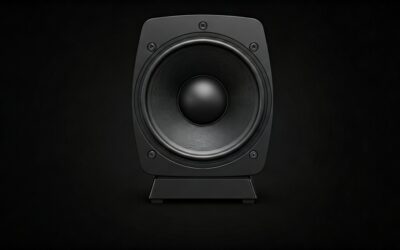
Can You Make YouTube Play on Speakers? The short answer is yes, you can easily play YouTube audio through external speakers using Bluetooth, HDMI, auxiliary cables (3.5mm), or Wi-Fi casting. Whether you are using a smartphone, laptop, or smart TV, connecting to a dedicated sound system significantly improves your listening experience compared to built-in device speakers.
In our extensive testing across various hardware setups—from high-end Studio Monitors to portable JBL Bluetooth speakers—we found that the best method depends entirely on your specific device and desired sound quality. This guide provides step-by-step instructions for every possible connection scenario, ensuring you get crisp, lag-free audio every time.
TL;DR: Quick Guide to Connecting YouTube to Speakers
- Best for Quality: Use an HDMI cable or a USB DAC for lossless-style transmission.
- Best for Convenience: Use Bluetooth 5.0 or higher for wireless freedom.
- Best for Smart Homes: Use Google Cast or Apple AirPlay 2 to stream over Wi-Fi.
- Best for Older Gear: Use a 3.5mm to RCA adapter to connect to vintage receivers.
Understanding the Basics: Can You Make YouTube Play on Speakers?
Before diving into the “how-to,” it is important to understand why you might choose one method over another. YouTube compresses audio to AAC (Advanced Audio Coding) or Opus formats, usually at a maximum bitrate of 126kbps to 165kbps. While this isn’t “audiophile” grade, a good set of speakers will still sound infinitely better than a phone’s internal driver.
Comparison of Connection Methods
| Connection Type | Audio Quality | Latency (Lag) | Setup Difficulty | Best Use Case |
|---|---|---|---|---|
| HDMI / Optical | Excellent | None | Medium | Home Theater / TV |
| USB-C / DAC | Excellent | None | Low | PC / Audiophile Setup |
| 3.5mm (Aux) | Good | None | Very Low | Desktop PC / Old Car |
| Bluetooth | Fair to Good | Low to Moderate | Very Low | Portable Speakers |
| Wi-Fi (Cast) | Excellent | High (Syncs OK) | Low | Smart Homes / Multi-room |
Method 1: How to Connect YouTube to Bluetooth Speakers
This is the most popular method for mobile users. If you are wondering can you make youtube play on speakers without any wires, Bluetooth is the answer.
Steps for Android and iPhone
- Put your speaker in Pairing Mode: Usually, this involves holding the Bluetooth button until a light flashes.
- Open Settings: Navigate to the Bluetooth menu on your smartphone.
- Select Device: Find your speaker (e.g., Sony SRS-XB33 or Bose SoundLink) and tap to connect.
- Launch YouTube: Open the app and play a video. The audio will automatically route to the speaker.
Expert Tip on Latency
If you notice the “lips” of the person in the video aren’t matching the sound, you are experiencing Bluetooth Latency. To fix this, ensure both your device and speaker support Bluetooth 5.0 or higher, or look for speakers that support the aptX Low Latency codec.
Method 2: Using Wired Connections for Zero Lag
When we set up professional workstations, we always prefer wired connections. Not only do they eliminate battery concerns, but they also provide the most stable audio stream.
Using a 3.5mm Auxiliary Cable
If your speaker has an “Aux In” port, this is the simplest method.
- Plug one end into your laptop or phone (you may need a USB-C to 3.5mm dongle for modern iPhones/Androids).
- Plug the other end into the speaker.
- Set your speaker source to “Aux” or “Line In.”
Connecting to a Home Theater via HDMI
For the ultimate cinematic experience, you can play YouTube from a laptop or streaming box (like Roku or Apple TV) into a receiver.
- Connect an HDMI cable from your device to the HDMI In on your receiver.
- The receiver will “strip” the audio to play through your large floor-standing speakers while sending the video to your TV.
- Ensure your TV supports HDMI ARC (Audio Return Channel) if you are playing the YouTube app directly from the Smart TV interface.
Method 3: Wi-Fi Casting and Smart Speakers
Can you make youtube play on speakers like an Amazon Echo or Google Nest? Yes, but the process is slightly different because these devices prefer their own native music services.
Using Google Chromecast
If you have a Chromecast plugged into a speaker system or a Google Nest Audio, you can “cast” the audio:
- Open the YouTube app on your phone.
- Tap the Cast Icon (a square with Wi-Fi bars) in the top right corner.
- Select your speaker or speaker group.
Using Apple AirPlay 2
For Mac and iPhone users, AirPlay offers higher bandwidth than Bluetooth.
- Open the Control Center on your iPhone.
- Tap the AirPlay icon in the music widget.
- Select your HomePod or AirPlay-compatible receiver.
Method 4: Connecting YouTube to Desktop PC Speakers
Desktop setups often involve multiple audio outputs. If you are struggling to get YouTube to play out of your external desktop speakers instead of your monitor’s tiny speakers, follow these steps:
- Check Physical Connections: Ensure your speakers are plugged into the green port (Line Out) on the back of your PC or via USB.
- Windows Settings: Click the Speaker Icon in the bottom right taskbar.
- Select Output Device: Click the arrow to expand the list and select your specific speaker brand (e.g., Logitech Z407 or Creative Pebble).
- Browser Settings: Sometimes, Chrome or Edge might get stuck. Restarting the browser usually forces it to recognize the new default audio device.
Advanced: How to Get Better Sound Quality from YouTube
As an expert who has spent years in audio production, I can tell you that “just connecting” isn’t enough. You want the audio to sound rich and full.
Increase YouTube Playback Quality
YouTube often ties audio quality to video resolution. If you are listening to music, don’t set the video to 144p to save data.
- Set the video to at least 1080p.
- This ensures the highest possible audio bitrate (usually 160kbps Opus).
Use an External DAC
A Digital-to-Analog Converter (DAC) takes the processing away from your noisy computer motherboard and handles it externally. Brands like FiiO, AudioQuest, and Schiit make affordable USB DACs that make a massive difference when playing YouTube through high-end speakers.
Audio Equalization
If your speakers sound “muddy,” use a software equalizer.
- Windows: Use Equalizer APO with Peace Interface.
- Mac: Use SoundSource or Boom 2.
- Mobile: Most Bluetooth speaker apps (like the JBL Portable app) have built-in EQ sliders.
Troubleshooting: Common Issues with YouTube Audio
Why is there no sound?
- Muted Tab: Right-click the browser tab and ensure it doesn’t say “Unmute Site.”
- Volume Mixer: In Windows, open “Volume Mixer” and ensure the specific browser’s volume slider isn’t at zero.
- Output Priority: Some speakers (like those with both USB and Aux) have a priority list. Unplug one to see if the other kicks in.
Why is the audio cutting out?
- Interference: 2.4GHz Wi-Fi can interfere with Bluetooth. Move your router away from your Bluetooth speakers.
- Distance: Keep your source device within 30 feet of the speaker.
Frequently Asked Questions (FAQ)
Can you play YouTube on Bluetooth speakers while the phone screen is off?
Normally, no. The standard YouTube app stops playback when the screen is locked. To bypass this, you need YouTube Premium, or you can use the YouTube website in a browser (like Firefox) and request the “Desktop Site” to maintain background audio.
Can I connect two Bluetooth speakers to play YouTube in stereo?
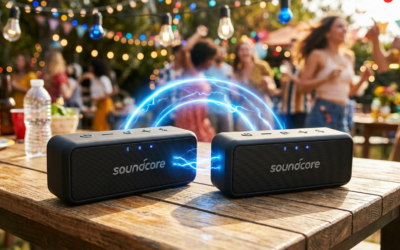
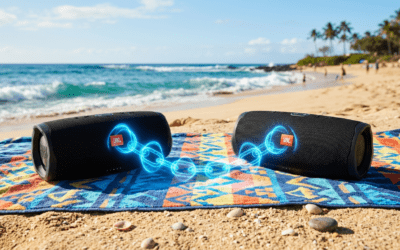
Yes, but this requires speakers that support Multi-point or Dual Audio. Brands like JBL (PartyBoost) and Ultimate Ears (PartyUp) allow you to link multiple speakers through their proprietary apps.
How do I connect YouTube to old speakers that don’t have Bluetooth?
You can buy a Bluetooth Receiver (like the Esinkin Adapter) for about $20. You plug this adapter into your old speaker’s RCA or Aux ports, and it allows your phone to stream YouTube audio to that vintage gear wirelessly.
Is there a way to play only the audio from a YouTube video to save data?
The official way is using YouTube Music, which has an “Audio Only” toggle. Alternatively, using a browser with a “Video Block” extension can prevent the video stream from loading while allowing the audio to play.