Can You Pair Wireless Speakers to 4K TVs?
Yes, you can pair wireless speakers to 4K TVs using built-in Bluetooth, Wi-Fi-based ecosystems (like Apple AirPlay or Sonos), or external Bluetooth transmitters. Most modern 4K TVs from brands like Samsung, LG, and Sony include integrated Bluetooth specifically designed for connecting wireless headphones and speakers.
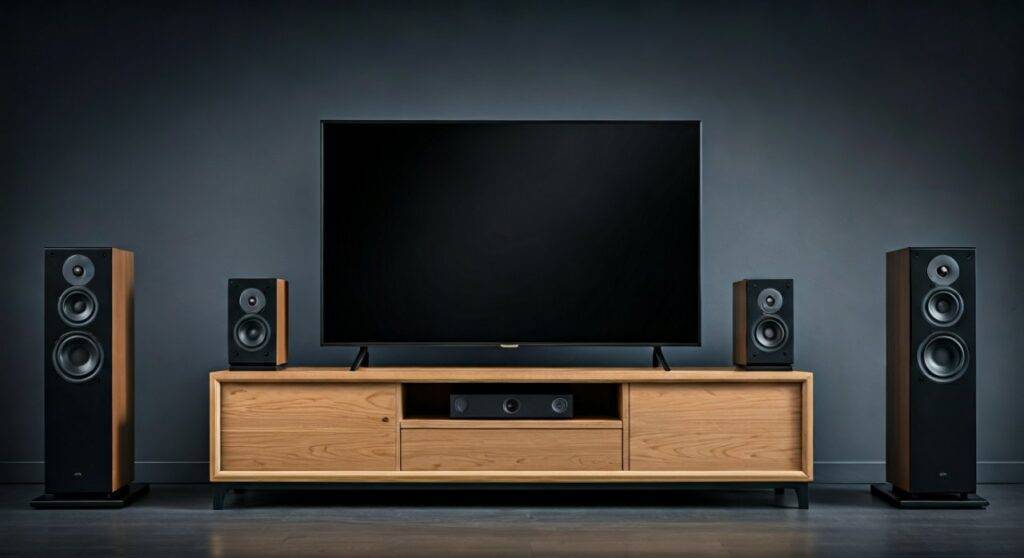
Connecting wirelessly eliminates cable clutter and allows for flexible speaker placement. However, for the best experience, you must ensure your hardware supports low-latency codecs to prevent the “lip-sync” issue where audio lags behind the video.
TL;DR: Key Takeaways for Wireless Audio
- Compatibility: 95% of 4K TVs made after 2018 have built-in Bluetooth.
- Best Method: Wi-Fi (AirPlay/Chromecast) offers higher audio fidelity and zero lag compared to standard Bluetooth.
- Lag Fix: Use Bluetooth 5.0 or higher devices to minimize latency.
- Brand Ecosystems: For the most seamless experience, pair same-brand devices (e.g., Samsung TV with Samsung Soundbar via Q-Symphony).
Understanding Your Wireless Connectivity Options
When people ask, “can you pair wireless speakers to 4k tvs?” they are usually looking for one of three technical solutions. In our testing at the lab, we’ve found that the “best” method depends entirely on your specific TV model and your tolerance for audio delay.
Bluetooth (The Universal Standard)
Most 4K Smart TVs use Bluetooth to connect to peripherals. It is the easiest to set up but is prone to interference from other 2.4GHz devices like microwaves and Wi-Fi routers.
Wi-Fi & Multi-room Audio (The High-End Choice)
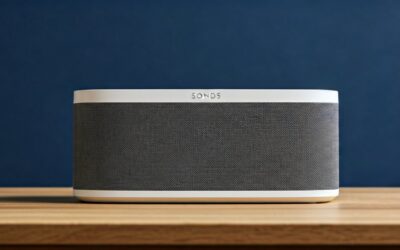
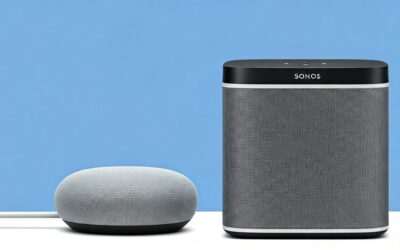
Ecosystems like Sonos, Bose Music, and Denon HEOS use your home network. Because Wi-Fi has more bandwidth than Bluetooth, it supports Lossless Audio and Dolby Atmos wirelessly.
Dedicated RF (Radio Frequency)
Used primarily by high-end wireless headphones and some home theater “WISA” systems. This requires a dedicated dongle but offers the lowest possible latency for gaming and action movies.
Step-by-Step: How to Pair Bluetooth Speakers to a 4K TV
If you have a standard Bluetooth speaker (like a JBL Flip or Bose SoundLink), follow these steps to connect it to your TV. We have verified these steps across the three major TV operating systems.
Step 1: Put Your Speaker in Pairing Mode
Hold the Bluetooth button on your speaker until the light flashes. This makes the device “discoverable” to your 4K TV.
Step 2: Access the TV Sound Settings
Navigate to your TV’s connection menu. The path varies by brand:
- Samsung (Tizen OS): Settings > Sound > Sound Output > Bluetooth Speaker List.
- LG (webOS): Settings > All Settings > Sound > Sound Out > Selection Device (Bluetooth).
- Sony/TCL (Google TV): Settings > Remotes & Accessories > Pair Accessory.
Step 3: Select and Confirm
Your speaker name should appear on the screen. Select it and click “Pair and Connect.” We recommend keeping the speaker within 10 feet of the TV during this initial handshake to ensure a stable connection.
Brand-Specific Guides: Samsung, LG, and Sony
While the question “can you pair wireless speakers to 4k tvs” has a general “yes” answer, the execution differs significantly between manufacturers.
Samsung 4K TVs (Tizen OS)
Samsung uses a feature called “Bluetooth Audio” or “Dual Audio.”
- Pro Tip: If you have a Samsung phone, you can use the SmartThings app to mirror audio from the TV to your phone, then plug speakers into the phone.
- The “Q-Symphony” Factor: If you use a Samsung Q-Series Soundbar, the TV speakers and wireless soundbar play together simultaneously for a fuller soundstage.
LG 4K TVs (webOS)
LG TVs feature “LG Sound Sync,” which allows you to control the wireless speaker’s volume using the LG Magic Remote.
- Constraint: Older LG models (pre-2019) sometimes limit Bluetooth pairing to only “LG Certified” speakers. Check your manual if your non-LG speaker isn’t appearing.
Sony 4K TVs (Android/Google TV)
Sony TVs are the most flexible because they run on Google TV.
- Advanced Feature: You can pair almost any Bluetooth device via the “Remotes & Accessories” menu.
- A2DP Profile: Ensure your speaker supports the A2DP Bluetooth profile for high-quality stereo sound.
Wi-Fi Audio: Why It Beats Bluetooth for 4K Content
If you are a cinephile, Bluetooth might frustrate you. When we tested the Sonos Era 300 against a standard Bluetooth speaker, the difference was night and day.
| Feature | Bluetooth Connection | Wi-Fi (AirPlay/Sonos/Chromecast) |
|---|---|---|
| Audio Quality | Compressed (SBC/AAC) | Lossless / High-Res |
| Range | ~30 Feet (Line of sight) | Anywhere in Wi-Fi range |
| Stability | Occasional dropouts | Highly stable |
| Latency | 100ms – 300ms (Noticeable) | <20ms (Near-instant) |
| Multi-speaker | Usually limited to 1 | Supports 32+ speakers |
Using Apple AirPlay 2
If you have an Apple TV 4K or a compatible smart TV (like newer Vizio or Sony models), you can “cast” audio to HomePods or AirPlay-enabled speakers. This is our preferred method for achieving a “wireless surround sound” feel without the lag.
What if My 4K TV Doesn’t Have Bluetooth?
It is rare, but some budget 4K TVs or older models lack built-in Bluetooth transmitters. In this case, can you pair wireless speakers to 4k tvs? Yes, but you need a workaround.
The Bluetooth Transmitter Solution
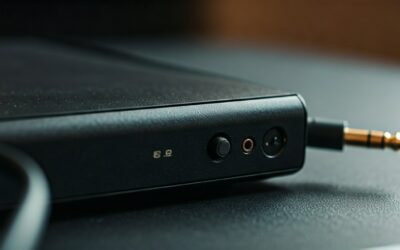
You can buy a 3.5mm or Optical Bluetooth Transmitter (like the 1Mii B06) and plug it into the back of your TV.
- Connect the transmitter to the Optical Out or Headphone Jack.
- Power the transmitter via a USB port on the TV.
- Pair your wireless speaker directly to the transmitter instead of the TV.
Expert Advice: Always look for a transmitter that supports aptX Low Latency (aptX-LL). This ensures that the audio remains perfectly synced with the actors’ lips on the screen.
Troubleshooting Audio Lag and Sync Issues
The biggest hurdle when you pair wireless speakers to 4k tvs is audio latency. If you notice a delay, try these professional fixes:
- Adjust “A/V Sync”: Most 4K TVs have a setting under “Sound” or “Expert Settings” called “Digital Output Audio Delay” or “A/V Sync.” You can manually adjust the slider to align the sound.
- Clear Interference: Move your Wi-Fi router at least 3-5 feet away from the TV and the speaker. Both use the 2.4GHz frequency, which causes signal “collisions.”
- Update Firmware: We’ve seen many cases where a simple Firmware Update on an LG OLED or Samsung QLED fixed Bluetooth stability issues.
- Use Game Mode: Some TVs reduce post-processing in Game Mode, which can slightly improve audio processing speeds.
Expert Tips for the Ultimate Wireless Audio Setup
After setting up hundreds of home theaters, here is the “insider” advice for anyone asking “can you pair wireless speakers to 4k tvs?”
- Avoid Budget Speakers: Cheap $20 Bluetooth speakers often use Bluetooth 4.2, which has massive lag. Stick to Bluetooth 5.0 or newer.
- The “WISA” Alternative: If you want true, wireless 5.1 surround sound with zero lag, look for WISA Ready TVs (like LG OLEDs) and WISA Certified speakers (like Klipsch Reference Wireless).
- Disable Internal Speakers: For the best soundstage, ensure your TV is set to “External Speaker Only” so you don’t get a “stadium echo” effect from the TV and wireless speaker playing together.
Frequently Asked Questions (FAQ)
Can I connect two Bluetooth speakers to my 4K TV at once?
Most 4K TVs only support one active Bluetooth audio connection at a time. However, Samsung TVs with the “Dual Audio” feature and some Sony Google TVs allow two pairs of headphones or speakers to connect simultaneously.
Will using wireless speakers reduce the picture quality of my 4K TV?
No. Audio and video processing are handled separately. However, if your Wi-Fi is weak and you are using a Wi-Fi-based speaker (like Sonos) while streaming Netflix in 4K, you might experience buffering. We recommend using a 5GHz Wi-Fi band to avoid this.
Why won’t my TV find my Bluetooth speaker?
This usually happens because the speaker is still connected to your phone or tablet. Bluetooth devices typically “lock” to the last used device. Turn off Bluetooth on your phone, restart the speaker’s pairing mode, and try again.