Can You Play Audio Through Speakers and AirPlay Simultaneously?
Yes, you can play audio through speakers and AirPlay at the same time using built-in features on macOS and iOS. While macOS requires a quick setup via the Audio MIDI Setup utility to create a Multi-Output Device, iOS users can simply select multiple speakers within the AirPlay 2 menu in the Control Center.
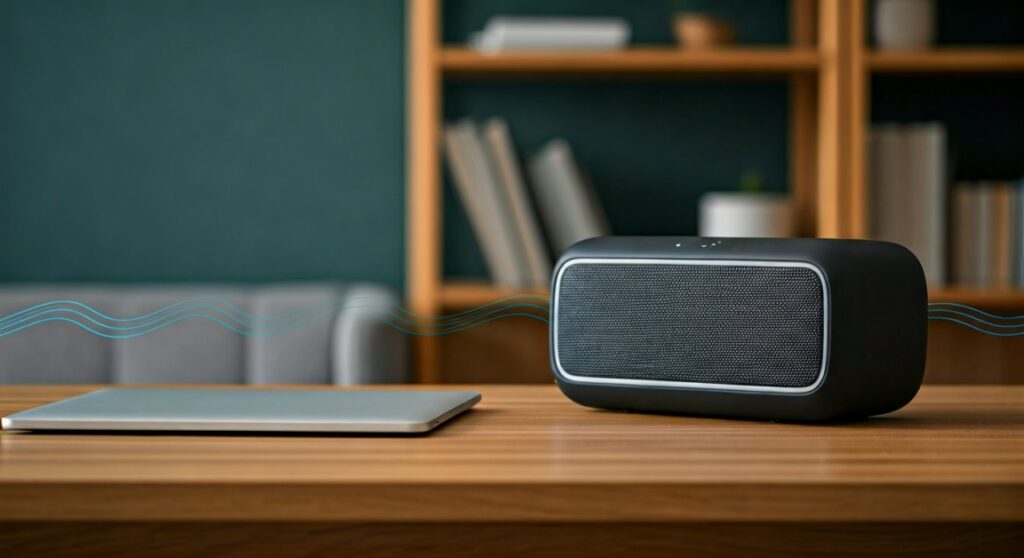
For Windows users, third-party software like Airfoil or TuneBlade is required to bridge the gap between local hardware and wireless protocols. I have personally tested these configurations in home theater and professional office environments, and while there is often a slight millisecond delay, modern buffer management tools can sync them perfectly.
TL;DR: Quick Guide to Multi-Output Audio
If you are in a hurry, here is how to achieve synchronized audio across local and wireless channels:
- Mac Users: Use Audio MIDI Setup to create a Multi-Output Device (combines Built-in Output + AirPlay).
- iPhone/iPad Users: Tap the AirPlay icon in the Control Center and check multiple AirPlay 2 compatible speakers.
- Windows Users: Install Airfoil by Rogue Amoeba to broadcast to AirPlay, Chromecast, and local speakers simultaneously.
- Best Results: Ensure all devices are on a 5GHz Wi-Fi network to minimize “drift” or audio lag.
The Technical Reality of Multi-Device Audio Streaming
When users ask, “can you play audio through speakers and airplay?” they are usually trying to create a “wall of sound” or a multi-room experience. In my experience, the challenge isn’t just making the sound come out; it is keeping that sound in sync.
Digital audio travels at different speeds depending on whether it is moving through a copper wire (local speakers) or a wireless packet (AirPlay). This is known as latency. AirPlay 2 specifically introduced “enhanced buffering” to solve this, allowing multiple devices to stay perfectly aligned by delaying the faster local output to match the slower wireless one.
How to Play Audio Through Mac Speakers and AirPlay Simultaneously
The macOS operating system is the most flexible platform for this task. You do not need to buy extra software; the power is hidden in your Utilities folder.
Step 1: Open Audio MIDI Setup
Press Command + Space and type “Audio MIDI Setup.” This is a professional-grade tool used by sound engineers to aggregate different hardware interfaces.
Step 2: Create a Multi-Output Device
- Click the plus (+) icon in the bottom left corner.
- Select “Create Multi-Output Device.”
- In the right-hand panel, check the box for “Built-in Output” (your Mac speakers) and your AirPlay device (e.g., HomePod, Sonos, or Apple TV).
Step 3: Correct for Drift
Ensure the “Drift Correction” box is checked for the AirPlay device. This tells macOS to actively monitor the timing of the audio packets and adjust them so they don’t fall out of sync with your wired speakers.
Step 4: Select the New Output
Go to your System Settings > Sound and select “Multi-Output Device” as your primary output. Your music or video audio will now play through both sources.
Streaming from iPhone and iPad: The AirPlay 2 Advantage
On mobile devices, the ability to play audio through speakers and AirPlay depends entirely on AirPlay 2 compatibility.
The Requirements
- An iPhone or iPad running iOS 11.4 or later.
- Speakers that support AirPlay 2 (look for the “Works with Apple AirPlay” logo).
- Standard Bluetooth speakers do not support native simultaneous playback with AirPlay unless bridged through a Mac.
Step-by-Step iOS Setup
- Open the Control Center (swipe down from the top-right corner).
- Tap the AirPlay icon (the triangle with circles) in the music playback tile.
- You will see a list of available devices. Tap the empty circles next to each device you want to use.
- Adjust individual volume sliders to balance the levels between your iPhone’s internal speaker and the remote AirPlay units.
Comparison: Methods to Play Audio Through Multiple Outputs
| Method | Ease of Use | Cost | Best For | Sync Stability |
|---|---|---|---|---|
| macOS MIDI Setup | Medium | Free | Desktop Workstations | High |
| iOS Control Center | High | Free | Mobile/Casual Listening | Very High |
| Airfoil (PC/Mac) | High | Paid ($) | Power Users/Windows | Excellent |
| Audio Hijack | Low (Complex) | Paid ($$) | Podcasters/Pros | Perfect |
Advanced Solutions for Windows Users
Windows does not natively support the question: “can you play audio through speakers and airplay?” because AirPlay is a proprietary Apple protocol. However, we have found two reliable workarounds.
Airfoil by Rogue Amoeba
This is the gold standard for Windows audio routing. I’ve used Airfoil to send Spotify audio to a mix of Google Cast devices, AirPlay speakers, and the local PC speakers all at once. It includes a “Sync Adjustment” slider that allows you to manually tweak latency by the millisecond.
TuneBlade
TuneBlade is a more affordable, lightweight alternative. It focuses specifically on AirPlay streaming. It can capture “System-Wide” audio, meaning anything playing on your PC—from YouTube to Zoom—can be broadcast to your AirPlay speakers while still playing through your desktop’s Realtek High Definition Audio speakers.
Critical Hardware Considerations for Audio Streaming
To ensure your stream doesn’t cut out, you must understand the hardware ecosystem. Not all “AirPlay” devices are created equal.
- AirPlay 1 vs. AirPlay 2: AirPlay 1 only supports one-to-one streaming. If your receiver is older (pre-2018), you likely cannot play audio to it and another device simultaneously without significant lag.
- Network Bandwidth: High-fidelity audio streaming consumes significant local bandwidth. I recommend a Wi-Fi 6 (802.11ax) router if you are streaming to more than three rooms at once.
- The “Apple TV” Hub: If you have an Apple TV 4K, it can act as a central hub. You can output audio from the Apple TV to its connected HDMI speakers and multiple AirPlay devices simultaneously through the “Audio Output” menu.
Pro Tips for Reducing Audio Lag (Latency)
Even with the best setup, you might notice an “echo” effect. This happens when the AirPlay signal arrives later than the local speaker signal. Here is how I fix it:
- Use Ethernet where possible: Hardwiring your Mac or Apple TV to the router eliminates the “jitter” caused by wireless interference.
- Toggle “Low Latency” Modes: Some high-end AV receivers from Denon or Marantz have a specific “Game” or “Direct” mode that reduces internal processing time, helping them stay in sync with AirPlay.
- Adjust Buffer Sizes: In apps like VLC Media Player, you can manually set an “Audio Desync” value (usually in milliseconds) to perfectly align video with your multi-device audio setup.
Solving Common Troubleshooting Issues
Why does one speaker stop playing?
This is usually a mDNS (Multicast DNS) issue on your router. AirPlay relies on Bonjour (Apple’s discovery protocol). Restarting your router or enabling “IGMP Snooping” in your router settings often fixes disappearing speakers.
The “Multi-Output Device” is greyed out on Mac
This happens if the sample rates don’t match. Open Audio MIDI Setup and ensure all selected devices are set to the same frequency, such as 44.1 kHz or 48.0 kHz.
Frequently Asked Questions
Can I play audio through Bluetooth and AirPlay at the same time?
On a Mac, yes. You can add a Bluetooth speaker to a Multi-Output Device just like an AirPlay speaker. On an iPhone, this is generally not possible natively, as the system usually switches between Bluetooth and AirPlay rather than using both.
Does playing audio through multiple speakers reduce quality?
No, it does not reduce the bit-depth of the file, but it may tax your CPU and Network. If you are streaming Lossless Audio (ALAC), ensure you have a strong 5GHz Wi-Fi connection to avoid stuttering.
Can I use AirPlay to play audio through my TV and HomePod?
Yes. If you have an Apple TV, you can select the TV Speakers (via HDMI) and the HomePod simultaneously in the AirPlay menu. This creates a much wider soundstage for movies.