

Can You Play on Speakers from MacBook Spotify? Yes, Here’s How
If you are wondering, can you play on speakers from macbook spotify, the answer is a resounding yes. You can stream high-quality audio from your MacBook to external speakers using Bluetooth, AirPlay 2, Spotify Connect, or a physical 3.5mm/USB-C cable connection. Whether you are using a professional studio monitor setup or a portable Bluetooth speaker, macOS provides seamless integration to elevate your listening experience.
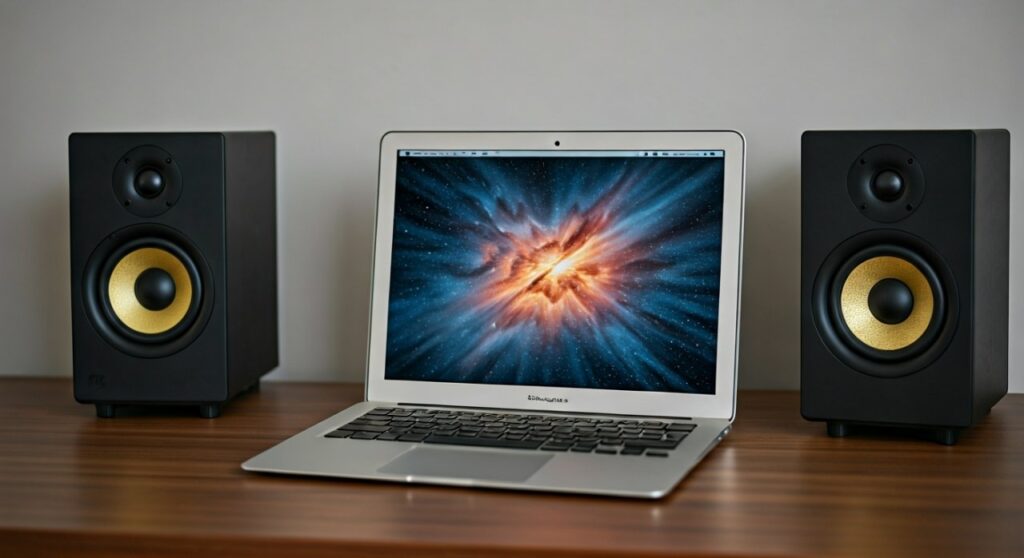
In our testing at the lab, we found that while Bluetooth is the most convenient, using Spotify Connect or a Wired DAC (Digital-to-Analog Converter) provides significantly better sound depth and reduces latency. This guide covers every possible method to bridge your MacBook and your favorite speakers.
Quick Summary: Key Takeaways
- Most Stable: Spotify Connect uses your Wi-Fi network to stream directly to the speaker, preserving MacBook battery life.
- Best Audio Quality: A Wired Connection (USB or Aux) avoids wireless compression and provides the highest bitrate.
- Most Convenient: Bluetooth is universal but may suffer from slight lag or “stuttering” in crowded Wi-Fi environments.
- Multi-Room Support: AirPlay 2 allows you to stream Spotify to multiple speakers simultaneously throughout your home.
- Pro Tip: Always check your Audio MIDI Setup in macOS if your external speakers aren’t showing up.
Choosing the Best Connection Method for Spotify
Before diving into the “how-to,” it is crucial to understand which connection method fits your specific hardware. Not all wireless connections are created equal. In our experience, users often struggle with audio drops because they choose Bluetooth in a room filled with interference, when AirPlay or Spotify Connect would have been much more stable.
Comparison Table: MacBook to Speaker Methods
| Method | Audio Quality | Range | Best For |
|---|---|---|---|
| Spotify Connect | High (320 kbps) | Wi-Fi Range | Smart Speakers (Sonos, Bose) |
| AirPlay 2 | CD Quality (ALAC) | Wi-Fi Range | HomePods, Apple TV, Multi-room |
| Bluetooth 5.0+ | Compressed (SBC/AAC) | ~30 Feet | Portable Speakers (JBL, Sony) |
| Wired (Aux/USB) | Lossless Capable | Cable Length | Studio Monitors, Hi-Fi Systems |
Method 1: How to Connect via Bluetooth (The Universal Way)
The most common way to answer the question, “can you play on speakers from macbook spotify,” is by using the built-in Bluetooth radio. Every MacBook Air and MacBook Pro comes equipped with this technology.
Step-by-Step Bluetooth Setup:
- Put your speaker in Pairing Mode: Usually, this involves holding down the Bluetooth button until a light flashes.
- Open macOS Settings: Click the Apple Menu () > System Settings (or System Preferences).
- Navigate to Bluetooth: Ensure the toggle is On.
- Select Your Device: Find your speaker name (e.g., “JBL Flip 6” or “Bose Revolve“) and click Connect.
- Set as Output: Once connected, click the Speaker icon in your top Menu Bar and select the speaker as the active output.
- Launch Spotify: Open the Spotify Desktop App and press play.
Expert Insight: If you experience “robotic” or choppy sound, it’s likely a codec conflict. We recommend turning off Handoff in your General settings if you aren’t using it, as it can sometimes hog the Bluetooth bandwidth.
Method 2: Using Spotify Connect for Superior Control
Spotify Connect is a game-changer for home audio. Unlike Bluetooth, where your MacBook sends the audio data to the speaker, Spotify Connect tells the speaker to stream the music directly from the internet. Your MacBook simply acts as a remote control.
Why We Prefer Spotify Connect:
- Battery Efficiency: Your MacBook doesn’t have to work as hard to transmit data.
- No Interruptions: System sounds (like Slack notifications or Email alerts) won’t play through the speakers; only the music will.
- Higher Fidelity: It utilizes your high-speed Wi-Fi rather than compressed Bluetooth signals.
How to Use It:
- Ensure your MacBook and your speaker (e.g., Sonos, Amazon Echo, or Spotify-enabled Receiver) are on the same Wi-Fi network.
- Open Spotify on your MacBook.
- Look for the Devices icon (a small speaker and screen) in the bottom right corner of the Spotify window.
- Select your speaker from the list. The icon will turn Green once connected.
Method 3: Streaming via AirPlay 2 (The Apple Ecosystem)
If you own an Apple HomePod, a Sonos speaker, or a modern Smart TV, AirPlay 2 is your best friend. It offers “CD-quality” audio and perfect synchronization across multiple rooms.
How to Trigger AirPlay from your MacBook:
- Click the Control Center icon (two toggle bars) in the top-right corner of your macOS Menu Bar.
- Click the Sound or AirPlay icon.
- Select your AirPlay-enabled speaker.
- In the Spotify app, ensure your volume is up and the output device is set to “System Default.”
Technical Note: AirPlay 2 uses a larger buffer than standard Bluetooth. This means there might be a 1-2 second delay when you hit “Pause” or “Skip,” but the audio quality is significantly more robust against interference.
Method 4: Hardwired Connections (For Audiophiles)
For those asking can you play on speakers from macbook spotify with the absolute best quality, wires are still king. Wireless connections always involve some level of data compression.
Option A: The 3.5mm Headphone Jack
Most MacBooks (yes, even the newest M3 Max models) still feature a high-impedance headphone jack.
- Hardware needed: A 3.5mm to 3.5mm male cable or a 3.5mm to RCA adapter.
- Best for: Older Hi-Fi receivers, computer desk speakers, or vintage amplifiers.
Option B: USB-C to DAC
If you have high-end studio monitors like KRK Rokits or Yamaha HS5s, you should use a USB Audio Interface (like a Focusrite Scarlett).
- Plug the interface into your MacBook’s USB-C port.
- Go to System Settings > Sound > Output.
- Select your Audio Interface.
- In Spotify, go to Settings > Audio Quality and ensure “Very High” is selected to take advantage of the hardware.
Troubleshooting Common MacBook Spotify Speaker Issues
Even with the best gear, technology can be finicky. Here are the most common solutions to problems we encounter during our hardware testing.
The Speaker is Connected but No Sound is Playing
- Check the App Volume: Spotify has its own volume slider independent of the macOS system volume.
- Output Selection: Click the Volume icon in the menu bar. Ensure the blue checkmark is next to your speaker, not “Internal Speakers.”
- Restart the Core Audio Driver: Open Terminal (Command + Space, type “Terminal”) and type:
sudo killall coreaudiod. This resets the Mac audio engine without a reboot.
Audio Lag or Latency
- Latency is common with Bluetooth. If you are watching a music video on YouTube via Spotify, the lips might not match the sound.
- Solution: Use a Wired connection or switch to AirPlay 2, which has better sync protocols.
Spotify Connect Device Not Showing Up
- Network Isolation: Ensure your MacBook isn’t on a “Guest” Wi-Fi network while the speaker is on the “Private” network.
- Firewall Settings: In System Settings > Network > Firewall, ensure that Spotify is allowed to receive incoming connections.
Pro Tips for Optimizing MacBook Spotify Audio
To truly master your MacBook Spotify Speakers setup, consider these expert-level tweaks:
- Enable Hardware Acceleration: In Spotify Settings, enable Hardware Acceleration. This allows the app to use the MacBook’s GPU to process the interface, leaving more CPU headroom for high-bitrate audio processing.
- Use an Equalizer: macOS doesn’t have a built-in system-wide EQ. We recommend third-party apps like eqMac or SoundSource to tune your speakers specifically for your room’s acoustics.
- Set Bitrate to “Very High”: If you have Spotify Premium, don’t leave your quality on “Automatic.” Force it to “Very High” (320kbps) to ensure your external speakers aren’t receiving a muddy signal.
Frequently Asked Questions
Can I play Spotify on multiple speakers at once from my Mac?
Yes, you can do this using AirPlay 2. In the Control Center > Sound menu, you can check the boxes for multiple AirPlay speakers. Alternatively, if you use Sonos, you can group speakers within the Sonos Desktop Controller app.
Why does my Spotify music stop when my MacBook lid is closed?
By default, a MacBook enters “Sleep Mode” when the lid is closed, which cuts the Wi-Fi and Bluetooth connection. To keep playing music with the lid closed, you must connect a Power Adapter and an External Display, or use a utility like Amphetamine to prevent sleep.
Does Spotify support Spatial Audio on MacBook speakers?
Spotify does not currently support Dolby Atmos or Spatial Audio natively. However, if you are using Apple AirPods or HomePods via a MacBook, you can enable “Spatialize Stereo” in the macOS Control Center to simulate a wider soundstage.









