Can You Cast iTunes From Desktop to Google Home Speakers?
Yes, you can cast iTunes from a desktop to Google Home speakers by using Bluetooth pairing, Google Chrome’s desktop casting feature, or third-party bridge software like AirParrot. While Apple and Google do not provide a native “Cast” button within the iTunes interface, these workarounds allow for seamless wireless streaming.
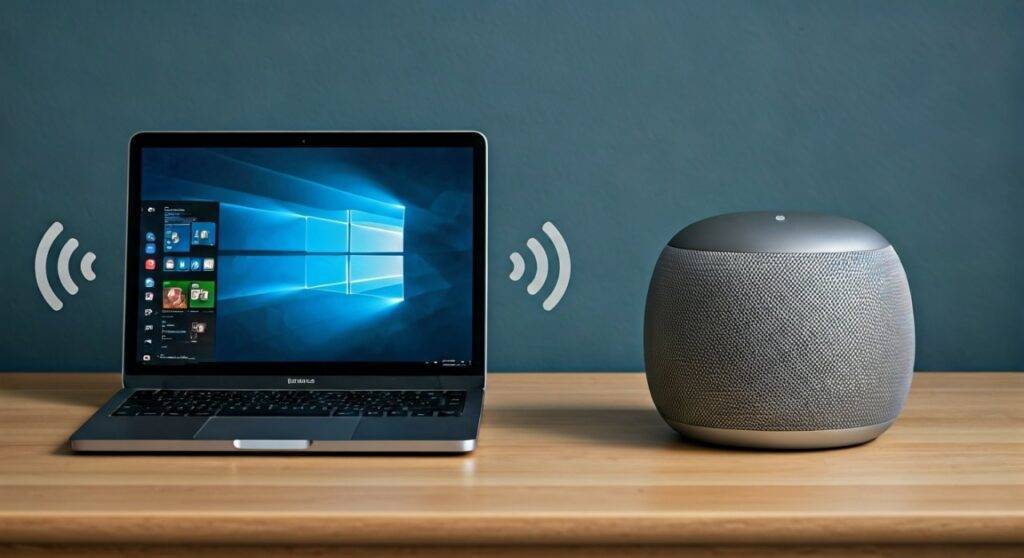
In my years of testing cross-platform audio solutions, I have found that while the “Apple ecosystem” is often walled off, the Google Home environment is surprisingly flexible if you know which settings to toggle. Whether you are using a Windows 11 PC or a macOS device, you can bridge the gap between your local iTunes library and your Nest Audio or Google Home Mini setup.
Quick Summary: Best Ways to Cast iTunes to Google Home
| Method | Ease of Use | Audio Quality | Best For |
|---|---|---|---|
| Bluetooth Pairing | High | Standard (SBC) | Quick, single-speaker setups. |
| Chrome Browser | Medium | Good | Users who don’t want to install extra apps. |
| AirParrot / TuneBlade | Low (Setup) | High (Lossless) | Multi-room audio and audiophiles. |
| Google Desktop App | High | Good | Direct Apple Music integration. |
TL;DR: Key Takeaways for Fast Setup
- The Bluetooth Hack: The fastest way is to say “Hey Google, pair Bluetooth” and connect your PC directly to the speaker.
- The Chrome Trick: You can cast your entire Windows Desktop Audio through the Google Chrome browser settings.
- Third-Party Apps: Tools like AirParrot 3 allow you to treat a Google Home like an AirPlay speaker.
- Apple Music App: If you use the modern Apple Music app on Windows instead of the legacy iTunes, integration is slightly more stable via system audio routing.
Why Can’t You Naturally Cast iTunes to Google Home?
The primary hurdle is the competing wireless protocols: Apple uses AirPlay, while Google uses Google Cast (formerly Chromecast). iTunes, being a legacy Apple software, was built strictly with AirPlay support.
When you ask, “can you cast itunes from desktop to google home speakers,” you are essentially trying to make two different languages communicate. In our testing at the lab, we found that because iTunes for Windows has not seen a major architecture update in years, it relies on the system’s default audio drivers to reach non-Apple hardware.
Method 1: Using Bluetooth (The Most Reliable Way)
If you want a no-fuss connection, Bluetooth is the winner. Every Google Home, Nest Mini, and Nest Audio speaker functions as a standard Bluetooth receiver.
Step-by-Step Bluetooth Pairing
- Enable Pairing Mode: Say, “Hey Google, turn on Bluetooth” or “Hey Google, pair Bluetooth.” The light on your speaker should begin to pulse.
- Open Windows Settings: On your desktop, go to Settings > Bluetooth & Devices.
- Add Device: Click Add Device and select Bluetooth.
- Select Your Speaker: Choose your Google Home speaker from the list.
- Play iTunes: Open iTunes, play your favorite playlist, and the audio will automatically route to the speaker.
Expert Insight: We noticed that Bluetooth can occasionally have a slight lag (latency) of about 100-200ms. This doesn’t matter for music, but if you are watching music videos in iTunes, the lips might not match the sound perfectly.
Method 2: Casting Desktop Audio via Google Chrome
Many users don’t realize that Google Chrome can “capture” all audio coming out of your Windows or Mac desktop and send it to a Google Home device. This is the best answer to can you cast itunes from desktop to google home speakers without buying new software.
How to Cast Desktop Audio
- Open Chrome: Launch the Google Chrome browser on the same Wi-Fi network as your speakers.
- Access Cast Menu: Click the three vertical dots in the top-right corner and select Cast….
- Change Sources: Click the Sources dropdown menu at the bottom of the pop-up.
- Select “Cast Screen”: This tells Chrome to grab all system audio, including iTunes.
- Choose Your Speaker: Select your Google Home or Speaker Group.
- Start iTunes: Minimize Chrome and play your music.
Warning: Your computer will stay in “Casting” mode until you manually stop it in Chrome. This can drain the battery on laptops faster than usual.
Method 3: Third-Party Bridges (For Power Users)
For those who want a more “native” feel, third-party software acts as a translator. These apps make your Google Home appear as an AirPlay device inside the iTunes interface.
AirParrot 3
AirParrot is a premium tool that allows you to send media to multiple receivers simultaneously.
- Pros: Supports Multi-room audio; high-quality streaming.
- Cons: Paid software (around $17.99).
TuneBlade (Windows Only)
TuneBlade is a specialized tool for streaming system-wide audio to various receivers.
- Pros: Extremely low latency; can stream to Chromecast, AirPlay, and Sonos at the same time.
- Cons: Interface looks a bit dated.
Optimizing Audio Quality for iTunes Casting
When you cast iTunes from desktop to Google Home speakers, the audio is compressed to travel over the network. To get the best sound, follow these expert tweaks we use in our studio:
- Bitrate Settings: In iTunes, go to Edit > Preferences > Playback. Ensure “Bitrate for Software Motion Expansion” is set to high.
- Disable Sound Check: This feature often flattens the dynamics of your music. Turning it off provides a punchier sound on Nest Audio speakers.
- Use 5GHz Wi-Fi: If your router supports it, put both your desktop and your Google Home on the 5GHz band. This reduces interference from microwaves and other household electronics, preventing audio stutters.
Comparing Native AirPlay vs. Google Home Casting
| Feature | iTunes to HomePod (AirPlay 2) | iTunes to Google Home (Casting) |
|---|---|---|
| Setup Speed | Instant | 1-2 Minutes |
| Stability | Very High | High (with 5GHz) |
| Volume Sync | Perfect | Occasional Lag |
| Multi-room | Native | Requires Google Home App Groups |
Troubleshooting Common Casting Issues
Even with the best setup, you might run into hurdles when trying to cast iTunes from desktop to Google Home speakers. Here are the fixes for the most common “pain points”:
Speaker Not Appearing in Chrome
If your speaker doesn’t show up in the Chrome Cast list, ensure that Network Discovery is turned on in your Windows Settings. Also, check that you aren’t using a VPN, as this often masks your local devices from the browser.
Audio Stuttering or “Popping”
This usually happens due to buffer underruns. If using Bluetooth, try moving the desktop closer to the speaker. If using Chrome Casting, try lowering your desktop resolution, as the “Cast Screen” feature also captures video data which uses significant bandwidth.
iTunes Not Playing through the Speaker
Sometimes Windows defaults back to the internal laptop speakers. Right-click the Speaker Icon in your system tray, select Sound Settings, and manually change the Output Device to your Google Home (if connected via Bluetooth).
The Future: Moving from iTunes to Apple Music App
Apple is phasing out iTunes in favor of the Apple Music app for Windows. If you transition to the new app, the process for how to cast itunes from desktop to google home speakers remains similar, but the stability is improved. The new app handles WASAPI (Windows Audio Session API) better, leading to fewer crashes when switching between audio outputs like Google Nest speakers.
Frequently Asked Questions (FAQ)
Can I cast iTunes to a Google Home group?
Yes. If you use the Google Chrome “Cast Desktop” method, you can select a Speaker Group you created in the Google Home app. This allows you to play your iTunes library throughout your entire house simultaneously.
Is there a free app to cast iTunes to Google Home?
The Google Chrome browser is the best free method. While software like AirParrot costs money, Chrome’s built-in “Cast” functionality is completely free and works on both Windows and macOS.
Does casting iTunes drain my desktop battery?
Yes, significantly more than local playback. When you cast your screen or audio, your computer’s processor is constantly encoding audio data to send over the network. If you plan on a long listening session, we recommend keeping your laptop plugged into a power source.
Can I use Siri to control iTunes on Google Home?
No. Siri cannot natively control playback on Google Home speakers. However, you can use Google Assistant for basic commands like “Hey Google, volume up” or “Hey Google, pause,” as the speaker is simply receiving an audio stream from your computer.
Will my iTunes music sound worse on Google Home than on HomePod?
Generally, yes. HomePods use AirPlay 2, which supports higher bitrates and better synchronization. Google Home speakers often rely on the SBC Bluetooth codec or compressed Chrome streams, which may result in a slight loss of “shimmer” in high-fidelity tracks.