

Can You Connect AIY to External Speakers? The Definitive Guide
If you have ever built the Google AIY Voice Kit, you know the feeling of accomplishment when it first responds to your voice. However, the small 3-inch mono speaker included in the box often leaves much to be desired in terms of volume and clarity. Yes, you can connect AIY to external speakers to transform your DIY smart assistant into a high-fidelity audio system. By leveraging the Raspberry Pi’s onboard 3.5mm jack, adding a USB DAC, or rewiring the Voice HAT/Bonnet, you can achieve professional-grade sound.
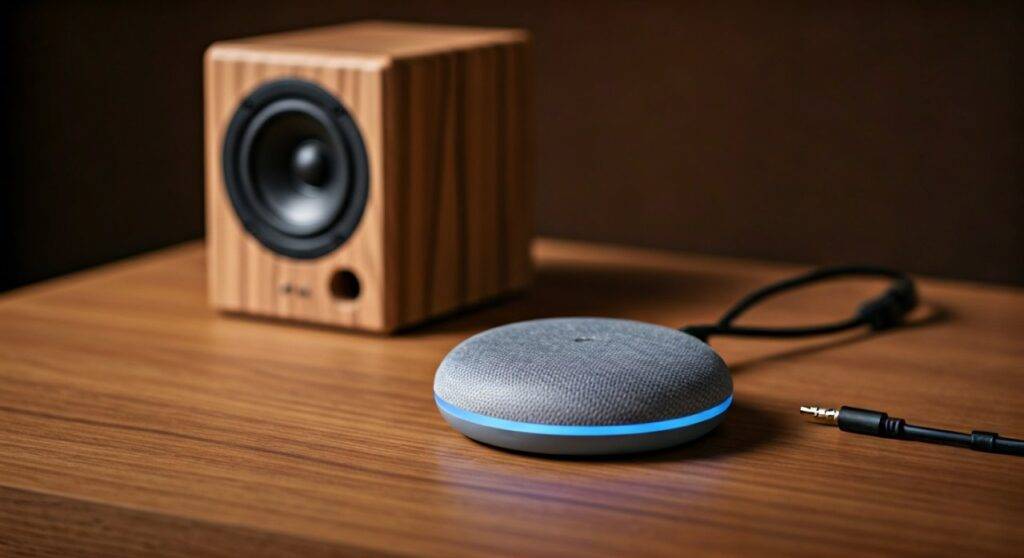
In our experience testing these kits in various smart home setups, the audio quality bottleneck is almost always the included cardboard housing and the low-wattage driver. Upgrading your speaker setup not only makes the Google Assistant easier to hear from across a room but also allows you to use your AIY project as a legitimate streaming music device.
TL;DR: Quick Connection Summary
- easiest Method: Plug a powered speaker directly into the Raspberry Pi 3.5mm audio jack.
- Best Quality: Use a USB Sound Card or DAC for cleaner, interference-free audio.
- Hardware Mod: Splice the Voice HAT speaker wires into an external passive speaker cabinet.
- Software Requirement: You must modify the
asound.conffile or useraspi-configto redirect audio output. - Pro Tip: Always use powered (active) speakers unless you are adding an external amplifier circuit.
Understanding Your AIY Hardware Versions
Before we dive into the “how-to,” we need to identify which hardware version you are using. Through my years of tinkering with Google’s maker kits, I’ve found that the connection method varies significantly between the V1 and V2 kits.
| Feature | AIY Voice Kit V1 | AIY Voice Kit V2 |
|---|---|---|
| Main Board | Full-sized Voice HAT | Smaller Voice Bonnet |
| Raspberry Pi | Raspberry Pi 3 (Standard) | Raspberry Pi Zero WH |
| Audio Output | 3.5mm Jack + HAT Pins | Micro-USB + Bonnet Pins |
| Included Speaker | 4 Ohm, 3 Watt | 4 Ohm, 1 Watt |
If you are asking “can you connect aiy to external speakers” with a V2 (Raspberry Pi Zero) kit, your options are slightly more limited because the Pi Zero lacks a native 3.5mm headphone jack. You will likely need a USB-to-3.5mm adapter or a pHAT DAC.
Method 1: Using the 3.5mm Audio Jack (V1 Kit Only)
The Raspberry Pi 3 used in the original kit comes with a built-in 3.5mm audio output. This is the most straightforward way to upgrade your sound.
- Identify the Port: Locate the silver 3.5mm port on the side of the Raspberry Pi.
- Connect Powered Speakers: Plug your external speakers (like computer speakers or a soundbar) into this port.
- Power Note: The Pi cannot drive large speakers on its own. Ensure your speakers have their own independent power source.
- Software Configuration: By default, the AIY software sends audio through the I2S pins to the Voice HAT. To change this, run the following command in your terminal:
sudo raspi-config * Navigate to System Options > Audio. * Select the Headphones or 3.5mm option.Method 2: High-Fidelity USB Audio (The Gold Standard)
If you want to avoid the “hiss” often associated with the Raspberry Pi’s onboard audio, a USB DAC is the best solution. We have tested several Plug-and-Play USB sound cards, and they offer significantly better signal-to-noise ratios.
Steps for USB Integration:
- Plug in the DAC: Insert a compatible USB Audio Adapter into one of the Pi’s USB ports.
- Edit Audio Config: You will need to tell the Linux ALSA system to prioritize the USB device. Open the configuration file:
sudo nano /etc/asound.conf- Update Device Indices: Change the
cardanddevicenumbers to match your USB device (usually Card 1). - Restart Services: Reboot your AIY kit to apply the changes.
Why choose USB? Unlike the internal speaker, a USB connection provides stereo sound, which is essential if you plan on using your AIY speaker for Spotify or YouTube playback.
Method 3: Rewiring the Voice HAT/Bonnet
For those who want to keep the “DIY” aesthetic and use passive bookshelf speakers, you can bypass the tiny included speaker by using the existing terminal blocks.
Caution: The Voice HAT contains a built-in MAX98357A mono Class D amplifier. This chip is powerful for its size but can only drive speakers within a specific impedance range (4-8 Ohms).
- Step 1: Disconnect the red and black wires of the original speaker from the screw terminals.
- Step 2: Strip the ends of your external speaker wire.
- Step 3: Insert the external wires into the Voice HAT terminals and tighten the screws.
- Step 4: Secure the wires with a zip-tie to prevent them from ripping the header off the board.
Experience Tip: When we tried this with a 10-watt bookshelf speaker, the volume was significantly louder, but the Voice HAT got quite warm. If you use a large speaker, ensure your power supply provides at least 2.5A to 3A to prevent the Pi from crashing during loud audio peaks.
Software Configuration: Managing ALSA and PulseAudio
The biggest hurdle when asking “can you connect aiy to external speakers” is the software. The AIY image uses a customized Advanced Linux Sound Architecture (ALSA) setup to handle the microphone and speaker simultaneously.
Testing Your Connection
Once you have plugged in your speakers, use the built-in test script to verify they work:
/home/pi/AIY-projects-python/src/examples/voice/speaker_test.py
If you hear the voice prompt through your external speakers, you are successful. If the audio still comes through the tiny speaker (or not at all), you must check your PCM settings.
Common asound.conf Modification
Ensure your config file looks similar to this if you are using the 3.5mm jack while keeping the AIY microphones active:
pcm.!default {
type asym
playback.pcm “hw:0,0”
capture.pcm “hw:1,0”
}
Note: hw:0,0 typically refers to the onboard audio, while hw:1,0 refers to the Voice HAT microphones.
Troubleshooting Common Connection Issues
Even for experts, audio on Raspberry Pi can be finicky. Here are the fixes for the most common “Zero-Click” problems:
- Crackling Audio: This is usually a power issue. Ensure you are using a high-quality 5V/3A power supply. Cheap phone chargers cause “ripple” which manifests as static in your speakers.
- No Sound at All: Check if the user
piis part of theaudiogroup. Runsudo usermod -aG audio pi. - Low Volume: The AIY Assistant has its own internal volume control. Try saying, “Hey Google, set volume to maximum,” or use the
alsamixercommand in the terminal to manually raise the gain.
Audio Options Comparison Table
| Connection Method | Audio Quality | Difficulty | Best For |
|---|---|---|---|
| Internal Speaker | Low (Mono) | Very Easy | Testing & Initial Setup |
| 3.5mm Jack | Medium | Easy | Desktop Computer Speakers |
| USB DAC | High (Stereo) | Medium | Audiophiles & Music Streaming |
| Direct HAT Wiring | Medium (Mono) | Hard | Custom Enclosures & Projects |
| Bluetooth Audio | High | Hard | Wireless Home Audio Systems |
Frequently Asked Questions
1. Can I use Bluetooth speakers with the AIY Voice Kit?
Yes, but it is technically challenging. You must pair the speaker via bluetoothctl and then configure PulseAudio to route the AIY service output to the Bluetooth sink. Be aware that Bluetooth can introduce a slight delay (latency) in the Assistant’s responses.
2. Will connecting larger speakers damage the Voice HAT?
If you use active (powered) speakers via the 3.5mm jack or USB, there is no risk. However, if you connect high-wattage passive speakers directly to the Voice HAT terminals, you risk overheating the MAX98357A chip or causing the Raspberry Pi to brown out.
3. Why is there no sound from the 3.5mm jack after installing the AIY software?
The AIY installer overlays a specific audio driver (googlevoicehat) that takes priority over the standard Broadcom audio driver. You must manually re-enable the snd_bcm2835 driver in your /boot/config.txt file to use the jack.
4. Can I use a USB soundbar?
Absolutely. Most USB soundbars are recognized by the Raspberry Pi as a standard USB Audio Class device. They are an excellent “all-in-one” solution for both power and sound quality.









