

Can You Connect a Computer HDMI and Bluetooth for Speakers?
Yes, you can absolutely connect a computer HDMI and Bluetooth for speakers simultaneously. While HDMI cables typically carry both video and audio signals to a monitor or TV, your computer’s operating system allows you to override the default audio output and route it to a Bluetooth speaker or headphones instead.
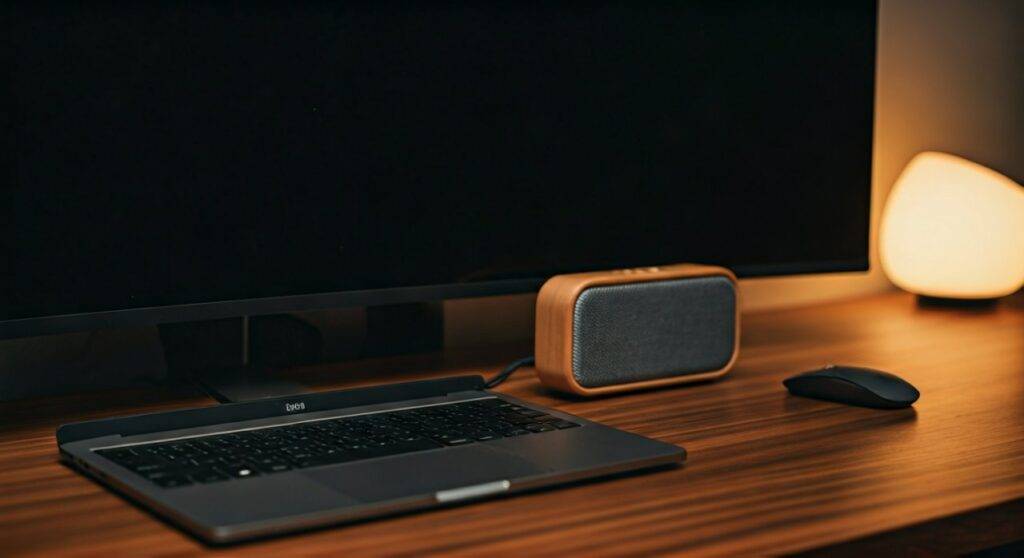
Whether you are looking to bypass tinny monitor speakers or create a wireless surround sound experience while keeping your high-definition video on the big screen, this setup is both possible and relatively simple to configure. In my years of testing home theater and workspace setups, I’ve found that the primary challenge isn’t making the connection—it’s managing the audio latency (lag) that sometimes occurs when mixing wired video with wireless audio.
TL;DR: Quick Connection Steps
- Plug in your HDMI: Connect your PC or Laptop to your monitor/TV via the HDMI port.
- Pair Bluetooth: Put your speakers in pairing mode and connect via Bluetooth Settings.
- Switch Output: Click the Speaker Icon in your Taskbar (Windows) or Menu Bar (Mac).
- Select Device: Choose your Bluetooth device as the primary output, leaving the HDMI for video only.
- Pro Tip: If the audio is out of sync, use a player like VLC to adjust the audio delay.
Understanding the Dual-Signal Setup (HDMI + Bluetooth)
When you connect a computer HDMI and Bluetooth for speakers, you are essentially telling your computer to split its data stream. The Graphics Processing Unit (GPU) sends video data through the HDMI cable, while the Bluetooth chip sends audio packets through the air to your speakers.
Why Route Audio to Bluetooth Instead of HDMI?
Most users opt for this setup for three specific reasons:
- Superior Sound Quality: Most monitors have 2W or 5W speakers that lack bass. A Bose or JBL Bluetooth speaker offers a much richer soundstage.
- Cable Management: You can place your speakers anywhere in the room without running long auxiliary cables back to the PC.
- Private Listening: You can use Bluetooth headphones for audio while keeping the game or movie on the large HDMI-connected TV.
Comparison: HDMI Audio vs. Bluetooth Audio
| Feature | HDMI Audio | Bluetooth Audio (5.0+) |
|---|---|---|
| Connection Type | Wired (Stable) | Wireless (Flexible) |
| Audio Quality | Lossless (Up to 7.1) | Compressed (SBC/AAC/AptX) |
| Latency | Near Zero | 40ms – 200ms |
| Best For | Gaming & Professional Editing | Music & Casual Movie Watching |
| Range | Limited by cable length | Up to 30-60 feet |
How to Connect a Computer HDMI and Bluetooth for Speakers (Windows 10/11)
Windows makes it quite easy to manage multiple output devices. Follow these steps to ensure your HDMI handles the “eyes” and your Bluetooth handles the “ears.”
Step 1: Establish the Hardware Connection
- Plug your HDMI cable into your laptop or desktop’s HDMI port.
- Plug the other end into your Monitor or TV. Your screen might flicker as it detects the new display.
- On your Bluetooth speaker, press the Pairing button until the LED flashes.
Step 2: Pair the Bluetooth Speaker in Windows
- Press the Windows Key + I to open Settings.
- Navigate to Bluetooth & devices.
- Click Add device > Bluetooth.
- Select your speaker from the list (e.g., Sony WH-1000XM5 or Sonos Roam).
Step 3: Configure the Sound Output
This is the most critical step. Sometimes Windows defaults to HDMI audio automatically. To change it:
- Click the Volume/Sound icon in the bottom-right corner of your taskbar.
- Click the Manage Audio Devices arrow (on Windows 11) or click the device name above the volume slider.
- Select your Bluetooth Speaker from the list.
- Your video will continue to play via HDMI, but the sound will instantly switch to the wireless speakers.
Setting Up HDMI and Bluetooth on macOS
Mac users often encounter a “handoff” where the Mac assumes you want to use the TV speakers as soon as you plug in the HDMI. Here is how we override that:
Step 1: Connect Your Devices
- Use a USB-C to HDMI adapter or a direct HDMI cable to connect your Mac to the display.
- Go to System Settings > Bluetooth and ensure your speaker is connected.
Step 2: Redirect Audio via Sound Settings
- Open System Settings.
- Click on Sound in the left-hand sidebar.
- Go to the Output tab.
- You will see a list of devices. Your TV/Monitor will likely be highlighted.
- Click on your Bluetooth speaker name to redirect the audio stream.
Solving the “Lip-Sync” Delay Issue
The most common “pain point” when you connect a computer HDMI and Bluetooth for speakers is latency. Because Bluetooth signals are compressed and transmitted wirelessly, the sound may arrive a few milliseconds after the video.
Professional Solutions for Audio Lag:
- Upgrade to Bluetooth 5.0 or Higher: Ensure both your computer and your speakers support Bluetooth 5.0, 5.2, or 5.3. These versions significantly reduce latency compared to older 4.0 standards.
- Use Low Latency Codecs: If you are a gamer, look for speakers that support Qualcomm aptX Low Latency. This reduces the delay to under 40ms, which is virtually unnoticeable.
- VLC Media Player Trick: If you are watching a movie and the audio is out of sync, press the ‘K’ key (to speed up audio) or the ‘J’ key (to slow it down) in VLC.
- Disable “Audio Enhancements”: In Windows Sound Settings, go to your Bluetooth device properties and turn off Enhancements. This reduces the processing time the computer takes before sending the signal.
Advanced Tip: Using “Stereo Mix” to Play Audio on Both Simultaneously
What if you want the sound to come out of the HDMI-connected TV and the Bluetooth speakers at the same time? This is perfect for parties or multi-room setups.
- Right-click the Sound icon and select Sound Settings > More sound settings.
- Go to the Recording tab.
- Right-click and select Show Disabled Devices.
- Right-click Stereo Mix and select Enable.
- Right-click Stereo Mix again and go to Properties.
- Under the Listen tab, check the box for “Listen to this device.”
- In the dropdown menu “Playback through this device,” select your Bluetooth Speaker.
- Set your HDMI output as the default playback device in the main settings.
Now, Windows will “record” the audio going to the HDMI and instantly “repeat” it to your Bluetooth speaker.
Frequently Asked Questions (FAQ)
Can I connect multiple Bluetooth speakers while using HDMI?
Yes, but it depends on your hardware. Windows 11 and modern macOS versions support multiple Bluetooth connections, but they often struggle to sync them perfectly. For a true multi-speaker setup, it is better to use a dedicated brand ecosystem like Sonos or Bose that handles the syncing through their own software.
Why does my Bluetooth disconnect when I plug in the HDMI cable?
This is usually caused by Radio Frequency (RF) Interference. HDMI cables, especially poorly shielded ones, can emit electromagnetic interference that disrupts the 2.4GHz frequency used by Bluetooth. Try using a high-quality, shielded HDMI 2.1 cable and move your Bluetooth receiver (if using a USB dongle) away from the HDMI port.
Will this setup work for gaming?
While you can connect a computer HDMI and Bluetooth for speakers for gaming, I generally don’t recommend it for competitive shooters (like CS:GO or Valorant). The slight delay in audio can mean hearing footsteps a fraction of a second too late. For RPGs or casual games, it works perfectly fine.









