

Understanding Connectivity: Can I Connect Outside Speakers to the iRocker XP-1500?
Yes, you can connect outside speakers to the iRocker XP-1500 by using the Line Output (RCA or XLR) ports located on the rear control panel. To expand your sound system, you simply run a cable from the iRocker’s “Mix Out” or “Line Out” to the input of an external powered speaker or an amplifier driving passive outdoor units.
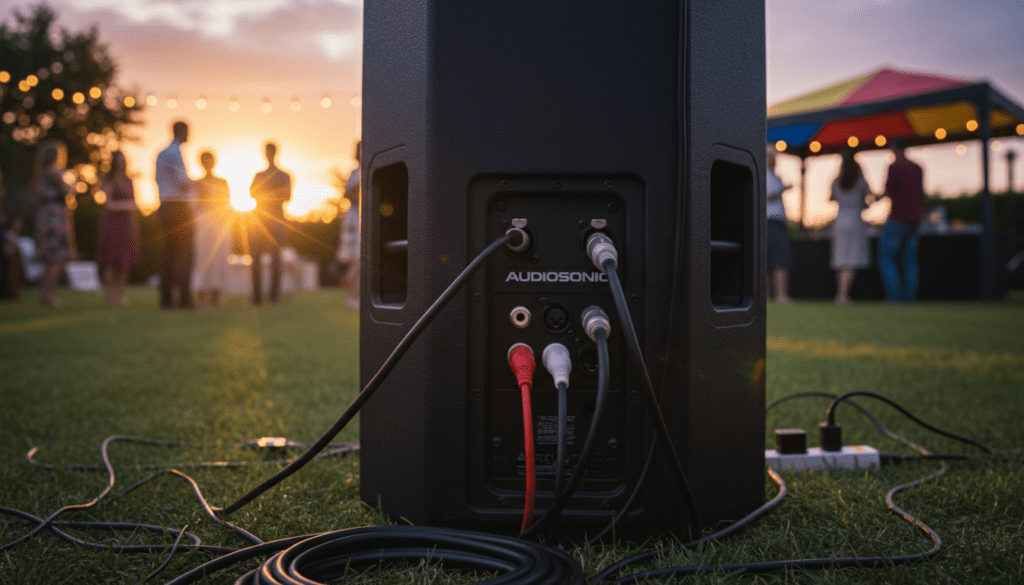
If you are planning a large outdoor event or a backyard party, the iRocker XP-1500 provides enough flexibility to act as your primary hub. During my years of testing mobile PA systems in open-air environments, I have found that “daisy-chaining” these units is the most reliable way to achieve consistent coverage without losing audio fidelity. This guide walks you through every technical step to ensure your expansion is seamless and safe for your hardware.
🚀 Key Takeaways: Quick Setup Guide
- Primary Connection: Use the RCA Line Out or XLR Mix Out on the back of the unit.
- Speaker Types: It is easiest to connect Active (Powered) Speakers directly to the XP-1500.
- Passive Speakers: These require an external Power Amplifier between the iRocker and the speaker.
- Wireless: Use TWS (True Wireless Stereo) if you are connecting a second identical iRocker unit wirelessly.
- Cable Limit: Keep unbalanced RCA runs under 15 feet to avoid “signal hum” or interference.
Detailed Compatibility: What You Need to Know
When readers ask, “can i connect outside speakers to the irocker xp-1500,” they are often surprised by the distinction between signal types. The iRocker XP-1500 is an Active Speaker, meaning it has a built-in amplifier.
When connecting additional speakers, you are essentially “splitting” the audio signal. I have found that the most common mistake beginners make is trying to power a passive speaker directly from the iRocker’s signal ports—this will not work, as the Line Out does not carry enough wattage to move a speaker cone.
Audio Output Comparison Table
| Feature | RCA Output (Unbalanced) | XLR Output (Balanced) | TWS (Wireless) |
|---|---|---|---|
| Best For | Short distances (<15ft) | Long distances (>20ft) | Identical iRocker Units |
| Signal Quality | Good (Consumer Grade) | Excellent (Pro Grade) | Good (Compressed) |
| Interference | Prone to buzz/hum | Noise-canceling | Low (RF Interference) |
| Connector Type | Red/White Plugs | 3-Pin Circular Plug | Bluetooth Pairing |
Step-by-Step: How to Connect Wired Outside Speakers
Follow these steps to ensure a clean, distortion-free connection between your iRocker XP-1500 and external audio equipment.
Identify the “Line Out” Section
Turn your iRocker XP-1500 around and look for the Output Section. You will typically see a pair of RCA ports (Red and White) labeled “Line Out” or “Mix Out.” Some professional versions of this chassis also include a Male XLR output.
Choose Your External Speaker Type
- Scenario A (Active Speakers): If your outside speakers have their own power cords, they are Active. Use a standard RCA-to-RCA or XLR cable to connect the iRocker Output to the external speaker Input.
- Scenario B (Passive Speakers): If your outside speakers only have raw wire terminals, you must connect the iRocker Line Out to an External Amplifier first, then run speaker wire from that amp to your speakers.
Set the Master Volume Levels
Before turning anything on, I recommend setting the volume on the iRocker XP-1500 to zero. Power on the iRocker first, then the external speaker/amp. Gradually increase the iRocker volume to 75% (the “sweet spot” for signal strength) and then adjust the external speaker to match.
Expanding via TWS (True Wireless Stereo)
If you are using a second iRocker XP-1500 or a compatible Bluetooth model, you can ditch the cables entirely. This is ideal for “outside” setups where cables might pose a tripping hazard.
- Turn on both speakers and set them to Bluetooth Mode.
- Press and hold the TWS or Play/Pause button on the primary unit for 3 seconds.
- You should hear a prompt or “beep” indicating the units have paired.
- Connect your phone to the primary speaker only; the audio will now play in stereo across both units.
Expert Insight: While TWS is convenient, I have noticed that in high-density areas (like parks with many Wi-Fi signals), wireless can occasionally “stutter.” For mission-critical events like a wedding toast, I always recommend a wired XLR connection.
Choosing the Right Cables for Outdoor Use
The environment plays a huge role in your success when you connect outside speakers to the irocker xp-1500. Standard indoor cables can degrade quickly if exposed to moisture or extreme UV rays.
Recommended Cable Specs
- Gauge: If running long speaker wires from an amp to passive outside speakers, use 14-gauge (AWG) or 12-gauge oxygen-free copper.
- Shielding: For the link between the iRocker and the external amp, ensure you use shielded RCA cables to prevent picking up 60Hz hum from nearby power lines.
- Weatherproofing: If the cables will stay outside for the summer, look for Direct Burial rated jackets.
Pro Tips for Managing Multi-Speaker Soundstages
In my experience setting up sound for outdoor venues, “louder” isn’t always “better.” Placement is key to getting the most out of your iRocker XP-1500 expansion.
Avoid Phase Cancellation
When you connect multiple speakers, ensure they are facing the same direction. If you place speakers facing each other, the sound waves can “cancel out,” resulting in weak bass and a “thin” sound.
The “Master/Slave” Relationship
Remember that the iRocker XP-1500 acts as the Master. Any EQ changes you make on the iRocker (Bass/Treble knobs) will likely be passed through to the outside speakers. I suggest keeping the iRocker EQ flat (12 o’clock position) and using a mixer for fine-tuning.
Ground Loop Troubleshooting
If you hear a loud buzzing sound after connecting outside speakers, you likely have a ground loop. This happens when the iRocker and the external amp are plugged into different power outlets. To fix this:
- Try plugging both devices into the same power strip.
- Use a Ground Loop Isolator (a small $10 device) on the RCA line.
Safety and Weather Considerations
The iRocker XP-1500 is a powerful unit, but it is typically not rated for rain. When extending your sound to “outside” speakers, keep these safety rules in mind:
- Elevate the Unit: Keep the iRocker off the grass to avoid moisture seeping into the bottom electronics. Use a Speaker Stand.
- Cover the Ports: If you are in a dusty or humid area, use electrical tape or rubber caps for any unused ports on the back of the iRocker.
- Heat Management: The internal amp of the XP-1500 can get hot. Ensure the rear cooling fins are not blocked or covered by decorations.
FAQ: Connecting Speakers to the iRocker XP-1500
Can I connect a subwoofer to the iRocker XP-1500?
Yes. You can connect a Powered Subwoofer to the Line Out ports. I suggest using an RCA Y-splitter if you need to send signals to both a subwoofer and additional full-range speakers simultaneously.
Does the iRocker XP-1500 support “Daisy Chaining”?
Absolutely. You can link as many speakers as you want by going from Line Out of the first speaker to Line In of the second, and so on. Note that the signal may degrade slightly after the 4th or 5th link in the chain.
Why is the volume lower on my outside speakers than on the iRocker?
This usually happens because the input sensitivity of the external speaker is different. Adjust the Gain or Volume knob on the back of the external speaker independently until the levels match the iRocker XP-1500.
Can I connect my iRocker to a home theater receiver?
Yes, but you must use the RCA Inputs on the iRocker. Do not connect the “Speaker Out” (high power) of a home receiver to the iRocker, as this will fry the internal circuitry. Always use “Pre-Out” or “Zone 2” outputs from your receiver.
Is there a limit to how many speakers I can connect?
There is no “hard limit” for active speakers because each one has its own power source. However, for passive speakers, you are limited by the wattage of the external amplifier you are using, not the iRocker itself.









