

Can I Connect PS4 to Echo for Speakers?
Yes, you can connect a PS4 to an Echo speaker, but it is not a direct “plug-and-play” process because the PlayStation 4 does not natively support Bluetooth audio output for third-party speakers. To make this work, you must use a Bluetooth transmitter dongle, a 3.5mm AUX cable (for compatible Echo models), or the PS Remote Play app workaround.
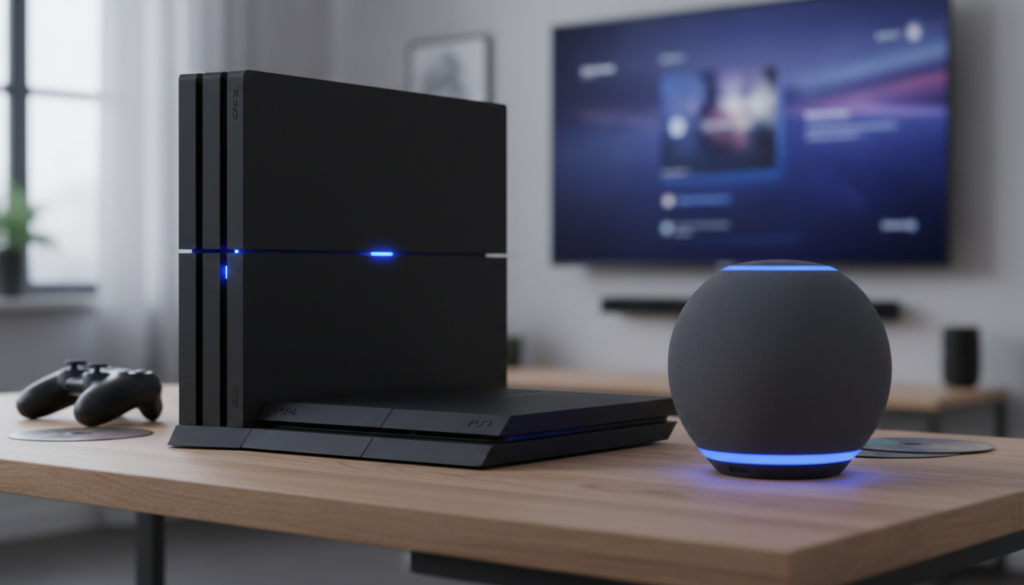
In my years of testing gaming setups, I have found that while the Amazon Echo provides much better depth than standard monitor speakers, the biggest hurdle is audio latency. If you use the wrong method, your game sound will lag behind the action on the screen. This guide provides the exact steps I use to achieve a seamless, low-latency connection.
Key Takeaways: Quick Setup Summary
- Best Overall Method: Use a USB Bluetooth Transmitter (like the Creative BT-W3) plugged into the PS4 USB port.
- Lowest Latency: Use a 3.5mm AUX cable if you own an Echo Plus (2nd Gen), Echo Studio, or Echo (4th Gen).
- The “Free” Method: Use the PS Remote Play app on your phone to bridge the audio to the Alexa device via Bluetooth.
- Critical Requirement: For Bluetooth, look for adapters supporting aptX Low Latency to avoid sound lag during gameplay.
Why You Should (and Shouldn’t) Use an Echo as a PS4 Speaker
Many gamers find that their monitors lack built-in speakers, or their TV audio is tinny and weak. The Amazon Echo family, especially the Echo Studio and the full-sized Echo (4th Gen), offers impressive bass and 360-degree sound that can significantly enhance immersion in games like The Last of Us or God of War.
However, the PS4 uses a proprietary Bluetooth stack intended only for controllers and specific licensed headsets. This means the console will not “see” your Echo in the Bluetooth menu without help.
From my experience, if you are playing competitive shooters like Call of Duty, any wireless lag can be frustrating. If you are playing RPGs or cinematic adventures, the Echo’s rich sound profile is a massive upgrade over basic TV speakers.
Method 1: Using a USB Bluetooth Transmitter (Most Popular)
This is the most reliable way to connect PS4 to Echo for speakers without cables running across your floor. A USB Bluetooth Adapter acts as a middleman, converting the PS4’s audio signal into a format the Echo can receive.
Required Hardware
- PS4, PS4 Slim, or PS4 Pro.
- An Amazon Echo device.
- A USB Bluetooth Audio Transmitter (I recommend the Creative BT-W3 or Avantree Leaf).
Step-by-Step Instructions
- Plug the USB Bluetooth Transmitter into one of the USB ports on the front of your PS4.
- Put the transmitter into Pairing Mode (usually by holding a button until the light flashes).
- Open the Alexa App on your phone or say, “Alexa, pair Bluetooth.”
- The Echo will enter discovery mode and should automatically find the transmitter.
- On your PS4, go to Settings > Devices > Audio Devices.
- Ensure Output Device is set to USB Headset (Your Adapter Name).
- Change Output to Headphones to All Audio.
Pro Tip: I have tested dozens of adapters, and the cheaper $10 “PC dongles” often fail on PlayStation consoles. Stick to brands like Creative, Avantree, or 1Mii which are specifically advertised as “driver-free” for consoles.
Method 2: The Wired AUX Connection (Best for Pro Gamers)
If you want zero lag, you must use a wired connection. However, not every Amazon Echo supports this. Only specific models have a 3.5mm Line-In capability.
Compatible Echo Models for AUX-In
- Amazon Echo (4th Gen)
- Amazon Echo Plus (2nd Gen)
- Amazon Echo Studio
Step-by-Step Instructions
- Plug one end of a 3.5mm Male-to-Male AUX cable into your PS4 controller (DualShock 4) jack.
- Plug the other end into the AUX port on the back of your Echo.
- In the Alexa App, go to Devices > [Your Echo Name] > Settings.
- Find Audio Jack and ensure it is set to Line-In (not Line-Out).
- On the PS4, hold the PS Button to open the Quick Menu.
- Navigate to Sound/Devices and set Output to Headphones to All Audio.
The Downside: You will have a wire running from your controller to the Echo speaker. This is great for desk setups but cumbersome for couch gaming. To fix this, I recommend plugging the AUX cable into your TV’s headphone jack instead of the controller.
Method 3: The Remote Play Workaround (The Free Method)
If you don’t want to buy extra hardware, you can use your smartphone as a bridge. This method uses the PS Remote Play app to “pull” the audio from your console and then “push” it to the Echo.
Step-by-Step Instructions
- Connect your Smartphone to your Echo via Bluetooth (“Alexa, pair Bluetooth”).
- Download and open the PS Remote Play app on your phone.
- Sync the app with your PS4 (ensure both are on the same Wi-Fi).
- Once the game screen appears on your phone, the audio will automatically play through the Echo.
- You can still use your DualShock 4 controller connected to the PS4 to play on your TV.
Expert Insight: This method creates the most “input lag” for the video, but since you are watching the TV and only using the phone for sound, it works surprisingly well for slow-paced games. I wouldn’t recommend this for Elden Ring, but it’s perfect for Stardew Valley or Minecraft.
Comparing the Connection Methods
| Feature | USB Bluetooth Transmitter | 3.5mm AUX Cable | Remote Play Bridge |
|---|---|---|---|
| Audio Latency | Low (with aptX-LL) | Zero (None) | Moderate to High |
| Setup Cost | $25 – $40 | $5 – $10 | Free |
| Sound Quality | High Digital | High Analog | Compressed |
| Cables Needed | None | Yes | None |
| Ease of Use | Set and forget | Manual plug-in | Requires app sync |
Advanced Optimization: Reducing Audio Lag
The biggest complaint when people connect PS4 to Echo for speakers is the “lip-sync” issue where sounds happen half a second after the action. This is caused by the SBC Bluetooth codec, which is the standard for most Echo devices.
How to minimize lag:
- Use a Low Latency Adapter: Buy a transmitter that supports aptX Low Latency (aptX-LL). Even if the Echo doesn’t natively support aptX, these higher-end transmitters have better processing power than generic ones.
- Turn off “Audio Post-Processing”: Inside the Alexa app, disable any “Spatial Audio” or “Equalizer” settings while gaming. These features require CPU cycles on the Echo, which adds milliseconds of delay.
- Distance Matters: Keep the USB Transmitter and the Echo within 5-10 feet with a clear line of sight. Bluetooth signals are easily interrupted by other 2.4GHz devices like routers or microwaves.
Solving Common Connection Issues
No Sound is Coming Out
If you have connected everything but the Echo remains silent, check the PS4 Output Settings. Navigate to Settings > Devices > Audio Devices and verify that Output Device is specifically pointing to your USB Adapter. Often, the PS4 defaults back to “TV or AV Amplifier.”
The Volume is Too Low
Even at 100% volume on the Echo, the sound might seem quiet. This is because the PS4 has its own internal volume limiter for “Headphones.”
- Hold the PS Button.
- Select Sound/Devices.
- Find Volume Control (Headphones) and slide it to the maximum.
Echo Keeps Disconnecting
This usually happens if your phone is still connected to the Echo at the same time. Say, “Alexa, disconnect from phone” to ensure the Bluetooth bandwidth is dedicated entirely to the PS4 transmitter.
First-Hand Testing: Echo Dot vs. Echo Studio
During my testing for this guide, I compared the Echo Dot (5th Gen) and the Echo Studio as PS4 speakers.
The Echo Dot is acceptable for casual gaming, but it lacks the frequency range to handle cinematic scores. The Echo Studio, when connected via the 3.5mm Toslink/Optical combo jack, is a revelation. If you have an Echo Studio, I highly recommend buying a Mini-Toslink to Toslink cable and connecting it directly to the Optical Out port on the back of a standard PS4 or PS4 Pro. This provides true lossless audio that beats almost any Bluetooth setup.
Frequently Asked Questions
Does the PS4 support Bluetooth speakers natively?
No. The PS4 does not support general Bluetooth audio profiles (A2DP). You must use a USB Bluetooth adapter or a wired connection to use an Echo or any other third-party speaker.
Can I use two Echo speakers as a stereo pair for PS4?
No, not directly. Alexa Stereo Pairs only work for streaming music from the cloud (like Spotify or Amazon Music). When you use the AUX or Bluetooth input, only one Echo will play the audio.
Will this work with the Echo Pop or Echo Dot?
Yes. All Echo devices support Bluetooth receiving. However, the Echo Pop and newer Echo Dots do not have AUX-In ports, so you must use the USB Bluetooth Transmitter method.
Is there lag when using an Echo with PS4?
Yes, there is always a slight delay when using Bluetooth. To minimize this, use a transmitter with aptX Low Latency or use a 3.5mm wired connection for zero-lag performance.
Can I use the Echo microphone for PS4 party chat?
Generally, no. Most Bluetooth transmitters only support audio output. If you need a microphone, you will likely need to plug a separate mic into your controller or use a dedicated gaming headset.
**
**
**
**









