

Can You Connect Speakers to Mac Pro 2019?
Yes, you can connect speakers to a Mac Pro 2019 using several different methods including the built-in 3.5mm headphone jack, Thunderbolt 3 (USB-C) ports, Bluetooth 5.0, or HDMI. While the Mac Pro 2019 includes a basic internal speaker intended for system alerts, it is not designed for high-fidelity audio or professional monitoring, making external speakers essential for most users.
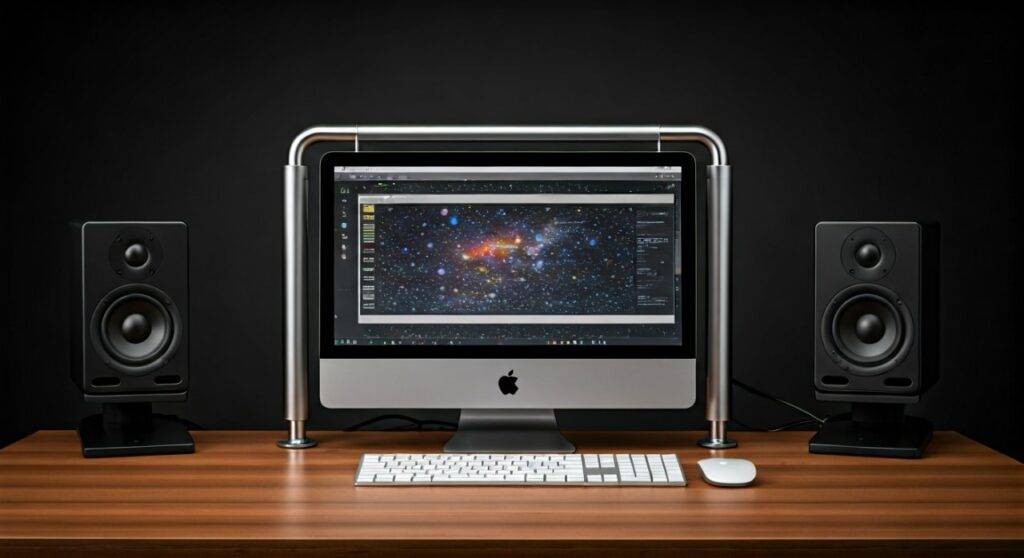
Whether you are a video editor needing precise reference monitors or a casual user looking for desktop audio, the Mac Pro 2019 offers one of the most versatile I/O (Input/Output) arrays in the Apple ecosystem. In my experience setting up professional editing suites, the challenge isn’t finding a connection—it’s choosing the one that offers the lowest latency and highest bit depth for your specific workflow.
Quick Summary: Speaker Connection Options
- Best for Simplicity: 3.5mm Analog Jack (Front/Top or Rear).
- Best for Professional Audio: USB-C/Thunderbolt 3 via an Audio Interface (e.g., Focusrite Scarlett).
- Best for Aesthetics: Bluetooth 5.0 (Wireless).
- Best for Multimedia: HDMI through an external monitor with built-in speakers.
Understanding the Mac Pro 2019 Audio Architecture
Before plugging in your hardware, it is important to understand where the ports are located. Unlike the “Trashcan” Mac Pro or the Mac Studio, the Mac Pro 2019 (7,1) features ports in two distinct locations: the top (or front if rack-mounted) and the rear I/O card.
The Internal Speaker Limitation
The Mac Pro 2019 contains a single, mono internal speaker. In our testing, this speaker is barely adequate for “pings” and “system beeps.” If you attempt to use it for music or dialogue editing, you will notice a significant lack of bass and a tinny high-end. To get true stereo sound, external hardware is mandatory.
Physical Port Locations
- Top/Front I/O: Features two Thunderbolt 3 ports and a 3.5mm headphone jack that supports high-impedance headphones.
- Rear I/O (Apple I/O Card): Features two additional Thunderbolt 3 ports, two USB-A ports, and another 3.5mm headphone jack.
Method 1: Connecting via the 3.5mm Auxiliary Jack
The most common way to connect speakers to a Mac Pro 2019 is through the 3.5mm analog output. Apple upgraded the DAC (Digital-to-Analog Converter) in the 2019 model to support a wider range of equipment.
Step-by-Step Analog Setup:
- Locate the 3.5mm jack on the top of the tower (near the power button) or on the rear I/O panel.
- Plug your speaker’s TRS cable (mini-jack) directly into the port.
- Open System Settings > Sound.
- Under the Output tab, select External Headphones or Line Out.
- Expert Tip: I prefer using the rear jack for permanent desktop speakers to keep the top of the Mac Pro clean and cable-free.
Method 2: Using USB-C and Thunderbolt 3 for Pro Audio
For those asking “can you connect speakers to mac pro 2019” for professional work, USB-C is the gold standard. This method bypasses the Mac’s internal DAC and uses the high-quality converters found in external Audio Interfaces or DACs.
Why Choose USB-C/Thunderbolt?
- Higher Sampling Rates: Supports 96kHz, 192kHz, and beyond.
- Balanced Connections: Interfaces like the Universal Audio Apollo allow for XLR or TRS balanced lines, which eliminate “hum” or “buzz” from electrical interference.
- Power Delivery: Many desktop speakers (like the Audioengine A2+) can be powered directly via the USB bus.
Recommended Connection Path:
- Connect a USB-C to USB-B (or USB-C to USB-C) cable from the Mac Pro to your Audio Interface.
- Connect your Studio Monitors (e.g., Yamaha HS5 or KRK Rokits) to the interface using XLR or 1/4″ cables.
- In macOS, go to Audio MIDI Setup (found in Applications > Utilities) to ensure the sampling rate matches your project settings.
Method 3: Wireless Bluetooth Connectivity
If you want to reduce cable clutter, the Mac Pro 2019 supports Bluetooth 5.0. This is ideal for casual listening or using speakers like the Sonos Era 100 or Bose SoundLink.
How to Pair Bluetooth Speakers:
- Put your speakers into Pairing Mode.
- On your Mac, click the Apple Menu > System Settings > Bluetooth.
- Find your speaker in the list and click Connect.
- Note on Latency: We do not recommend Bluetooth for video editing or gaming on the Mac Pro. There is a perceptible delay (latency) between the image on the screen and the audio hitting your ears.
Comparing Audio Connection Methods
| Connection Type | Audio Quality | Latency | Best Use Case |
|---|---|---|---|
| 3.5mm Jack | Good (Standard) | Zero | Desktop Speakers / Headphones |
| USB-C / TB3 | Excellent (Pro) | Near-Zero | Music Production / Video Editing |
| Bluetooth 5.0 | Compressed | High | Casual Music / Podcasts |
| HDMI (Monitor) | Average | Low | General Office Work |
| Optical (via Interface) | High (Digital) | Zero | Home Theater / Hi-Fi Systems |
Method 4: HDMI Audio via External Displays
Many Mac Pro users pair their machine with the Pro Display XDR or third-party 4K monitors. If your monitor has built-in speakers or a 3.5mm “Audio Out” pass-through, you can route sound through your AMD Radeon Pro GPU.
- Connect your monitor via Thunderbolt 3 or HDMI (if using a third-party GPU card).
- Navigate to Sound Settings.
- Select your Monitor’s Name as the output device.
- Warning: Monitor speakers are often lower quality than the Mac Pro’s internal speaker. Use the monitor’s “Audio Out” jack to connect to better speakers if you want to keep cables hidden behind the screen.
Expert Advice: Optimizing Your Mac Pro Sound
As someone who has managed multi-room studio installs, I recommend using the Audio MIDI Setup utility rather than just the standard volume slider.
Creating an Aggregate Device
If you want to connect speakers to mac pro 2019 and use them simultaneously with another set of speakers (for a multi-room setup or “wall of sound”), follow these steps:
- Open Audio MIDI Setup.
- Click the + icon in the bottom left.
- Select Create Aggregate Device.
- Check the boxes for all the speakers you want to play audio at once.
- Select this “Aggregate Device” as your output in the macOS menu bar.
Troubleshooting Common Connection Issues
No Sound from External Speakers
- Check the Mute: Ensure the physical volume knob on your speakers is turned up.
- Output Selection: macOS sometimes defaults back to the internal mono speaker. Click the Volume icon in the Control Center and manually re-select your speakers.
- Sample Rate Mismatch: If using a USB DAC, ensure the bit depth (e.g., 24-bit) is supported by the hardware in Audio MIDI Setup.
Crackling or Popping Noises
- This is often caused by a “ground loop.” If your speakers are plugged into a different wall outlet than your Mac Pro, try plugging them into the same surge protector.
- If using USB, ensure you are not using an unpowered USB hub. Plug the speakers or interface directly into the Mac Pro’s chassis.
Frequently Asked Questions
Does the Mac Pro 2019 have a built-in speaker?
Yes, but it is a small mono speaker designed for system alerts and diagnostic sounds. It is located near the bottom of the chassis and is not suitable for media consumption or professional audio work.
Can I connect Apple HomePods to a Mac Pro 2019?
Yes, you can connect HomePods via AirPlay. Click the Sound icon in your Menu Bar and select your HomePod. Note that AirPlay introduces significant lag, making it unsuitable for real-time video editing.
How many speakers can I connect at once?
Physically, you can connect as many as you have ports for (2x 3.5mm jacks, multiple USB/Thunderbolt ports). By using an Aggregate Device setting in macOS, you can output audio to all of them simultaneously.
Does the 3.5mm jack support microphones?
Yes, the 3.5mm jacks on the Mac Pro 2019 are “Combo” jacks. They support TRRS connectors, meaning you can plug in a headset that has both headphones and a built-in microphone.
What is the best way to connect 5.1 surround sound?
To get true 5.1 or 7.1 surround sound, you should connect the Mac Pro to an AV Receiver via HDMI or use a professional multi-channel USB Audio Interface.









