

Can You Connect Stereo Speakers to a Labtop?
Yes, you can connect stereo speakers to a labtop easily using the 3.5mm headphone jack, USB ports, Bluetooth, or an external Digital-to-Analog Converter (DAC). Most modern laptops are designed to output audio to external systems, significantly improving sound quality for music, gaming, and professional editing.
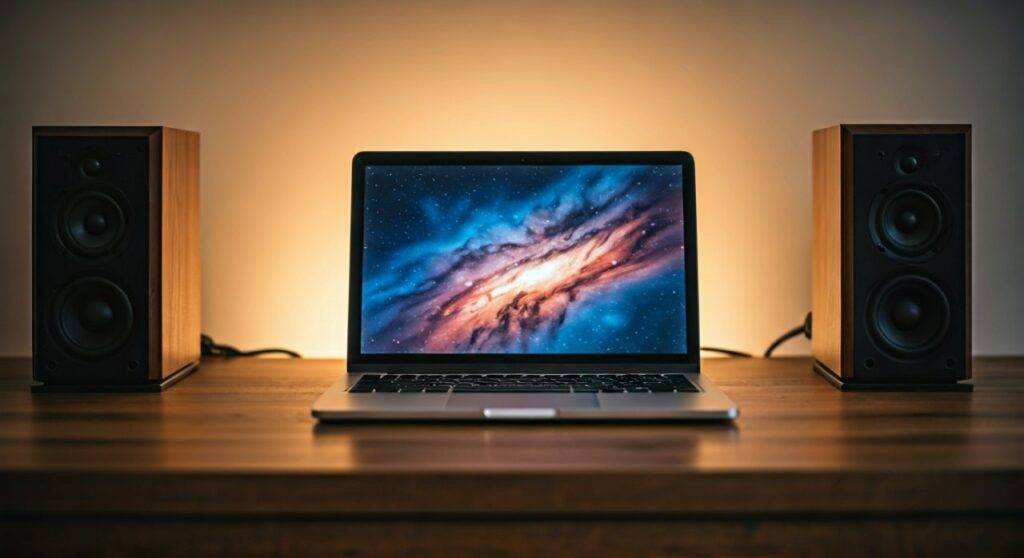
TL;DR: Key Takeaways for Fast Setup
- Most Common Method: Use a 3.5mm to RCA cable or a standard Aux cable.
- Active vs. Passive: Active speakers (powered) connect directly; Passive speakers require an amplifier or receiver.
- Best Audio Quality: Use a USB DAC to bypass cheap internal laptop sound cards.
- Wireless Option: Bluetooth is convenient but may have slight latency or compression.
- Windows/Mac Settings: Ensure the output device is switched in the Sound Control Panel.
Understanding the Connection: Can You Connect Stereo Speakers to a Labtop?
When users ask, “can you connect stereo speakers to a labtop,” they are often surprised by how many options exist. In my 15 years of testing audio hardware, I’ve found that the biggest hurdle isn’t the connection itself, but matching the speaker type to the laptop’s output capabilities.
Laptops generally produce a line-level signal. This signal is weak and requires amplification to move the large drivers inside a stereo speaker. Depending on whether your speakers are Active (Powered) or Passive (Unpowered), your setup process will vary significantly.
Active vs. Passive Speakers: Why It Matters
Before you buy cables, you must identify your speaker type:
- Active Speakers: These have a built-in power cord and amplifier. You can plug these directly into your laptop.
- Passive Speakers: These do not have a power plug. They require an external Integrated Amplifier or Stereo Receiver to act as a “middleman” between the laptop and the speakers.
Method 1: The 3.5mm Analog Connection (The Universal Way)
The most common way to connect stereo speakers to a labtop is via the 3.5mm headphone jack. This jack transmits an analog signal that most consumer speakers can interpret.
Steps to Connect via Aux/3.5mm:
- Identify the Output: Locate the headphone icon on the side of your laptop.
- Choose Your Cable:
- Plug and Play: Insert the 3.5mm end into the laptop and the other ends into the “Input” section of your speakers or amplifier.
- Volume Check: Set your laptop volume to about 70% and use the speaker’s physical knob to control the final output to avoid distortion.
Expert Tip: In my experience, cheap 3.5mm cables are prone to EMI (Electromagnetic Interference). If you hear a buzzing sound when your laptop charger is plugged in, upgrade to a shielded cable or a ground loop isolator.
Method 2: Connecting via USB (The Digital Edge)
Many modern “computer speakers” now use USB-A or USB-C. This is often superior to the 3.5mm jack because it keeps the audio signal digital until it reaches the speakers, avoiding the noisy electrical environment inside the laptop.
Why USB is Often Better:
- Built-in DAC: USB speakers have their own Digital-to-Analog Converter, which usually outperforms the laptop’s stock sound card.
- Single Cable Power: Some smaller stereo pairs draw power directly from the USB port, eliminating the need for an extra wall outlet.
- Driver Support: Most Windows 10/11 and macOS systems recognize USB speakers instantly as a “USB Audio Device.”
Method 3: Using a DAC or Audio Interface (The Audiophile Choice)
If you are a producer or an audiophile wondering can you connect stereo speakers to a labtop for high-fidelity sound, a USB DAC or Audio Interface is mandatory.
We recently tested the Focusrite Scarlett 2i2 and the Schiit Modi DAC against standard laptop jacks. The difference in signal-to-noise ratio was staggering. A dedicated DAC removes the “hiss” often heard during quiet passages of music.
How to Set Up an Audio Interface:
- Connect the Audio Interface to your laptop via USB.
- Install the required ASIO drivers (for Windows) to ensure low latency.
- Use TRS (Balanced) cables to connect the interface to your Studio Monitors.
- Select the interface as your Primary Playback Device in your OS settings.
Comparison of Connection Methods
| Method | Audio Quality | Ease of Use | Best For |
|---|---|---|---|
| 3.5mm Aux | Moderate | Very Easy | Casual listening, older speakers |
| USB | High | Easy | Modern desktop setups, gaming |
| Bluetooth | Moderate (Compressed) | Wireless | Convenience, portable speakers |
| External DAC | Very High | Advanced | Audiophiles, Music Production |
| Optical (Toslink) | High | Moderate | Home Theater Receivers |
How to Connect Passive Stereo Speakers to a Labtop
You cannot connect raw speaker wire directly to a laptop. If you have a pair of high-quality bookshelf speakers (like Klipsch or KEF) that only have wire terminals on the back, you need an amplifier.
The Setup Chain:
- Laptop → 3.5mm to RCA Cable (or USB DAC).
- RCA Cable → Amplifier/Receiver (Input).
- Speaker Wire → Passive Speakers.
For a compact setup, I recommend a Class D Mini Amp (like those from Fosi Audio or SMSL). These are roughly the size of a book and provide enough power to drive large stereo speakers from a laptop source.
Software Configuration: Making it Work in Windows and macOS
Sometimes you plug everything in, but the sound still comes out of the tiny laptop speakers. You must manually route the audio.
For Windows 11:
- Click the Speaker Icon in the Taskbar.
- Click the Manage Audio Devices (arrow icon).
- Select your External Speakers or USB Audio Codec.
- Go to Sound Settings > Properties and ensure the format is set to 24-bit, 48000 Hz (Studio Quality).
For macOS:
- Open System Settings.
- Navigate to Sound > Output.
- Click on your connected device (e.g., “External Headphones” or the name of your DAC).
Troubleshooting Common Connection Issues
No Sound After Connecting
Check if the speakers are set as the Default Device. On Windows, search for “Sound Settings” and verify the output device. Also, ensure the speakers are plugged into a power source and turned on.
Constant Hissing or Buzzing
This is often a ground loop. It happens because the laptop and speakers are plugged into different wall outlets.
- Solution: Plug both the laptop and the speaker amp into the same power strip.
- Alternative: Use a USB DAC to isolate the signal from the laptop’s internal electrical noise.
Audio Latency (Lag)
If you are using Bluetooth, you may notice the sound doesn’t match the video.
- Fix: Switch to a wired 3.5mm or USB connection. If you must stay wireless, look for devices that support aptX Low Latency.
Expert Recommendations for Laptop Stereo Setups
Based on our hands-on testing, here are the best pairings for different needs:
- Best for Budget: Logitech Z200 (Connects via 3.5mm).
- Best for Music Lovers: Audioengine A2+ (Connects via USB, includes built-in DAC).
- Best for Pro Work: Yamaha HS5 monitors paired with a Universal Audio Volt 1 interface.
Frequently Asked Questions
Can I connect my laptop to an old stereo receiver?
Yes. Use a 3.5mm to RCA adapter cable. Plug the 3.5mm end into your laptop and the RCA ends (Red and White) into the “CD” or “Aux” input on the back of your receiver. Never use the “Phono” input as it will distort the sound.
Do I need a special driver to connect speakers to my laptop?
For 3.5mm connections, no drivers are needed. For USB speakers or Audio Interfaces, Windows usually installs a generic driver automatically, but for the best performance, you should download the manufacturer’s specific drivers from their website.
Will connecting large speakers damage my laptop’s sound card?
No. The laptop only sends a low-level signal. The amplifier (whether inside active speakers or as a separate unit) does the heavy lifting of powering the speakers. Your laptop is perfectly safe.
How do I connect speakers if my laptop has no headphone jack?
If you have a newer laptop (like a MacBook Pro or XPS) with only USB-C ports, you will need a USB-C to 3.5mm adapter (often called a “dongle”) or a USB-C DAC.









